
Sinocan P06-U/S/L Bedienungsanleitung

SinocanInternationalTechnologies Co.,Ltd. P06-U/S/LUser’sManual
1
User’s Manual
THERMAL RECEIPT PRINTER
Model: P06-U/S/L
V2.0 2010.05

Sinocan InternationalTechnologies Co.,Ltd. P06-U/S/LUser’sManual
2
Contents
1. General Information
1.1) Main Features .......................................................................3
1.2) P06-U/S/L Series Function List ............................................4
2. Quick Start
2.1) Unpacking & Parts Identification ..........................................5
2.2) Loading the Paper Roll ........................................................6
3. Printer Interface and Connection
3.1) Connecting the Interface Cable.................................................8
3.2) Connecting to a Cash Drawer ..................................................8
3.3) Connecting the AC Adapter ......................................................9
4. Configuration
4.1) Panel LED Indicators ...............................................................10
4.2) DIP Switch Settings ..................................................................10
4.3) Printer Self Test ........................................................................11
4.4) Driver Installation ......................................................................11
5. Safety and Maintenance
5.1) Safety Information ................................................................15
5.2) Periodical Cleaning ..............................................................15
5.3) Preventing Paper Jams ........................................................15
5.4) Fixing Paper Jam ..................................................................16
6. Appendix
- Products Specifications ..............................................................17
- Configuration ..............................................................................19

Sinocan InternationalTechnologies Co.,Ltd. P06-U/S/LUser’sManual
3
1. General Information
1.1) Main Features
1. High speed printing:
z230mm/s maximum print speed.
zLow-noise thermal printing.
zHigh reliability due to a stable mechanism.
2.Application Software:
zCommand protocol is based on ESC/POS standard.
zVarious Layouts are possible by using page mode.
zCharacters can be scaled up to 64 times as large as the standard size.
zSmoothing is also possible.
zRepeated operation and copy printing are possible by using macro definitions.
zCharacter font size (12x24 font or 9x17 font) can be selected using a command.
3. Printer Handling:
zEasy paper-roll installation.
zEquipped with an auto cutter.
zThe printer allows easy maintenance for tasks such as head cleaning.
zTwo different print densities can be selected by DIP switches.
zThe built-in interface provides control capability for one cash drawer.

Sinocan InternationalTechnologies Co.,Ltd. P06-U/S/LUser’sManual
4
1.2) Function List
1. Maximum printing speed 230mm/sec
2. Fully-compatible with EPSON ESC/POS command ( see
command sets for programming reference)
3. Characters can be scaled up to 8 times larger than standard size(*)
4. Support print data in page mode
6. Support Font A (12*24) and Font B (9*17) characters(*)
7. Support NV Image download
8. Three indicator LEDs (POWER,ERROR, and Paper roll out) and One panel button (FEED)
9. Support warning beep sound
10. Support DIP switch to select Chinese/ASCII mode
11. Support printer server printing
12. Support 9600,19200,38400,115200bps baud rate
13. Support print with 90 rotation(*)
Note: (*) items are functions that will affect printing speed
Barcode High-speed Printing Printer identification
Mutiple Connection printing OPOS Driver Various Character Sets
Sinocan InternationalTechnologies Co.,Ltd. P06-U/S/LUser’sManual
5
2. Quick Start
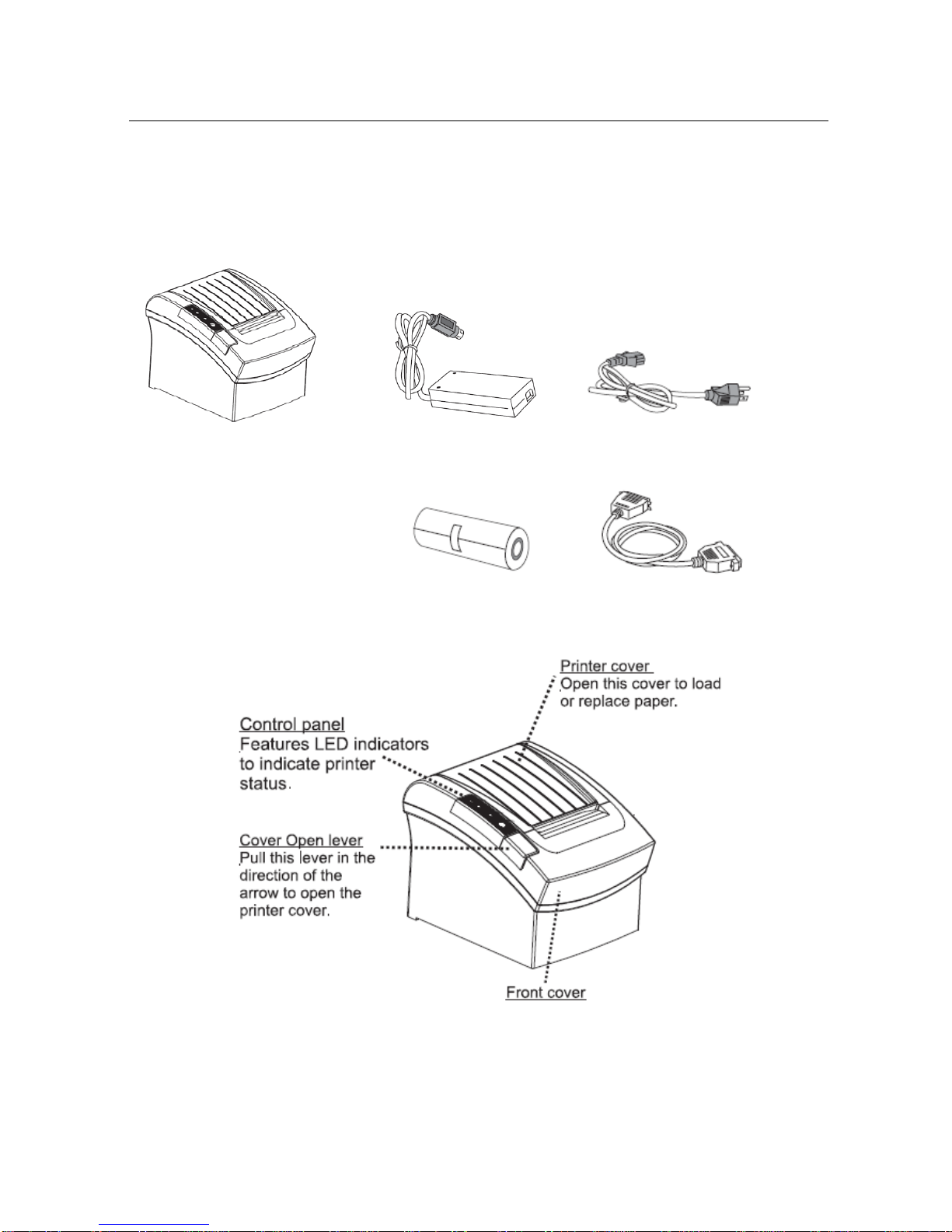
2.1) Unpacking & Parts Identification
a. Unpacking:
PowerAdapter PowerCord
Paper Roll Interface Cable
b. Parts Identification:

Sinocan InternationalTechnologies Co.,Ltd. P06-U/S/LUser’sManual
6
2.2) Loading the Paper Roll
a. Make sure that the paper roll matches the printer specification. Do not use paper rolls that have the
paper glued to the core because the printer cannot detect the paper end correctly.
Important: The printing quality and lifespan of the thermal head cannot be guaranteed if any paper
other than that recommended is used. Thus, the warranty will be void automatically if any fault
occurs due to the use of wrong paper rolls.
b. Open the paper roll cover pressing the cover-open button
Important: Donot pull the cover open lever and open the printer cover during printing is in process.
c. While oberserving the direction of the roll, set the paper roll into the hollow, and pull on the
leading edge of the paper toward you as shown:

Sinocan InternationalTechnologies Co.,Ltd. P06-U/S/LUser’sManual
7
d. Close the cover. When closing the cover, press the center of the printer cover firmly to prevent
paper miss-loading
e. Tear off the paper outside the cover as shown

Sinocan InternationalTechnologies Co.,Ltd. P06-U/S/LUser’sManual
8
3. Printer Interface and Connection
3.1) Connecting the Interface Cable
a. Before connecting/disconnecting the interface cable, make sure that power to the
printer and all the devices connected to the printer is turned on
b. Connect the interface cable to the connector on the rear panel of the printer
c. In the case of a serial interface, tighten the connector screws. In the case of a parallel
interface, fasten the connector clasps
3.2) Connecting to a Cash Drawer
Important: ake sure that the printer is turned off and unplugged from the AC outlet and hat the
computer is turned off before making connections. o not connect a telephone line into the peripheral
drive connectors. Failure to bserve this may result in damage to the printer.
Plug the cable connector securely
into the printer’s interface connectorAttach the other end of the cable to
the computer

Sinocan InternationalTechnologies Co.,Ltd. P06-U/S/LUser’sManual
9
3.3) Connecting the AC Adapter
a. Connect the AC power cord to the inlet of AC adapter, and then connect the power cord plug to a
suitable electrical outlet
b. Connect the adapter cable to power connector of printer, make sure the printer power switch is
OFF before making any connections
c. Set the power switch as shown. The POWER lamp on the control panle will light up.

Sinocan InternationalTechnologies Co.,Ltd. P06-U/S/LUser’sManual
10
4. Configuration
Printer Control Panel & Status Indicator
4.1) Panel LED Indicators
1. Power ( POWER) LED: Green
On: Power is stable
Off: Power is not stable
2. Error( ERROR) LED: Red
On: Off line (except during paper
feeding using the FEED button and
test printing, and the error state.)
Off: Normal condition
3. Paper roll end (PAPER OUT) LED: Red
On: The paper roll near end is detected.
Off: Paper is loaded (Normal condition).
4.2) DIP Switch Settings
The DIP switch panel is locating at bottom of the printer as shown:
DIP Switch Functions:
Switch Function ON OFF Default
SW-1 Select cutter No Yes OFF
SW-2 Select beeper Yes No OFF
SW-3 Print density Dark Light OFF
SW-4 Two-bite character code No Yes OFF
SW-5 Character per line 42 48 OFF
SW-6 Reserve OFF
SW-7 Selecr baud rate OFF
SW-8 Select baud rate OFF
Dieses Handbuch passt für folgende Modelle
3
Inhaltsverzeichnis
Andere Sinocan Drucker Handbücher


