Soloshot Soloshot3 Bedienungsanleitung

YOUR SOLOSHOT3 2
In the Box 2
The Tag 2
The Base and Camera 2
GETTING STARTED 3
Assembly 3
Charging the Base and Tag 3
Connecting the Base to the Tripod 4
Update and Registration 4-5
LOCATION SETUP 5
Setting up the SOLOSHOT Tripod 5
Safety and Security 6
HOME SCREEN 6
USING THE TRACK APP 7
Begin Tracking 7
Calibrating 8
Tag Manager 8-9
Wearing the Tag 9
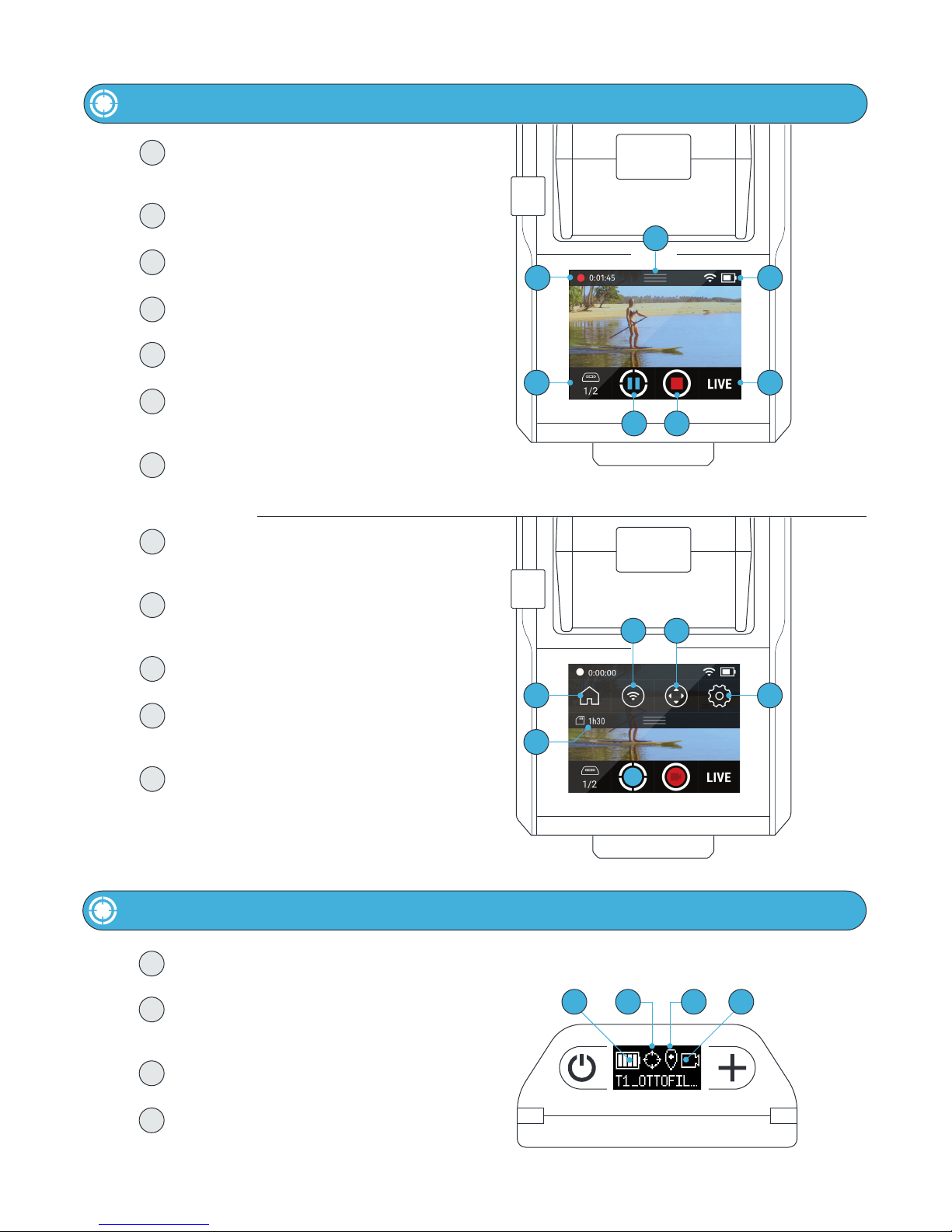
Using the Track App Viewfinder 10
Using the Tag Screen 10
Tracking 11
Recording 11
Live Streaming 12
Moving the Base 13
Tracking Distance 13
ADVANCED TRACKING SETTINGS 13
Track Mode 14
Field of View 14
Framing 14
Trajectory 14
CAMERA SETTINGS 15
Access Camera Settings 15
Video Mode 15
Photo Mode 16
Taking Photos 16
MULTI MODE 17
Requirements 17
Filming Multiple TAGS 17
from a Single BASE
Filming a single TAG 18
from Multiple BASES (Angles)
Filming Multiple TAGS 18
from Multiple BASES
MOTION TIME LAPSE (COMIMG SOON) 19
Setting MTL Parameters 19
Setting Start and End Points 19
UPDATE APP 20
Performing a Software Update 20
Tag Update Mode 20
SETTINGS 21
Wi-Fi 21
SD Card 21
Display 21
Battery 21
Date & Time 21
Account 21
About 21
Help 21
Developer Options 21
HDMI OUT 22
AUDIO 22
HOT SHOE MOUNT 22
MAINTENANCE 22
OFFLOADING CONTENT 23
User Manual
with Optic65 and Optic25 Cameras
FOR OUTDOOR TRACKING ONLY unless used in conjunction with the Indoor Tracking Accessory.
Table of Contents

Power Button
OLED Screen
Function Button
Hot Shoe
Mono Mic
3.5 mm Auxiliary Jack
Indicator LED
K-Lock Slot
Accessory Port/Tag Charger
Mini USB Charging Port
+ USB Type A Port
HDMI Out
Micro SD Card Slot
Camera Release Button
Power Button
Touchscreen
3/8” Tripod Mounting Head
OpticX Camera
Tripod ToolTripod Adapter Screw
Mini USB Charging Cord
BaseTag
Armband
1
2
3
USER MANUAL 02 SOLOSHOT.COM
1 2 3
The Tag
In the Box
Your SOLOSHOT3
1
2
3
4
5
6
7
8
9
10
11
12
13
The Base & OpticX Camera
2
4
5
6
7
8
13
3
1
9
10
11
12

USER MANUAL 03 SOLOSHOT.COM
1
Dock the Tag, with buttons facing up,
into the Accessory/Charging Port on
the front of the Base.
Attach the Tag to the Base by first
inserting from the top, as depicted in
the graphic below.
2Docking the Camera
Dock the OpticX Camera to the Base by
guiding it down onto the tilt drum from
above, and then pushing it forward until
it securely clicks into place.
3Powering On
To power on Base, press and hold the
Power Button for 3 seconds.
To power on Tag, press the Power
Button.
Assembly
Charging the Base and Tag
Getting Started
Docking the Tag
!
3
!IMPORTANT
Micro SD Card
Insert an approved Micro SD Card (not
includede into the side of the OpticX
Camera. You will hear a click when fully
inserted.
Your SD card will be completely erased.
Make sure to save any content that you
don’t want erased!
Visit support.soloshot.com for a list of
compatible SD cards.
2
Fully charge the Base and Tag prior to
use. This will take about 4 hours.
Charging time varies based on USB
wall adapter rating.
Charging Time
iINFO
Only the Base & Tag contain batteries
and must be recharged. The Camera
can, but does not need to be connected.
1
Insert the Mini USB Charging Cord into
a USB outlet adapter (not included) and
plug it into the Base.
1.5A to 2.1A outlet adapter is required.
(most tablet charger adapters)
Charging Cord & Adapter
The SOLOSHOT3 must be in an upright
position during device update &
registration, and during general use.
Prevent SOLOSHOT3 from tipping over
when the Camera is connected.
Connect the Base to your Tripod.
(See page 4)
IMPORTANT

USER MANUAL 04 SOLOSHOT.COM
2
!IMPORTANT
1
!IMPORTANT
3
Create an Account Update Tag Registration
Create a SOLOSHOT account at
app.soloshot.com.
Power on the Base and follow the
on-screen instructions to update your
device.
!IMPORTANT
Your SOLOSHOT3 must be upright and
level upon start-up and updating
software.
It’s recommend it be connected to a
tripod during this process.
The screen will be blank for up to one
minute during certain steps of the
update process.
Do not power down device during
update.
After registering your Tags, you are
prompted to select the tracking
preferences of the Tag.
A SOLOSHOT account is required before
setup of your SOLOSHOT3.
Preparing your SOLOSHOT3
Update and Registration
1 32
For the best results, we recommend
mounting the Base on a Tripod with a
3/8” mounting screw.
If you already have a pan/tilt head on
your tripod, please remove it prior to
connecting your Base.
If your tripod only has a ¼” screw, use
the provided Tripod Adapter Screw.
Connecting the Base to the Tripod
Hand tighten the Base onto your tripod
until you feel light resistance from the
panning motor. Avoid excessive
manual panning and tilting of the Base
motors by hand.
Use the provided Tripod Tool to finish
tightening.
Tripod Adapter Screw Connecting Using the Tripod Tool
!
For the best experience, use a sturdy
tripod. Visit soloshot.com to purchase a
recommended tripod.
IMPORTANT

i
!IMPORTANT Setting up the SOLOSHOT Tripod
4
i
iTag Preference: Auto Track Tag Preference: Ask To Track Registration
Location and Tripod Setup
When the Tag is turned on and within
range of the Base, the Base will
automatically track this Tag.
This is the default setting.
When the Tag is turned on and within
range of the Base, the Tag will need to
be toggled on within the Tag Manager.
Tags that are toggled off will not be
tracked by the Base.
Finish setup by updating and registering
your Base, Tag(s) and Camera to your
SOLOSHOT account, created in Step 1.
To ensure the best filming results:
Level your SOLOSHOT3 using the
bubble level on the Tripod.
Ensure that both the Base and Tag
always have a clear view of the
sky.
Do not bring the Tag and/or Base
inside once powered on.
Do not setup under an overhang,
dense tree canopy, or close to a
building or cliffs.
Open and set up the Tripod by unlocking the Leg Locks
(a) and extending the telescoping legs until the Tripod is
at the desired height.
Lock the Leg Locks.
In windy or otherwise unstable conditions, be sure to
widen the leg stance using the Wide Leg Locks (b).
Tripod Neck Extension:
Extend the Tripod Neck by loosening the Neck Thumb
Screw (c). Tighten Neck Thumb Screw and Leg Locks
when desired height is achieved.
Wide Leg Lock Option:
Use a wider stance if necessary to improve stability or to
account for local topography. For example, in windy or
unstable conditions, or in areas where the Tripod may be
bumped or jostled, you should use a wider stance.
Windy Conditions:
Add a weight to the hook on the bottom of the Tripod
neck and/or widen the leg stance, as outlined above.
a
c
b
USER MANUAL 05 SOLOSHOT.COM
Preparing your SOLOSHOT3
Update and Registration Continued from previous page

i
i
iPage 1 Page 2 Avatar and Username
1!
2
Location K-Lock IMPORTANT
Safety and Security
Home Screen
SOLOSHOT Inc. IS NOT responsible for
theft or damage to your SOLOSHOT3
and it’s accessories.
Avoid using SOLOSHOT3 near high
voltage power lines, radar/radio
jamming equipment, or telecommuni-
cations towers, as this could interfere
with the communication system.
Use the k-lock accessory to secure the
Camera to the Base.
Available at soloshot.com.
Make sure the location you choose for
your SOLOSHOT3 is safe and secure.
Be smart and creative when selecting
your setup location and leaving your
Base and Camera unattended.
Tags: Select Tags that you would like to
track from the Tag Manager.
Track: Start/stop tracking, toggle
record on/off, trigger single photos or
bursts, adjust tracking and camera
settings, quickly manage your Tag(s),
and live stream.
Time Lapse: Capture a series of photos
at preselected intervals. [Coming Soon]
Settings: Manage Wi-Fi, format the SD
card, access current software version
and more.
Update: Install the most recent
software updates on the Base, Tag
and/or Camera. When updates are
available, the user will be notified upon
entering the Update App.
Gallery: Playback your video and
photos on the touchscreen.
[Coming Soon]
Account: Manage your SOLOSHOT
account on the Base.
USER MANUAL 06 SOLOSHOT.COM

32
1Home Screen/Track App Track Button Tracking Action Sheet
!
5
4Track Modes Calibration IMPORTANT
Preparing your SOLOSHOT3
Using the Track App
Within the HOME SCREEN, tap TRACK
to enter the Track App.
Tap the TRACK button.
If “Ask to Track” was selected when
setting up your Tag or no Tag is
detected, follow the onscreen
instructions.
This is the tracking action sheet, which
allows you to either begin tracking, or
change tracking settings.
Select TRACK.
The Base and Camera will spin and tilt
for about one minute as it calibrates the
sensors.
USER MANUAL 07 SOLOSHOT.COM
Select the TRACK MODE that best
matches your activity.
See page 14, Track Mode descriptions
Tap CONTINUE to begin calibrating the
system.
Before beginning your activity, we
recommend that you walk back and
forth in front of the Camera a few
times in the area where you will be
performing your activity. This will allow
the Camera’s smart tracking system to
center you in the screen.
Begin Tracking

iii Successful Calibration Problem Detected Green Indicator LED States
2
1
!REQUIREMENTS
!IMPORTANT
Accessing the Tag Manager Selecting Tags
Calibrating
Tag Manager
Calibration may fail due to poor GPS
signal or local magnetic interference. In
this case, follow the on-screen
instructions.
Please be sure to set up your Base in a
location with a clear view of the sky
and away from sources of magnetic
interference.
See page 5, LOCATION SETUP
SOLOSHOT3 is designed to track
subjects outside a 10 ft. radius.
If the subject is inside this radius,
tracking may not work properly.
Once calibration is successful, your
Base will automatically begin tracking
the selected Tag(s).
Other successful calibration indicators:
The Camera viewfinder appears on
the screen.
The LED at the front of the BASE
blinks green.
If every selected Tag indicates they do
not wish to be tracked, then the Base
will be idle.
LED is highly directional and changes
brightness with distance. If you can see
it, the Base is pointing at you and you
are within range.
Slow Blinking
Base is actively tracking. No problems
detected.
Rapid blinking or No blink
Problem detected. Return to the Base
immediately and resolve the issue via
on-screen instructions.
In order for a Tag to be detected by a
Base, it must be:
Powered on
Have been docked to the Base in
the past
Be within the 2,000-ft. tracking
distance
Have a GPS signal
Select the Tags you want to Track or
pair new Tags by docking them to the
accessory port on the front of the Base.
The TAG MANAGER is accessible in the
following ways.
Home Screen (below)
Track App (See page 9)
USER MANUAL 08 SOLOSHOT.COM
Continue on next page

3
3
2
1
i
i
Tag Icon to Tag Manager Tag Manager: Session Tag Manager: All
Snapping In Hear the “Click” Buttons Up
This list shows a history of every Tag
that has ever been docked onto the
Base, even if they do not meet the
pre-requisites.
This allows you to view and manage
your history of Tag, including the ability
to forget Tags.
This list comprises of Tags that the
Base is currently tracking, meets the
pre-requisites to be tracked, or has been
tracked in the current session.
The list starts out empty until a Tag
meets the pre-requisites. Tags remain in
the list until the Base has been turned
off, but will remain in the ALL list.
Always wear the Tag with buttons
facing upward.
Snap the Tag into the Armband Clip
with the button side aligned with the
clip window.
You will hear a distinct click when Tag
is in place.
Check the alignment and adjust if
necessary.
USER MANUAL 09 SOLOSHOT.COM
Tapping the Tag Icon will take you to the
Tag Manager.
Tag Manager
Wearing the Tag
Continued from previous page
i
Below the Tag Icon are two numbers.
The numerator (1st number) shows how
many Tags are currently being tracked.
The denominator (2nd number) shows
how many Tags are paired, in range, and
available to be tracked.
The Numbers

Tag Manager
Displays how many Tags are being tracked.
Tap to navigate to the Tag Manager.
Track
Start or stop tracking.
Record
Start or stop recording.
LIVE
Start or stop live streaming.
Status Bar
Displays Wi-Fi strength and battery level.
Pulldown Menu
Access the home screen, Wi-Fi,
camera controls, and settings.
SD Card Indicator
Available SD Card Space and record time
Pulldown Window
SD Card Storage Space
Displays how much recording time or
number of photos remain.
Home
Exits the Track App, ends tracking/recording
and takes you back to the Home Screen.
Wi-Fi
Opens WiFi settings.
Refine
Allows you to manually adjust the framing
of the the subject in the viewfinder.
Settings
Opens the Settings window, allowing
you to change camera mode and
tracking settings.
6
9
8
Using the Tag Screen
Battery Level
Displays the remaining battery level.
Tracking Status
Displays whether the TAG would like
to be tracked.
GPS Status
Displays the status of the TAG’s GPS signal.
Record
Displays if TAG would like to be recorded.
12
1110
5
7
32
1
1
2
3
4
1
2
3
4
5
6
7
8
9
10
11
12
4
234
1
USER MANUAL 10 SOLOSHOT.COM
Using the Viewfinder
Andere Handbücher für Soloshot3
1
Inhaltsverzeichnis
Andere Soloshot Kamerazubehör Handbücher


