If your service provider does not offer telephone service, or if you are
not connecting a telephone to the SOMAport, go to step 5 to connect
your computer.
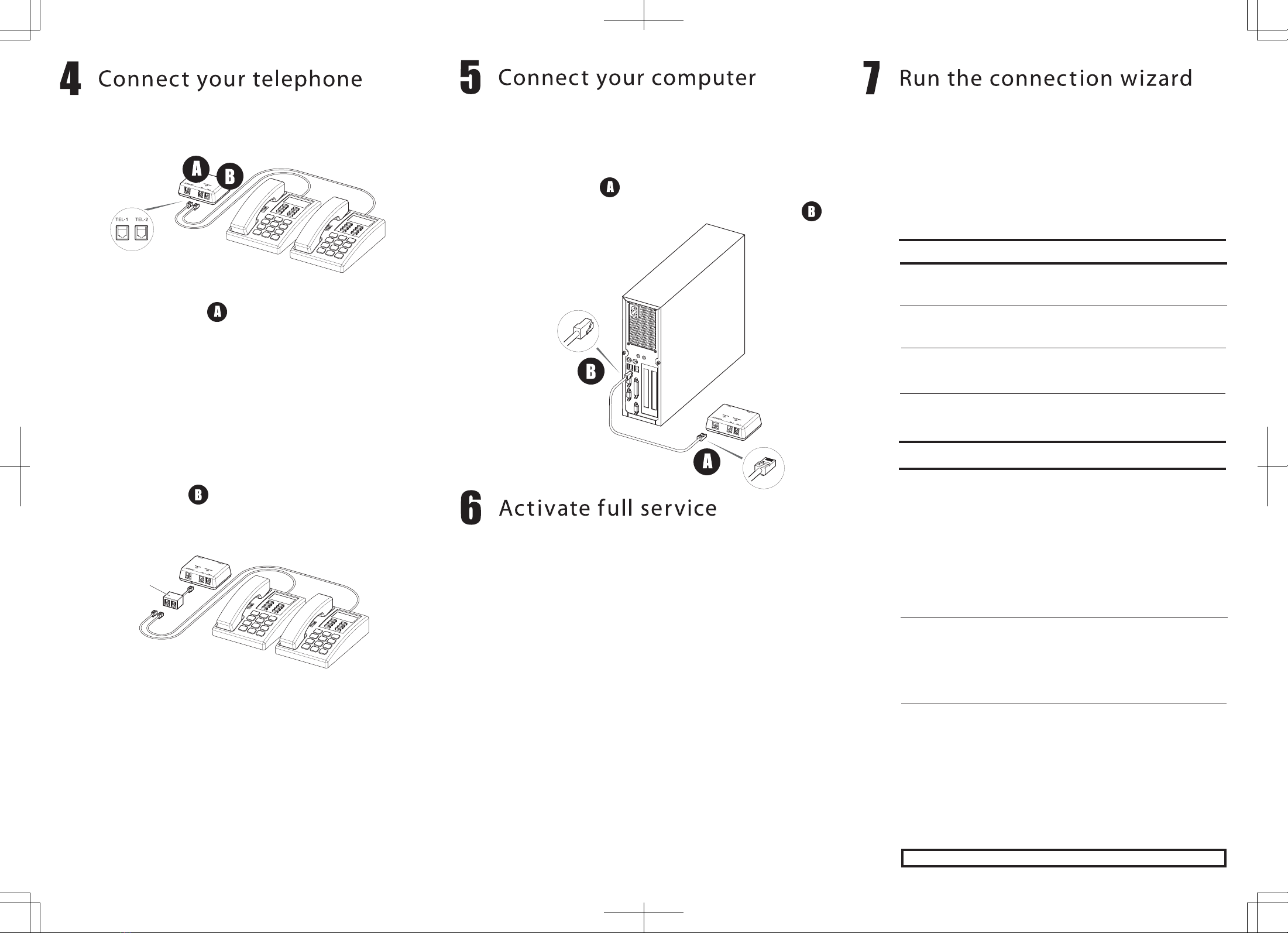
1Insert the telephone cord into the left jack (TEL-1) on the side
of the SOMAport.
If your telephone service includes one telephone line only,
you must use this jack.
If your telephone service includes two telephone lines, the
telephone you connect to this jack will be serviced by
TEL-1.
2To connect a second telephone, do one of the following:
If your telephone service includes two telephone lines,
insert the cord of the second telephone into the right jack
(TEL-2).
If your telephone service includes one telephone line only,
you must use a duplex adapter.
3Pick up the handset and listen for a dial tone.
If you hear a series of tones (not a dial tone), the SOMAport
is still booting. Hang up and try again when the status light
turns green.
If you hear silence, make sure the cord is securely
connected to the telephone and the SOMAport. See the
SOMAport Setup Guide for troubleshooting information.
Follow this step if you are using Ethernet. If you want to connect
several computers to the SOMAport via a hub or router see the
SOMAport User Guide.
1Insert one end of the Ethernet cable into the Ethernet port on
the SOMAport.
2Insert the other end into the Ethernet port on the computer.
1Restart your computer.
2Launch a Web browser on the computer connected to the
SOMAPort.
3Direct your browser to a known valid Internet address
(such as www.google.com).
If the page opens, full service has already been
activated and you can begin using your SOMAport
for Internet service.
If you are redirected to your service provider’s Web
page, you must complete the sign-up procedure on
the Web site to activate full service.
If you cannot open any Web pages at all:
ψ Go to Step 7 “Run the connection wizard” if you used
Ethernet to connect the computer to the SOMAport.
For information about chaging network settings on Mac OS, see the
SOMAport User Guide.
If your version of Windows 95 does not have the Get on the Internet
option or if you previously had a dial-up connection, you cannot use the
wizard. See the SOMAport User Guide for information about manually
changing network settings.
1Start the Windows Internet Connection Wizard.
2Do the following to complete the Wizard.
3Restart your computer.
4 Launch a Web browser on the computer connected to the
SOMAport and direct the browser to a known valid Internet
address (such as www.google.com)
Version Choose
Windows 95 StartψProgramsψAccessoriesψInternet Tools
ψ
Get on the Internet
Windows StartψProgramsψAccessoriesψ
98/2000ME CommunicationsψInternet Connection Wizard
Windows XP StartψProgramsψAccessoriesψ
CommunicationsψNew Connection Wizard
Version Choose
Windows 1Choose I want to set up my Internet
95/98/ME/ connection manually, or I want to connect
2000 through a local area network (LAN).
2Choose I connect through a local area
netowork.
3Leave all check boxes on the Local area
network Internet configuration window blank.
4Choose No when prompted to set up an
Internet Mail Account.
5Click Finish.
Windows XP 1Choose Connect to the Internet.
2Choose Setup my connection manually.
3Choose Connect using a broadband
connection that is always on.
4Click Finish.
Duplex
Adapter
See the Enduser Product License Agreement in SOMAport Setup Guide.