
Spring Alex DS-10 Bedienungsanleitung

User Manual
Alex™eReader
Model DS-10

Alex™ eReader DS-10
2
Table of Contents
1. Getting Started.....................................................................4
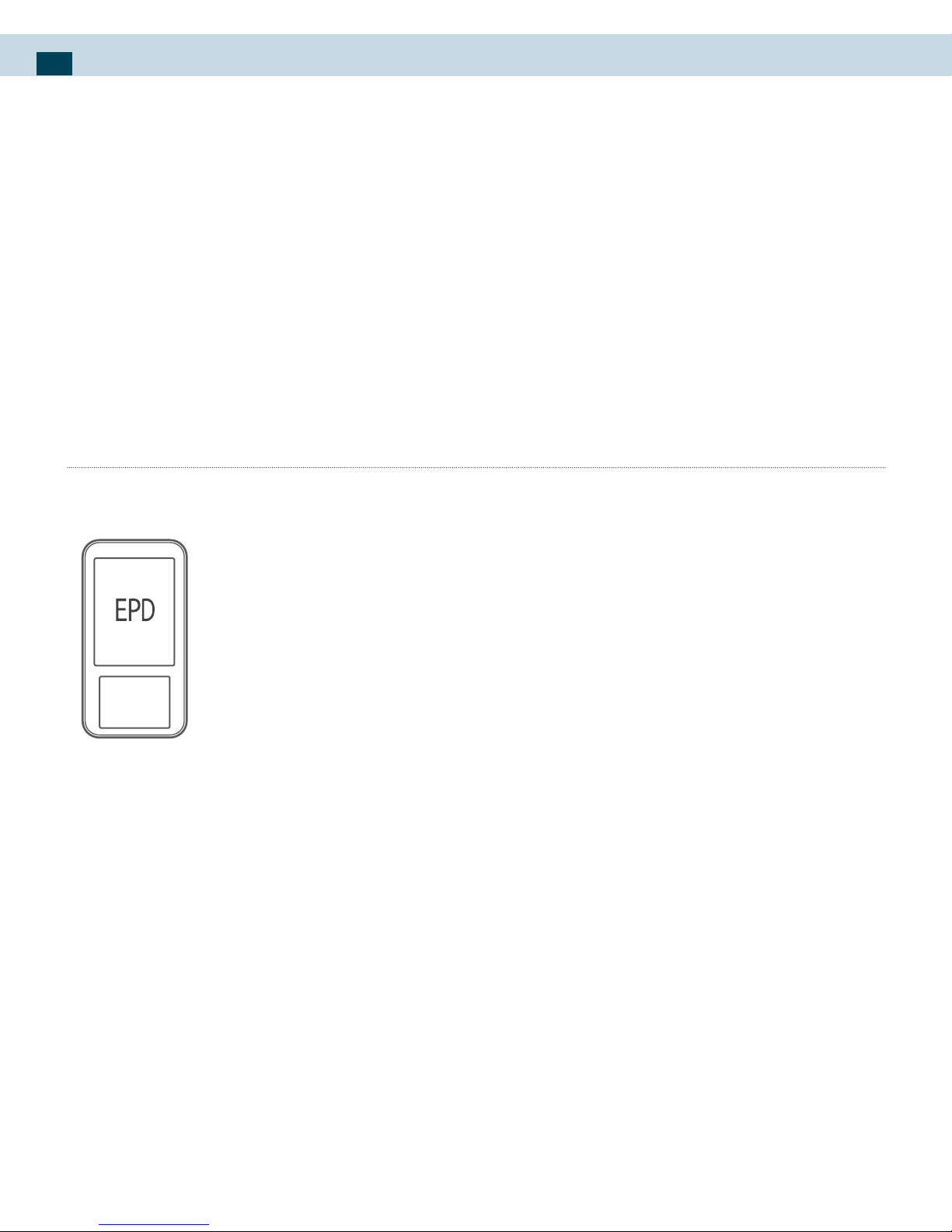
EPD (Electronic Paper Display)....................................................... 4
Front View.............................................................................................. 5
Back View ............................................................................................... 6
Touch screen LCD................................................................................ 7
Button denitions............................................................................... 9
Starting up & Shutting down........................................................10
Using LCD touch screen..................................................................12
Power Saving Features....................................................................13
System Update...................................................................................15
EPD status bar ....................................................................................16
2. Home screen ...................................................................... 17
Customize Home screen wallpaper............................................17
Notication and connection status icons ................................18
Notications panel ...........................................................................19
3. Settings............................................................................... 21
Wireless controls ...............................................................................21
Sound & display.................................................................................24
Security.................................................................................................26
Applications........................................................................................28
MicroSD card & reader storage ....................................................29
Date & time..........................................................................................30
About your Alex eReader...............................................................30
4. Entering Text...................................................................... 33
5. Browser ............................................................................... 36
Opening the Browser.......................................................................36
Browser Usage Modes.....................................................................36
Un-sync mode....................................................................................36
Sync mode...........................................................................................37
General Browsing and Navigating of Web pages..................39

Table of Contents 3
Open pages in separate windows...............................................41
Manage bookmarks .........................................................................44
Links in Web pages...........................................................................46
Additional Menu Options ..............................................................47
Browser settings................................................................................48
6. Email.................................................................................... 52
Add an email account......................................................................52
Use your POP3 and IMAP e-mail account ................................53
Remove an email account .............................................................57
Edit account settings .......................................................................57
Add more email accounts..............................................................58
7. Music ................................................................................... 59
Supported music formats ..............................................................59
Load music onto your MicroSD card..........................................60
Play back music .................................................................................61
Playlists .................................................................................................63
Delete music.......................................................................................65
8. Gallery................................................................................. 66
Load pictures and videos onto your MicroSD card...............66
View your pictures and videos.....................................................67
Zoom and navigate..........................................................................68
Gallery options...................................................................................68
Play slideshow....................................................................................70
Picture settings ..................................................................................70
9. Google Books..................................................................... 72
Search books ......................................................................................72
About this book.................................................................................73
Download books...............................................................................73
10. Calculator ......................................................................... 74
11. Wi-Fi................................................................................... 76
Appendix – Product Safety Warnings ...................................... 77
Alex™ eReader DS-10
4
1. Getting Started
This section reviews all of the physical features of the Alex™
eReader and covers the basics of using the Alex eReader
buttons.
On the front of your Alex eReader are the EPD (Electronic
Paper Display) on top, the LCD (Liquid Crystal Display) on
the bottom, and the navigational buttons. All these features
are described in more detail below.
EPD (Electronic Paper Display)
The Alex eReader uses a revolutionary display technology
called Electronic Paper Display (EPD), which uses electronic
ink technology. It works just as ink on paper does, except
that the ink can be electronically changed so that the single
display can continuously show dynamic information. An
electronic paper display is reective, which means it uses
surrounding light just the way a piece of paper does. You
can see the contents on the display from any angle. And
unlike with most displays, you can read it clearly and com-
fortably even in bright sunlight, without eye strain. Also,
an electronic paper display does not need power to keep
and show the same content; power is needed only when
the display is updated to show something new. That is why
electronic paper displays are known for their low power
usage, making them ideal for electronic readers.
The Alex eReader uses a state-of-the-art 6” monochrome
EPD with 16 gray levels. The page ash you see when you
turn a page is a unique characteristic of the technology and
is completely normal.

1. Getting Started 5
Sync/Unsync
EPD and LCD
Screens
Headphone Jack
Next Page/Menu
Options
Power/
LCD On/O
Previous Page
Charging Indicator
USB Port
Back/Home
EPD
Electronic
Paper Display
Front View
LCD
Liquid Crystal
Display

Alex™ eReader DS-10
6
Label
Speaker
MicroSD
Memory Card Slot
Reset
Speaker
Back View

1. Getting Started 7
Touch Screen LCD
The Alex eReader has a 3.5” full color, touch screen LCD.
The touch screen LCD allows you to interact with the Alex
eReader in natural and instinctive ways with the touch
of your nger, like many other mobile devices, such as
smart phones. The LCD also allows you to enjoy colorful
multimedia content, something that is impossible to do on
other electronic readers. The Alex eReader brings together
the comfort and eciency of reading on the EPD with
the responsiveness of navigating on the LCD. This is the
fundamental dierence between Alex and other electronic
readers.
Button Denitions
Note
The buttons on the Alex eReader are used in two ways: “press” and
“long press.” To press a button, simply push the button and release
it. To long press a button, press and hold it for three seconds, then
release it.
POWER button
Press POWER buttonto turn on your Alex eReader.
Pressto turn o the LCD and put your Alex in power-sav-
ing reading mode.
Pressto turn on the LCD if your Alex has been in power-
saving reading mode.
To turn on Screen Lock mode, which locks all the control but-
tons and LCD screen from accidental touch activation, long
press . From the menu that opens, select Screen lock. Alex
then goes to sleep and a screen image appears on the EPD
display.
LCD

Alex™ eReader DS-10
8
Pressto wake up your Alex from Screen Lock mode, and
then long press to unlock the screen (if the unlock pattern
has not been set).
To turn your Alex eReader completely o, long press. From
the menu that opens, select Power o. Powering o is not
necessary.
Tip
Your Alex automatically turns on Screen Lock mode after ve min-
utes if you are not using it. To wake up your Alex eReader from
Screen Lock mode, press to wake up the screen and long press
to unlock the screen (if the unlock pattern has not been set).
BACK button
Pressto go back to the previous LCD screen, or to dismiss a
dialog box or menu.
Long pressto return to the Home screen from any applica-
tion.
SYNC/UNSYNC button
Press this button to synchronize or unsynchronize the con-
tents between the LCD and the EPD.
PREVIOUS PAGE button
Pressto go to the previous page in your reading material
on the EPD. This button is used for EPD control only and can
work in power-saving reading mode.
NEXT PAGE button
Pressto go to the next page in your reading material on
the EPD. This button can work in power-saving reading mode.
Long pressto display the Menu for the application you are

1. Getting Started 9
using on the LCD touch screen. The Menu appears at the bot-
tom of the screen. To hide the menu, long press again.
Charge Indicator light
An LED light on the Alex eReader indicates charging status:
Solid red Battery is charging
Solid green Battery is fully charged (while USB charging
cable is connected)
No light USB charging cable is not connected
USB port
Plug in the included USB cable to transfer content between
your computer and your Alex eReader. Your Alex will also
accept a small trickle charge over the USB that may extend
your battery life if your computer’s USB port or powered
USB hub provides power.
Headphone Jack
Plug in headphones to listen to an audiobook or back-
ground music. Attaching headphones turns o the speaker.
RESET button
Press this button to reset your Alex eReader. Alex will take a
few minutes to restart. You should not normally need to use
this button.
Speaker
The speaker allows you to listen to audiobooks or back-
ground music. Attaching headphones turns o the speaker.

Alex™ eReader DS-10
10
Starting Up
Press to turn on your
Alex eReader.
At start up, the LCD dis-
plays Alex logo, as shown
on the right, while the
system is loading. Alex is starting up. Please wait...
Home Screen
After start up, Alex Home
screen shows on the LCD,
as in the following illus-
tration.
Inhaltsverzeichnis
Beliebte E-Book-Reader Handbücher anderer Marken

Denver
Denver EBO-500 Bedienungsanleitung

Orbit Research
Orbit Research Reader 20 Bedienungsanleitung

Amazon
Amazon Kindle Kindle 1 Bedienungsanleitung

Franklin
Franklin DFC-3015 Bedienungsanleitung

IEI Technology
IEI Technology AFL2-EM-RFID-KIT Bedienungsanleitung

Pocketbook
Pocketbook РВ 903 Bedienungsanleitung


