
Stonesoft StoneGate FW-5000 Series Bedienungsanleitung

Appliance Installation Guide
FW-5000 Series

2
Legal Information
End-User License Agreement
The use of the products described in these materials is subject to the then current end-user license
agreement, which can be found at the Stonesoft website:
www.stonesoft.com/en/support/eula.html
Third Party Licenses
The StoneGate software includes several open source or third-party software packages. The appropriate
software licensing information for those products at the Stonesoft website:
www.stonesoft.com/en/support/third_party_licenses.html
U.S. Government Acquisitions
If Licensee is acquiring the Software, including accompanying documentation on behalf of the U.S.
Government, the following provisions apply. If the Software is supplied to the Department of Defense
(“DoD”), the Software is subject to “Restricted Rights”, as that term is defined in the DOD Supplement to
the Federal Acquisition Regulations (“DFAR”) in paragraph 252.227-7013(c) (1). If the Software is supplied
to any unit or agency of the United States Government other than DOD, the Government’s rights in the
Software will be as defined in paragraph 52.227-19(c) (2) of the Federal Acquisition Regulations (“FAR”).
Use, duplication, reproduction or disclosure by the Government is subject to such restrictions or successor
provisions.
Product Export Restrictions
The products described in this document are subject to export control under the laws of Finland and the
European Council Regulation (EC) N:o 1334/2000 of 22 June 2000 setting up a Community regime for the
control of exports of dual-use items and technology (as amended). Thus, the export of this Stonesoft
software in any manner is restricted and requires a license by the relevant authorities.
General Terms and Conditions of Support and Maintenance Services
The support and maintenance services for the products described in these materials are provided pursuant
to the general terms for support and maintenance services and the related service description, which can be
found at the Stonesoft website:
www.stonesoft.com/en/support/view_support_offering/terms/
Replacement Service
The instructions for replacement service can be found at the Stonesoft website:
www.stonesoft.com/en/support/view_support_offering/return_material_authorization/
Hardware Warranty
The appliances described in these materials have a limited hardware warranty. The terms of the hardware
warranty can be found at the Stonesoft website:
www.stonesoft.com/en/support/view_support_offering/warranty_service/
Trademarks and Patents
The products described in these materials are protected by one or more of the following European and US
patents: European Patent Nos. 1065844, 1189410, 1231538, 1259028, 1271283, 1289183, 1289202,
1304849, 1313290, 1326393, 1379046, 1330095, 131711, 1317937 and 1443729 and US Patent
Nos. 6,650,621; 6 856 621; 6,885,633; 6,912,200; 6,996,573; 7,099,284; 7,127,739; 7,130,266;
7,130,305; 7,146,421; 7,162,737; 7,234,166; 7,260,843; 7,280,540; 7,302,480; 7,386,525;
7,406,534; 7,461,401; 7,721,084; and 7,739,727 and may be protected by other EU, US, or other
patents, or pending applications. Stonesoft, the Stonesoft logo and StoneGate, are all trademarks or
registered trademarks of Stonesoft Corporation. All other trademarks or registered trademarks are property
of their respective owners.
Disclaimer
Although every precaution has been taken to prepare these materials, THESE MATERIALS ARE PROVIDED
"AS-IS" and Stonesoft makes no warranty to the correctness of information and assumes no responsibility
for errors, omissions, or resulting damages from the use of the information contained herein. All IP
addresses in these materials were chosen at random and are used for illustrative purposes only.
Copyright © 2010 Stonesoft Corporation. All rights reserved. All specifications are subject to change.
Revision: SGAIG_5000_20100812
Introduction 3
Introduction
Thank you for choosing Stonesoft’s StoneGate™ appliance. This guide
provides instructions for the initial hardware installation and the
maintenance of the FW-5000-series appliances. See Product
Documentation (page 4) for information on other available
documentation.
The use of the appliance is subject to the acceptance of the End User
License Agreement, which can be found at the Stonesoft website.
Contents
Installation Procedure .................. 4
Product Documentation ................ 4
Safety Precautions ....................... 5
Unpacking the Appliance .............. 7
Front Panel .................................. 8
Rack-Mounting............................. 11
Connecting the Cables ................. 17
Initial Configuration ...................... 19
Command-Line Management......... 27
Maintenance Operations............... 28
Ethernet Port Numbering .............. 36
Port Indicators ............................. 44
Disposal Instructions ................... 50
Caution – Read the Safety Precautions (page 5) before you conduct
any installation or maintenance operations on the appliance.
4Installation Procedure
Installation Procedure
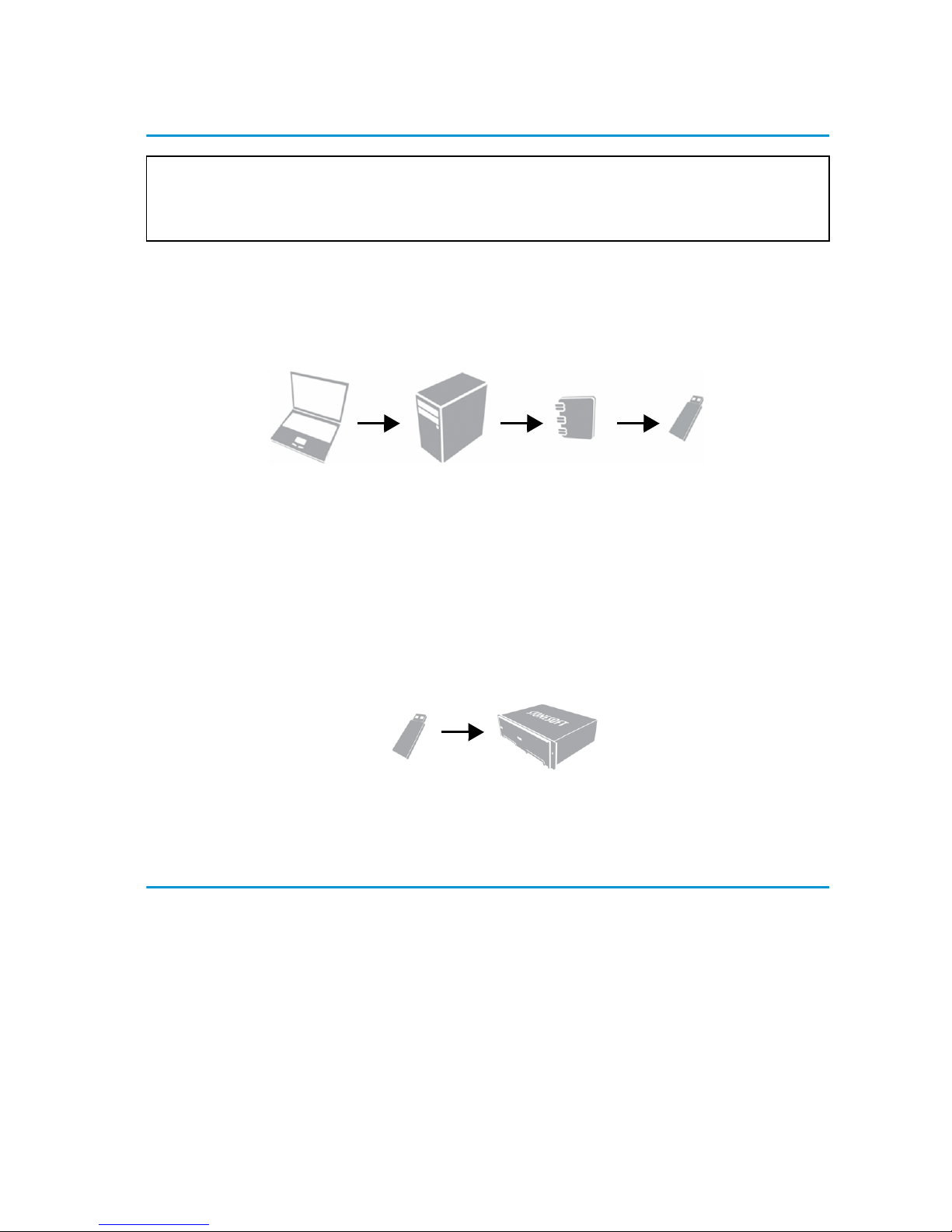
TTo install the appliance
1. Configure the Firewall element in the Management Client, and
save the initial configuration on a USB memory stick. See the
Firewall/VPN Installation Guide.
2. Install the appliance into a rack and connect the cables. See
Connecting the Cables (page 17) and Connecting the Cables
(page 17).
3. Insert the USB memory stick in a USB port on the appliance, and
reboot the appliance to import the initial configuration. See Initial
Configuration (page 19).
Product Documentation
Press F1 in any Management Client window to view the Online Help.
All PDF guides are available:
• On the Management Center CD-ROM (in the Documentation folder)
• At the Stonesoft website at http://www.stonesoft.com/en/support/
technical_support_and_documents/manuals/
Install the free Adobe Reader program to view the PDF documents
(available at www.adobe.com/reader/).
Note – You must have a working Management Center on a separate
server to bring the appliance(s) operational. See the StoneGate
Management Center Installation Guide.
Management
Client
Management
Server
Initial
Configuration
File
USB Memory
Stick
ApplianceUSB Memory
Stick

Safety Precautions 5
Safety Precautions
The following safety information and procedures should be followed
whenever working with electronic equipment.
Electrical Safety Precautions
Basic electrical safety precautions should be followed to protect yourself
from harm and the appliance from damage:
• Be aware of the location of the power on/off switch as well as the
room's emergency power-off switch, disconnection switch, or
electrical outlet. If an electrical accident occurs, you can then quickly
cut power to the system.
• Do not work alone when working with high-voltage components.
• Before removing or installing main system components, be sure to
disconnect the power first. Turn off the system before you disconnect
the power cord.
• Use only one hand when working with powered-on electrical
equipment. This is to avoid making a complete circuit, which will
cause electrical shock. Use extreme caution when using metal tools,
which can easily damage any electrical components or circuit boards
they come into contact with.
• Do not use mats designed to decrease electrostatic discharge as
protection from electrical shock. Instead, use rubber mats that have
been specifically designed as electrical insulators.
• The power supply cord must include a grounding plug and must be
plugged into a grounded electrical outlet. Use only the cord supplied
with the appliance.
• The power cord plug cap that plugs into the AC receptacle on the
power supply must be an IEC 320, sheet C13, type female connector.
• If you have to replace the motherboard battery, install it the same way
as the original battery. Make sure that the positive side faces up on
the motherboard. This battery must be replaced only with the same
or an equivalent type recommended by the manufacturer. Dispose of
used batteries according to the manufacturer's instructions.
• Do not open the enclosures of power supplies or CD-ROM to avoid
injury.

6Safety Precautions
General Safety Precautions
Follow these rules to ensure general safety:
• Keep the area around the appliance clean and free of clutter.
• The appliance weighs approximately 27 kg (60 lbs.) when fully
loaded. When lifting the appliance, two people at either end should
lift slowly with their feet spread out to distribute the weight. Always
keep your back straight and lift with your legs.
• We recommend using a regulating uninterruptible power supply (UPS)
to protect the device from power surges, voltage spikes and to keep
your system operating in case of a power failure.
ESD Precautions
Electrostatic discharge (ESD) is generated by two objects with different
electrical charges coming into contact with each other. An electrical
discharge is created to neutralize this difference, which can damage
electronic components and printed circuit boards. Use a grounded wrist
strap designed to prevent static discharge.
Laser Precautions
Class 1 Laser Product.
Operating Precautions
Care must be taken to assure that the appliance cover is in place when
the appliance is operating to ensure proper cooling. If this rule is not
strictly followed, the warranty may become void. Do not open the power
supply casing. Power supplies can only be accessed and serviced by a
qualified technician of the manufacturer.
Note – Use a UPS (Uninterruptible Power Supply) in critical
environments with your StoneGate appliance. If after a brief power
outage your StoneGate appliance only partially starts up (for example,
the power light is on, but the NIC LEDs are off and the appliance does
not connect) turn the appliance off for five seconds and then back on.
Caution – Class 3B visible and invisible laser radiation when CD-ROM
drive is open. Avoid exposure to the beam.
Caution – Invisible laser radiation emitted from the end of fiber cable
and from the aperture of the port when no fiber cable is connected.
Do not stare into the beam and avoid direct exposure to the beam.
Unpacking the Appliance 7
Operating and Storage Temperatures
The allowed operating temperature of the appliance is +10...+35ºC. The
allowed storage temperature is -40...+70ºC. Do not operate or store the
appliance in temperatures outside these limits.
Lithium Battery Precautions
Unpacking the Appliance
Inspect the box the appliance was shipped in and note if it was
damaged in any way. If the device itself shows damage, file a damage
claim with the carrier who delivered it.
Do not remove the anti-tamper tapes on any part of the appliance.
Caution – The battery must be replaced by authorized service
personnel only. Danger of explosion if battery is incorrectly replaced.
Replacement battery must be same or equivalent type recommended
by the manufacturer. Used batteries must be discarded according to
the manufacturer’s instructions. Short-circuiting the battery may heat
the battery and cause severe injuries.

8Front Panel
Front Panel
Front Panel With Cover
Front Panel Under the Cover
The front panel has SCA hard drives, a CD-ROM drive, and two USB
ports. There are two more USB ports on the back of the appliance. See
Connecting the Cables (page 17). The front panel also has six LED
indicators and three buttons, which are explained below.
Power Indicator
Buttons
LED Indicators
USB Ports
CD-ROM Drive
SCA Hard Drives

Front Panel 9
Front Panel Indicators
The front panel has six LED indicators in the upper right corner. The
LEDs provide you with critical information related to different parts of the
system.
Table 1 Front Panel LEDs
Indicates that there is no power being supplied to a
redundant power supply or that a power supply is not
operating correctly.
Indicates an overheat condition in the appliance. This
may be caused by cables obstructing the airflow in the
system or the ambient room temperature being too warm.
Indicates traffic on the onboard LAN2 Ethernet interface
(check the port number on the back panel).
Indicates traffic on the onboard LAN1 Ethernet interface
(check the port number on the back panel).
Indicates hard drive activity when flashing.
Indicates power is being supplied to the system's power
supply unit. This LED is illuminated when the system is
operating normally.
10 Front Panel
Front Panel Buttons
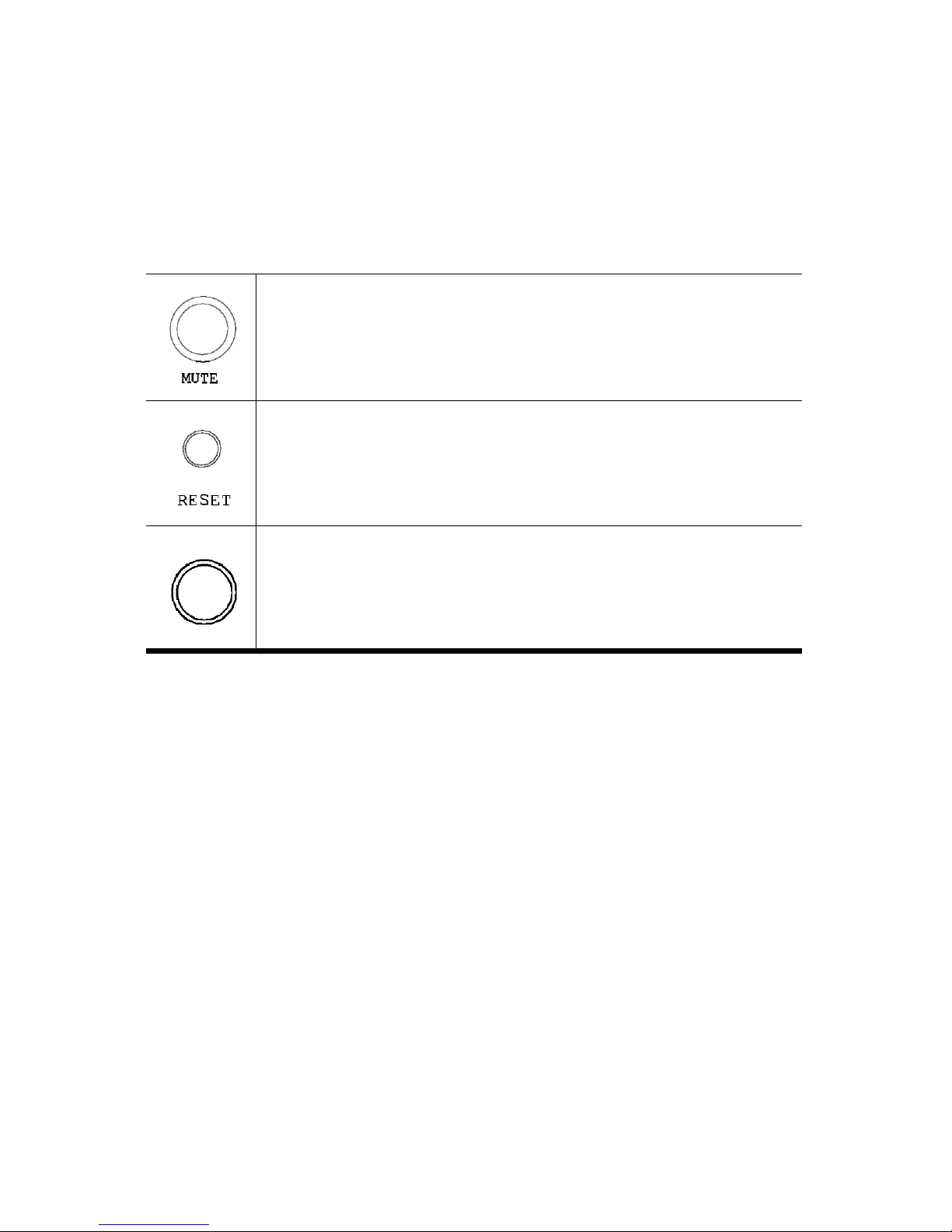
There are three push-buttons in the upper right corner of the front panel.
Do not press them if the appliance is online (processing traffic) and
operating normally.
Table 2 Front panel buttons
This button is not currently used.
This is the reset button, which reboots the system.
Use the button only if it is not possible to reboot using
either the Management Client or command line
command.
This is the main power button, which is used to turn
on/off the main system power. Turning off the
appliance keeps standby power supplied to the
system.
Inhaltsverzeichnis
Andere Stonesoft Firewall Handbücher

Stonesoft
Stonesoft StoneGate SG-250 Bedienungsanleitung

Stonesoft
Stonesoft 3201 Bedienungsanleitung

Stonesoft
Stonesoft StoneGate FW-5105 Bedienungsanleitung

Stonesoft
Stonesoft SSL-3200 Series Bedienungsanleitung

Stonesoft
Stonesoft FW-105 series Bedienungsanleitung

Stonesoft
Stonesoft FW-1030 Bedienungsanleitung

Stonesoft
Stonesoft StoneGate FW-1020 Bedienungsanleitung
Beliebte Firewall Handbücher anderer Marken


Lanner electronics
Lanner electronics FW-7650 Series Bedienungsanleitung

Swisscom
Swisscom Internet Backup Bedienungsanleitung

SonicWALL
SonicWALL NSa 5700 Bedienungsanleitung

DPtech
DPtech FW1000 SERIES Bedienungsanleitung

FEITIAN
FEITIAN MultiPass FIDO Bedienungsanleitung

EBLOCKER
EBLOCKER PRO Bedienungsanleitung