Swann swads 150dcm Bedienungsanleitung

1
Ultra Dashcam
with Smartphone app control
INSTRUCTION MANUAL
EN

2
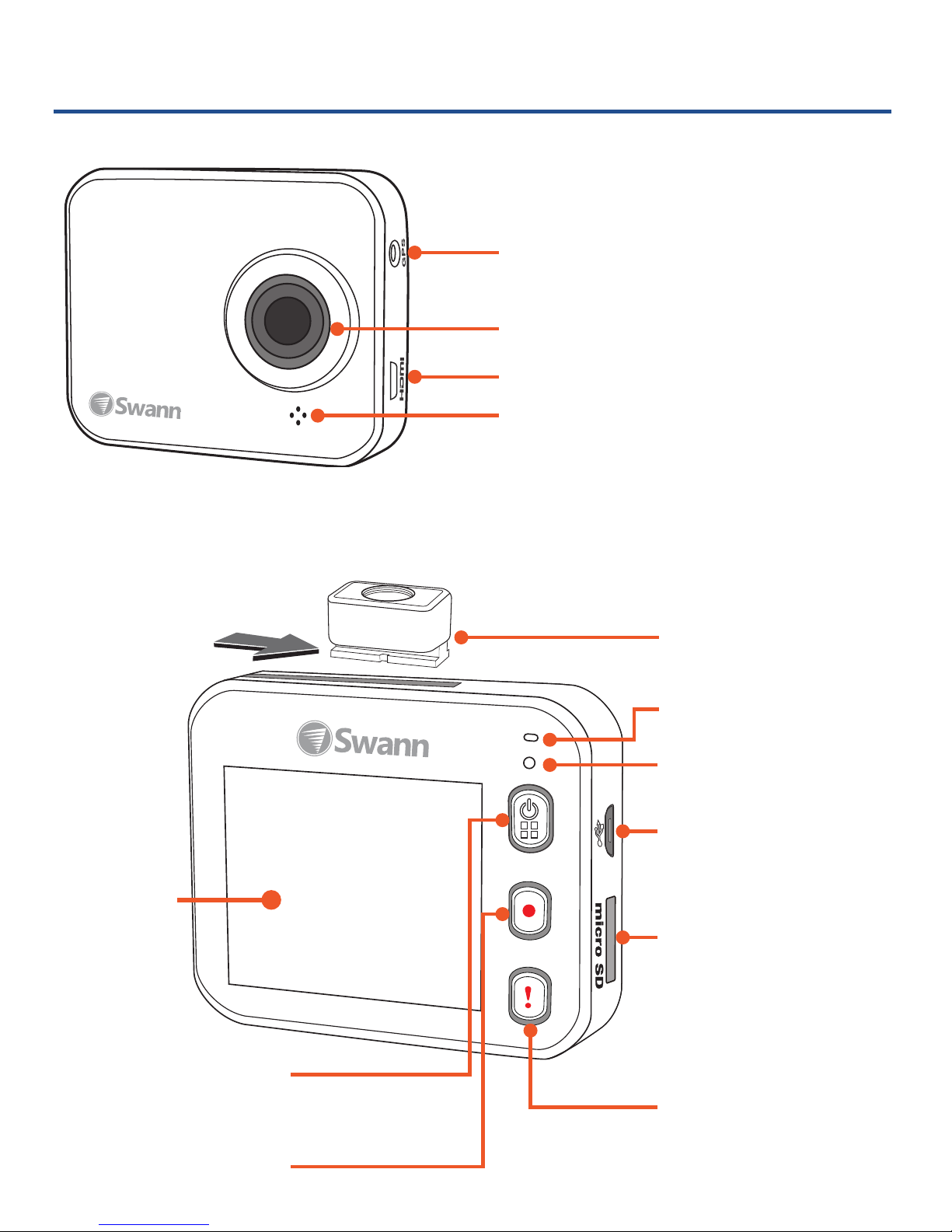
Geng to know the Dashcam
Microphone
GPS Receiver Slot1
Camera Lens
Micro HDMI Port2
Speaker
1 For future applicaon
2 Requires Micro HDMI to HDMI
cable (not supplied)
Status Light
LCD
Screen
Tripod Mount
Micro USB Port
Power/
Menu Buon
Record Buon
MicroSD Slot
Emergency
Record Buon

3
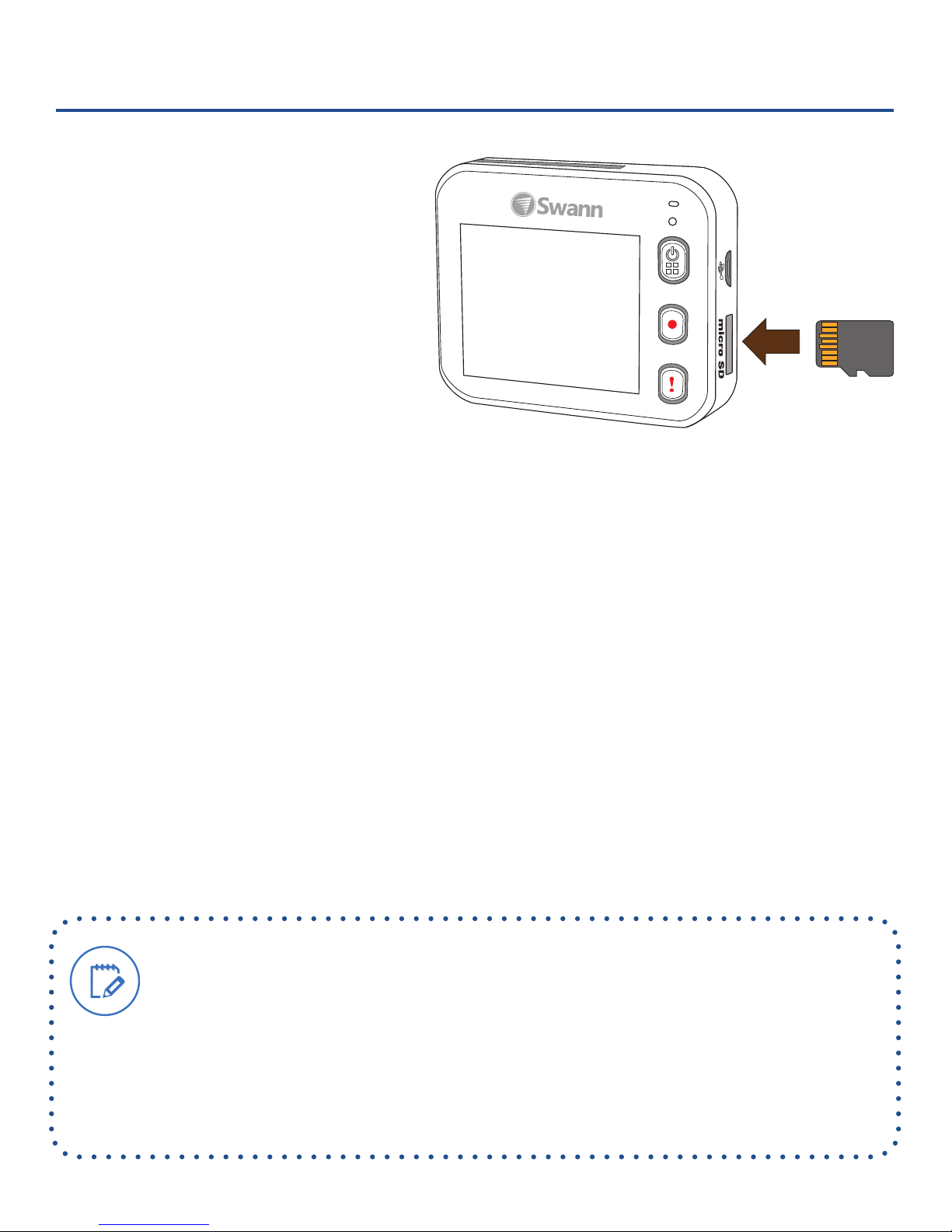
Inserng a MicroSD memory card
Before you can record
and store videos on
the Dashcam, insert a
MicroSD memory card
into the MicroSD slot as
shown in the picture on
the right.
The Dashcam supports MicroSD cards of up to 64GB
in capacity. To ensure smooth performance and plenty
of room for recording long journeys, we recommend
using a memory card that is rated class 4 or higher,
with at least 8GB in capacity.
Note: We do not guarantee compablity with MicroSD
cards from all manufacturers. Only use good quality
MicroSD cards from reliable sources.
Format the MicroSD card before using it with
the Dashcam. Formang ensures the MicroSD
card can record properly. To format the
MicroSD card on the Dashcam, go to Menu >
Sengs > Format SD Card.

4
Mounng the Dashcam
You can aach the Dashcam to your car’s
windshield with the included sucon cup mount.
Consider carefully where to aach the sucon cup
mount in your car. The mount should not block
your view of the road, interfere with the mirror or
controls, or obstruct the airbag.
1. Fit the included tripod mount into the sucon
cup base by rotang clockwise unl the tripod
mount is secured ghtly.
2. Remove the clear protecve lm from the
sucon cup.
3. Press the sucon cup against the windshield,
and then push the locking lever all the way
down towards the sucon cup to lock into place.
4. Slide the Dashcam onto the tripod mount.
5. Connect the Dashcam to power - see
“Connecng the Dashcam”.
When adjusng viewing angle, aim the
Dashcam slightly towards ground with less
sky in view. This helps reduce lens glare
when your car is facing the sun.

5
Connecng the Dashcam
You can power and charge the Dashcam using the
included USB cable and car charger.
Simply plug the car charger into your car’s power
outlet (or somemes called a cigaree lighter
socket in older vehicles), and then connect the car
charger to the Micro USB port on the side of the
Dashcam with the USB cable. Once you start the car
engine, the Dashcam will be powered and charged
automacally.
Note: The USB cable provided is a “charge only”
cable. If you want to transfer les from the Micro
SD card to your computer via a USB cable, you will
need to supply your own USB cable that is
capable of data transfer.
When the Dashcam is charging, the icon appears
at the top right of the screen. If the Dashcam is o,
the status light blinks orange to indicate that it’s
charging.
You can also charge the Dashcam by connecng
it to a USB port on your PC.

6
Operang Basics
Turning On and O
• When the Dashcam is connected to the car charger,
starng your car engine will automacally turn it on
and begin recording.
• When you stop your car engine, the Dashcam will
prompt you whether to connue or stop recording.
If you don’t select any opon within 10 seconds,
the Dashcam will automacally save the current
recording and shut down.
• To manually turn on, press the
buon.
• To manually turn o, press and hold the
buon.
Navigang the Menu
• To access the Dashcam’s menu, press the
buon.
Please note that you cannot access the menu while
the Dashcam is recording. You will need to stop
recording rst by pressing the buon.
• To move through sengs, press the buon.
• To adjust a seng, press the buon.
• To exit the menu, press the
buon.

7
Menu Sengs
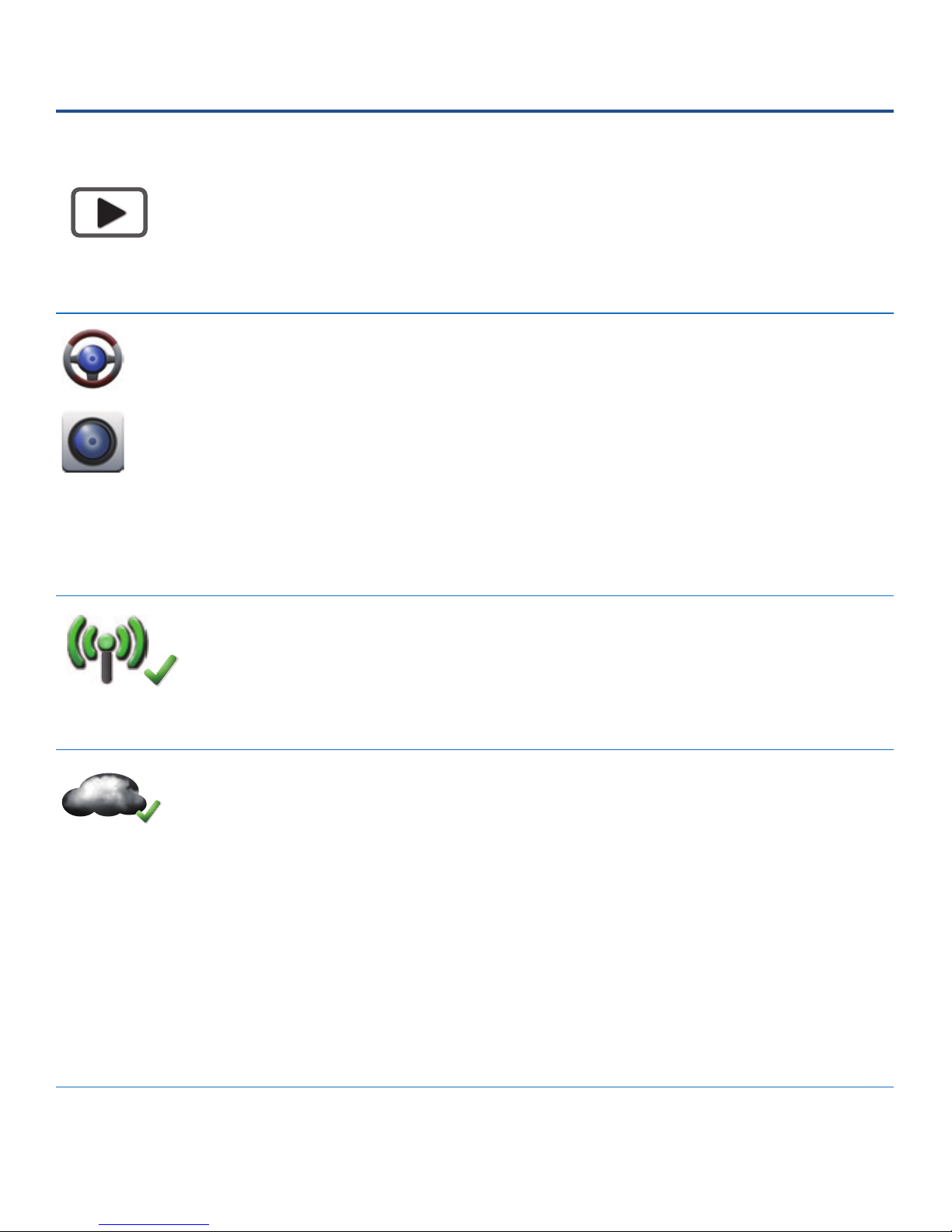
Playback Lets you play and delete recordings
captured in either the Acon Cam or
Dash Cam recording mode.
Dash Cam
Action Cam
Lets you switch between Acon Cam
and Dash Cam modes. The Acon
Cam mode is great for recording
HD video footages of your various
adventures in any length (memory
space dependent).
WiFi - Local
Lets you turn on or o the Dashcam’s
built-in Wi-Fi.
WiFi - Cloud
Lets you turn on or o Cloud mode
on the Dashcam.
Note: Before you can use Cloud
mode, you must congure wireless
Internet connecon sengs for the
Dashcam via the “DriveEye Ultra
App” - see “Internet Sengs”.

8
Menu Sengs
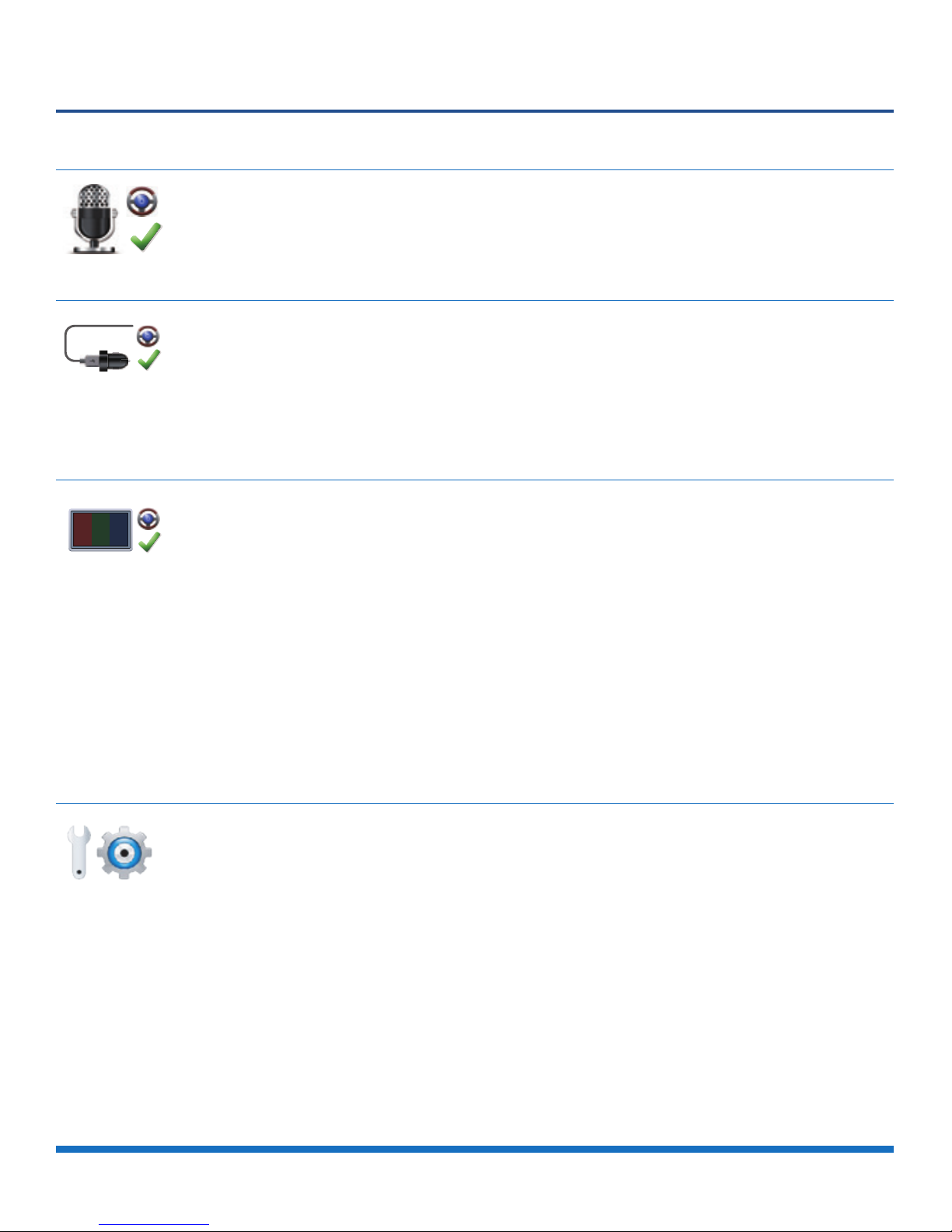
Voice Record
Dash Cam mode only. You can
select whether to record audio with
the microphone.
Auto REC
Auto Record
Dash Cam mode only. You can
select whether to begin recording
automacally upon your car engine
starng.
60 SEC
OFF
Screen Auto O
Dash Cam mode only. You can
save baery power by turning o
the LCD screen aer 60 seconds
of no buon presses. If there is a
recording going on, it will connue
in the background. To turn the
screen back on, simply press any
buon.
Sengs
Lets you format the MicroSD
memory card or restore factory
default sengs. By default, storage
space is split 50/50 between the
Acon Cam and Dash Cam modes.
You can change this allocaon via
the “DriveEye Ultra App” - see
“Camcorder Sengs”.

9
Recording Videos while Driving
• The Dashcam records videos in 3 minute clips and
saves them consecuvely as les on the microSD
memory card.
• Press the
buon to turn audio recording o or
on.
• If there is not enough space on your memory card
during an ongoing recording, the Dashcam will
record over the oldest les already stored on your
memory card rst.
• To manually stop an ongoing recording, press the
buon. Press again to start a new recording.
• The Dashcam’s built-in gyro sensor can detect
sudden impacts such as accidental crashes. If an
impact occurs, the Dashcam acvates emergency
event recording; it immediately stores 30 seconds
of video prior to impact and records for another 30
seconds.
• You can also manually acvate an emergency
recording by pressing the buon.
• To preserve crical evidence, emergency recordings
are locked and cannot be overwrien by any other
type of recordings. They must be deleted manually.

10
DriveEye Ultra App
Install the free DriveEye Ultra app and take control
of your Dashcam from your iPhone or Android
smartphone.
The DriveEye Ultra app gives you complete and total
access to the Dashcam - see what the Dashcam sees,
record, playback videos,
customize sengs and more.
To download the app, simply
search for “DriveEye Ultra”,
from the respecve Apple
App Store and Google Play
Store.
Once you have the app on your mobile device, learn
how to create a connecon between your mobile
device and the Dashcam - see “Mobile Device Setup”.
Inhaltsverzeichnis