Targus Noteworthy Bedienungsanleitung

DVD-ROM

TARGUS Noteworthy DVD-ROM
2
Warning!
All rights reserved. The products named in this manual are only used
for identification purposes and may be trademarks or registered
trademarks of the respective companies. This device was designed
for home or office use.
Warning! This device is equipment according to EN55022 class A. This
equipment can cause radio disturbances in a residential area. If this
is the case, the user has to take appropriate measures and assume all
responsibility and costs. It may not be used near or with any life-
sustaining systems.
The manufacturer is not liable for any damages that may occur from
the use of a TARGUS Noteworthy DVD-ROM system. All rights reser-
ved. We reserve the right to make changes as technology requires.
FEDERAL COMMUNICATIONS COMMISSION - DECLARATION OF CONFORMITY
This equiqment has been tested and found to comply with the limits for a Class B digital device,
pursuant to part 15 of the FCC Rules, and RS 210 Regulations (Canada). These limits are designed
to provide reasonable protection against harmful interference in a residential area. This equiqment
generates, uses, and can radiate radio frequency energy and if, not installed and used in accordance
with the instructions, may cause harmful interference to radio communications. However, there is
no guarantee that interference will not occur in a particular installation. If this equipment does
cause harmful interference to radio or television reception, which can be determined by running
the equipment off and on, the user is encouraged to try to correct the interference by one or more
of the following measures:
• Reorient or relocate the receiving antenna.
• Increase separation between the equipment and receiver.
• Connect the equipment to an outlet on a circuit different from that to which the receiver is
connected.
• Consult the dealer or an experienced radio technician for help.

3
User’s manual
General Information ............................................ page 4
Safety measures and operating hints ................. page 5
CHAPTER 1:
Hardware installation .......................................... page 6
CHAPTER 2:
Device description ................................................. page 7
CHAPTER 3:
Driver installation
under Windows 95 ............................................ page 8
under Windows 98 ............................................ page 10
under Windows ME ........................................... page 13
under Windows 2000 / Windows XP ................ page 16
under Windows NT 4.0 ...................................... page 20
under DOS, Windows 3.x .................................. page 21
CHAPTER 4:
Daily use of the
TARGUS Noteworthy DVD-ROM .......................... page 24
CHAPTER 5:
Reference Section .................................................. page 25
Technical Support .................................................. page 26
Specifications of the
TARGUS Noteworthy DVD-ROM .......................... page 27
Table of Contents

TARGUS Noteworthy DVD-ROM
4
System Requirements:
Hardware Requirements
• 486DX PC or higher
• 8 MB RAM or higher, depending on the operating system
• floppy disk drive and a hard disk
• PCMCIA Card interface (type II or higher)
Operating System Requirements
• DOS
• Windows 95/98/ME
• Windows 2000
• Windows XP
• Windows NT 4.0 (DVD Movie Playback is not possible under
the NT operating system)
Media Formats
The TARGUS Noteworthy DVD-ROM reads formats according
following CD and/or DVD-ROM standards:
• MS-DOS data CD’s (High Sierra, Mode 1 & Mode 2 complying
with ISO 9660)
• Data – CDs‘ (Joliet)
• CD ROM XA
• Mixed Mode CD’s
• Kodak Photo CD’s (single and multisession)
• UDF (Universal Disc Format)
• Audio CD’s
• DVD-ROM
• DVD-R, CDI, CD-Midi, CD-R, CD-RW

5
Contents
The contents of the TARGUS Noteworthy DVD-ROM includes:
• TARGUS Noteworthy DVD-ROM drive
• a manual
• PC Card connection cable
• Drive disk
Safety measures and operating hints
• The tray of the media can be opened in the following
modes:
- You can use the eject button when the notebook is
powered on and the drive is connected.
- If the drive is disconnected or the notebook is powered
off, you can use the emergency eject button to eject a
disk.
• The TARGUS Noteworthy DVD can be operated in either
upright or horizontal state. It should not be moved during
operation.
• Storage drives should not be used in extreme temperatures
conditions. The environment specifications while operating
are 50-113°F (10-45°C).
• After transporting the device, especially in low
temperatures, allow the TARGUS Noteworthy DVD unit to
reach room temperature before operating.
• The TARGUS Noteworthy DVD should not be used in dusty
or humid surroundings.
• There may be a delay while the drive is spinning up before
you can play an audio DVD or read a data DVD.
Safety:
• Never attempt to disassemble, adjust or repair the
DVD-ROM drive as exposure to laser light or other
safety hazards may result.
• This is a Class 1 Laser Product. This product complies
with all applicable safety standards, DHHS Rules 21
CFR Chapter 1, Subchapter J. The laser beam generated
is totally enclosed during all modes of normal
operation, and no hazardous laser light is emitted
from the drive.
General

TARGUS Noteworthy DVD-ROM
6
CHAPTER 1: Hardware installation
1. Turn off the computer and all attached components.
2. Connect the cable to the drive.
4. Plug the PC Card Cable into any PC Card slot of your
computer.
6. Turn on your computer again.
7. You can now begin installing the software.
"Plug&Play" with the PC Card Cable for Windows 95 /
98 / ME / 2000 / XP
The TARGUS PC Card Cable is Plug & Play compatible. This
means that in Windows 95, 98, ME, 2000 and XP, the card can
be inserted while the computer is powered on.
To remove the card, while the computer is powered on, first
stop the PC Card using the PC Card (PCMCIA) icon.
In Windows NT 4.0 the card must be inserted before the
computer is powered on.
Computer
connection
connection to drive

7
CHAPTER 2: Device description
Please note the following important details:
1. Power supply from the Notebook via PC Card:
The TARGUS Noteworthy DVD-ROM will only receive power
from the notebook’s PC Card slot (2). The notebook PC Card
slot also needs to be in full compliance with the PC Card
specifications and supply a minimum of 5V/1A of power.
An optional AC Adapter is available through TARGUS
online sales.
2. Playing Audio-CDs
You can play audio DVDs on your TARGUS Noteworthy
DVD-ROM by using the DVD Player application in Windows.
To hear the audio you need to connect either headphones
to the Audio OUT jack on the TARGUS Noteworthy DVD-
ROM or an audio cable from the DVD-ROM to the Line In of
your notebook.
3. Emergency eject
If you need to remove a disc when there is no power to the
drive, you can unlock the tray by inserting a bent-open
paper clip, or a similar pointed object, into the emergency
eject hole until you feel resistance (a light touch does it).
When you remove the paper clip, the tray can be opened
manually.
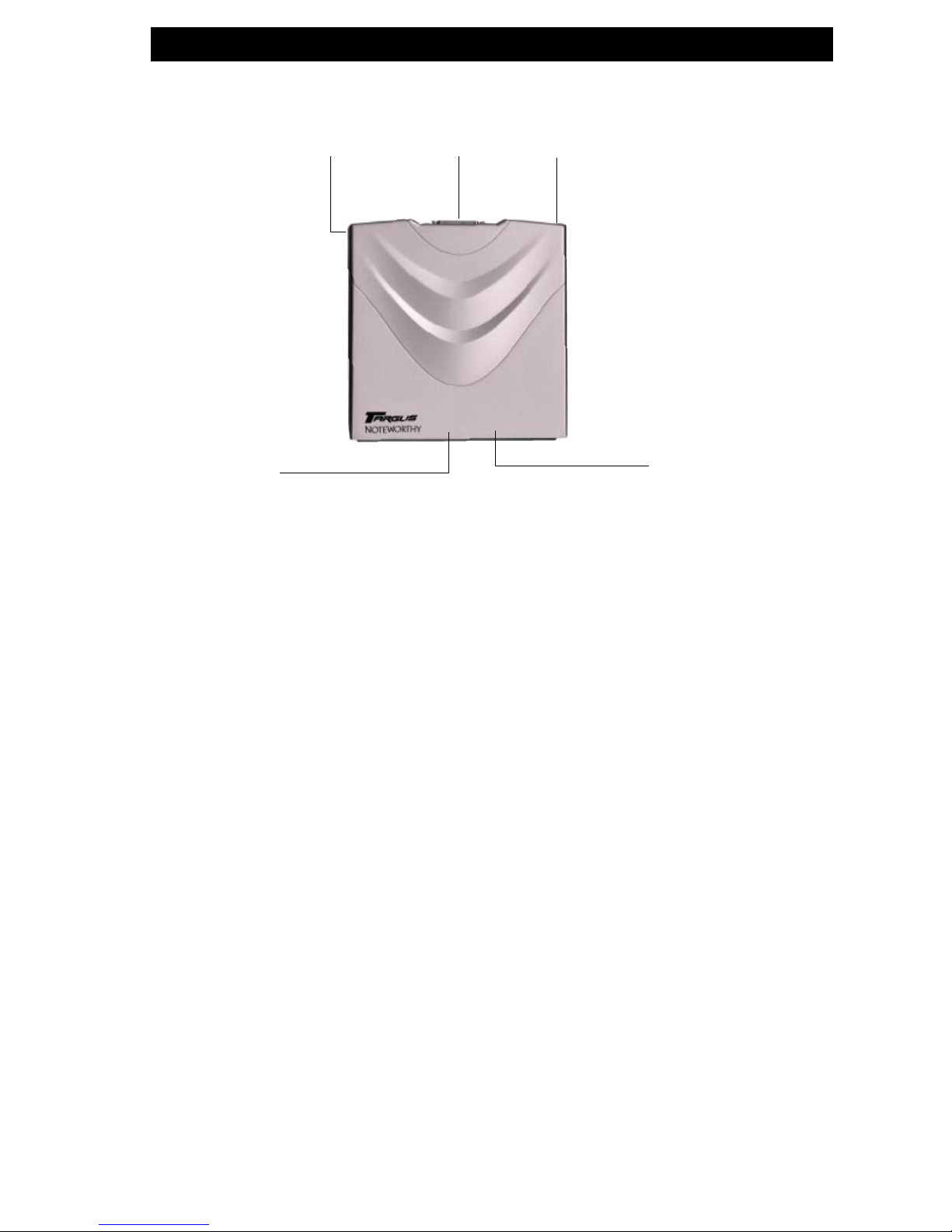
Device description
1 Tray 3 Audio out
2 Emergency eject hole 4 PC Card Cable connection
5 power connection (optional)
1
34
5
2

TARGUS Noteworthy DVD-ROM
8
CHAPTER 3: Driver installation
Depending on your mode of operation for the drive you can
install this DVD using standard Windows drivers or install the
included TARGUS High Speed drivers for Windows 95/98/ME/
2000/XP. We recommend installing the performance drivers
for playing DVD Movies and other DVD Video applications.
Skip to the Performance Driver Installation section to continue.
3.1 Driver installation under Windows 95
No special software is required to install your TARGUS PC Card
Cable. We however recommend using the driver on diskette
that we have enclosed. This has been specially developed and
is faster than the Standard Windows driver.
TARGUS High Speed driver (recommended)
Note: If you are not prompted to install the driver, Windows
will install the default driver automatically. Proceed then as
described in the section on later installation of the TARGUS
High Speed driver.
To install the driver, insert the TARGUS installation diskette in
your PC drive.
1. Plug the TARGUS PC Card Cable into the PCMCIA slot of
your PC.
2. The window "Update Device Driver Wizard" opens. The
TARGUS PC Card Cable is recognized as "Standard IDE/ESDI
Hard Disk Controller".
Confirm with "Next" to continue the installation.
3. The driver is found in the next window. Confirm with
"Finish".
4. The driver is installed from the disk.
5. After restart your TARGUS drive appears under „My Com-
puter“ with a new drive letter.
Uninstalling the TARGUS High Speed driver
To uninstall the TARGUS High Speed driver, select the file
"DriverRemove.exe" on the installation diskette and follow
the on-screen instructions.

9
Driver installation
Windows 95 Default Driver
No special software is required to install your TARGUS PC Card
Cable.
1. Plug the TARGUS PC Card Cable into the PCMCIA slot of
your PC.
2. The window "Update Device Driver Wizard" opens. The
TARGUS PC Card Cable is recognized as "Standard IDE/ESDI
Hard Disk Controller". Confirm with "Next" to continue the
installation.
3. The driver is found in the next window. To install the
Windows default driver, click "Finish".
4. To finish installing the driver, Windows asks you to restart
your computer. After restart your TARGUS drive appears
under "My Computer" with a new drive letter.
Later Installation of the TARGUS High Speed driver
Note: If you are not prompted to install the driver, your system
has automatically installed the Windows default driver for
your TARGUS PC Card Cable.
To install the TARGUS High Speed driver, proceed as follows:
1. Plug the TARGUS PC Card Cable into the PCMCIA slot of
your PC.
2. Open the "Device Manager" by right-clicking on the "My
Computer" icon. A menu opens. Select "Properties" and
click on the "Device Manager" tab.
3. Click on the "+" next to the entry "Hard disk controllers".
4. Double-click on "Standard IDE/ESDI Hard Disk Controller".
5. Open the "Driver" tab. Then click on "Update Driver".
6. The "Update Device Driver Wizard" opens. The default is
selected for searching a better driver than the currently
used (Recommended). Confirm with "Next".
7. Windows automatically detects and installs the TARGUS
High Speed driver from diskette.
8. After completion of the installation, click on "Finish". The
TARGUS High Speed driver is now installed.

TARGUS Noteworthy DVD-ROM
10
3.2 Driver installation under Windows 98
No special software is required to install your TARGUS PC Card
Cable. We however recommend using the driver on diskette
that we have enclosed. This has been specially developed and
is faster than the Standard Windows driver.
TARGUS High Speed driver (recommended)
Note: If you are not prompted to install the driver, Windows
will install the default driver automatically. Proceed then as
described in the section on later installation of the TARGUS
High Speed driver.
To install the driver, insert the TARGUS installation diskette in
your PC drive.
1. Plug the TARGUS PC Card Cable into the PCMCIA slot of
your PC.
2. The window "Hardware Installation Wizard" opens. The
TARGUS PC Card Cable is recognized as "Standard IDE/ESDI
Hard Disk Controller".
3. In the next window the option for finding the best driver
for the device has been selected. Confirm with "Next".
4. In the next window select the floppy drive to install the
driver. Click on "Next".
5. The driver is loaded from the diskette. Click on "Next" to
continue the installation.
6. In the next window click on "Next" to confirm the
installation.
7. After completion of the installation, click on "Finish". Your
TARGUS drive appears with a new drive letter under "My
Computer". The installation is then complete.
Inhaltsverzeichnis
Andere Targus DVD-Laufwerk Handbücher

Targus
Targus PACMB010U Bedienungsanleitung

Targus
Targus Slim External Drive Bedienungsanleitung

Targus
Targus NOTEWORTHY 400-0084-001A Bedienungsanleitung

Targus
Targus USB 2.0 DVD/CD-ROM Slim External Drive Bedienungsanleitung

Targus
Targus Slim External Drive Bedienungsanleitung

Targus
Targus DVD-ROM Bedienungsanleitung

Targus
Targus DVD+/-RW Slim External Drive Bedienungsanleitung