Tekxon Technology K3 Bedienungsanleitung

Digital Camera K3
USER MANUAL

2

1
Table of contents
Thank you for choosing our product. Please read the manual carefully to make best use of all
functions of the product and to guarantee a long service life. Please store the manual in a
safe place for later reference.
Table of contents................................................................ 1
1Contents of package....................................................... 3
2Introduction...................................................................... 4
2.1 Product properties................................................................................................... 4
2.2 Five operating modes ............................................................................................. 4
3Getting started................................................................. 5
3.1 Parts of your camera............................................................................................... 5
3.2 Inserting the batteries ............................................................................................. 6
3.3 Inserting and removing the SD/MMC card.............................................................. 7
3.4 Attaching the carrying strap .................................................................................... 8
4Basic operation................................................................ 9
4.1 Switching the camera on and off............................................................................. 9
4.2 Using the mode buttons ........................................................................................ 10
4.3 Taking photographs .............................................................................................. 11
4.3.1 LCD descriptions display.............................................................................................. 11
4.3.2 Snapshot ....................................................................................................................... 12
4.4 Recording audio.................................................................................................... 13
4.5 Making video clips................................................................................................. 15
4.5.1 LCD descriptions .......................................................................................................... 15
4.5.2 Making a video clip ....................................................................................................... 15
4.6 Playing images, audio and videos ........................................................................ 16
4.6.1 LCD descriptions .......................................................................................................... 16
4.6.2 Viewing photos, videos and listening to sound recordings........................................ 16
4.7 Deleting photos ..................................................................................................... 18
5Advanced operation...................................................... 19
5.1 Using the flash ...................................................................................................... 19
5.2 Using direct access buttons .................................................................................. 19
5.3 Changing menu options ........................................................................................ 20
5.4 List of menu options.............................................................................................. 21
5.5 Exposure compensation ....................................................................................... 23
5.6 Selecting a language ............................................................................................ 23
5.7 Setting the image resolution ................................................................................. 24
5.8 Setting image quality............................................................................................. 24
5.9 Setting image effects ............................................................................................ 24
5.10 Setting the driver................................................................................................... 25
5.11 Protecting photos against accidental deletion ...................................................... 26
5.12 Viewing images on a television set ....................................................................... 26
5.13 Setting the date and time ...................................................................................... 27
5.14 Setting the LOGO ................................................................................................. 28
6Installing the software................................................... 29

2
6.1 Supported operating systems ................................................................................29
6.2 Installing the driver.................................................................................................29
6.2.1 Installing the driver in MASS mode..............................................................................29
6.2.2 Installing the driver in TWAIN mode ............................................................................31
7Transferring files to your PC........................................32
8Specifications ................................................................33
9Memory requirement.....................................................34
10 Troubleshooting.......................................................35
11 Further information..................................................36
11.1 Safety instructions .................................................................................................36
11.2 Maintenance and care ...........................................................................................36
11.3 Photo tips ...............................................................................................................36
11.4 Battery tips .............................................................................................................37

3
1 Contents of package
Please ensure that the following items are included in the box:
1x digital camera
1x user manual
2x AAA batteries
1x USB cable
1x audio cable
1x CD-ROM (driver and application software)
1x carrying case
1x wrist strap

4
2 Introduction
This product is a digital imaging device with an integrated digital camera, digital video
recorder, digital audio recorder and PC camera. It allows you to take digital photographs and
videos, make voice recordings or use it as a webcam.
2.1 Product properties
•High resolution photographs, various resolutions can be selected, interpolated output.
•Images can be saved internally or externally.
•High-sensitivity wide-angle flash, three flash modes can be selected.
•Colour TFT LCD monitor for viewing menus and images.
•Three photography modes: single image, self-timer and burst
•TV output: NTS C or PAL
•digital sound recording
•Simple user interface
•Individual start interface for convenient operation
•Special picture effects such as conversion to black and white or nostalgic images
•Fast data transfer thanks to mini-USB connector
•Automatic shutdown conserves batteries
2.2 Five operating modes
•Still image mode – for taking digital images/photographs
•Video mode – for taking high-quality videos with sound
•Recording mode – for sound recordings
•Play mode – for watching/listening to all recordings
•Configuration mode – for setting the operating parameters

5
3 Getting started
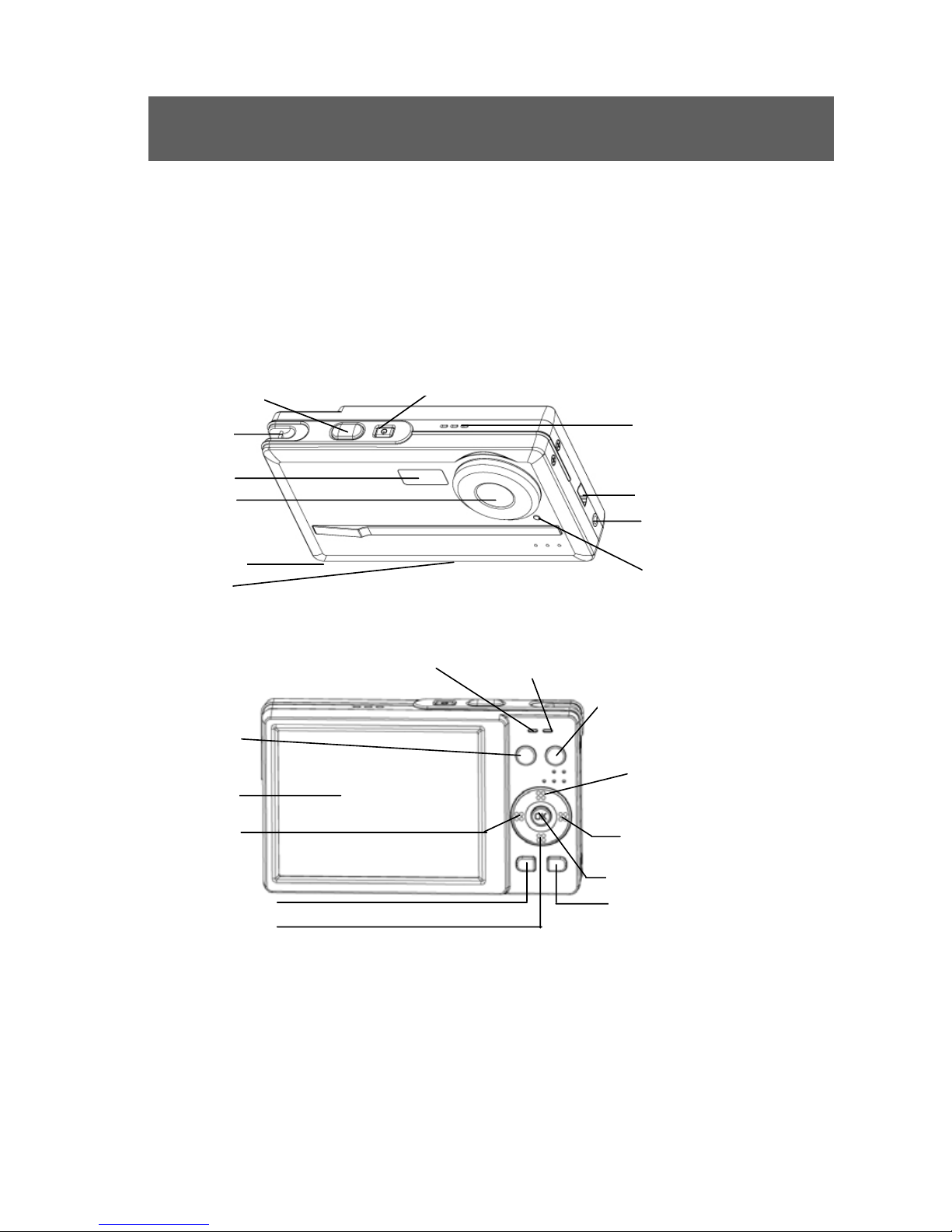
3.1 Parts of your camera
Familiarise yourself with the parts of your camera before use. That makes it easier to operate
the camera.
Operating status
Flash status
indicator
LCD
Menu button LCD on/of
f
Photo/Video/
Sound
recordingcon
-figuration
button
Play mode button
Up button
Right button
Confirm button
Down button
Left button
Shutter release On/off button
TV output
Microphone
USB terminal
Strap eye
Indicator of
self-timer
Flash
Lens
Battery slot
Card slot

6
3.2 Inserting the batteries
Use two AAA (micro) batteries.
1 Push the cover of the battery
compartment in the direction
indicated to open the compartment.
2 Open the cover of the battery
compartment.
3 Insert the batteries into the battery
compartment and ensure that the
polarity is correct. Close the cover of
the battery compartment by closing it
over and pushing it back into place.
1. We recommend that you use rechargeable 1.2V NiMH batteries as they have a
longer battery life.
2. You can also use 1.5V alkaline batteries.
See the “Battery tips” section on page 38 for details on the battery life.

7
3.3 Inserting and removing the SD/MMC card
You can use SD or MMC cards to increase the memory capacity. Switch off the camera
before inserting the card. Insert the card as follows (photographs, sound and video recordings
are no longer
stored in the internal memory, but stored on the card).
Inserting the card
1 Open the cover of the card slot.
2 Insert the card in the card slot until it
locks into place.
3 Close the cover of the card slot.
Removing the card
Open the cover of the card slot. Press the card downwards briefly to unlock it. Remove or
change the card and close the card slot cover again.

8
3.4 Attaching the carrying strap
Attach the carrying strap for your convenience and for safety reasons.
1 Pass the loop of the
carrying strap through the
eye as shown in the
illustration.
2 Pull the other end of the
carrying strap through the
loop of the thin cord and
pull the carrying strap tight.
Caution
1. Do not hang the camera around your neck using the carrying strap to
avoid danger. This applies to children in particular.
2. When carrying the camera on the strap, ensure that you do not hit
the camera against anything.
3. When attaching the carrying strap, place the camera on a solid
surface to ensure that it cannot fall down and be damaged.
Inhaltsverzeichnis
Andere Tekxon Technology Digitalkamera Handbücher