
TI TI-89 Kurzanleitung

8/13/02 © 2002 Texas Instruments
TI-89/TI-92 Plus/Voyage™ 200
NoteFolio™
Getting Started
What is the NoteFolio Application?
How To…
Start and Quit the Application
Create a Folio
Create a Note
Work with Notes
Work with Folios
Send and Receive Notes
Import And Export Notes
More Information
Key Functions and Shortcuts
Error Messages
Customer Support
TI

TI-89/TI-92 Plus/Voyage™ 200 NoteFolio™ App Page 2
Important Information
Texas Instruments makes no warranty, either expressed or
implied, including but not limited to any implied warranties of
merchantability and fitness for a particular purpose, regarding
any programs or book materials and makes such materials
available solely on an “as-is” basis.
In no event shall Texas Instruments be liable to anyone for
special, collateral, incidental, or consequential damages in
connection with or arising out of the purchase or use of these
materials, and the sole and exclusive liability of Texas
Instruments, regardless of the form of action, shall not exceed
any applicable purchase price of this item or material. Moreover,
Texas Instruments shall not be liable for any claim of any kind
whatsoever against the use of these materials by any other party.
Graphing product applications (Apps) are licensed. See the
terms of the license agreement for this product.
The instructions in this guidebook refer to this Flash application
only. For help using the TI-89 / TI-92 Plus / Voyage™ 200 PLT,
refer to the comprehensive guidebooks at
education.ti.com/guides.
Apple, Macintosh, Microsoft, and Windows are trademarks of their respective owners.

TI-89/TI-92 Plus/Voyage™ 200 NoteFolio™ App Page 3
What is the NoteFolio™ Application?
The NoteFolio handheld software application (App) for the
TI-89 / TI-92 Plus / Voyage™ 200 personal learning tool (PLT)
lets you enter and edit text in the form of notes stored in
databases called folios.
Use the NoteFolio App for note-taking in any subject, including
math, social studies, business, and science. Take notes in class
or science lab, create to-do lists, and jot down assignments or
other things to remember. Use the NoteFolio App with the
Organizer suite of Apps to organize contact lists and plan
appointments and other events.
The NoteFolio App lets you:
•Create Notes.
•Cut, copy, paste, and undo.
•Find a specific word or group of words.
•Displays notes in normal and large font sizes.
•Organize folios of notes by subject, class period, or other
categories.
•Send and receive notes.

TI-89/TI-92 Plus/Voyage™ 200 NoteFolio™ App Page 4
Use the NoteFolio™App with a TI-GRAPH LINK™
computer-to-device cable to transfer notes between your
computer and your handheld device. You can also use the
unit-to-unit link cable to transfer notes from one handheld device
to another.
The external TI Keyboard is an optional accessory for the
TI-89 / TI-92 Plus / Voyage™ 200 PLT that lets you take
advantage of the features of a full-sized QWERTY keyboard.
For more information about the Organizer suite of Apps,
TI Keyboard, and the TI-GRAPH LINK cable, see the Texas
Instruments (TI) Educational & Productivity Solutions (E&PS)
Web site at education.ti.com.
TI-89/TI-92 Plus/Voyage™ 200 NoteFolio™ App Page 5
Getting Started with the NoteFolio™ App
Afolio can be as large as 64 KB and contain an unlimited number
of notes. The only limitation is the amount of available RAM on
your handheld device.
Creating a folio
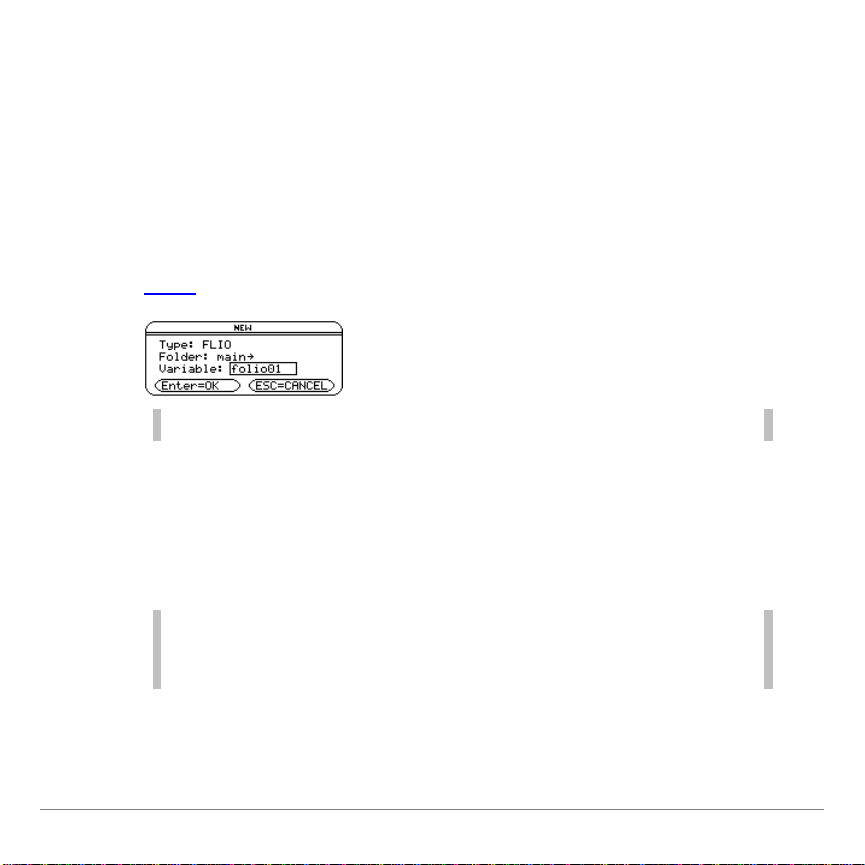
1. Start the NoteFolio App and select 3:New.
Note Before you can create a note, you must create a folio.
2. In the NEW dialog box, select a folder and either accept the
default folio name or type a new folio name in the variable
field.
3. Press ¸.
Note The operating system for your handheld device uses the term
variable to refer to the folios that you create. Any notes that you
create are stored in the current folio.

TI-89/TI-92 Plus/Voyage™ 200 NoteFolio™ App Page 6
The NoteFolio™Manager displays. A hint tells you how to create a
note.
NoteFolio Manager screen, with new note hint
Creating a folio from the NoteFolio Manager
From the NoteFolio Manager, press ƒ3:New Folio.
Creating a note
Once you have created a folio, you can begin creating notes.
1. From the NoteFolio Manager, press „1:New Note.
Status line includes the
folder and folio names.
Note Editor screen.

TI-89/TI-92 Plus/Voyage™ 200 NoteFolio™ App Page 7
2. Type text into your note.
3. When you finish creating a note, press ƒDone to save and
close the note.The NoteFolio™Manager displays the list of
notes it contains.
Opening a folio
1. Start the NoteFolio App. The NoteFolio App menu displays.
2. Select
2:Open.In the OPEN dialog box, select a folder and a
folio (variable), and then press ¸.The folio opens with the
list of notes it contains.
Opening a note
From the NoteFolio Manager, select a note from the list and press
¸.
The text on the note’s
first line serves as the
note’s name.

TI-89/TI-92 Plus/Voyage™ 200 NoteFolio™ App Page 8
From the Note Editor:
1. Press ƒ.The NoteFolio™Manager displays the list of notes.
2. Select a note and press ¸or „2:Edit Note.
Saving a copy of a folio
1. From the NoteFolio Manager, press ƒ2:Save Folio As.
2. In the
SAVE COPY OF dialog box, specify the folder to where
the folio will be saved and type the folio name in the Variable
field.
3. Press ¸ ¸.
Note Folios are stored as archived files. To manage folio files, press
2 °,press ƒ,and choose from the options listed.
In the FORMATS dialog box, you can use the Store Folio As
option to change how the folio file is stored: Unlocked, Locked,
or Archived.
TI-89/TI-92 Plus/Voyage™ 200 NoteFolio™ App Page 9
Returning to the last opened folio
1. Start the NoteFolio™App. The NoteFolio App menu displays.
2. Select
1:Current.The last folio opened displays.
Deleting a note
Because note sessions are saved automatically, you can quickly
accumulate notes, which take up memory storage space.
1. From the NoteFolio Manager, select a note.
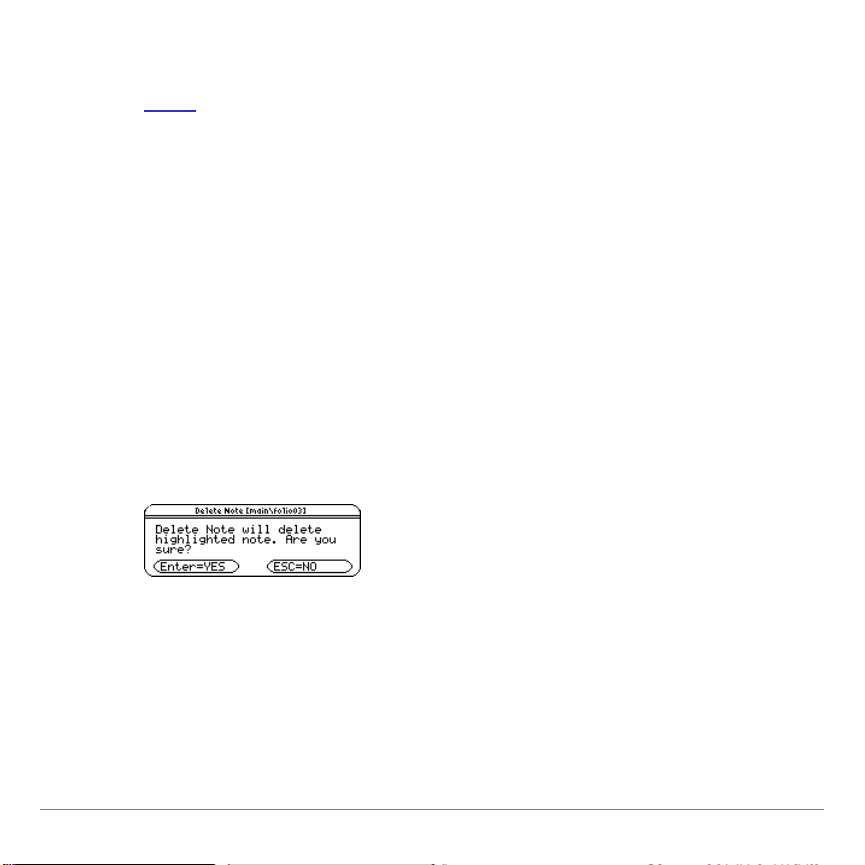
2. Press „7: Delete Note.
Aconfirmation dialog box opens.
3. Press ¸to delete the note.

TI-89/TI-92 Plus/Voyage™ 200 NoteFolio™ App Page 10
Working with Notes
Entering text
When you create a note, you see a blank screen called the Note
Editor. When you open a note, the Note Editor displays the text
for that note.
Typing alphabetic characters
To: On the TI-89, press: On the TI-92 Plus /
Voyage™ 200 PLT, press:
Type a single
lowercase alpha
character
jand then the letter
key The letter key
Type a single
uppercase alpha
character
¤and then the letter key ¤and then the letter key
Type a space
j (alpha function
of the ·key) Spacebar
Turn on lowercase
alpha-lock 2 ™ No action needed
Turn on uppercase
ALPHA-lock ¤ ™ 2 ¢
Turn off alpha-
lock j(turns off
uppercase and
lowercase lock)
2 ¢ (turns off
uppercase lock)
Dieses Handbuch passt für folgende Modelle
3
Inhaltsverzeichnis
Andere TI Kalkulator Handbücher


