UCOM COCOON 1100 Bedienungsanleitung

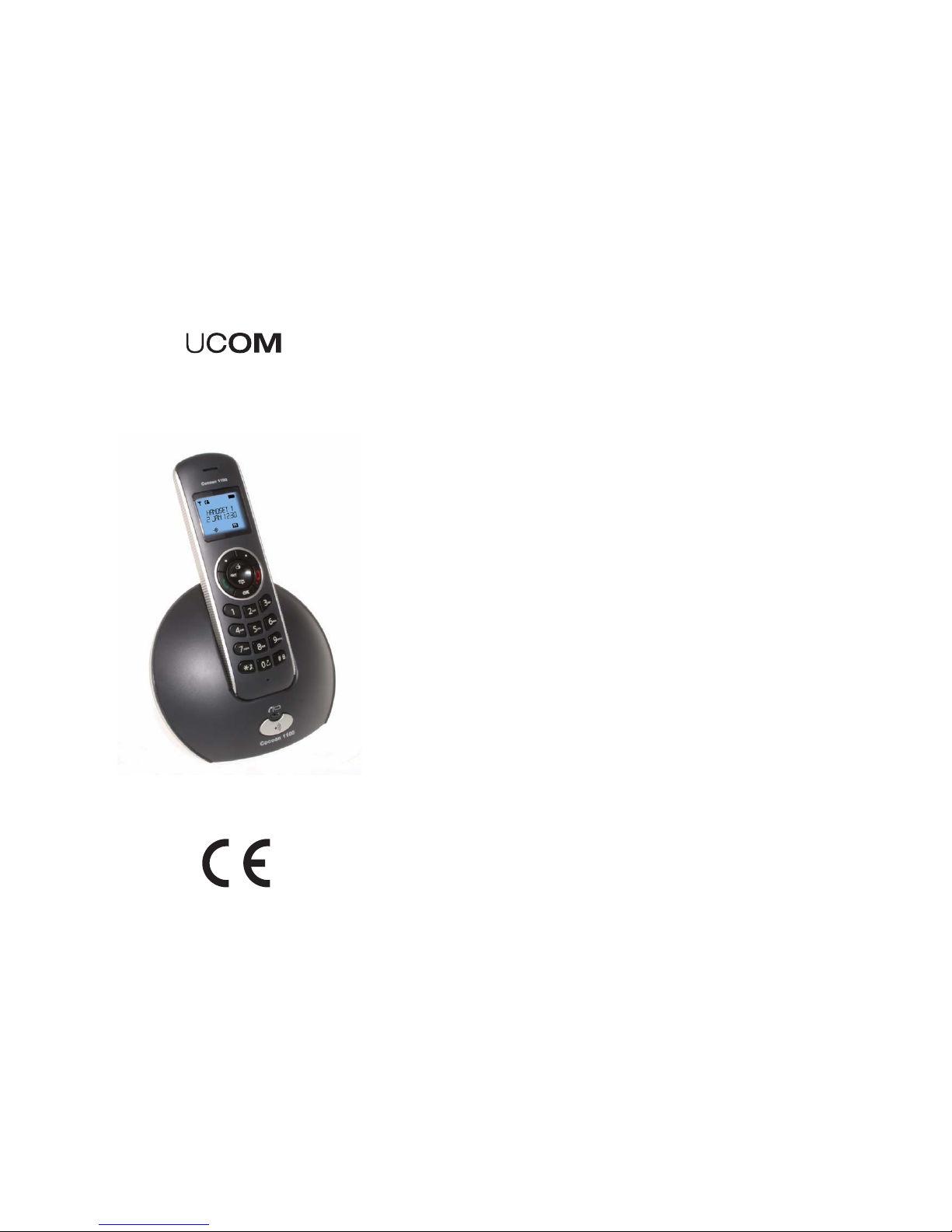
COCOON 1100
CORDLESS PHONE
USER GUIDE
1.2

Cocoon 1100
16
17
Thank you for purchasing this new digital cordless telephone
Intended Purpose:
This product is intend to be connected indoor to a analogue telephone line.
You have acquired a Cocoon 1100, which is a product made in accordance with the Digital
Enhanced Cordless Telecommunications (DECT). DECT technology is characterized by
high-security protection against interceptions as well as high-quality digital transmission.
This telephone was designed for a wide range of applications. For example, this telephone
can be used within a network of base units and handsets, constituting a telephone system
which:
- Operates up to 4 handsets at one base unit.
- Allows an intercom between 2 handsets.
- Allows the operation of a handset at up to 4 base units.
Caller ID is a network provider service. After subscribing to Caller ID, this phone will display
the caller’s phone number.
Important
To use ‘Caller ID’ (display caller), this service has to be activated on your phone line.
Normally you need a separate subscription from your telephone company to activate this
function. If you don’t have the Caller ID function on your phone line, the incoming telephone
numbers will NOT be shown on the display of your telephone.
The CE symbol indicates that the unit complies with the essential
requirements of the R&TTE directive.
The features described in this manual are published
with reservation to modifications.
This product works with rechargeable batteries only. If you put non-
rechargeable batteries in the handset and place it on the base, the handset
will be damaged and this in NOT covered under the warranty conditions.

1 Safety advice 5
2 Disposal of the device (environment) 6
3 Cleaning 6
4 ECO mode (low-radiation) 6
5Installation 7
5.1 Installing the base 7
5.2 Installing the batteries 8
6 Getting to know your telephone 8
6.1 Keys / LED 8
6.2 Display (LCD) 9
6.3 Icons 10
6.4 Display keys 10
6.5 Base LED 10
6.6 Navigating the menu 11
6.7 Menu overview 11
7 Handset operation 12
7.1 Turning the handset on / off 12
7.2 Setting the language 12
7.3 Making Calls 12
7.4 Receiving a Call 13
7.5 Redial list options 13
7.6 Activate / deactivate handsfree function 14
7.7 ‘Out of range’ warning 14
7.8 Setting the speaker volume 14
7.9 Call Duration Indicator on the Display 14
7.10 Turning off the microphone (mute) 14
7.11 Pause key 14
7.12 Locating a misplaced handset (paging) 15
7.13 Using the alphanumeric handset keypad 15
7.14 Setting the ring volume level on the handset 15
7.15 Setting the ringer melody on the handset 16
7.16 Locking the key pad 16
7.17 Turning key click on/off 16
7.18 Display contrast 16
7.19 Changing the handset name 17
7.20 Auto answer 17
7.21 Changing the duration of the backlight 17
8 Default reset (Handset reset) 18
9 Setting the clock and alarm 18
9.1 Date and time 18
9.2 Hour format 18
9.3 Using the alarm feature 19

10 The phone book 19
10.1 Adding a number and a name to the phone book 19
10.2 Looking up a number in the phone book 20
10.3 Changing a name or number in the phone book 20
10.4 Deleting one or all entries from the phone book 20
10.5 View name and number of an entry in the phone book 20
10.6 Copy a phonebook entry to another handset 21
10.7 Copy all phonebook entries to another handset 21
10.8 Add all phonebook entries to the phonebook of another handset 21
11 Base operation 22
11.1 Setting the ring volume and melody of the base 22
11.2 The R key (flash) 22
11.3 Changing the PIN code (system PIN code) 23
11.4 Setting the dialing mode 23
12 Tools 23
12.1 Appointment 23
12.2 Stopwatch 24
13 Additional handsets and bases 24
13.1 Adding a new handset 24
13.2 Removing a handset 25
13.3 Selecting a base unit 25
13.4 Using multiple handsets 26
14 Caller ID / CLIP 27
14.1 The call list 27
14.2 Calling a number from the call list 27
14.3 Storing a number from the call list in the phone book 28
14.4 Deleting numbers from the call list 28
15 Voice mail indicator 28
16 Trouble shooting 28
17 Technical characteristics 30
18 Warranty 31
18.1 Warranty period 31
18.2 Warranty handling 31
18.3 Warranty exclusions 31
19 Service address and support 31
20 Declaration of conformity and manufacturer 31

Cocoon 1100 5
Cocoon 1100
ENGLISH
1 Safety advice
The following safety advice must always be followed before using electrical equipment.
Please read carefully through the following information concerning safety and proper use.
Make yourself familiar with all the functions of the equipment. Be careful to keep these advice
notes and if necessary pass them on to a third party.
Electrical safety and protection:
• Do not operate the equipment if the mains plug, cable or the equipment itself is
damaged.
• If the equipment is dropped, then it must be checked by an electrician before further use.
• Dangerous voltages are present inside the equipment. Never open the housing or insert
objects through the ventilation holes.
• Do not allow liquids to get into the equipment. In case of emergency, pull out the plug
from the socket.
• Similarly, if a fault develops during use or before you start to clean the equipment, pull
the plug out if the socket.
• Do not touch the charger and plug contacts with sharp or metal objects.
• Do not carry out any modifications or repairs to the equipment yourself. Have repairs
done to the equipment or the mains cable only by a specialist service centre.
Unsatisfactory repairs can lead to considerable danger for the user.
• Children frequently underestimate the dangers associated with electrical equipment.
Therefore you must never leave children unsupervised in the vicinity of electrical
equipment.
• The equipment is not to be used in a damp room (e.g. bathrooms) or rooms where there
is a lot of dust.
• Equipment connected to the mains during a thunderstorm can be damaged by lightning.
Therefore you should pull the plug out of the mains socket during a storm.
• To completely disconnect the equipment from the electricity supply, the plug must be
removed from the socket. When doing this always pull on the plug itself and never on the
cable.
• Protect the mains cable from hot surfaces or other sources of damage and do not allow
it to become constrained.
• Check the mains cable regularly for any damage.
• Unwind the mains cable completely before use.
• Make sure that the mains cable does not represent a trip hazard.
• The operation of some medical devices may be affected.
• The handset may cause an unpleasant buzzing sound in hearing aids.
Fire safety:
• The heat accumulated inside the equipment can lead to the defect and/or to the fire of
the equipment. Do not expose this equipment therefore to extreme temperature like:
– direct sun exposure and heater warmth
– ventilation holes may not be covered
Danger of explosion:
• Never throw batteries in fire.

6Cocoon 1100
Cocoon 1100
Poisoning danger:
• Keep batteries away from small children.
Note:
• Only use the charger plug supplied. Do not use other chargers, as this may damage the
batteries cells.
• The wall outlet for the power supply must be close and accessible.
• Only use rechargeable batteries of the same type. Place the batteries with correct
polarity inside the battery compartment (polarity is marked inside the handset). Never
use normal unrechargeable batteries!
2 Disposal of the device (environment)
At the end of the product lifecycle, you should not throw this product into the nor-
mal household garbage but bring the product to a collection point for the recy-
cling of electrical and electronic equipments. The symbol on the product, user
guide and/or box indicate this.
Some of the product materials can be re-used if you bring them to a recycling point. By re-
using some parts or raw materials from used products you make an important contribution to
the protection of the environment.
Please contact your local authorities in case you need more information on the collection
points in your area.
3 Cleaning
Clean the telephone with a slightly damp cloth or with an anti-static cloth. Never use cleaning
agents or abrasive solvents.
4 ECO mode (low-radiation)
This cordless telephone (compliant with the DECT standard) facilitates low-radiation
operation. The radiation intensity of the radio signal between the base station and handset is
reduced to a minimum when the handset is on the base station. Only when the handset is
removed from the base station or a call is received does the radiation intensity of the radio
signal increase to the normal strength.
This does not mean that normal DECT radiation is harmful to health. The low-radiation mode
prevents unnecessary DECT radiation load when no communication is required between the
base station and handset.
For technical reasons, no additional handsets can be operated in low-radiation mode (an
additional handset that is not located in the immediate vicinity of the base station would
always be "searching for base station" due to the weak radio signal).
Low-radiation mode is enabled in the factory settings. Low-radiation mode is automatically
disabled if you log on an additional handset.
As this telephone cannot be used in case of a power cut, you should
use a mains-independent telephone for emergency calls, e.g. a mobile
phone.

Cocoon 1100 7
Cocoon 1100
ENGLISH
5Installation
5.1 Installing the base
For installation, do the following:
• Plug one end of the adaptor into the 230V outlet and the other end into the adapter jack
on the bottom of the base.
• Connect one end of the telephone cord with the wall phone jack and the other end to the
bottom of the base. Use the included telephone cord.
1. Telephone wall outlet
2. Power cable
3. Bottom view of the base
4. Telephone cord
Before you use the telephone for the first time, you must first make
sure the batteries are charged. If not, the telephone will not work
optimally.
Cocoon 1100
6V DC
200mA
1
2
3
4

8Cocoon 1100
Cocoon 1100
5.2 Installing the batteries
• Open the battery compartment (see below).
• Insert the batteries respecting the (+ and -) polarity.
• Close the battery compartment.
• Leave the handset on the base unit for 16 hours. The handset charging indicator
(LED) on the base unit will light up.
6 Getting to know your telephone
6.1 Keys / LED
Handset
1. Display
2. Right Menu key
3. Up / Redial key
4. Right / Flash key
5. On Hook / OFF key
6. Alphanumeric keys
7. Keypad Lock Key
8. Pause key
9. Microphone
10. Ringer volume Off
11. OK Key
12. Down / Call Log key
13. Off Hook / ON / Handsfree key
14. Left / Internal Key INT
15. Left Menu key
16
+
-
+
-
Cocoon 1100
Rechargeable
Batteries
Back view of handset
Battery cover
OK
*
#
7
PQRS
4
GHI
2
ABC
5
JKL
8
TUV
0
3
DEF
6
MNO
9
WXYZ
1
INT R
Cocoon 1100
▲
▲
▲
▲
1
8
3
2
5
6
7
4
9
11
15
10
12
13
14

Cocoon 1100 9
Cocoon 1100
ENGLISH
Base
16. Line / Handset charging
indicator (LED)
17. Paging key
6.2 Display (LCD)
Icon line
Text lines
Soft menu/Option menu line
Battery indicator:
• The battery is fully charged
• The battery is 25% drained
• The battery is half drained (50%)
• The battery is 75% drained
• The battery is low. You will hear warning signals and the battery symbol on
the display will blink.
Cocoon 1100
16
17
(;H>M?N
*;H

10 Cocoon 1100
Cocoon 1100
6.3 Icons
* Only when Caller ID is activated on your telephone line.
6.4 Display keys
Display keys (soft keys) are located directly under the display . The function of these
2 keys changes depending on the operation mode. The actual function is displayed as icon
or text directly above the 2 display keys.
6.5 Base LED
The LED indicates the following status:
• OFF: no base power connected or handset not in base for charging.
• ON: handset charging.
• Blinking slowly: off hook or during ringing.
• Blinking rapidly: during registration.
On hook
Off hook
Ringing
Internal communication between
2 handsets
Handsfree speaker ON
Keypad locked
Upper case
Lower case
Possible scroll direction
Call log entries* (steady)
New unanswered calls (blinking)
New voice mail message
Handset ringer off
Alarm set
In range (steady)
Out of range (blinking)
Phonebook Mute
OK / Confirm Back
Menu “No” key
Delete
ABC
abc
2
15
16
Inhaltsverzeichnis
Andere UCOM Schnurloses Telefon Handbücher


