
VideoHome GrabBeeX-light Bedienungsanleitung
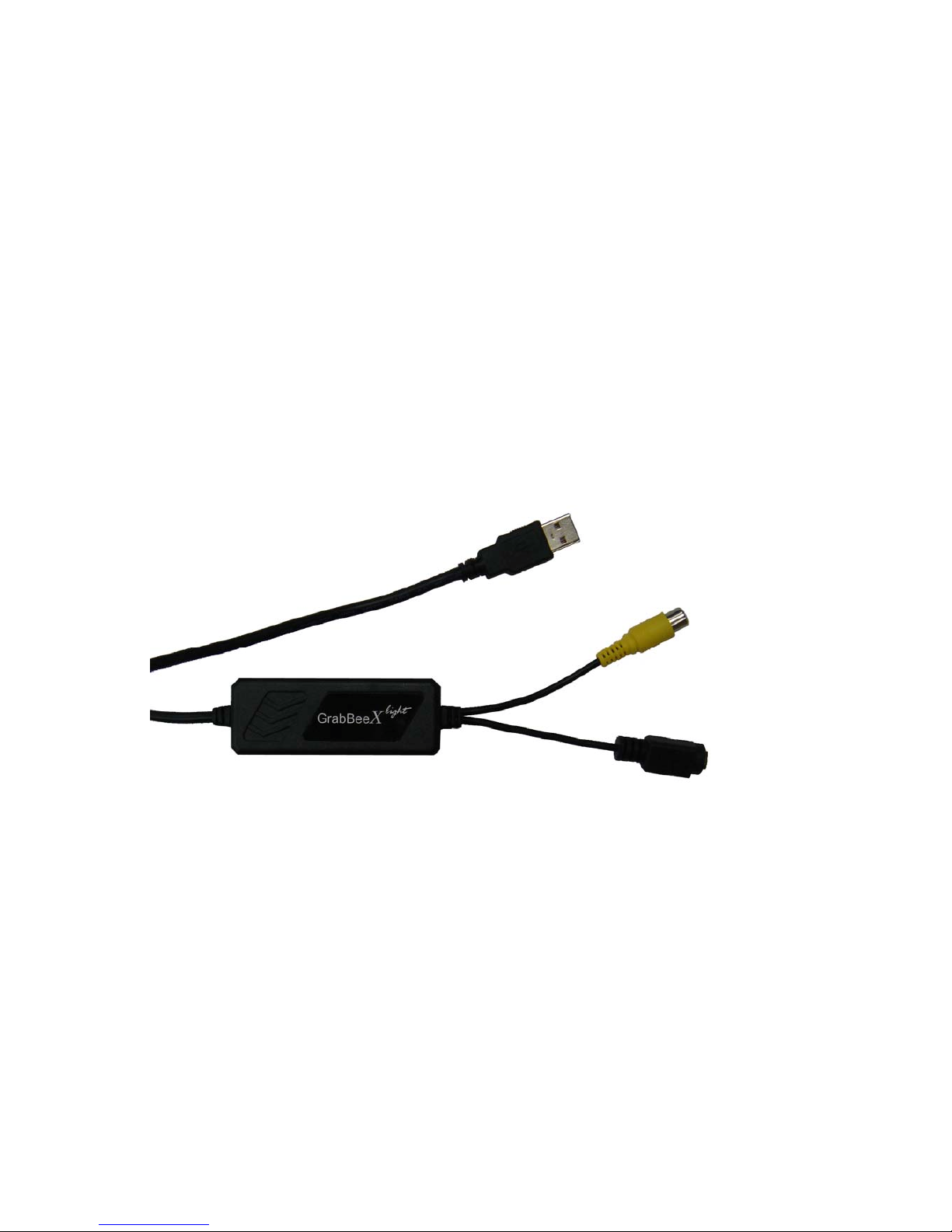
GrabBeeX-light
USB 2.0 Audio/Video Grabber
USER’S MANUAL
www.ysctech.com

I
FEDERAL COMMUNICATIONS COMMISSION
This device complies with Part 15 of the FCC Rules Operation is subject to the following
two conditions: this device may not cause harmful interference, and (2) this device must
accept any interference received, including interference that may cause undesired
operation.
This equipment has been tested and found to comply with the limits for a Class B Digital
Device, pursuant to part 15 of the FCC Rules. These limits are designed to provide
reasonable protection against harmful interference in a residential installation. This
equipment generates, uses and can radiated radio frequency energy and, if not installed
and used in accordance with the instruction, may cause harmful interference to radio
communication. However, there is no grantee that interference will not occur in a
particular installation. If this equipment does cause harmful interference to radio or
television reception, which can be determined by tuning the equipment off and on, the
user is encouraged to try to correct the interference by one or more of the following
measures:
-Reorient or relocate the receiving antenna.
-Increase the separation between the equipment and receiver.
-Connect the equipment into an outlet on a circuit different from that to
which the receiver is connected.
-Consult the dealer or an experienced radio/TV technician for help.
Notice: Changes or modifications not expressly approved by the party responsible for
compliance could void the user’s authority to operate the equipment.
CE DECLARATION
This device complies with CE . These limits are designed to provide reasonable protection
against harmful interface in a residential installation.
Printed in TAIWAN R.O.C No. 01282010
All contents are subject to change without notice.
All trademarks are the property of their respective owner
www.ysctech.com
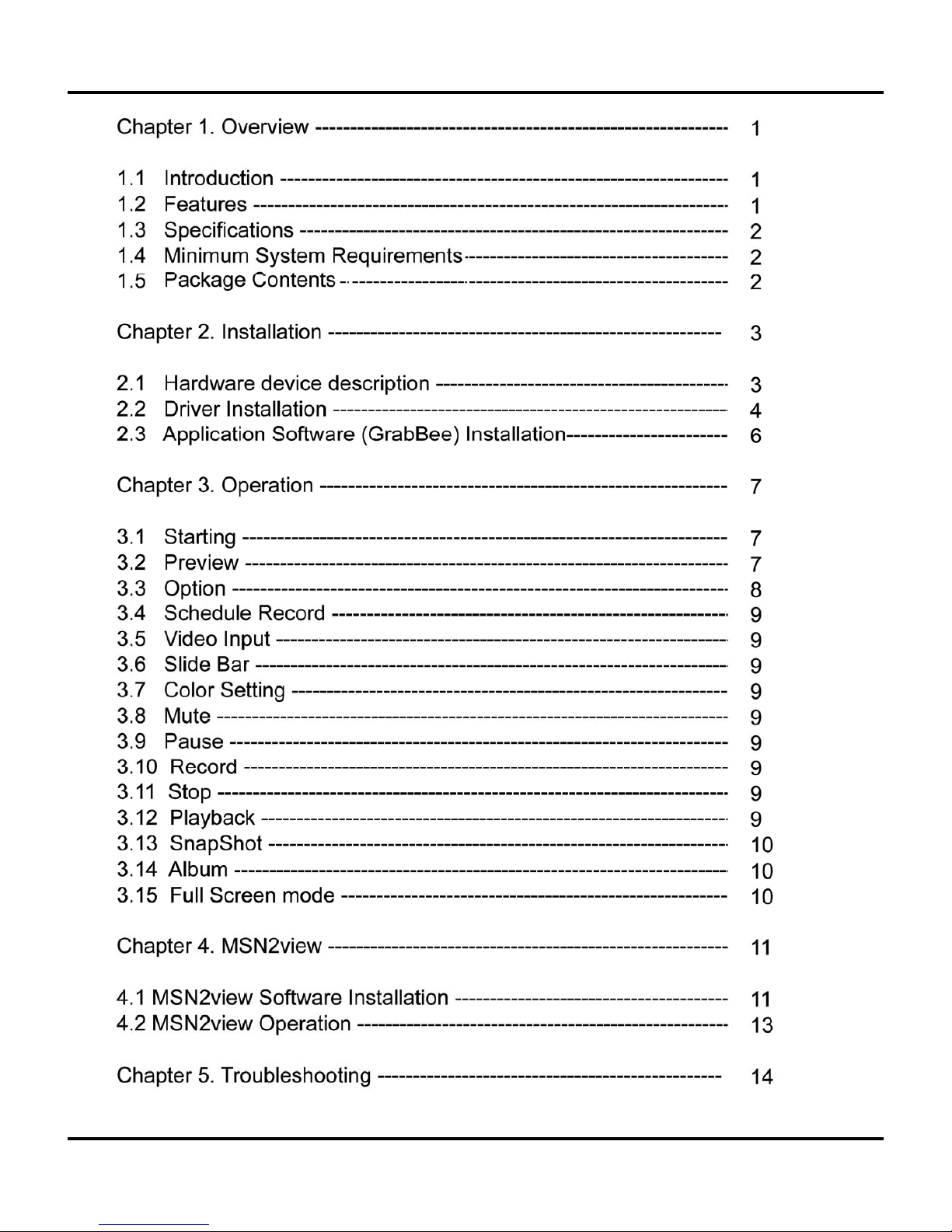
Table of Contents
II
www.ysctech.com

Chapter 1. Overview
1
1.1 Introduction
The“GrabBeeX-light”- New generation USB2.0 Audio/Video grabber is the best ideal
companion for your portable video application. Now with Real-time MPEG 1/2/4
recording, you have a powerful video application on your hand.
MSN2view software for your remote monitoring via MSN.
“GrabBeeX-light”is small enough to fit in the palm of your hand and it is ideal for both
notebook and desktop computers.
1.2 Features
Small physical Wonder--Dimensions are (L)81mm x (W)30mm x (H)15mm
Convert analog video signal to digital through USB2.0 feature
High speed USB 2.0 data transfer rate for superior audio/video recording
Encoding AVI/MPEG1/MPEG2/MPEG4 format directly, Ideal formats for video
application
Up to 25 fps motion capture capability at 720x576(PAL) & 30 fps at 720x480(NTSC)
SnapShot function support
Recording length setup
Video quality setup
Full screen mode support
PIP function support
Composite, S-Video analog input, NTSC, PAL and SECAM multi system support
Recording period setup & Schedule Recording
Support Brightness, Contrast, Hue, Saturation, Sharpness control
MSN2view function make you remote monitoring via MSN
Plug & Play
Low power consumption. Ideal for portable computer too
No Battery---No need to install batteries or run off the wall adapter
www.ysctech.com

Chapter 1. Overview
2
1.3 Specifications
Video input : One RCA composite, One S-Video.
Video system : NTSC, PAL and SECAM multi system support.
Audio input : Goes through sound card.
Motion capture : MPEG format up to 720x480@NTSC, and 720x576@PAL ;
MPEG 4 format @ 320x240; AVI format @ 352x288, 352x240, 320x240 resolution.
Still image capture : JPG/BMP/TIF file format.
Performance : Up to 25 fps at 720x576 for PAL, 30fps at 720x480 for NTSC.
Power Source : 5VDC,350mA(max) through USB port.
1.4 Minimum System Requirements
USB 2.0 equipped computer
Pentium 4 - 1GHz or above or equivalent AMD processor
128MB of RAM
Win2000 SP4, Win7, XP SP2(above), or Vista
Sound card
1.5 Package Contents
GrabBeeX-light USB 2.0 Audio/Video Grabber
GrabBee software
MSN2view software
Quick Installation Guide
www.ysctech.com
Chapter 2. Installation
Please make sure your computer has USB2.0 port correctly installed and
functioning !!
Steps : (1) Install Driver
(2) Plug in GrabBeeX-light hardware
(3) Install GrabBee AP software
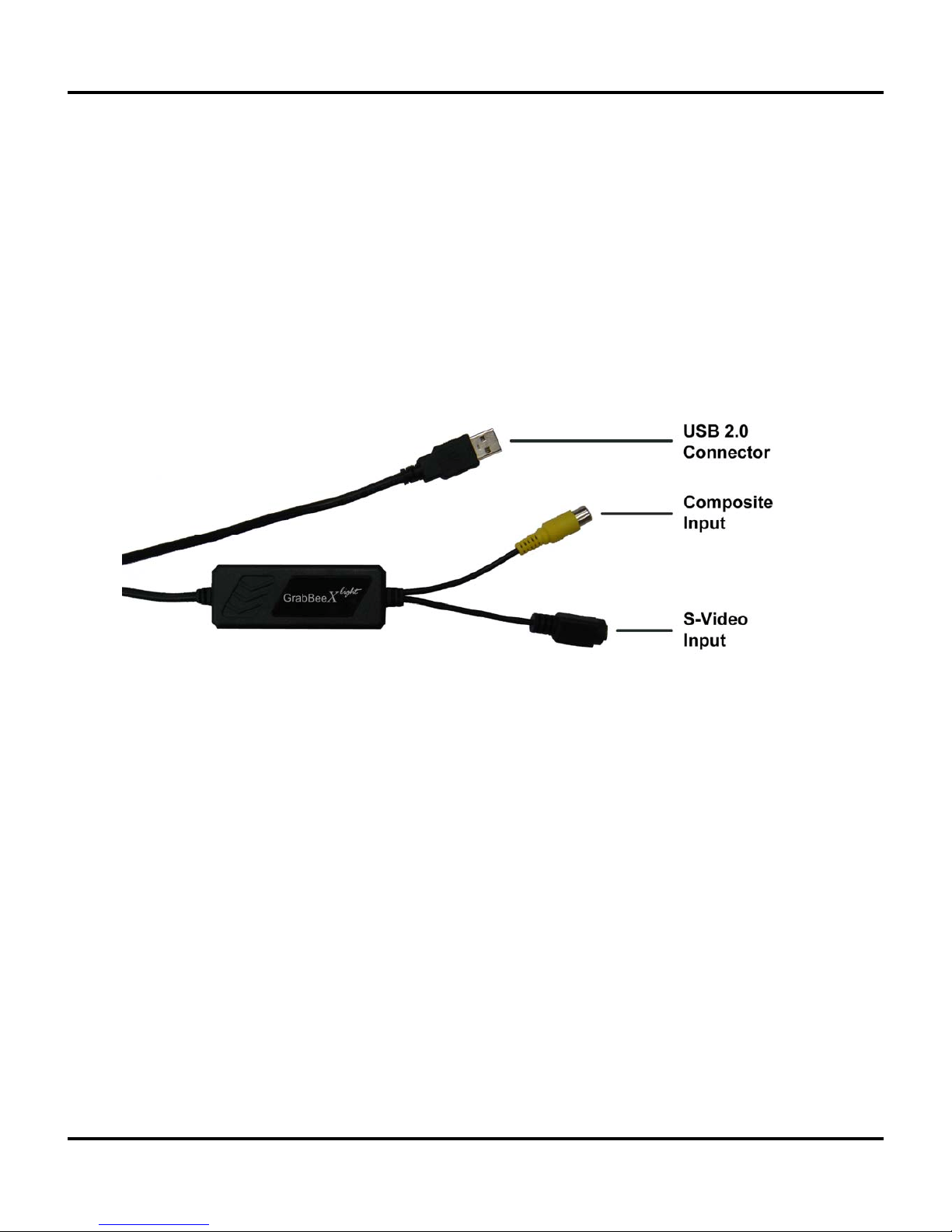
2.1 Hardware device description
- USB 2.0 connector :
Connect to USB 2.0 port of your computer
- S-Video input :
S-Video input from external A/V device (e.g. VCR)
- Composite video input :
Composite video input from external A/V Device (e.g. VCR)
If you want capture audio, please connect audio directly to Line-in of your
Sound card.
3
www.ysctech.com
Chapter 2. Installation
2.2 Driver Installation
Do not connect GrabBeeX-light to computer USB port before driver installation
2.2.1. Please insert "Multimedia Installation Kit" CD-ROM into your
CD-ROM drive; AutoRun will running; (if AutoRun didn’t run, please
goto“My Computer” click CD-ROM drive)
2.2.2. Please select “GrabBeeX-light” product.
2.2.3. Please select “Device Driver”
Note: In Win7/Vista, windows will pop up a dialogue box, choose “Allow”
to continue install Driver
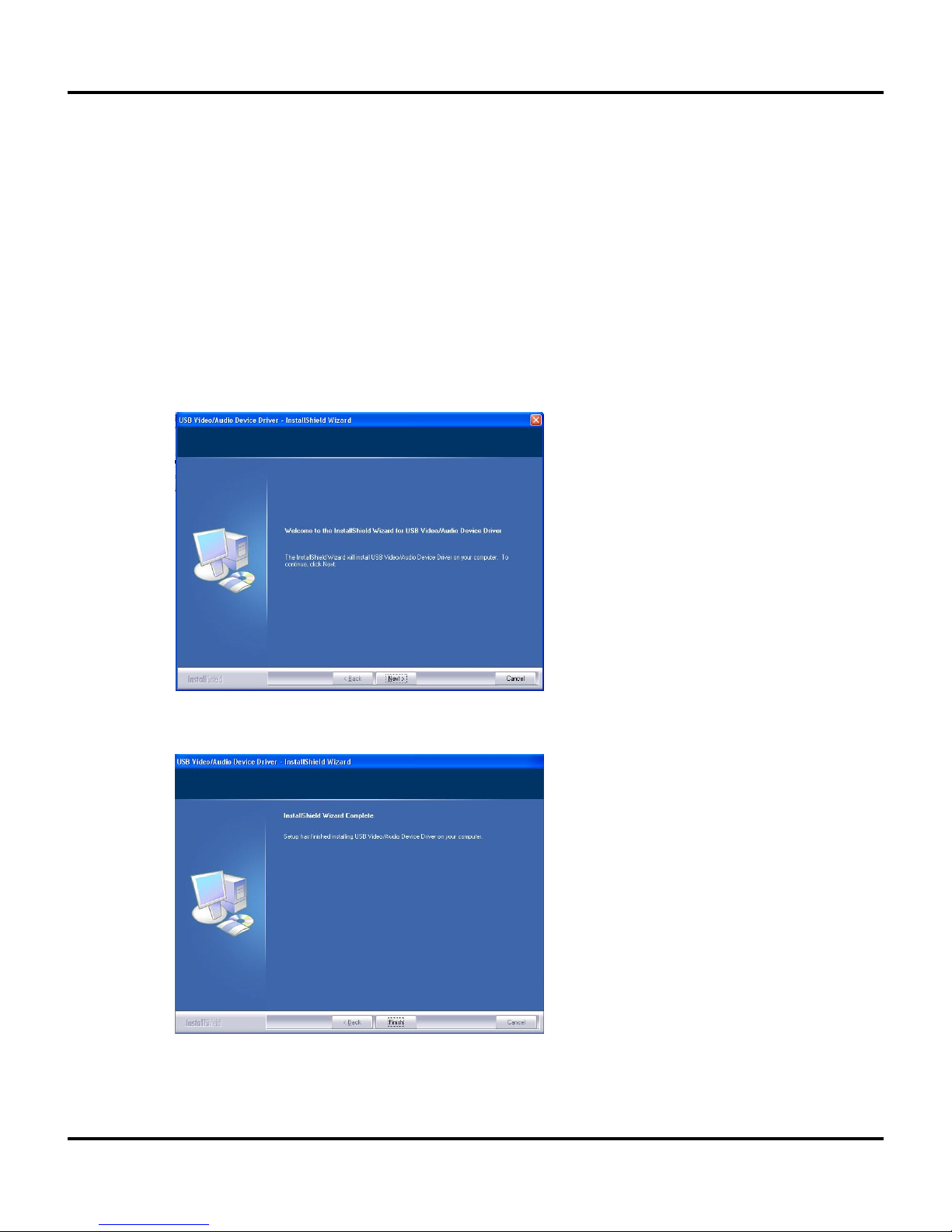
C
lick"Next"
2.2.4. Complete Setup Wizard
C
lick"Finish"
2.2.5. Complete Setup Wizard, please restart computer
4
www.ysctech.com
Chapter 2. Installation
2.2.6. After computer restarts, please plug the GrabBeeX-light device into the
computer’s USB 2.0 port; System will now detect the new device and install
completely.
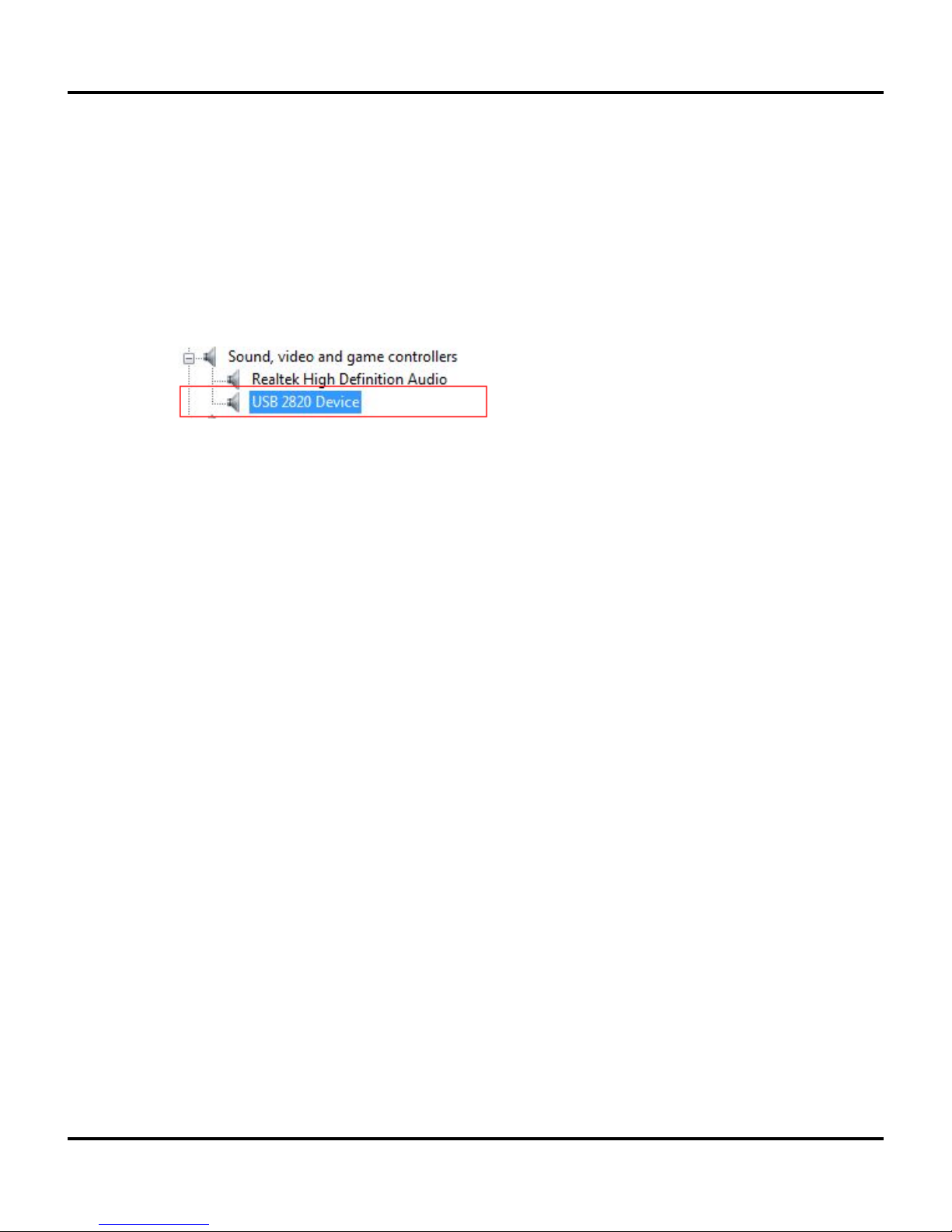
2.2.7. Please check Device Manager whether if the GrabBeeX-light driver was
Installed successfully in your computer.
Device Manager:
GotoMy Computer -> Control Panel -> System -> Hardware
->DeviceManager.
5
www.ysctech.com
Chapter 2. Installation
2.3 Application Software (GrabBee) Installation
2.3.1. Please insert "Multimedia Installation Kit" CD-ROM into your
CD-ROM drive; AutoRun will running; (if AutoRun didn’t run, please
goto“My Computer” click CD-ROM drive)
2.3.2. Please select “GrabBeeX-light” product.
2.3.3. Please select “Application Software”
2.3.4. Please select “GrabBee”
2.3.5. Welcome to the InstallShield wizard; Click "Next"
2.3.6. Select the language you will use for GrabBee; Click "Set"
2.3.7. Choose destination location; Click “Next”
2.3.8. Install Windows Media Format 9 Series Runtime Setup;
Click “Yes”
2.3.9. License agreement; Click “Yes”
2.3.10.Finished Windows Media Format 9 Series Runtime installation;
Click “OK”
2.3.11.License for Windows Media Tools Setup; Click “Yes”
2.3.12.Windows Media Tools Setup; Click “Next”
2.3.13.Create folder; Click “Yes””
2.3.14.Installation Options; Click “Next”
2.3.15.Installation Directory; Click “Finish”
2.3.16.Setup Complete; Click “OK”
2.3.17. InstallShield Wizard Complete; Click "Finish"
2.3.18. Please restart computer
*Note: Under Windows Win7/Vista, steps 2.3.8 to 2.3.16 will automatically be
skipped. Please do not worry as this is normal.
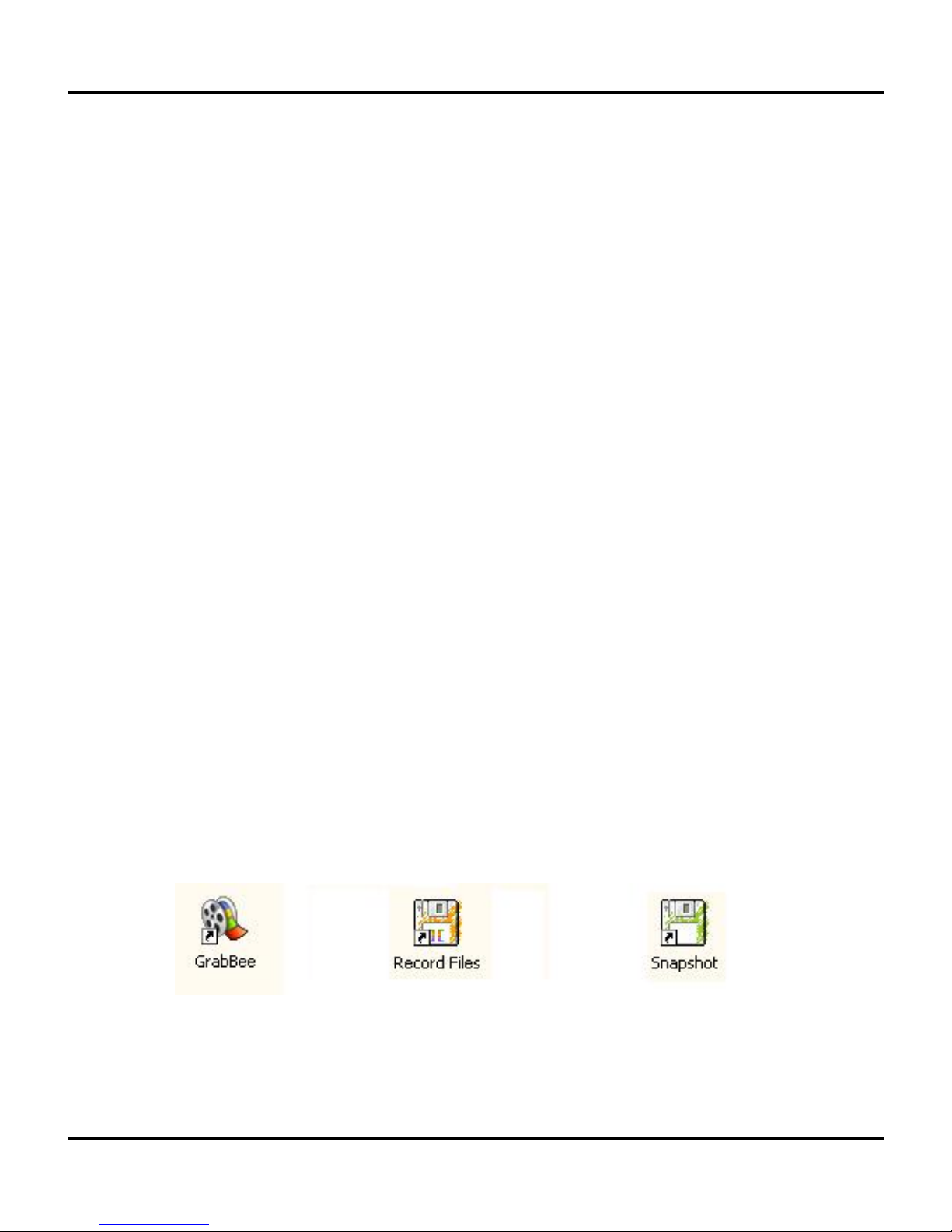
After AP software installed, three icons will now be shown on screen
6
GrabBee : GrabBee software main program
RecordFiles: Click to see your record files
Snapshot: Click to see your capture still image files
www.ysctech.com
Chapter 3. Operation
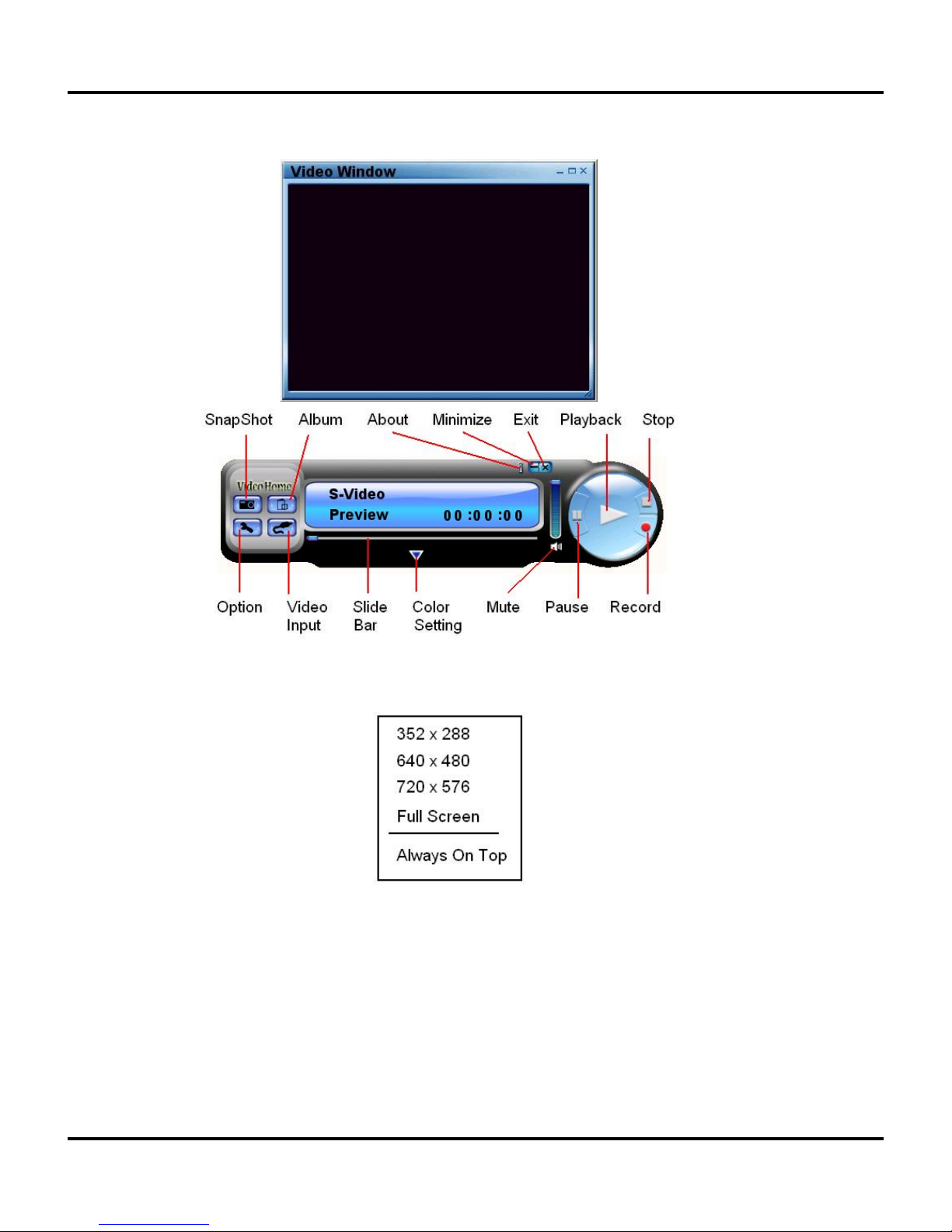
3.1. Starting : Please click the “GrabBee” icon
After starting application, you can see video window as below
3.2. Preview : Please move mouse cursor into Preview window and right click,
function menu will appear as below
R
esolution:There are 4 resolution video preview you can select
NTSC mode : 352x240, 640x480, 720x480, Full screen
PAL mode : 352x288, 640x480, 720x576, Full screen
7
www.ysctech.com
Inhaltsverzeichnis
Beliebte Aufnahmegeräte Handbücher anderer Marken


Strymon
Strymon NIGHTSKY Bedienungsanleitung

Mitsubishi Electric
Mitsubishi Electric 16CH DIGITAL RECORDER DX-TL5000U Bedienungsanleitung

Tews Technologies
Tews Technologies TPMC465 Bedienungsanleitung

Honeywell
Honeywell Excel 50 Bedienungsanleitung

SeaLevel
SeaLevel COMM+8.LPCI Bedienungsanleitung

Arturia
Arturia AUDIOFUSE STUDIO Bedienungsanleitung


