ViewQwest VESTA SMART-HOME Bedienungsanleitung

0 | P a g e
VESTA SMART-HOME
USERGUIDE
V I E W Q W E S T P T E L T D
10/14/2020

USER GUIDE FOR VESTA SMART-HOME
1 | P a g e
Change Control
Version
Date
Description
Author
V 0.1
01/06/2020
Initial spec version
Premkumar Subramaniam
V 0.2
08/06/2020
Document formatting
Ishara Weerasinghe
V 0.3
05/10/2020
Updated the document
Ishara Weerasinghe
V 0.4
13/10/2020
Minor edits
Premkumar Subramaniam
V 0.5
13/10/2020
Formatting and update new UI
Ishara Weerasinghe

USER GUIDE FOR VESTA SMART-HOME
2 | P a g e
Contents
Change Control .............................................................................................................................................1
Vesta Hub......................................................................................................................................................7
1. Getting Started..........................................................................................................................................7
1.1. Power Supply...............................................................................................................................7
1.2. Turning on....................................................................................................................................7
1.3. Connecting to the Internet..........................................................................................................7
1.4. The Vesta APP..............................................................................................................................8
2. Logging to Vesta........................................................................................................................................9
2.1. Sign Up .............................................................................................................................................10
2.2. Register Vesta Hub...........................................................................................................................12
3. Vesta App and General Navigation.........................................................................................................17
3.1. Vesta Home Screen..........................................................................................................................17
3.2. Device Cards.....................................................................................................................................18
4. Vesta Hub Operations.............................................................................................................................19
4.1. Devices from Multiple Network Operations....................................................................................19
4.2. Add Device .......................................................................................................................................19
4.3. Device Status....................................................................................................................................25
4.4. Rename Device ................................................................................................................................26
4.5. Remove Device.................................................................................................................................27
4.6. Failed Device....................................................................................................................................29
4.6.1. Remove Failed Devices .............................................................................................................30
4.6.2. Replace Failed Devices..............................................................................................................32
4.7. Device Association ...........................................................................................................................35
4.7.1. Create Association ....................................................................................................................35
4.7.2. Remove Association..................................................................................................................42
4.8. Device Configuration........................................................................................................................46
4.8.1. Device Configuration –SET.......................................................................................................46
4.8.2. Device Configuration –GET ......................................................................................................49
5. Controller Replication .............................................................................................................................53

USER GUIDE FOR VESTA SMART-HOME
3 | P a g e
6. Controller –Learn Mode.........................................................................................................................53
6.1. Learn Mode –Copying .....................................................................................................................53
6.2. Remove Vesta hub from another network......................................................................................57
7. Check Hub DSK........................................................................................................................................59
8. Factory Reset...........................................................................................................................................60
8.1. Factory Reset by Hardware..............................................................................................................60
8.2. Factory Reset by App .......................................................................................................................60
9. Reboot Hub .............................................................................................................................................62
10. Command Classes .................................................................................................................................63
10.1. Supported Command Classes ........................................................................................................63
10.2. Association Command Classes.......................................................................................................63
10.3. BASIC command support for controller.........................................................................................64
10.3.1. Controlling devices with BASIC commands.............................................................................64
List of Abbreviations ...................................................................................................................................66

USER GUIDE FOR VESTA SMART-HOME
4 | P a g e
List of Figures
Figure 1: Vesta Hub Structure.......................................................................................................................7
Figure 2: QR code for the Vesta APP.............................................................................................................8
Figure 3: Initial Login Screen.........................................................................................................................9
Figure 4: Sign-up form.................................................................................................................................10
Figure 5: Email Confirmation ......................................................................................................................11
Figure 6: Activation Link..............................................................................................................................11
Figure 7: Setup Vesta Hub...........................................................................................................................12
Figure 8: Internet Connection.....................................................................................................................12
Figure 9: Continue with LAN .......................................................................................................................13
Figure 10: Hub Serial Number.....................................................................................................................14
Figure 11: Serial numbers for PepperOne ..................................................................................................14
Figure 12: Register Hub...............................................................................................................................15
Figure 13: Home Screen..............................................................................................................................16
Figure 14: Vesta Home Screen....................................................................................................................17
Figure 15: Vesta device cards .....................................................................................................................18
Figure 16: Add Device .................................................................................................................................19
Figure 17: Scan Device ................................................................................................................................20
Figure 18: Enter DSK ...................................................................................................................................21
Figure 19: Add discovered Device...............................................................................................................22
Figure 20: Rename device...........................................................................................................................23
Figure 21: Add device –Instruction ............................................................................................................24
Figure 22: Device list...................................................................................................................................24
Figure 23: Device list in Home screen.........................................................................................................24
Figure 24: Device in Home location............................................................................................................24
Figure 25: Device Status..............................................................................................................................25
Figure 26: Rename Device I ........................................................................................................................26
Figure 27: Rename device II........................................................................................................................26
Figure 28: Remove Device...........................................................................................................................27
Figure 29: Find remove device....................................................................................................................27
Figure 30: Device removing timer...............................................................................................................28
Figure 31: Fail Device in Home....................................................................................................................29
Figure 32: Fail Device in Device list.............................................................................................................29
Figure 33: Menu –Remove fail node..........................................................................................................30
Figure 34: Remove Confirmation................................................................................................................31
Figure 35: Device removal timer.................................................................................................................31
Figure 36: Menu - Replace fail node...........................................................................................................32
Figure 37: Replace device confirmation .....................................................................................................33
Figure 38: Replace node - Instruction.........................................................................................................34

USER GUIDE FOR VESTA SMART-HOME
5 | P a g e
Figure 39: Device Association .....................................................................................................................35
Figure 40: No Association found.................................................................................................................36
Figure 41: Association - Instruction ............................................................................................................37
Figure 42: Create Association I ...................................................................................................................38
Figure 43: Create Association II ..................................................................................................................39
Figure 44: Awake device - Instruction.........................................................................................................40
Figure 45: Association list ...........................................................................................................................41
Figure 46: Device Association - Remove.....................................................................................................42
Figure 47: Remove Association...................................................................................................................43
Figure 48: Remove Association - Confirmation ..........................................................................................44
Figure 49: Awake device - Instruction.........................................................................................................45
Figure 50: Device Menu..............................................................................................................................46
Figure 51: Device Configuration - Set .........................................................................................................46
Figure 52: Set Configuration .......................................................................................................................47
Figure 53: Config - Instruction ....................................................................................................................48
Figure 54: Device Menu..............................................................................................................................49
Figure 55: Device Configuration - Get.........................................................................................................49
Figure 56: Get Config values .......................................................................................................................50
Figure 57: Config - Instruction ....................................................................................................................51
Figure 58: Retrieved config value ...............................................................................................................52
Figure 59: Learn Mode................................................................................................................................53
Figure 60: Enable Learn I.............................................................................................................................54
Figure 61: Enable Learn II............................................................................................................................54
Figure 62: DSK - Slave controller.................................................................................................................55
Figure 63: DSK Information.........................................................................................................................55
Figure 64: Learn mode info.........................................................................................................................55
Figure 65: Created devices - Device List .....................................................................................................56
Figure 66: Created Devices - Home.............................................................................................................56
Figure 67: Learn mode –remove I..............................................................................................................57
Figure 68: Learn mode - Remove II.............................................................................................................57
Figure 69: Learn mode - Remove confirmation..........................................................................................58
Figure 70: Learn removal - Instruction........................................................................................................58
Figure 71: Hub DSK......................................................................................................................................59
Figure 72: Reset by Hardware button.........................................................................................................60
Figure 73: Reset by VESTA app ...................................................................................................................61
Figure 74: Reset confirmation.....................................................................................................................61
Figure 75: Reset timer.................................................................................................................................61
Figure 76: Reboot button............................................................................................................................62
Figure 77: Unknown Device in Home..........................................................................................................64

USER GUIDE FOR VESTA SMART-HOME
6 | P a g e
Figure 78: Input Basic Command................................................................................................................65
Figure 79: Updated value with the Basic command...................................................................................65

USER GUIDE FOR VESTA SMART-HOME
7 | P a g e
Vesta Hub
The Vesta Hub is the heart of the Vesta home security solution. The Vesta hub is a security enabled Z-
Wave PlusTM product.
1. Getting Started
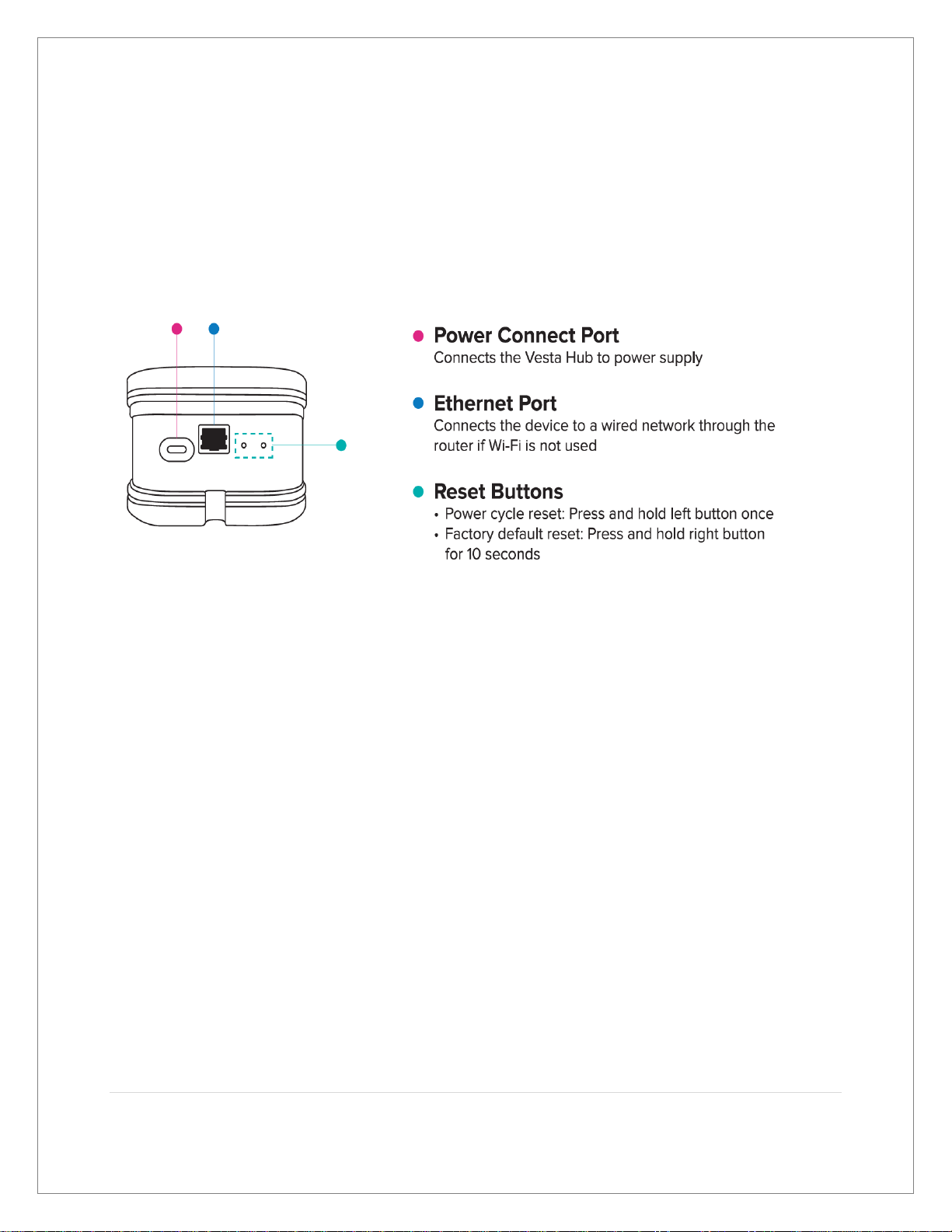
Figure 1: Vesta Hub Structure
1.1. Power Supply
Plug one end of the USB Type-C cable into the device’s Power Connect Port, and the other end into the
power adaptor.
1.2. Turning on
Plug in the Vesta Hub’s power adaptor into a power source and the system will start automatically. When
the device is properly connected, the lights on the Vesta Hub will begin to blink.
1.3. Connecting to the Internet
Plug in the network cable –one end connected to the router, and the other to the Ethernet port on the
Vesta Hub. The Vesta Hub will be automatically connected to the home network. Your router will need to
be configured to give out IPs via DHCP. Vesta cannot be configured with static IP.
Follow the instructions on the Vesta app to begin set up.

USER GUIDE FOR VESTA SMART-HOME
8 | P a g e
1.4. The Vesta APP
The Vesta App is the centre of intelligence for Vesta Shield. To start using Vesta, you must first install the
Vesta App on android mobile device and register and sign in to Vesta account.
Note:
1. Currently Vesta app is only available on Android platform. Please download the APK from here:
http://download.vesta-solutions.net/vesta.apk
OR scan the QR code
Figure 2: QR code for the Vesta APP
2. Your Android phone may give you a warning saying this APK is from an untrusted source. You
can ignore this warning and proceed to install.

USER GUIDE FOR VESTA SMART-HOME
9 | P a g e
2. Logging to Vesta
Once you open the Vesta app, you will be prompted to sign in. If you haven’t registered an account
before you will need to ‘Sign Up’ for a new account.
Figure 3: Initial Login Screen
Dieses Handbuch passt für folgende Modelle
1
Inhaltsverzeichnis
Beliebte Sicherheitssystem Handbücher anderer Marken

EDM
EDM Solution 6+6 Wireless-AE Bedienungsanleitung

Highway Safety Group
Highway Safety Group EA401 Bedienungsanleitung

Siren
Siren LED GSM Bedienungsanleitung

Detection Systems
Detection Systems 7090i Montageanleitung

Se-Kure Controls
Se-Kure Controls MicroMini SK-4841 Bedienungsanleitung

Siemens
Siemens FDM273 Bedienungsanleitung