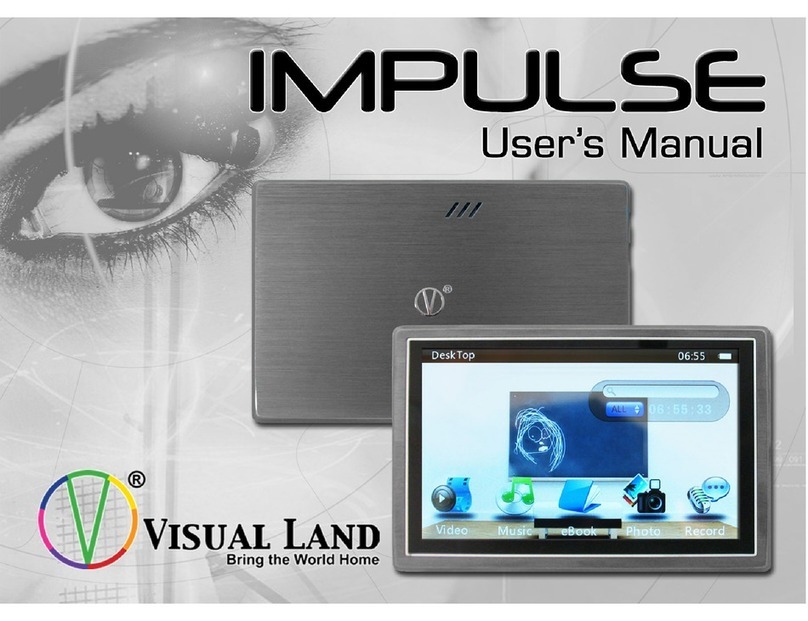
Visual Land V-Core Bedienungsanleitung


Visual Land, Inc http://www.visual-land.com
1
V-CORE Introduction
Supported video formats AVI / Real Media / FLV
Supported audio formats MP3 / WMA with lyric support
Supported picture formats JPG / GIF / BMP
High quality digital radio supports multiple FM broadcast bands.
High quality digital voice recording.
Expandable MicroSD Card Slot
Microsoft PlayFX embedded technology.
Supports multiple languages
IMPORTANT: Changes in product specifications and features
may be made without prior notice or obligation.

Visual Land, Inc http://www.visual-land.com
2
Basic Operations
1. To power on, move the ON/OFF switch on the bottom of the player
to the on side, then hold the PLAY/PAUSE button at the top for
about 2 seconds.
2. To power off, move the ON/OFF switch to the off side. To “soft”
power off, return to the main menu, then hold down the
PLAY/PAUSE button until it powers down.
3. The LEFT and RIGHT arrow keys at the top scroll through options.
The MENU button selects. The ESC button moves back to the
previous screen.
4. The player will automatically enter into Stand by Mode when the
battery level is low.
5. The player may be charged through the provided wall charger or
through your computer via USB cable. Be sure the player is in the
“on” position or it will not charge properly. The battery indicator will
flash, showing the player is charging.

Visual Land, Inc http://www.visual-land.com
3
V-CORE FUNCTIONS
1. Main Menu – There are 8 menu options: Music, Video, Photo,
eBook, Radio, Record, Explorer, Setting.
2. Music
a. The music player can play various types of audio formats.
MP3, WMA, APE, FLAC
b. Music Menu:
All Music: All the music files available on the player will
be brought up.
Artist: Browse music by artist.
Album: Browse music by album.
Genre: Browse music by genre.
My Favorite: Browse music added to your favorites list.
Record: Playback files captured with the player’s voice
recorder.
Dir List: Browse music by directory.
MediaLib Update: Refreshes media library for all files

Visual Land, Inc http://www.visual-land.com
4
available to player.
c. Music Playback
To playback music, select the file you wish to playback
and press the MENU button.
To pause the music, press the PLAY/PAUSE button. To
resume playback, press the PLAY/PAUSE button again.
To scroll through the music, press the LEFT or RIGHT
arrow buttons.
To adjust the volume, press the VOL button, then press
the LEFT or RIGHT arrow buttons to increase or
decrease the volume. Press the VOL button again to
accept the setting.
To return to the main menu, press the ESC button.
d. Music Settings: When playing back music, you can enter
the music settings mode by pressing the MENU button.
Repeat Mode: You can choose 5 types of playback
modes. Once (playback of current folder once), Repeat
(repeated playback of current file), All (playback off all

Visual Land, Inc http://www.visual-land.com
5
folders selected), All Repeat (repeated playback off all
current folders), Intro (playback of the first 10 seconds
of each song).
Play Mode: You can select to play the current files In
Order or in Shuffle mode.
MSEQ: You can select special equalizer settings such
as 3D sound effect, Bass or LEQ.
EQ Select: Allows you to choose various equalizer
settings including: NORMAL, MSEQ, CLASSIC, ROCK,
POP, BASS, JAZZ, or a User customized EQ.
User EQ Setup: Set up your own custom equalizer
setting.
Display: Choose what to display on screen during music
playback such as ID3, Lyrics, Freq Chart, or nothing
(Closed). To display lyrics, lyric files must be in .LRC
format and must exactly match the file name of the
corresponding music file.
e. Your V-Core supports multi-tasking ability. If playing back

Visual Land, Inc http://www.visual-land.com
6
music, you can return to the main menu and select other
options such as Photo Viewer or eBook Reader and have
music playing in the background as you browse photos or
read eBook files. Selecting video playback or FM Radio
will end the music playback however.
3. Video
a. The video player can play various types of video formats.
Real Media: The V-Core supports RM/RMVB files up to
720x480 resolution (no need for conversion). RM video
supports 900-450 kbps rates.
Flash Video: The V-Core supports standard FLV files
downloaded from such sites as YouTube, MySpace, etc.
AVI: The V-Core supports playback of AVI files up to
800x480 resolution.
b. The video mode will show all available video files in the
current directory. Use the arrow buttons to scroll through
files. Use the MENU button to select a file for playback.
c. Video Playback

Visual Land, Inc http://www.visual-land.com
7
To pause the video, press the PLAY/PAUSE button. To
resume playback, press the PLAY/PAUSE button again.
To fast forward or rewind through the current video,
press and hold the LEFT or RIGHT arrow buttons. To
resume playback back, release the button.
To scroll to other video files, press the LEFT or RIGHT
arrow buttons.
To adjust the volume, press the VOL button, then press
the LEFT or RIGHT arrow buttons to increase or
decrease the volume. Press the VOL button again to
accept the setting.
To return to the main menu, press the ESC button.
4. Photo
a. The V-Core supports various picture file formats such as
JPEG, BMP and GIF (animated gif supported) up to
1800x1800 resolution.
b. The photo mode will show all available picture files in the
current directory. Use the arrow buttons to scroll through

Visual Land, Inc http://www.visual-land.com
8
files. Use the MENU button to select a file to view.
c. Photo Options
Rotate Right: rotates the picture clockwise.
Rotate Left: rotates the picture counter-clockwise.
Zoom In: Zooms in 2x. Use the LEFT and RIGHT arrow
buttons to pan. Press ESC button to return to normal
view.
Zoom Out: Zooms out 2x. Press ESC button to return to
normal view.
Browse: Changes the slideshow speed options between
8 seconds, 5 seconds, 2 seconds or turned off.
5. eBook
a. The V-Core supports TXT files.
b. The eBook mode will show all available text files in the
current directory. Use the arrow buttons to scroll through
files. Use the MENU button to select a file to view.
c. Use the LEFT and RIGHT arrow keys to scroll through
pages.

Visual Land, Inc http://www.visual-land.com
9
d. eBook Options
Page Jump: Jump to a specific page in the file.
SaveMark: Create up to 8 bookmarks.
LoadMark: Jump to a previously saved bookmark.
DelMark: Delete a previously saved bookmark.
Set Font: Choose from small, medium or large font
sizes.
Set Color: select a font color.
Browser Mode: Allows you to set the eBook reader to
turn pages automatically or manually.
Flip Time: Select the pause time between page turns for
automatic browsing.
Mode: Select between 3 different background wallpaper
types.
6. Radio
a. For the Radio to function properly you will need to connect
the headphones to the player. Your headphones act as an
antennae, so without them connected, the radio cannot
Inhaltsverzeichnis
Sprachen:
Andere Visual Land Medienplayer Handbücher