
Voxx SiriusXM Bedienungsanleitung

SATELLITE RADIO OWNER'S MANUAL

2
Table of Contents
Congratulations! �������������������������������������������������������������������������������������������������������������������������������������������������������������������������������� 3
Operational Statement����������������������������������������������������������������������������������������������������������������������������������������������������������������������� 4
Activating Your Subscription �������������������������������������������������������������������������������������������������������������������������������������������������������������� 5
FCC Statement���������������������������������������������������������������������������������������������������������������������������������������������������������������������������������� 6
Type I Radio ������������������������������������������������������������������������������������������������������������������������������������������������������������������������������������� 7
Selecting SiriusXM / Bluetooth Audio Source������������������������������������������������������������������������������������������������������������������������������������ 8
Overview of Controls ����������������������������������������������������������������������������������������������������������������������������������������������������������������������� 10
Connecting to a Streaming Audio Source�����������������������������������������������������������������������������������������������������������������������������������������11
Navigating the SiriusXM Streaming Audio Source �������������������������������������������������������������������������������������������������������������������������� 12
Full Screen Content Navigation of SiriusXM Audio Source������������������������������������������������������������������������������������������������������������� 14
Storing a Preset������������������������������������������������������������������������������������������������������������������������������������������������������������������������������� 16
Recalling a Preset ��������������������������������������������������������������������������������������������������������������������������������������������������������������������������� 18
Displaying the SiriusXM Radio ID Number�������������������������������������������������������������������������������������������������������������������������������������� 19
Pairing the SiriusXM Audio Source�������������������������������������������������������������������������������������������������������������������������������������������������� 20
Type II Radio ���������������������������������������������������������������������������������������������������������������������������������������������������������������������������������� 24
Selecting a SiriusXM / Bluetooth Audio Source������������������������������������������������������������������������������������������������������������������������������� 25
Overview of Controls ����������������������������������������������������������������������������������������������������������������������������������������������������������������������� 28
Selecting SiriusXM as a Streaming Audio Source��������������������������������������������������������������������������������������������������������������������������� 29
Navigating the SiriusXM Streaming Audio Source �������������������������������������������������������������������������������������������������������������������������� 30
Storing a Preset������������������������������������������������������������������������������������������������������������������������������������������������������������������������������� 32
Recalling a Preset ��������������������������������������������������������������������������������������������������������������������������������������������������������������������������� 33
Displaying the SiriusXM Radio ID Number�������������������������������������������������������������������������������������������������������������������������������������� 34
Pairing the SiriusXM Audio Source�������������������������������������������������������������������������������������������������������������������������������������������������� 35
Troubleshooting������������������������������������������������������������������������������������������������������������������������������������������������������������������������������� 39

3
Congratulations!
Thank you for your SiriusXM® Satellite Radio purchase! This product was developed using Bluetooth® Streaming Audio technology to
connect to your vehicle’s Bluetooth® enabled radio� This system was professionally installed and includes a pairing button mounted in
your vehicle’s glove compartment�
All radio controls will operate in a similar manner as other paired Bluetooth® Streaming Audio devices, and will display your SiriusXM
channels as tracks� The current channel will always be shown, along with the artist and song title� There are two types of radios that this
system was designed to work with - Type I and Type II� Please refer to the appropriate section of this owner’s manual that best matches
the radio in your vehicle�
Note: The SiriusXM Satellite Radio is a paired Bluetooth® device in your radio’s paired device list� It was paired and connected during the
installation process� This product is designed to stay paired to your radio even if the battery is disconnected� This device must be paired
again to the radio if it is accidentally deleted from the device list, or if the radio is replaced or serviced� The pairing procedure is described
in this manual�

4
Operational Statement
While the steering wheel mounted audio controls (if equipped) will provide limited functionality with the SiriusXM Device, actual operation
of the steering wheel mounted audio controls will vary from vehicle to vehicle and operation cannot be guaranteed� This is due to the
vehicle’s design and not due to a defect or malfunction in the SiriusXM Satellite Radio device�
Due to the operation of the factory radio, prioritizing devices in the paired device list is not available� This may result in the radio pairing
with other devices such as cell phones, audio players, or tablets when the radio is turned on� This may occur even if the last device being
used was the SiriusXM Satellite Radio� This is an operating characteristic of the radio and not a defect or malfunction of the SiriusXM
Satellite Radio Device� If this occurs, please refer to page 11 or page 29 for information to connect the radio to the SiriusXM Satellite
Radio�
Due to the operation of the factory radio, text elds may be slow to refresh while changing channels quickly. This is a normal operating
characteristic of the factory radio� It is recommended that you search for channels by category for a quicker response� For more
information, please refer to page 12 and page 30�
Radio images in this manual are provided for reference and for informational purposes only� The actual radio displays may vary from
vehicle to vehicle, and this manual may not represent the actual menu and displays of the radio in any particular vehicle�

5
Activating Your Subscription
You should be able to hear the SiriusXM Preview Channel on Channel 1� If you cannot hear the preview
channels, please visit your local Dealer for troubleshooting� Note that the vehicle must be outside and the
antenna must have a clear view of the sky to be able to receive a signal�
After you can hear the Preview channel, tune to Channel 0 to nd the Radio ID of your tuner. You will need
this number to activate your subscription� Write this number down for reference� Please refer to page 19 or
page 34 for more details�
Note: the SiriusXM Radio ID does not include the letters I, O, S, or F�
In the USA, you can activate online or by calling SiriusXM Listener Care:
• Visit www�siriusxm�com/activatenow
• Call SiriusXM Listener Care at 1-866-635-2349
For Canadian Subscriptions, please contact:
• Visit www�siriusxm�ca/activatexm
• Call XM Customer Care at 1-877-438-9677
As part of the activation process, the SiriusXM satellites will send an activation message to your tuner� When
your radio detects that the tuner has received the activation message, your radio will display: “Subscription
Updated”� Once subscribed, you can tune to channels in your subscription plan� Note, the activation process
usually takes 10 to 15 minutes, but may take up to an hour� Your radio will need to be powered on and
receiving the SiriusXM signal to receive the activation message�

6
FCC Statement
This device complies with Part 15 of the FCC Rules� Operation is subject to the following two conditions: (1) This device may not
cause harmful interference, and (2) this device must accept any interference received, including interference that may cause undesired
operation�
This equipment has been tested and found to comply with the limits for a Class B digital device, pursuant to Part 15 of the FCC Rules�
These limits are designed to provide reasonable protection against harmful interference in a residential installation� This equipment
generates, uses, and can radiate radio frequency energy and, if not installed and used in accordance with the instructions, may cause
harmful interference to radio communications� However, there is no guarantee that interference will not occur in a particular installation�
If this equipment does cause harmful interference to radio or television reception, which can be determined by turning the equipment off
and on, the user is encouraged to try to correct the interference by one or more of the following measures:
Reorient or relocate the receiving antenna�
Increase the separation between the equipment and receiver�
Connect the equipment into an outlet on a circuit different from that to which the receiver is connected�
Consult the dealer or an experienced radio/TV technician for help�
FCC Caution: Any change or modications not expressly approved by the party responsible for compliance could void the user’s authority
to operate this equipment�
Radiation Exposure Statement
This equipment complies with FCC radiation limits set forth for an uncontrolled environment� This equipment should be installed and
operated with minimum distance 20cm between the radiator & your body�
This device complies with Industry Canada license-exempt RSS standard(s)� Operation is subject to the following two conditions:
(1) this device may not cause interference, and (2) this device must accept any interference, including interference that may cause
undesired operation of the device�
Le présent appareil est conforme aux CNR d’Industrie Canada applicables aux appareils radio exempts de licence� L’exploitation est
autorisée aux deux conditions suivantes : (1) l’appareil ne doit pas produire de brouillage, et (2) l’utilisateur de l’appareil doit accepter tout
brouillage radioélectrique subi, même si le brouillage est susceptible d’en compromettre le fonctionnement�

7
Type I Radio
BACK MENU
VOL
1
AUX
IN
2345 6
AUXCDFM/AMDISP PHONE SETTINGS
LIST
PUSH
SELECT
Bluetooth
12:00
123456
The Highway
56 Neon Lights
Blake Shelton SiriusXM
07
®

8
Selecting SiriusXM / Bluetooth
Audio Source
1� Press the SETTINGS button�
2� The Settings menu appears on the display�
Rotate the LIST knob to scroll to Audio Settings�
3� Press the SELECT button to select Audio
Settings�
4� Rotate the LIST knob to scroll to Connect Audio�
Press the SELECT button�
Settings
Sound Clock Adjustment
Camera Settings
Info Settings
Phone Settings
Vehicle Settings
System Settings
12:00
Audio Settings
SETTINGS
Button
BACK MENU
VOL
1AUX
IN
2345 6
AUXCDFM/AMDISP PHONE SETTINGS
LIST
PUSH
SELECT
Audio Settings
12:00
Sound
Refreshing Station List
Connect Audio
Bluetooth Device List
PANDORA
Cover Art
Source Select Popup
On
O
On
Manual

9
Connect Audio
12:00
Add Bluetooth Device
Connection to device was successful.
Phone
SiriusXM
Music
Note
Icon
Connect Audio
12:00
Add Bluetooth Device
Phone
SiriusXM
5� The Connect Audio screen shows the list of
paired Bluetooth devices� Rotate the LIST knob to
SiriusXM� Press the SELECT button�
6� The “Now Connecting���” message appears� The
connection is in progress� Allow the connection to
complete�
7� The “Connection to device was successful�”
message appears� The Music Note ( ) icon to
the right of the active device is highlighted�
Note: If you wish to use another device to stream
content into the radio via Bluetooth, use the same
procedure to select the alternate device� This will
not remove SiriusXM from the paired list, and you
can return to listen to SiriusXM content at any
time by following the steps above�
8� Press the BACK ( ) button until the Now
Playing screen appears�
Connect Audio
12:00
Add Bluetooth Device
Phone
SiriusXM
10
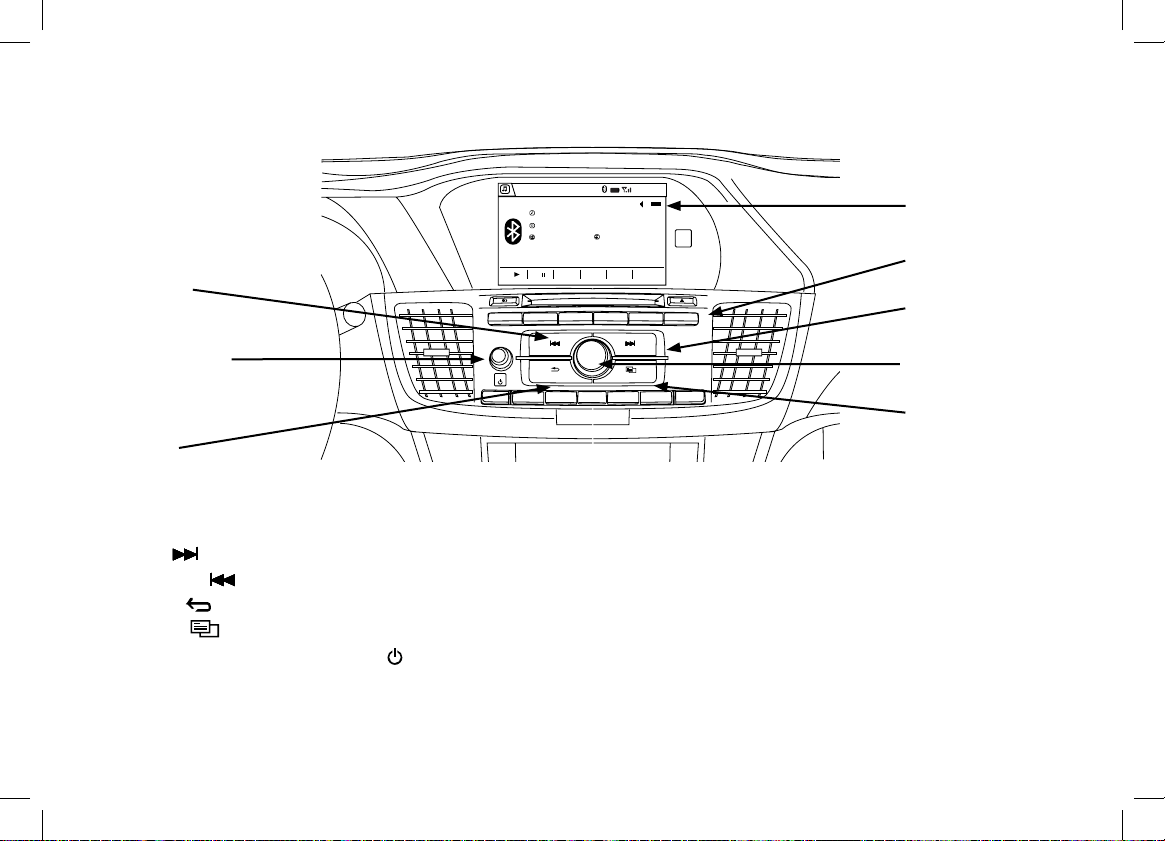
• LIST Knob / SELECT Button - Turn to scroll through choices� Press to set your choice�
• SETTINGS Button - Press to display the Settings Menu on the Audio/Information Screen�
• Next ( ) Button - Press tune to the next channel�
• Previous ( ) Button - Press the to tune to the previous channel�
• BACK ( ) Button - Press to go back to the previous screen�
• MENU ( ) Button - Press to display the menu items�
• Volume Knob / Power Button ( ) - Turn to adjust the volume� Press to turn the audio system on and off�
Actual screens and button conguration may differ from vehicle to vehicle.
BACK MENU
VOL
1
AUX
IN
2345 6
AUXCDFM/AMDISP PHONE SETTINGS
LIST
PUSH
SELECT
Bluetooth
12:00
123456
The Highway
56 Neon Lights
Blake Shelton SiriusXM
07
®
LIST Knob /
SELECT Button
Audio/
Information
Screen
SETTINGS
Button
Volume Knob /
Power Button
BACK
Button
Previous
Button Next
Button
Menu
Button
Overview of Controls
Inhaltsverzeichnis


