
WELD-I EM19191 Montage- und Bedienungsanleitung

www.intertest.com • 303 Route 94 • Columbia, NJ 07832 • 908.496.8008
®
Operation & Service Manual
®
EM19191

Table of Contents
Introduction 3
Customer Support 4
Warranty Information 5
System Overview 6
Assembly
Connection Diagram 7
Spatter Shield Setup 8
Optional Filter Setup 9
Camera Head/Control Unit Setup 9
Operation
Manual Camera Settings 11
Menu Settings 13
Changing Menu Settings 15
Care & Maintenance 16
To avoid injury, read and
understand documentation
prior to operation. Direct
any questions about operation
to InterTest®at (908) 496-8008
or service@intertest.com
2

Introduction
Congratulations on your investment in our Weld-i®Zoom HD
camera system! We are pleased that you selected the Weld-i®Zoom
HD from iShot Imaging for your in-process weld monitoring needs.
The Weld-i®Zoom HD represents one of the finest high-definition weld
monitoring systems in the world for manual and automated weld
quality control.
Many additional features of the Weld-i®Zoom HD will enhance your
“in-process” inspection. Call your InterTest®Sales Representative for
more information at 908-496-8008.
High Definition with Zooming Capability
The Weld-i®Zoom HD camera system uses the state of the
art zoom camera that boasts Full HD picture at 1080/60p
(1920 x 1080) and has a 10x Zoom capability.
Special Spot Filtering and Wide Dynamic Range
The Weld-i®Zoom HD camera system uses advanced
camera technology along with a special spot filtered lens in
order to adapt to the bright white and UV light produced by
various weld types and conditions.
Intuitive Control Box
The intuitive control box allows the user to adjust the
Weld-i®Zoom HD camera head during use. Placed at the
operator’s fingertips, all controls are safely away from the
harmful environments.
3

Customer Support
Service and support for all InterTest Inc. and iShot Imaging products
is available by calling (908) 496-8008. We also welcome comments,
suggestions and technical inquiries by fax at (908) 496-8004 or E-
Page 5 explains InterTest’s one-year limited warranty on parts and
materials. Read all warranty information; register your product on-line
at www.intertest.com and save this manual for future reference.
If your system requires service, please contact Customer Service at
service@intertest.com or (908) 496-8008. In order to return a product
for service you must have an RMA (Return Merchandise Authorization)
number. To obtain one, please contact the Customer
Service Team at the number above. Have the product name and serial
numbers ready for the Customer Service Representative. RMA
numbers must appear on related paperwork and be clearly marked on
the outside of the box of the returned items.
4

Warranty
Warranty Statement
InterTest®, Inc. guarantees the custom products manufacture
®
d by InterTest®, Inc.
to be free from defects in materials and workmanship for a period of one (1) year,
from the date of original purchase. Any and®all other products not manufactured
by InterTest, Inc. will carry the OEM’s limited warranty, which will be passed to
the purchaser through and supported by InterTest, Inc. InterTest, Inc.’s
obligation under this limited warranty shall be confined to the repair or exchange
of any part, or parts thereof, that prove defective under normal use and service
for which the product was intended and/or designed for.
This limited warranty covers conditions that upon our examination, at our
facility, shall disclose, to our satisfaction, to be defective.
This limited warranty is in lieu of all other warranties, express or implied,
including the warranties of merchantability and fitness for use and of all other
obligations or liabilities on our part, and we neither assume, nor authorize any
other person to assume for us, any other liabilities in connection with the sale of
InterTest, Inc. equipment. This warranty shall not apply to any equipment that
has been subject to accident, negligence, alteration, abuse, unauthorized repair,
improper storage, or other misuse.
This limited warranty applies only to the original purchaser and cannot be
assigned or transferred to any third party without express written consent from
InterTest, Inc.
This limited warranty does not apply to consumable items, expendable items or
normal wear and tear, nor does it apply to failure due to radiation, overheating
and / or below freezing temperatures.
Additionally, InterTest®, Inc. assumes no responsibility, either expressed or
implied, regarding the improper usage of this equipment or interpretation of test
data derived from this product. InterTest, Inc.’s responsibility and obligations, in
all cases, are limited strictly to the repair and/or replacement costs outlined
above. All sales will be considered final and all orders are non-cancellable, non-
returnable and non-refundable.
The laws of the State of New Jersey shall govern this warranty.
Note: In the event that the equipment cannot be returned to InterTest, Inc., for
whatever reason, the customer agrees to pay for all travel and living expenses
incurred to have an InterTest, Inc. Representative evaluate, assess or affect a
warranty repair in the field.
5

System Overview
LIST OF COMPONENTS FOR STANDARD WELD-I ZOOM HD SYSTEM - EM19191
FIGURE 1
Component Part#
Description
A1and A2
EM10065
Power Supply
B
EM19107
Weld-i®Zoom HD Camera Control Unit
C
EM68276
25’ D-SUB 9-pin RS-232 Communication Cable
D
EM19104
Weld-i®Zoom HD Camera Head (includes A2, F, G)
E
EM68278
25’ Weld-i®Zoom HD 3G-SDI Video Cable
F
EM19182
Weld-i®Zoom HD Spatter Shield Kit
G
EM16410
Weld-i®Zoom HD Magnifying Kit
H
EM68282
25’ Weld-i®Zoom HD Power Cable
Optional/Not
Pictured
EM19372
25’Weld-i®Zoom HD LED Illumination Kit
EM16414
#10 Full Field Weld Glass Filter
EM16413
#8 Full Field Weld Glass Filter
EM16400
0.5 ND Filter
EM16402
1.0 ND Filter
EM16403
1.5 ND Filter
EM16404
Polarizing Filter
EM15915
0.04 –2.0 ND Gradient Filter
EM15914
UV Cut Band Pass Filter
A1
B
D
C
A2
G
F
E
H
6
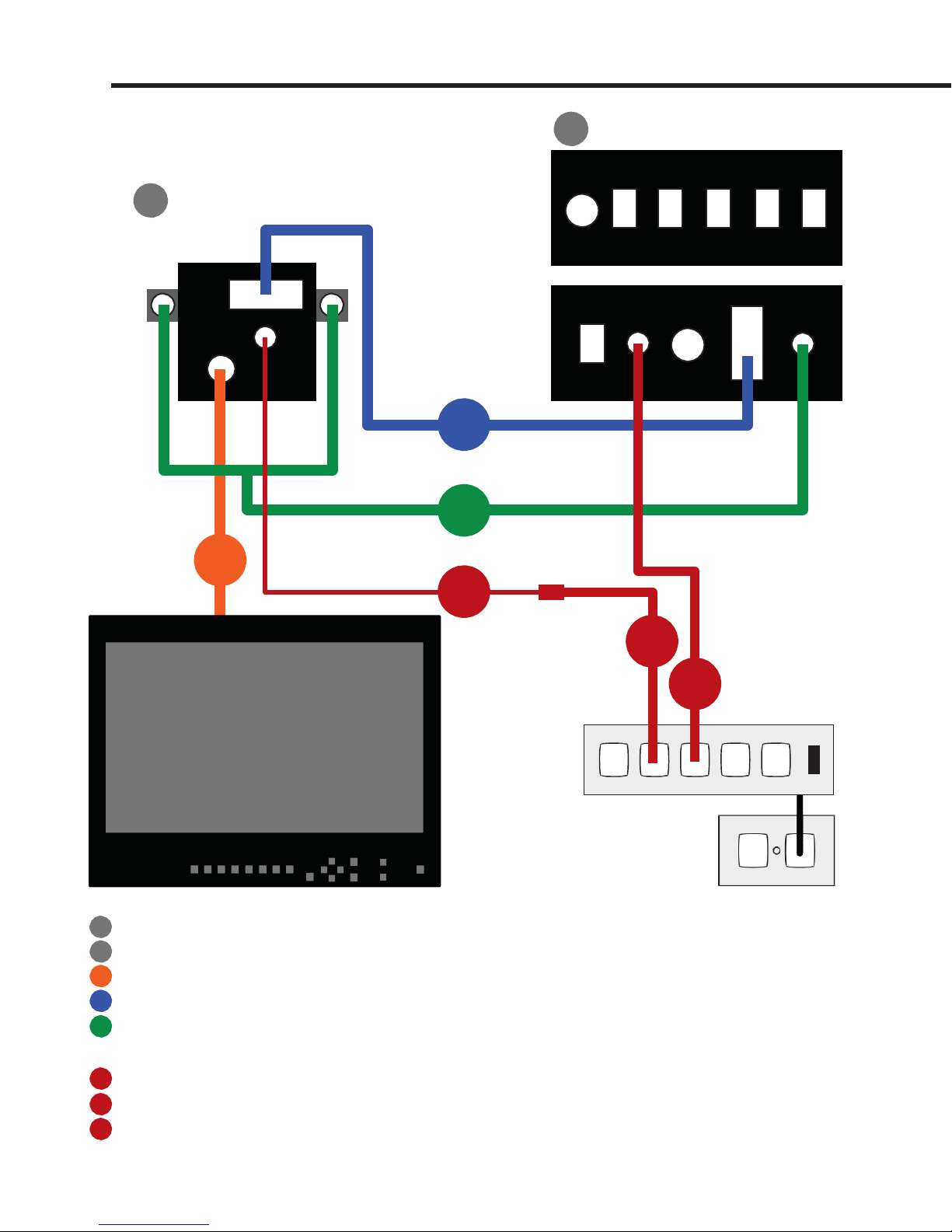
Assembly
EM19104 - Weld-i® Zoom HDCamera Head / 3G-SDI
EM19107-Weld-i®ZoomHDCameraControlUnit
EM68278 - 25 foot 3G-SDI Video Cable (Component in Cable Kit EM19183)
Power Outlet
EM68276 - 25 foot Communication Cable with RS232 Connection (Component in Cable Kit EM19183)
EM19372 - (Optional) Illumination Kit - Includes 25 foot LED Power and Intensity Control Cable, 2
Pre-wired LED lights with connector, 2 LED brackets, 4 screws, 25 foot LED Cable, and Allen Key
EM68286 - 25 foot Power Cable, Camera to Power Adapter (Component in Cable Kit EM19183)
EM10065 - Power Adapter, Connecting Camera Power Cable to Power Strip
EM10065 - Power Adapter, Connecting CCU to Power Strip
*Power Strip, Illumination Kit, and Monitor Sold Separately
2 CCU CONTROLS
LED
AUTO EXP/
INTENSITY UP MENU FOCUS IRIS ZOOM
1
CAMERA HEAD
Front
DOWN
EXIT
GAIN SHUTTER FOCUS
LED
Brackets*
(Optional)
RS-232
12V/DC IN
LED OUT
(optional)
Back
ON/OFF
FUSE
RS232
LED (Optional)*
3G-SDI
3
4
5
6
12V Power
12V Power
7
8
Power Strip*
Monitor*
1
2
3
4
5
6
7
8
7

Assembly
Spatter Shield Setup:
NOTE: Although the Weld-I Zoom HD camera head is generally
mounted away from the welding target, it is recommended to use a
spatter shield in front of the zoom lens.
Follow Spatter Shield Setup steps before completing Camera
Head/Control Unit Setup.
1. Drop/Place spatter shield in front of camera lens (Figure 2).
2. With fingers, begin threading on the retaining ring (Figure 3).
3. Once started, finish threading on the retaining ring with the
retaining ring tool (Figure 4). DO NOT OVERTIGHTEN THE
RETAINING RING. This may cause damage to the spatter shield.
4. If further magnification is required, thread on the applicable close
up lens by hand (Figure)
Figure 2
Figure 4
Figure 3
Figure 5
8

Assembly
Optional Optical Filter Setup:
1. Drop/Place applicable optional optical filter in front of camera lens
(Figure 6).
2. Follow Spatter Shield Setup steps on page 8.
Camera Head/Control Unit Setup:
Refer to page 7 connection diagram.
1. Position the Camera Head where needed. Mounting puck is a
¼-20 thread.
2. Position the Camera Control Unit within the distance of
cabling. Be sure camera control box Main Power is OFF.
3. Connect Power Adapter to 12V/DC connector on rear of
camera control box (Connection 8).
4. Plug Power Adapter into Power Strip* (Connection 8) (*Power
Strip not included).
Figure 6
9

Assembly
5. Plug Communication Cable into rear of Camera Head
(Connection 4).
6. Plug Communication Cable to RS-232 connector on rear of
Camera Control Unit (Connection 4).
7. Plug 3G-SDI Cable into rear of Camera Head (Connection 3).
8. Plug 3G-SDI Cable into Monitor* with 3G-SDI input
(Connection 3) (*Monitor not included).
9. Plug Power Cable into rear of Camera Head (Connection 6).
10. Plug Power Cable into Power Adapter (Connection 6 to 7).
11. Plug Power Adapter into Power Strip* (Connection 7) (*Power
Strip not included).
12. Power on Monitor and video will appear.
13. Turn ON Power Switch on rear of Camera Control Unit.
14.
Wait 10 seconds or until “VERSION 1.1” disappears from the
top left of the picture before using Camera Control Unit.
10
Inhaltsverzeichnis


