
ZeeVee ZvRemote Bedienungsanleitung

zeevee.com
ZvRemote
ZvKeyboard
ZvReceiver
User’s Guide

2
3
Contents
Welcome............................................... 3
ZvReceiver ............................................4-5
ZvRemote............................................6-18
ZvRemoteataglance .................................... 7
Installaon ............................................8-9
Using ZvRemote ......................................10-17
Tips and Troubleshoong ................................ 18
ZvKeyboard..........................................19-25
Installaon ..........................................20-21
Using ZvKeyboard . . . . . . . . . . . . . . . . . . . . . . . . . . . . . . . . . . . .22-23
Sengs ............................................... 24
Tips and Troubleshoong ..............................24-25
Compliance and FCC Statement ........................... 26
ZeeVee Limited Warranty . . . . . . . . . . . . . . . . . . . . . . . . . . . . . .27-29
Welcome
Thank you for your purchase. This guide
provides operang instrucons for
ZvRemote, ZvKeyboard, and ZvReceiver.
For more informaon on any of our
products, visit www.zeevee.com.

4
5
ZvReceiver ZvReceiver
ZvReceiver wirelessly communicates with both the
ZvRemote and ZvKeyboard, and converts their inputs
to commands sent to your computer using a USB
connecon. ZvReceiver can be paired with up to eight
ZvRemotes or ZvKeyboards for simultaneous control
from dierent locaons in your home.
1. Connect buon
Used to “pair” ZvReceiver with ZvRemote
and/or ZvKeyboard.
2. Blue indicator lamp
Indicates commands received from
ZvKeyboard or ZvRemote.
3. Yellow indicator lamp
Blinks when the connect buon was pressed,
indicang that it is waing to be paired.
Installaon
Plug ZvReceiver into a USB port on computer,
as shown. (Not required if adding ZvRemote to
a computer with exisng ZvReceiver.)
“Pair” ZvReceiver
See page 9 for instrucons on pairing ZvReceiver
with ZvRemote.
See page 21 for instrucons on pairing
ZvReceiver with ZvKeyboard.
3
2
1

6
7
ZvRemoteZvRemote
ZvRemote
ZvRemote uses long range radio frequency (RF) technology to control your computer
from nearly anywhere in your house. It contains a touchpad mouse, mulmedia keys
(e.g. play/pause), 5-way navigaon keys, numeric keypad, and other shortcut keys, if
you have a ZvBox.
ZvRemote communicates with the computer via ZvReceiver, an RF receiving unit. If
your computer doesn’t have an exisng ZvReceiver installed (ZvReceiver is included
with ZvBox systems), you’ll need to purchase one. Downloading Zviewer soware on
the computer enables addional special features on ZvRemote, detailed below.
Power
buons Mode
buons
Mouse
Navigaon
and control
buons
Window
control
buons
Zviewer
Launch
Buon
Numeric and
text keypad
8
9
ZvRemote ZvRemote
Mode Buons
Pressing a mode buon tells the remote which
device you want to control.
ZV: Sets remote to control computer.
TV1, TV2, TV3: Selects which TV or system
is controlled (or the “acve” TV), which is
selected by pressing TV1, TV2, or TV3.
For example, TV1 could be in the family room,
TV2 in the oce, and TV3 in the bedroom.
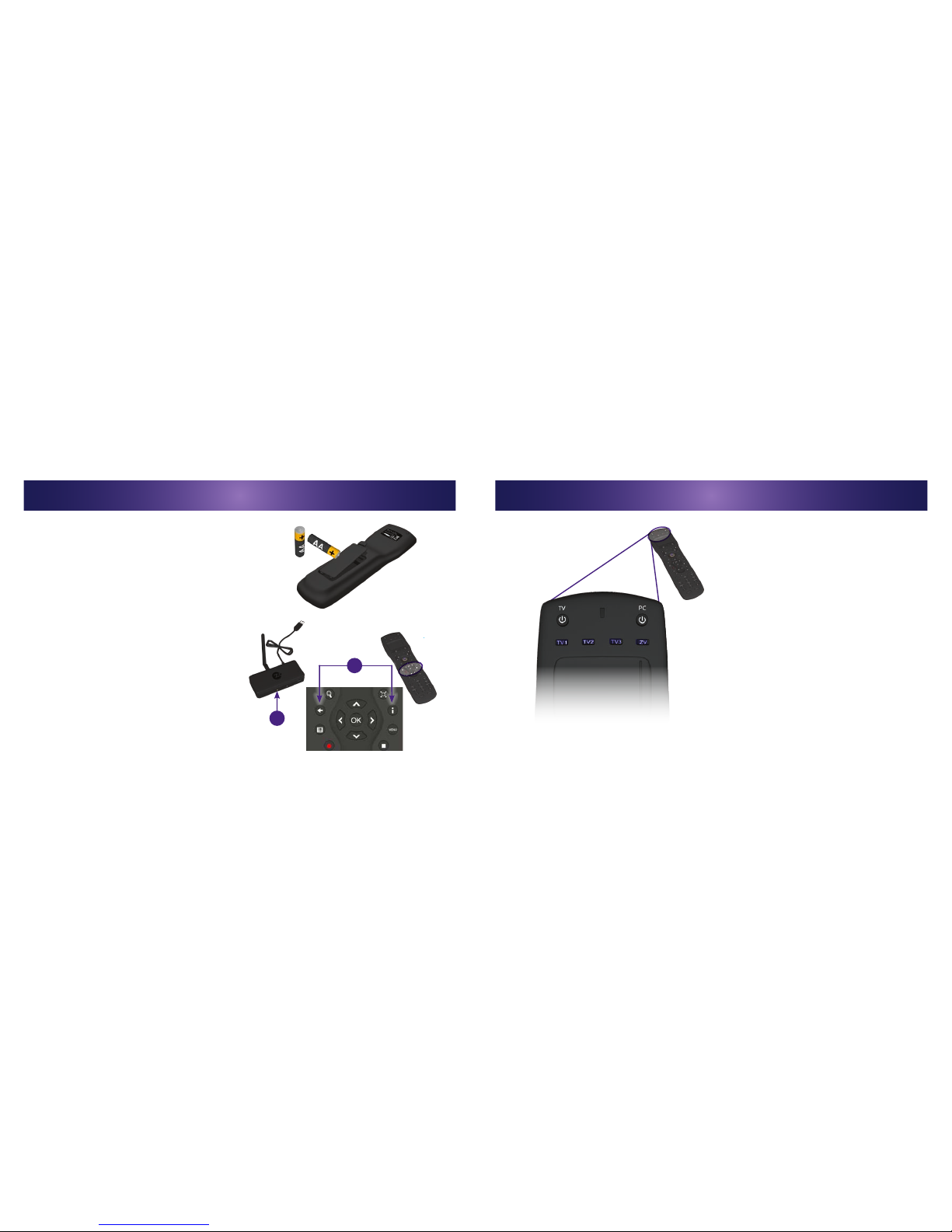
Install Baeries
Insert AA baeries in compartment on back, as shown.
“Pair” ZvRemote with ZvReceiver
ZvRemote must be “paired” with ZvReceiver in order
to communicate with it. Normally, when you rst
install the baeries in ZvRemote, it automacally
pairs with ZvReceiver (if ZvReceiver is plugged into
the computer). If necessary, you can manually pair
the two:
1. On ZvReceiver press the “connect” buon and a
yellow light will blink
2. On ZvRemote, press and hold the and but-
tons unl a blue light ashes on ZvReceiver.
2
1

10
11
ZvRemote ZvRemote
Power and AV Buons
TV : Turns acve TV on/o.
PC : Sends “sleep” command to the computer. The computer’s power sengs determine eect.
Raise or lower volume on the acve TV.
Mutes the acve TV.
Channel up/down: PC command, funcon varies by applicaon running on your computer.
Using ZvRemote
ZvRemote is designed to control a computer,* and
with addional programming through ZvBox it can
conrol up to three TVs (or sound systems connected
to TVs).
To program ZvRemote to control your TVs or other
devices, visit:
www.zeevee.com/support

12
13
ZvRemote
Touchpad and Mouse Buons
1. Touch Pad: Used for cursor movement.
2. Vercal Scrollbar: Drag ngerp up or down
to scroll in the acve window.
3. Le/Right Mouse Buons
3
2
1
ZvRemote
Navigaon Buons
Keyboard arrow keys
OK (to select)
Keyboard “enter” key
Window Controls*
Press repeatedly to sort through
open windows
Minimize acve window
Maximize acve window
Close acve window and applicaon

14
15
ZvRemote
Media Controls
Control popular media applicaons like Zviewer and
Media Center. Funconality of these buons may
vary depending on the applicaon being run.
ZeeVee is working closely with many websites to
add the ability to control the playback of their media
with keys like Play, Pause, and Full Screen. Zviewer
will tell you which controls are acve as you visit
each website.
Pause
Record
Rewind
Skip back
Play
Stop
Fast forward
Skip forward
“Back” buon
ZvRemote
Navigaon and Control Buons*
Zoom in/out of applicaon
Full-screen mode
Menu
Opens Zviewer* for easy access
to online programming:
Show informaon
Guide
On-screen keyboard*

16
17
ZvRemote
Numeric Keypad
Aer installing Zviewer soware,* the numeric
keypad allows “triple-tap” text entry. Enter text
as if text-messaging on a cell phone.
To enter this mode, press the “INPUT” key (an
on-screen keyboard pops up).
Press “INPUT” again to exit triple-tap mode.
*Download Zviewer soware for free at
www.zeevee.com.
0-9 Buons: Enter numbers or
leers in applicaon
CLEAR:
“Escape” (esc)
key on a
keyboard
ENTER:
“Enter” on
a keyboard
Tips and Troubleshoong
1. ZvRemote is unresponsive.
• Ensure that the baeries are properly installed.
• ZvRemote’s touchpad is designed to “sleep” when not in use, in order to save baeries. Press the
ZV mode buon to “wake” ZvRemote when you’re ready to use it.
2. ZvRemote works intermiently or yellow LED blinks.
• Ensure that the antenna on ZvReceiver is screwed in ghtly.
• Posion ZvReceiver dierently; keep it away from objects made of metal or stone, which reduce
operang range.
• Replace ZvRemote’s baeries.
• Out of range of ZvReceiver. Try moving closer to your computer.*
3. ZvRemote’s LED ashes yellow aer a key press but nothing happens.
• ZvReceiver is not installed or acve. Ensure ZvReceiver is plugged into the USB port of your computer.
• Out of range of ZvReceiver. Try moving closer to your computer.*
*If range problems persist, adding a USB extender may solve the problem. Get more informaon on USB
extenders at www.zeevee.com/support.
ZvRemote

18
19
ZvKeyboard
ZvKeyboard
ZvKeyboard lets you control your computer from across the house; perfect when the computer’s output is
routed to distant displays, or when a convenonal wireless keyboard can’t reliably reach the computer.
Surf the web, compose e-mail, or use the media controls for playback of video or music–ZvKeyboard makes
it easy, from wherever you happen to be!
ZvKeyboard uses Radio Frequency technology to communicate with the computer via ZvReceiver. If your
computer doesn’t have an exisng ZvReceiver installed (ZvReceiver is included with ZvBox systems), you’ll
need to purchase one. Go to www.zeevee.com to purchase a
ZvReceiver.
Downloading and installing Zviewer soware enables
addional special features on ZvKeyboard, detailed on the
following pages.
Go to www.zeevee.com to download Zviewer for free.
ZvKeyboard
Installaon
Insert baeries:
Open the baery compartment on the 1.
back of ZvKeyboard by pushing in the two
tabs and pulling up on the cover.
Insert four AA baeries as shown.2.
Replace baery compartment cover.3.
On/O switch:
The keyboard enters “sleep” mode to when not
in use. But to conserve baeries when you are
not using it for long periods of me, turn o
keyboard when you are done using it.
Dieses Handbuch passt für folgende Modelle
2
Inhaltsverzeichnis
Beliebte Fernbedienung Handbücher anderer Marken

Panasonic
Panasonic EUR7622KB0 Bedienungsanleitung

Bang & Olufsen
Bang & Olufsen Beo4 Bedienungsanleitung

Sunwave Tech.
Sunwave Tech. RemoteComm SRC-7000 Bedienungsanleitung

Multiplex
Multiplex PROFI TX 9 Bedienungsanleitung

One Remote
One Remote RMB4 Bedienungsanleitung

FUTABA
FUTABA 9ZAP - PART2 Bedienungsanleitung


