ZKTeco VT07-B01-W Bedienungsanleitung

Product Name and Model Number User Manual
P a g e |1Copyright©2020 ZKTECO CO., LTD. All rights reserved.
Thank you for choosing our product. Please read the instructions carefully
before operation. Follow these instructions to ensure that the product is
functioning properly. The images shown in this manual are for illustrative
purposes only.
For further details, please visit our Company’s website
www.zkteco.com.
-W-W-W

User Manual
P a g e | 2 Copyright©2022 ZKTECO CO., LTD. All rights reserved.
relating to the use of the information contained in or referenced by this manual, even if ZKTeco has been
advised of the possibility of such damages.
This manual and the information contained therein may include technical, other inaccuracies or
typographical errors. ZKTeco periodically changes the information herein which will be incorporated into
new additions/amendments to the manual. ZKTeco reserves the right to add, delete, amend or modify the
information contained in the manual from time to time in the form of circulars, letters, notes, etc. for better
operation and safety of the machine/unit/equipment. The said additions or amendments are meant for
improvement /better operations of the machine/unit/equipment and such amendments shall not give any
right to claim any compensation or damages under any circumstances.
ZKTeco shall in no way be responsible (i) in case the machine/unit/equipment malfunctions due to any
non-compliance of the instructions contained in this manual (ii) in case of operation of the
machine/unit/equipment beyond the rate limits (iii) in case of operation of the machine and equipment in
conditions different from the prescribed conditions of the manual.
The product will be updated from time to time without prior notice. The latest operation procedures and
relevant documents are available on http://www.zkteco.com.
If there is any issue related to the product, please contact us.
ZKTeco Headquarters
Address ZKTeco Industrial Park, No. 32, Industrial Road,
Tangxia Town, Dongguan, China.
Phone +86 769 - 82109991
Fax +86 755 - 89602394
For business related queries, please write to us at: sales@zkteco.com.
To know more about our global branches, visit www.zkteco.com.

User Manual
P a g e | 3 Copyright©2022 ZKTECO CO., LTD. All rights reserved.
About the Company
ZKTeco is one of the world’s largest manufacturer of RFID and Biometric (Fingerprint, Facial, Finger-vein)
readers. Product offerings include Access Control readers and panels, Near & Far-range Facial Recognition
Cameras, Elevator/floor access controllers, Turnstiles, License Plate Recognition (LPR) gate controllers and
Consumer products including battery-operated fingerprint and face-reader Door Locks. Our security
solutions are multi-lingual and localized in over 18 different languages. At the ZKTeco state-of-the-art
700,000 square foot ISO9001-certified manufacturing facility, we control manufacturing, product design,
component assembly, and logistics/shipping, all under one roof.
The founders of ZKTeco have been determined for independent research and development of biometric
verification procedures and the productization of biometric verification SDK, which was initially widely
applied in PC security and identity authentication fields. With the continuous enhancement of the
development and plenty of market applications, the team has gradually constructed an identity
authentication ecosystem and smart security ecosystem, which are based on biometric verification
techniques. With years of experience in the industrialization of biometric verifications, ZKTeco was
officially established in 2007 and now has been one of the globally leading enterprises in the biometric
verification industry owning various patents and being selected as the National High-tech Enterprise for 6
consecutive years. Its products are protected by intellectual property rights.
About the Manual
This manual introduces the operations of VT07-B01-W.
All figures displayed are for illustration purposes only. Figures in this manual may not be exactly consistent
with the actual products.
Features and parameters with ★are not available in all devices.

User Manual
P a g e | 4 Copyright©2022 ZKTECO CO., LTD. All rights reserved.
Document Conventions
Conventions used in this manual are listed below:
GUI Conventions
For Software
Convention Description
Bold font Used to identify software interface names e.g., OK,Confirm,Cancel.
>Multi-level menus are separated by these brackets. For example, File > Create >
Folder.
For Device
Convention Description
< > Button or key names for devices. For example, press <OK>.
[ ] Window names, menu items, data table, and field names are inside square
brackets. For example, pop up the [New User] window.
/Multi-level menus are separated by forwarding slashes. For example,
[File/Create/Folder].
Symbols
Convention Description
This represents a note that needs to pay more attention to.
The general information which helps in performing the operations faster.
The information which is significant.
Care taken to avoid danger or mistakes.
The statement or event that warns of something or that serves as a cautionary
example.

User Manual
P a g e | 5 Copyright©2022 ZKTECO CO., LTD. All rights reserved.
Table of Contents
1APPEARANCE ..............................................................................................................................................7
2INSTALLATION SET-UP .............................................................................................................................. 8
2.1 INSTALLATION ENVIRONMENT.....................................................................................................................................................................8
2.2 INSTALLATION STEPS....................................................................................................................................................................................... 8
3CONNECTION DIAGRAM ..........................................................................................................................10
4MAIN MENU..............................................................................................................................................11
5LIVE VIDEO SETTING ................................................................................................................................13
5.1 OUTDOOR STATION MONITOR..................................................................................................................................................................13
5.2 IPC MONITOR.....................................................................................................................................................................................................13
5.3 LIVE VIDEO..........................................................................................................................................................................................................14
5.3.1 REAL-TIME VIDEO OF OUTDOOR STATION........................................................................................................................................................... 14
5.3.2 REAL-TIME VIDEO OF IPC MONITOR.........................................................................................................................................................................15
6CALL LOG ..................................................................................................................................................16
6.1 ALL CALL LOGS .................................................................................................................................................................................................16
6.2 MISSED CALL LOGS.........................................................................................................................................................................................17
7NEWS SETTINGS ....................................................................................................................................... 18
8NETWORK SETTINGS ................................................................................................................................19
8.1 WIRED NETWORK.............................................................................................................................................................................................19
8.2 WIRELESS NETWORK...................................................................................................................................................................................... 20
9SYSTEM SETTINGS ................................................................................................................................... 22
9.1 SOUND SETTINGS............................................................................................................................................................................................ 22
9.1.1 DO NOT DISTURB PLAN .................................................................................................................................................................................................23
9.2 DISPLAY SETTINGS .......................................................................................................................................................................................... 24
9.3 ADVANCED SETTINGS ....................................................................................................................................................................................25
9.3.1 MODIFY PASSWORD.......................................................................................................................................................................................................26

9.3.2 DEVICE MANAGEMENT..................................................................................................................................................................................................26

User Manual
P a g e | 6 Copyright©2022 ZKTECO CO., LTD. All rights reserved.
9.3.3 LOCAL SETTING.................................................................................................................................................................................................................29
9.3.4 TIME SETTING.....................................................................................................................................................................................................................30
9.3.5 STORAGE MANAGE..........................................................................................................................................................................................................31
9.3.6 NETWORK MANAGE........................................................................................................................................................................................................32
9.4 SYSTEM INFORMATION.................................................................................................................................................................................33
9.5 RESET SETTINGS............................................................................................................................................................................................... 33
10 MAKE A CALL ..........................................................................................................................................35
10.1 SET THE COMMUNICATION ADDRESS..................................................................................................................................................35
10.2 ADDING OUTDOOR STATION...................................................................................................................................................................36
10.3 MAKE A CALL ON THE DEVICE................................................................................................................................................................. 36
APPENDIX ....................................................................................................................................................39
FCC WARNING..........................................................................................................................................................................................................39
ECO-FRIENDLY OPERATION............................................................................................................................................................................... 40

User Manual
P a g e | 7 Copyright©2022 ZKTECO CO., LTD. All rights reserved.
1Appearance

User Manual
P a g e | 8 Copyright©2022 ZKTECO CO., LTD. All rights reserved.
2Installation Set-up
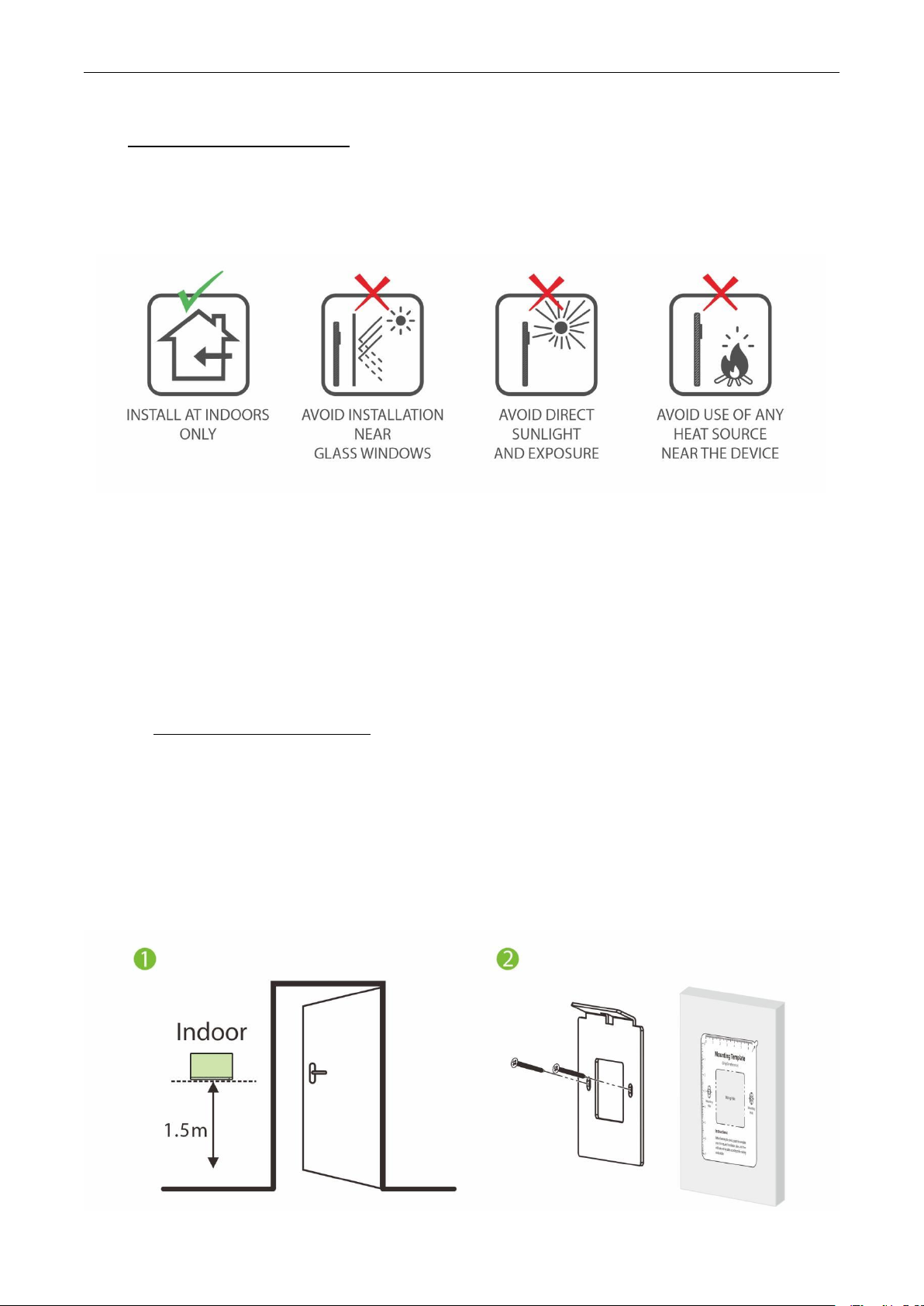
2.1 Installation Environment
2.2 Installation Steps
Make sure that the device is installed as per the installation instructions. Otherwise, you will bear any
consequence resulting from your actions.
The device supports two installation methods: wall-mounted installation and desktop installation. Users
can choose according to actual needs.
Mode 1: Wall-mounted Installation
Step1: Find a suitable indoor installation location, the recommended installation height is 59.1 inches
(1.5m), which can be adjusted as needed.
Step2: Attach the mounting template stickers to the wall and drill holes, then fix the back plate on the wall
with the wall mounting screws.
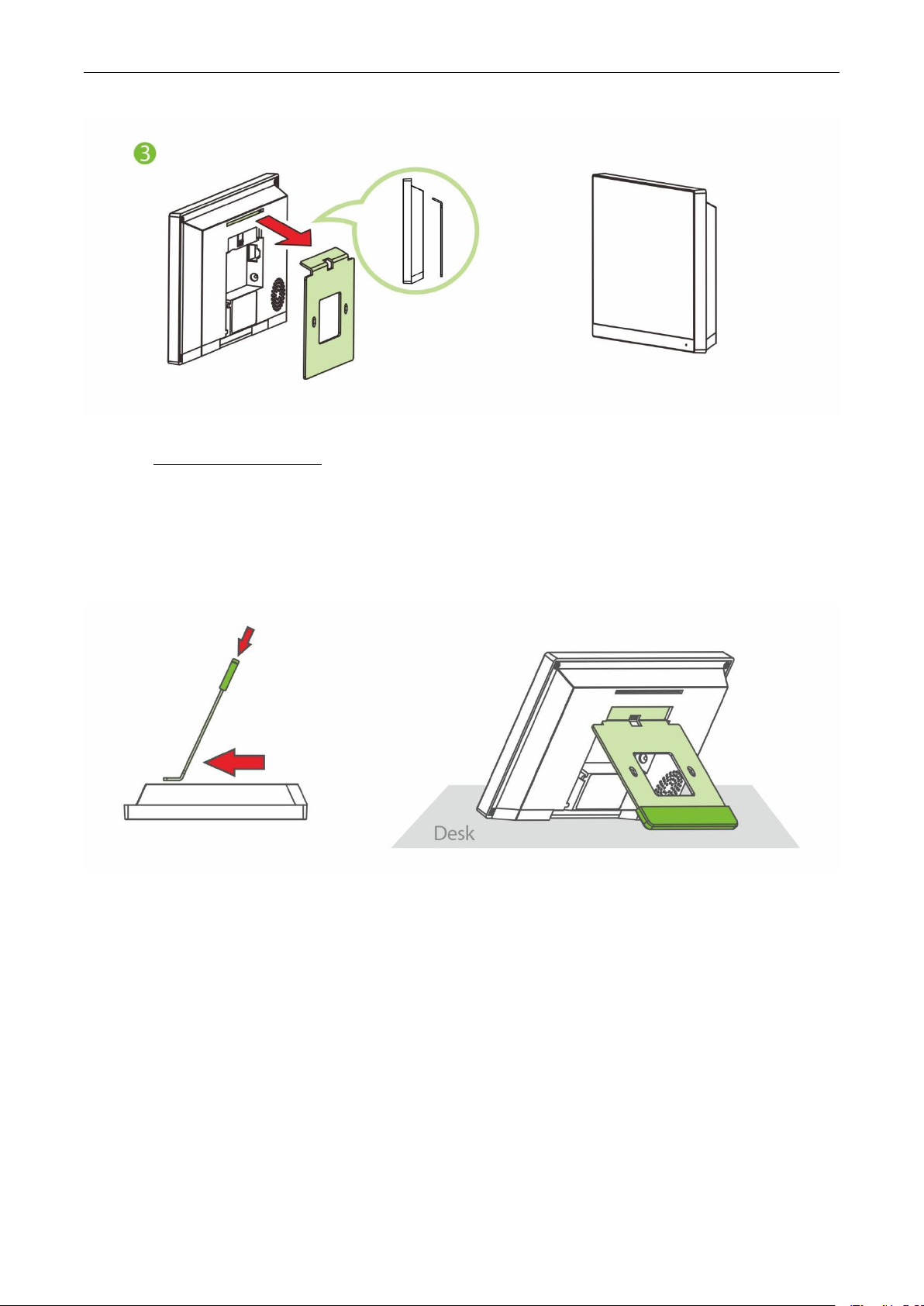
Step3: Finally, push the device into the back plate and secure it to the back plate.

User Manual
P a g e | 9 Copyright©2022 ZKTECO CO., LTD. All rights reserved.
Mode 2: Desktop Installation
Step1: Take out the device and the bracket from the box.
Step2: Put the white bracket rubber sleeve on the bottom of the bracket.
Step3: Finally, insert the bracket into the mounting slot behind the device.

User Manual
P a g e | 10 Copyright©2022 ZKTECO CO., LTD. All rights reserve
d.
3Connection Diagram
Notes:
1. VT07-B01-W , Video intercom device and camera are connected through out the network cable.
2. In LAN, the IP addresses of all devices must be in the same network segment. See figure above for an
example.
-W
Inhaltsverzeichnis
Andere ZKTeco RFID-System Handbücher

ZKTeco
ZKTeco OP-200 Bedienungsanleitung

ZKTeco
ZKTeco SpeedFace-V5L Bedienungsanleitung

ZKTeco
ZKTeco GL300 Bedienungsanleitung

ZKTeco
ZKTeco FaceKiosk-H13 Bedienungsanleitung

ZKTeco
ZKTeco TSP-4 Series Bedienungsanleitung

ZKTeco
ZKTeco ProlD Series Bedienungsanleitung

ZKTeco
ZKTeco SC800 Bedienungsanleitung

ZKTeco
ZKTeco Green Label G4L Bedienungsanleitung

ZKTeco
ZKTeco SpeedFace-V5L-RFID Bedienungsanleitung

ZKTeco
ZKTeco KF1000-U Bedienungsanleitung