
Zonda N551 Bedienungsanleitung

1
Welcome!!
Thank you for choosing N551 mobile phone! Please
read this manual carefully before you use your mobile phone.
For efficient use of your mobile phone,
we recommend you to read the Safety and General
Information chapter in advance.
* Please read before using the mobile phone

Group edit 29
Turbo set 30
Memory status 30
My number 31
My profile 31
Call logs 32
Dialed call 32
Answered call 32
Missed call 33
Call time 33
Camera 34
Shooting 34
Album 37
Photo editor 39
Setting 40
Memory 41
Setting 42
Sound 42
Display 44
Phone set 46
Security set 49
Network set 52
Net account 56
Data folder 59
Download 59
Photo 60
Video 61
Avatar 62 3
T
Table of contents
able of contents
Safety and general information 6
Package contents 8
About your phone 9
Phone overview 9
Key definition 10
Status icon 12
Installing and Removing SIM card 14
Installing SIM card 14
Removing SIM card 14
Installing and Removing battery 15
Installing the battery 15
Removing the battery 15
Basic Function 16
Power on / off 16
About PIN/PUK 17
Making a call 19
Receiving a call 20
Missed a call 20
In call menu 21
Sub LCD 24
Quick access in idle mode 24
Storing a number 25
Main Menu 26
Selecting main menu item 26
Phone book 27
Phone book 27
2
T
Table of contents
able of contents

Reference information 90
Battery 90
About the battery 90
Charging the battery 90
Caution 91
Battery time 92
Entering text 93
General text input guideline 93
Changing the text input mode 94
English input 95
Number input 96
Symbol input 96
Data format 97
Troubleshooting 99
Technical information 100
5
T
Table of contents
able of contents
Pictures 62
Melodies 63
Scheduler 64
Schedule 64
To do 65
Memo 66
Anniversary 66
Entertainment 68
Game 68
Avatar 69
Utilities 70
Alarm 70
Calculator 70
World time 71
Stopwatch 71
Currency 72
STK 73
Internet SVC 74
Message 77
SMS 77
MMS 84
4
T
Table of contents
able of contents

7
6
Safety and General Information
Safety and General Information
Please read these simple guidelines and safety instructions
carefully before using the phone.
[Driving]
Please do not use a phone while driving. If you want to use
your phone, please use a hands-free kit or please park the car
first.
[Hospital]
Please turn off the phone when you are in hospital. Mobile
phones can cause possible interference to medical devices
such as hearing aids or pacemaker.
[Aircraft]
Please turn off the phone when you are in an aircraft.
It is prohibited to use phone in the aircraft.
[Blasting Area]
Please turn off the phone when you are near a blasting area.
[Battery and accessory]
Use only approved battery and accessories.
[When refuelling]
Do not use the phone at refuelling point(service station) or
near fuel or chemicals.
Safety and General Information
Safety and General Information
[Disassembly]
Do not disassemble your phone or any of its accessories.
Only certified service center can disassemble and repair your
phone.
[Children]
Keep all accessories or batteries out of the reach of small
children or babies. Please instruct children the proper ways of
handling phone during usage. Shock circuit or breakdown may
occur and may cause severe danger to user due to improper
usage.
[Battery]
Do not apply extreme shock to battery. It is dangerous to
disassemble a battery or to apply extreme shock to the battery
via nail or heavy metal objects.
Dispose of used batteries in accordance with local regulations.
Always recycle. Do not dispose of batteries in a fire.

9
8
Package contents
Package contents About
About Y
Your Phone
our Phone
Transceiver Battery
Charger
* The above photos depicts the closest actual representation
of the products.
Package contents
User Manual
Phone overview
Earpiece
Main Display
Left Softkey
SEND
Volume Key
Mic.
END
Right Softkey
OK
Navigation
Key
Numeric Key
(0~9)
Clear key
Camera key
Camera key
11
10
About
About Y
Your Phone
our Phone
About
About Y
Your Phone
our Phone
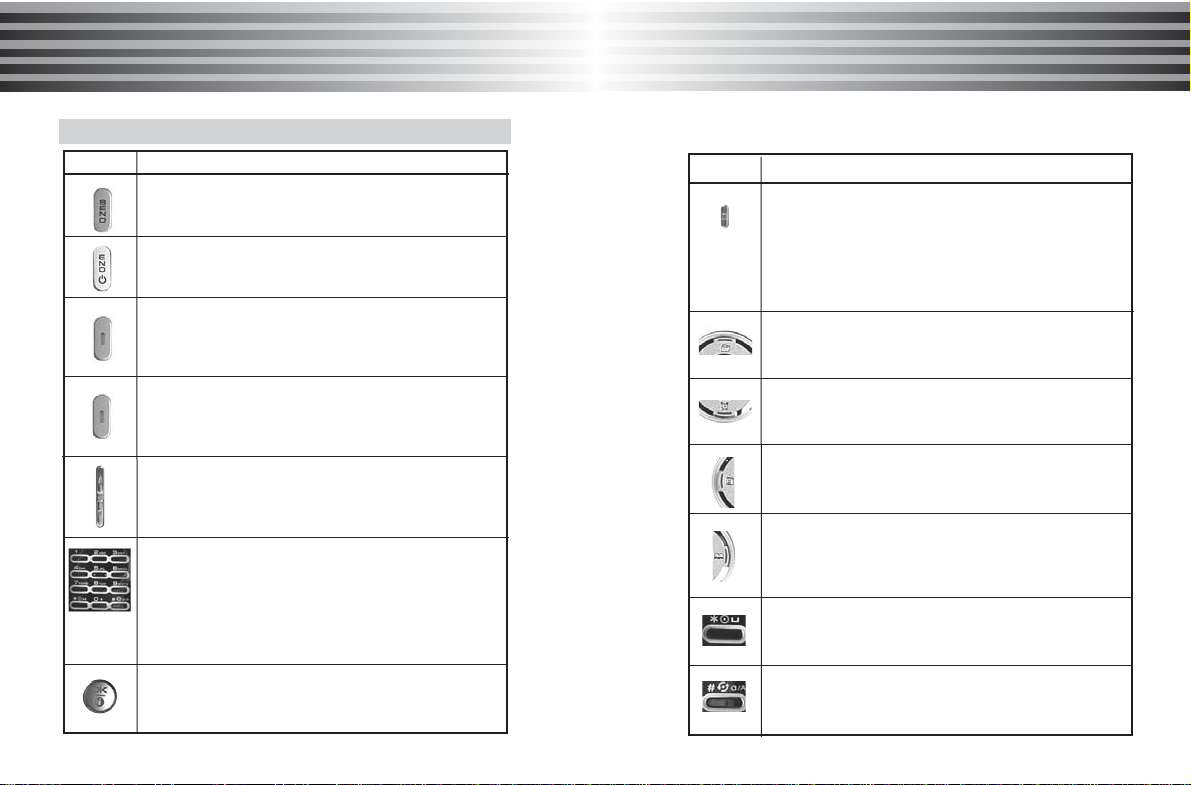
Key definition
Key Function Key Function
[Camera Key]
Filp open : When pressed, turns the camera
preview mode on. (In preview mode, works as a
camera shutter.)
Filp closed : When pressed and held, turns the
camera preview mode on.(In preview mode,
works as a camera shutter.)
[Navigation Key : Up]
In menu mode : Scrolls the menu up.
In idle mode : Access to Call log directly
[ Navigation Key : Down]
In menu mode : Scroll down the menu
In idle mode : Access to STK directly
[ Navigation Key : Left]
In menu mode : Scrolls the menu up
In idle mode : Access to Calendar directly
[ Navigation Key : Right]
Edit mode : Moves the cursor right
In Menu mode : Scrolls the menu Right
Idle mode : Access to Phone book directly
[ Function Key : * ]
When pressed and held while entering a phone
number , it enters a pause
[Function Key : # ]
When pressed and held in idle mode, it enters
phone mode menu.
[SEND Key]
Makes or answers a call
In idle mode: Access the Call list
[END Key]
End an active call.
Hold the key down, switch phone On or Off.
[Soft Key : Left]
In menu mode : Performs the various functions
according to the viewing menu.
In idle mode : Connects to main menu.
[Soft Key : Right]
In Menu mode: Performs the various functions
according to the viewing menu
In Idle mode: Connects to Message
[Side volume key]
During a call : Adjusts earpiece volume
In menu mode : Scrolls through the menu
In idle mode : Adjusts the keytone volume
[ Numeric Key]
Input 0~9 number in idle mode
[Digit key 1] : When pressed and held in idle
mode, quickly accesses voice mail server.
[Digit key 9] : When pressed and held in idle
mode, quickly accesses emergency Call
[OK Key]
In menu mode : Selects the main menu.
In idle mode : Connects to WAP directly.
13
About
About Y
Your Phone
our Phone
12
About
About Y
Your Phone
our Phone
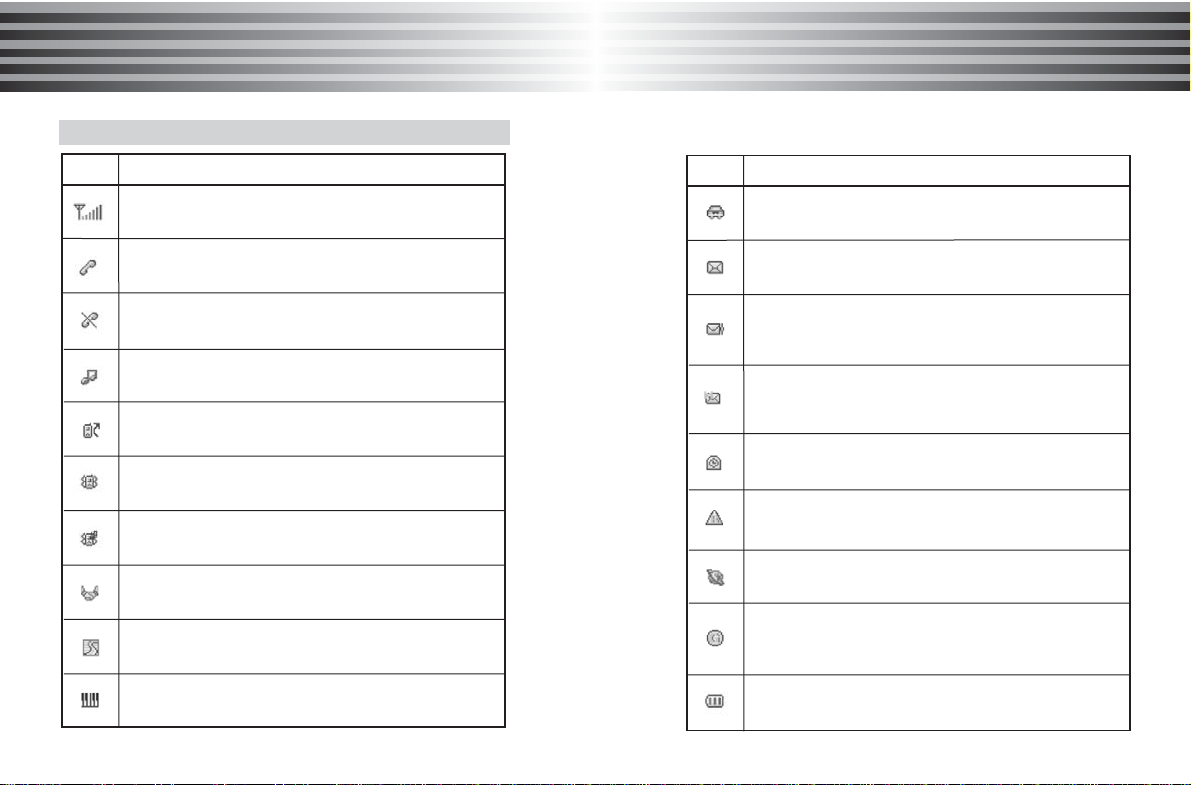
Status icon
Icon Function
[Signal Strength Indicator]
Indicates the strength of the network signal
[In Use]
Appears when a call is progressing
[No Use]
Appears when the network signal is not received
[Bell]
Appears when you set the Bell type
[Call Forward]
Appears when the Call forward feature is activated
[Vibrator]
Appears when you set the menu of Vibration type
[Vibrator then bell]
Appears when you set the menu of 'vibrator then bell'
[Meeting mode]
Appears when you set the 'Meeting mode'
[Street mode]
Appears when you set the 'Street mode'
[Concert mode]
Appears when you set the 'Concert mode'
Icon Function
[Message]
Appears when you have new or unread messages
[Voice Message]
Appears when you have new or unchecked voice
messages
[MMS Message]
Appears when you have new or unchecked
multimedia messages
[Alarm]
Appears when you set the Alarm and on
[Roam]
Indicates that you are roaming on another network
[Data/WAP]
Indicates that the phone is accessing the WAP
[GPRS]
Appears when you are connected to the GPRS
network
[Car mode]
Appears when you set the 'Car mode'
[Battery meter]
Indicates the level of battery charged
SIM (Subscriber Identity Module) is a "Smart Card" that holds
user phone number, service details, and memory for Phone
Book numbers and messages. You can use your SIM in any
GSM phone and will be charged for the calls.
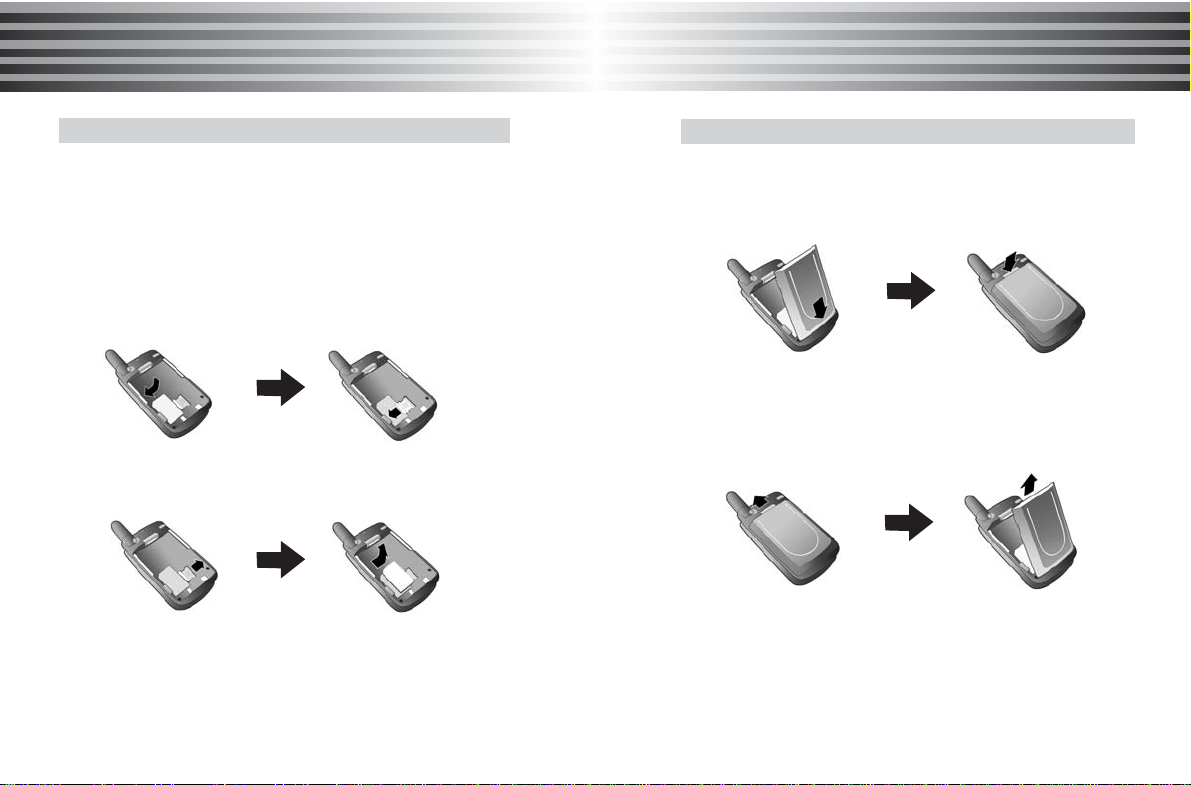
1. Installing SIM card
1. Power off the phone first.
2. Pull out the battery.
3. Insert the SIM card.
4. Slide the latch over the SIM card to lock it in place.
2. Removing SIM card
1. Slide the latch to the right.
2. Remove your SIM card from the phone.
* Protect your SIM card from scratches, water, dirt and
static electricity.
* Careful!
If you disregard the matters which above mentioned, it could
be erase information which stored on the your IM card.
15
14
About
About Y
Your Phone
our Phone About
About Y
Your Phone
our Phone
Installing and Removing SIM card Installing and Removing battery
1. Installing the battery
Insert the battery into the battery compartment at a slant
angle and press the top of the battery until the battery locks
in the place.
2. Removing the battery
Slide up the battery latch and then pull out the battery from
the phone.

17
16
About
About Y
Your Phone
our Phone
1. Power on
Press [END] key for a while.
* If PIN is activated, please enter 'PIN code'.
If 'Lock' is activated, please enter password.
Initial password is set to '0000'
If security of SIM card is enabled, the phone requests
the PIN code every time when the phone is turned on.
2. Power off
Press and hold [END].
¡Ø Making an emergency call
Your phone supports the international emergency number.
This means that these numbers can normally be used
to make an emergency call in any country with or without a
SIM card inserted, if a GSM network is within range.
(Some network operators may require that a SIM card is
inserted, and in some cases that the PIN has been entered
as well )
* To make an emergency call, proceed as follows.
If the phone is not on, switch it on.
- With SIM card inserted : Dials the emergency call number
- Without SIM card inserted : Press [SOS] or dials the
emergency call number directly.
Power on/off
Basic Function
Basic Function
1. PIN (Personal Identification Number)
It is a personal code (4 to 8 digits) provided by your
network operator in order to prevent other people from
using your SIM card.
It is usually supplied with the SIM card. The PIN is usually
requested each time when the phone is switched on.
If you enter an incorrect PIN three times consecutively,
the SIM card is blocked and cannot be used until you
unblock it by entering the PUK.
2. PIN2
It is a code composed of 4 to 8 digits and is supplied with
some SIM cards to access specific function such as setting
the charge detail display and access other additional
functions.
If you enter an incorrect PIN2 three times consecutively, the
SIM card is blocked and you cannot access the functions
until you unblock it by entering the PUK2.
3. PUK (PIN Unblocking Key)
It is composed of 8 digits and used to unblock a SIM card.
The PUK may be supplied with the SIM card.
If you forget the code, please contact your service provider.
If you enter an incorrect PUK ten times consecutively, the
SIM card becomes invalid.
Please contact your service provider for a new card.
About PIN/PUK

19
18
Basic Function
Basic Function
Basic Function
Basic Function
4. PUK2
It is composed of 8 digits and is supplied with some SIM
cards to unlock PIN2.
If you forget the code, please contact your service provider.
If you enter an incorrect PUK2 ten times consecutively, you
will not be able to access the additional functions provided
by PIN2. Please contact your service provider for a new card.
5. Change PIN or PIN2 code
Your can change the PIN or PIN2 code to any 4 to 8 digits
number.
6. Set PIN Check
This feature asks for the PIN code whenever the phone is
powered on.
Note: If you enter the wrong PIN code three times
consecutively, the SIM card is automatically blocked.
7. PUK/PUK2 Code
The PUK and PUK2 codes are 8-digit codes that usually
provided by your service provider along with the SIM card.
Their purpose is to unlock SIM cards after wrong PIN has
been entered repeatedly.
1. Using Digit Keys
Enter the phone number in Idle mode, then press [SEND].
2. Using Turbo Dial
Press and hold a location number in Idle mode to connect
a call to the corresponding number of the appropriate
location.
If the location number is '2', press and hold [2].
If the location number is '21', press [2] and press and hold [1].
* It is possible to use Turbo dial numbers stored in your
SIM card. You can switch Turbo dial settings between
Phone entry and SIM entry.
Please see details for Turbo set in phone book.
3. Using Phone Book entry
Search for a number in the phone book, then press [SEND]
to make a call.
* Use Redialing : If the connection of the call fails, your
Phone will redial the number automatically.
Press [END] to abandon Auto-calling attempt.
(if Redial is set to 'On')
Making a call
Inhaltsverzeichnis
Andere Zonda Handy Handbücher

Zonda
Zonda SL395Q Bedienungsanleitung

Zonda
Zonda ZMKN1300 Bedienungsanleitung

Zonda
Zonda ZMNG1880 Bedienungsanleitung

Zonda
Zonda ZMKN2000 Bedienungsanleitung

Zonda
Zonda ZMKN1200 Bedienungsanleitung

Zonda
Zonda MASS1 Bedienungsanleitung

Zonda
Zonda ZMTH200 Bedienungsanleitung

Zonda
Zonda G10 Bedienungsanleitung

Zonda
Zonda ZMNG1900 Bedienungsanleitung

Zonda
Zonda C640 Bedienungsanleitung


Beliebte Handy Handbücher anderer Marken


Point Mobile
Point Mobile PM60 Bedienungsanleitung

Blackbe;rry
Blackbe;rry Q10 Bedienungsanleitung

Blackbe;rry
Blackbe;rry Bold 9900 Bedienungsanleitung

Blackbe;rry
Blackbe;rry STORM 9500 - VERSION 5.0 Bedienungsanleitung

LG
LG LM-K420EMW Bedienungsanleitung

ISAFE MOBILE
ISAFE MOBILE IS655.2 Bedienungsanleitung