
Aircatglobal VirtualFly SOLO AIRLINER-RS Bedienungsanleitung

SOLO AIRLINER-RS
USER’S MANUAL
Rev. 1.1
July 2020

2TABLE OF CONTENTS - USER’S MANUAL SOLO AIRLINER-RS
TABLE OF CONTENTS
. IDENTIFICATION OF ELEMENTS
. INSTALLATION
. START-UP
. SELECTION OF PANEL TYPE (according to plane)
. ENGINE STARTING
.. STARTING & STOP PISTON ENGINES (using MFS/PD)
.. START & STOP PISTON ENGINES (using X-PLANE)
.. STARTING & STOP TURBOPROP ENGINES (using MFS/PD)
.. START & STOP TURBOPROP ENGINES (using X-PLANE)
.. STARTING & STOP TURBOFAN (BOEING ) ENGINES
(only MFS/PD)
. SIMULATING THE BOEING
. RADIOSTACK PANEL
.. AUDIO PANEL
.. AUTO-PILOT
.. COMMUNICATION AND NAVIGATION
.. DME, ADF AND TRANSPONDER
. MULTIPLE SOLO AIRLINER OR MULTIPLE MFS
COMPUTER ON THE SAME NETWORK
. TROUBLESHOOTING
. WHAT IS NEW ON THIS VERSION
. REMOTE SESSION
. TECHNICAL SPECIFICATIONS
3
1. IDENTIFICATION OF ELEMENTS - USER’S MANUAL SOLO AIRLINER-RS
1. IDENTIFICATION
OF ELEMENTS
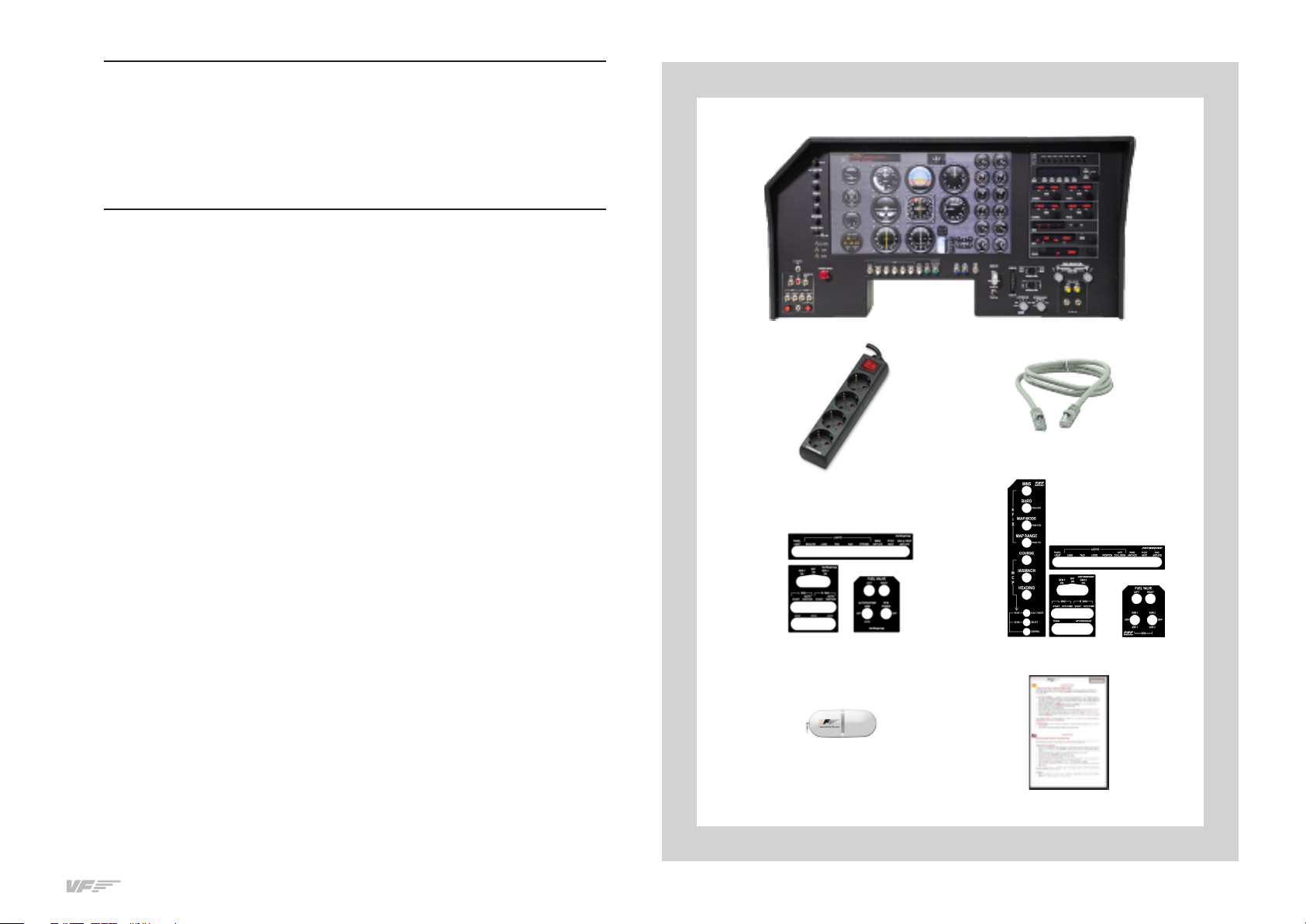
Packaging contents:
. SOLO Airliner-RS flight panel ( unit).
. Multiple power socket ( unit).
. Network cable ( unit).
. Magnetic labels Turboprop pack ( unit).
. Magnetic labels Boeing pack (unit)
. Memory Stick (unit). Content: User's manual, VFConnect.exe
(for FSX/PreparD and also for X-Plane) plugin, FSUIPC and remote
session software.
. Quick Start Guide ( unit).
It is important to save all parts you are not going to use in case you need
them in the future.
42. INSTALLATION - USER’S MANUAL SOLO AIRLINER-RS
The SOLO Airliner RS, hereinafter referred to as “SOLO”, has been te-
chnologically developed to be fully Plug&Fly. It connects easily to any
computer running FSX or hereinafter referred to as “MFS” or PreparD
hereinafter referred to as “P3D” or X-Plane. Even so, we’ll give you a
series of steps to follow to install your panel.
• Place the panel on the table where it is to be used or on the
SOLO support; in the latter case, follow its instruction manual.
• Connect all the socket power cables from back panel to the multiple
power socket ().
• Connect the multiple power socket () to a - VAC outlet.
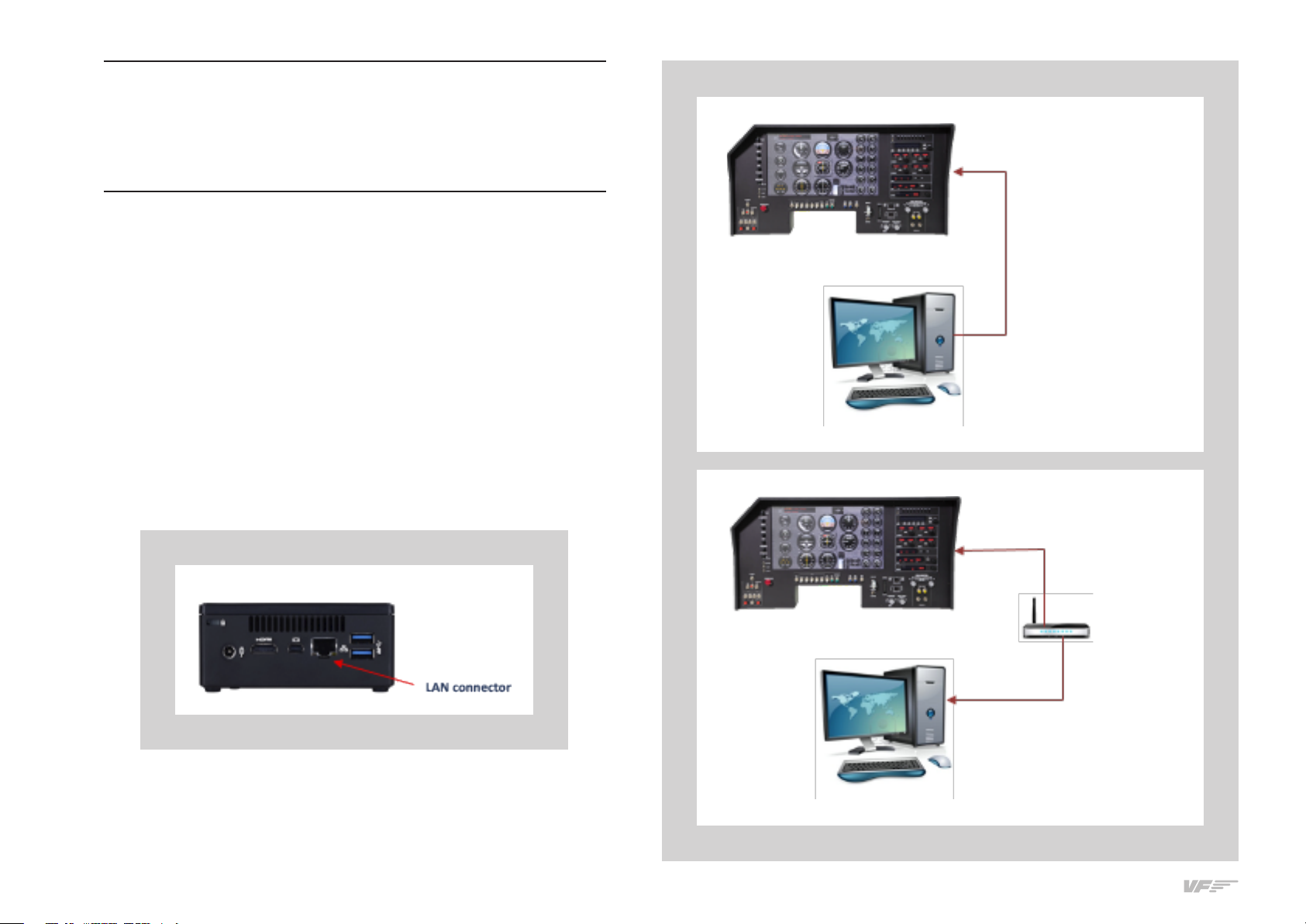
• Connect one end of the network cable () to the LAN connector
of the Mini-computer.
• Connect the other end of the network cable () to the computer's
MFS / PD / X-Plane. You have two options, direct or through the
LAN network.
2. INSTALLATION OPTION : direct
MFS / PD computer
MFS / PD computer
OPTION : Through LAN network

5
2. INSTALLATION - USER’S MANUAL SOLO AIRLINER RS
MFS / PD:
• Copy the "VFConnect.exe" file from the Memory Stick () in the
MFS/PD desktop computer.
• If you already have the FSUIPC in computer MFS/PD skip this
step. Otherwise, you must have at least the free version installed.
From the Memory Stick execute the "Install FSUIPC.exe" for FSX/
PD. During the installation will appear a registration window,
you must ignore the registration pushing "Not Now". Restart MFS/
PD after the installation.
X-Plane:
• Copy the "VFConnect-Xplane.exe" file from the Memory Stick
() in the X-Plane desktop computer.
¡Important! “VFConnect-Xplane” may not work properly if
DataRefTool plugin is installed and activated in X-Plane, if you are
using this plugin please deactivate it before using SOLO panel.
ACTIVATING THE SOLO:
• Press the push-button to start the "Windows" operating system of
the mini-computer from the SOLO.
• At this time, the "Windows" operating system and all programs
found in the SOLO computer will start automatically.
It is very important that SOLO NOT BE DISCONNECTED, or
"Windows" stopped while the programs are loading. Doing
so may cause problems with booting in the future.
The SOLO is ready to operate after about seconds, you must see the
“SELECT PANEL TYPE SCREEN”
See Chapter for connecting the SOLO with your computer’s MFS / PD
/ X-Plane.
DEACTIVATING THE SOLO:
• Press the push-button of the mini-computer to stop the "Windows",
wait for Windows to stop totally.
• Once "Window" has totally stopped, you can unplug the SOLO

63. START UP - USER’S MANUAL SOLO AIRLINER-RS
The SOLO incorporates a mini-computer at the back that is to be connec-
ted to the MFS / PD / X-Plane computer using the previously mentioned
LAN cable .
It is important to note that in no case should you access or manage the
SOLO mini-computer.
• Activate the SOLO like is indicated in Chapter .
• Startup the MFS/PD or X-Plane software.
• To establish the connection between the MFS / PD / X-Plane com-
puter and the SOLO you must to execute the file "VFConnect.
exe" from the MFS/PD desktop computer or “VFConnect-Xplane.
exe” if you are using X-Plane (see Chapter ).
• If you have the Windows FireWall activated, a warning permis-
sion to communicate with networks appears, you must to click
"Allow Access".
• Once the connection is established, you should see an image
like the right:
• At the top “This Computer” indicates if the software Flight
Simulator MFS / PD / X-Plane is detected. Only "Connected" will
appear when you have initiated MFS / PD / X-Plane.
• At the bellow “Client Connection Status” indicates the connection
with the SOLO.
From this moment we can already appreciate if the SOLO and the MFS
/ PD / X-Plane computer are communicating. In the bellow part of the
“SELECT PANEL TYPE” window you will see one of the following messages.
• Connected: Everything is ready, you can already begin to fly.
• Searching…: There is a communication failure between the MFS/
PD and the SOLO, look at Chapter "Troubleshooting".
If not get the connection after review Chapter , please contact the
VirtualFly Technical support: "support@virtual-fly.com".
3. START UP
In this case the plugin is
searching the MFS / PD /
X-Plane and to the SOLO
panel
In this case the plugin is
connected to MFS / PD /
X-Plane and to the SOLO
panel
In this case the MFS and
SOLO are connected
In this case the MFS and
SOLO are not connected
7
4. SELECTION OF PANEL TYPE (ACCORDING TO PLANE) - USER’S MANUAL SOLO AIRLINER-RS
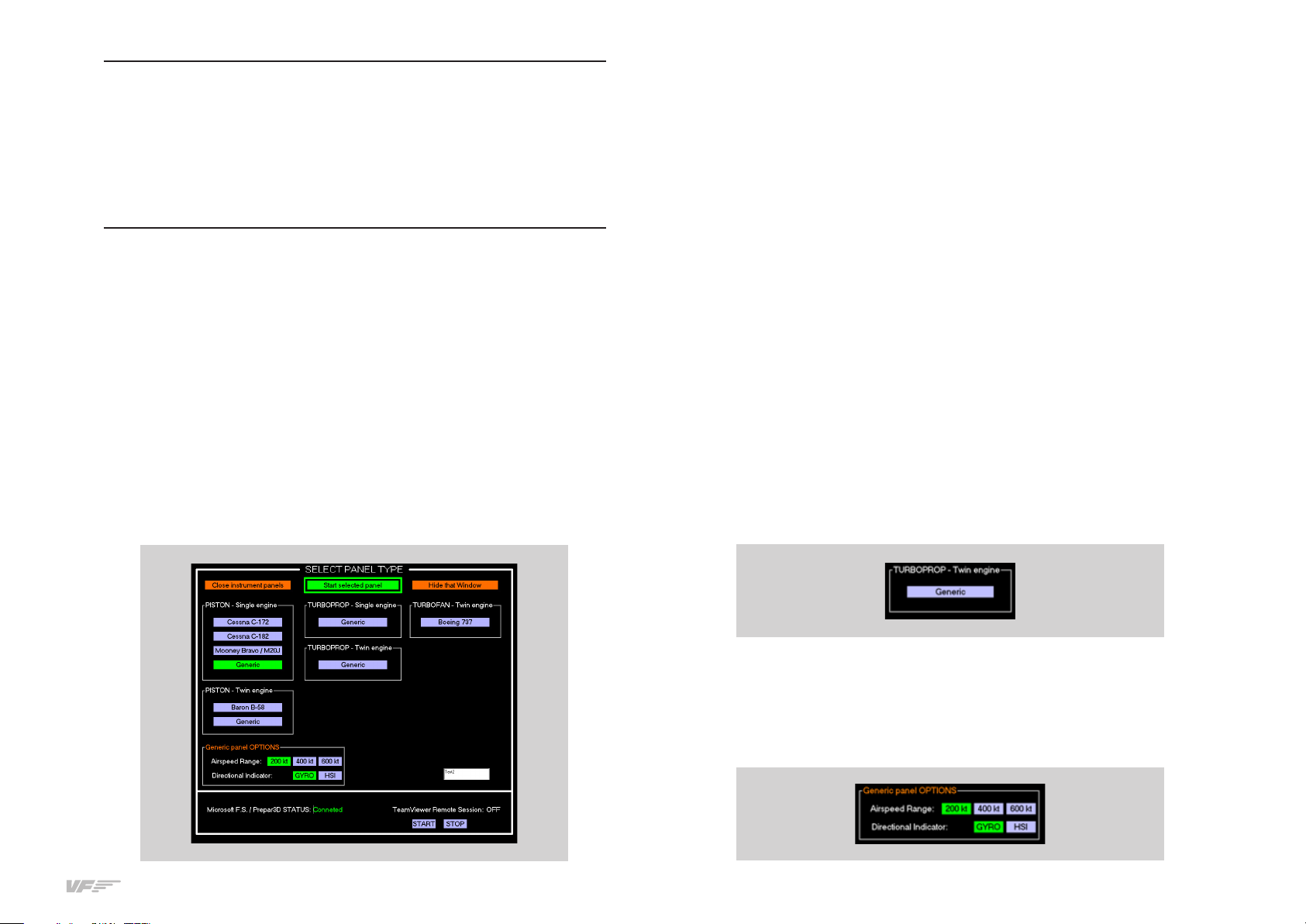
This instrument panel is designed to operate and display instruments
for both single-engine and twin-engine planes, and for the three en-
gine types: PISTON, TURBOFAN and TURBOPROP. In the next picture
you can see that some aircraft already have their own custom panel as
C-, Mooney, B-, etc ... but there are customizable panels called
"GENERIC" for other aircraft.
The planes best suited to the panel are just the planes that MFS/PD or
X-Plane incorporates by default.
Some planes from PD CARENADO had been tested, and that have
shown good results.
Boing option is not compatible with X-Plane it will only work with MFS/
PD Software.
Above you can see the panel has types of "GENERIC", on each of them
you can choose the full scale of the speedometer "Airspeed Range" and
type of instrument indication of direction "Directional Indicator".
To select the panel according the plane you want to fly, you have to do
two tasks:
• Select the indicators panel.
• Select the labels for the switches and rotaries of the panel.
Select the indicators panel:
The panel incorporates a ” touch-screen, so you must manage it with
your finger. Follow these steps:
• Press on the label that correspond to the plane you want to fly
in MFS / PD / X-Plane, (if there isn’t a customized label for that
plane, select a GENERIC label according to the engine type of
the plane (e.g. if the plane selected on MFS/PD is “Beechcraft
King Air A you must select the GENERIC “TURBO PROP-twin
engine in the panel”):
• If you have chosen a GENERIC panel, automatically a new
“Generic Panel OPTIONS” will open were you can select your
preferences:
o “Airspeed Range”
o “Directional indicator”.
4. SELECTION OF PANEL
TYPE (ACCORDING
TO PLANE)

84. SELECTION OF PANEL TYPE (ACCORDING TO PLANE) - USER’S MANUAL SOLO AIRLINER-RS
• Push on above centered label “Start Selected Panel” now
highlighted in Green.
Automatically the panel will show the gauges and indicators.
Select the labels for the switches and rotaries of the panel:
According the SOLO is a multifunction panel, a lot of switches change
its function depending if the gauges&indicators panel selected is for
piston, turboprop, or turbofan. The panel incorporates some magnetic
labels that you must place in the suitable zone to change the designa-
tion of each switch and rotary. The default designation of the switches
and rotaries (without magnetic labels) is for piston engines.
Magnetic Labels pack for turboprop engines:
Magnetic labels pack for turbofan (Boeing-737) engines:

9
5. ENGINE STARTING - USER’S MANUAL SOLO AIRLINER-RS
The following procedures are indicated by VirtualFly to start the plane
as simply as possible, never take these procedures for training or for
real aviation.
.. STARTING & STOP PISTON ENGINES (USING MFS / PD)
Starting piston engines (using MFS / PD)
. Pull on the PARKING BRAKE.
. Move the MIXTURE handle to RICH.
. Move the PROP RPM handle to HIGH.
. Move the POWER handle to DEC.
. Switch on the BAT.
. Switch on the MAGNETO L ENG “L” and “R”.
. Push on the red “START” left push-button to start the engine.
. Once the left engine is running, switch on the left LALT to charge the
battery.
. Switch on M. AVIONICS.
This procedure has started the single engine if it is a single-engine
airplane or the left engine if it is a twin-engine plane, in the latter case do
the indications , , to start the right engine.
Stop piston engines (using MFS / PD)
. Pull on the PARKING BRAKE.
. Move the MIXTURE handle to CUTOFF.
. Switch o the M. AVIONICS.
. Switch o the alternator/s ALT.
. Switch o the MAGNETO/S.
. Switch o the BAT.
5. ENGINE STARTING
Starting piston engines
Stop piston engines

10 5. ENGINE STARTING - USER’S MANUAL SOLO AIRLINER-RS
.. START & STOP PISTON ENGINES (USING X-PLANE)
Refer to the aircraft manual found in: <X-Plane Installation Folder>/
Aircraft/<The Aircraft Folder>. In the aircraft manual search for the
“Checklists” section. You will find detailed instructions for starting and
stopping the engines.
Inhaltsverzeichnis
Andere Aircatglobal Avionik-Display Handbücher

Aircatglobal
Aircatglobal Virtualfly V3RNIO Bedienungsanleitung

Aircatglobal
Aircatglobal VirtualFly VF-G1000 Bedienungsanleitung

Aircatglobal
Aircatglobal VirtualFly SOLO GA Bedienungsanleitung

Aircatglobal
Aircatglobal VirtualFly SOLO AIRLINER Bedienungsanleitung

Aircatglobal
Aircatglobal Virtualfly COMPOSS Bedienungsanleitung
Beliebte Avionik-Display Handbücher anderer Marken

Smart Avionics
Smart Avionics PB-4 Bedienungsanleitung

Midcontinent
Midcontinent SAM MD302 Handbuch

MGL Avionics
MGL Avionics Stratomaster Maxi Single FF-3 Bedienungsanleitung

Garmin
Garmin GI 275 Bedienungsanleitung

Mid-Continent Instruments
Mid-Continent Instruments 4300 Series Handbuch

Avidyne
Avidyne 700-00182 Series Service-Handbuch


