
AIRIS NAVIGATOR 4 Bedienungsanleitung

© 2004 ... Directions Ltd
Navigator Manual
version 4.0

Table of Contents
Foreword 0
Part I Introduction 4
................................................................................................................................... 41 Installation
................................................................................................................................... 52 Running Navigator for the first time
................................................................................................................................... 63 Opening a map
................................................................................................................................... 74 Exiting Navigator
Part II Using Navigator 9
................................................................................................................................... 91 Navigator Overview
................................................................................................................................... 92 The Map View
.......................................................................................................................................................... 9The map menu
.......................................................................................................................................................... 13Zooming
.......................................................................................................................................................... 14Moving the map
.......................................................................................................................................................... 16Bubble
................................................................................................................................... 163 The Input Pane
.......................................................................................................................................................... 16Overview
.......................................................................................................................................................... 18Search
.......................................................................................................................................................... 20Postcode
.......................................................................................................................................................... 21Routing
.......................................................................................................................................................... 24Customise
................................................................................................................................... 304 The Output Pane
.......................................................................................................................................................... 30Search Results
.......................................................................................................................................................... 33Route Results
.......................................................................................................................................................... 35Highlights
................................................................................................................................... 365 GPS
.......................................................................................................................................................... 36GPS tracking
.......................................................................................................................................................... 37Replay
................................................................................................................................... 386 Navigation
.......................................................................................................................................................... 38Navigation
................................................................................................................................... 407 Exporting to PDA
.......................................................................................................................................................... 40Exporting from Navigator
.......................................................................................................................................................... 46Installing on PDA
................................................................................................................................... 478 Toolbar
.......................................................................................................................................................... 47Toolbar buttons
.......................................................................................................................................................... 48Customising the toolbar
................................................................................................................................... 509 Pushpins
.......................................................................................................................................................... 50Adding a pushpin
.......................................................................................................................................................... 53User Object List
.......................................................................................................................................................... 56Removing a pushpin
................................................................................................................................... 5710 Position marks
................................................................................................................................... 5911 Points of Interest
Navigator 4.0 HelpI
© 2004 ... Directions Ltd

Part III Importing Data 63
................................................................................................................................... 631 Importing your database
................................................................................................................................... 712 Updating your database
................................................................................................................................... 723 Deleting your database
Part IV Configuring Navigator 76
................................................................................................................................... 761 Application
................................................................................................................................... 772 Bubble
................................................................................................................................... 783 GPS
................................................................................................................................... 804 Map
................................................................................................................................... 825 Navigation
................................................................................................................................... 846 Routing
................................................................................................................................... 877 Search
................................................................................................................................... 878 Selections
Part V Navigator CE 90
................................................................................................................................... 901 Starting up and opening a map
................................................................................................................................... 922 Controlling the map
................................................................................................................................... 933 Linking with a GPS
................................................................................................................................... 964 Navigation
................................................................................................................................... 985 Navigator CE settings
Part VI FAQ's 102
Index 103
IIContents
II
© 2004 ... Directions Ltd

Part I

Introduction 4
© 2004 ... Directions Ltd
1 Introduction
1.1 Installation
Run SETUP.EXE from the installation CD and follow the on-screen instructions.
At the end of the installation process you have the option to Navigator CE for Pocket PC PDAs. A
prerequisite for Navigator CE is that MS ActiveSync is installed and the PDA connected. You can
install Navigator CE at a later point by invoking it from the Windows start menu
(Start/Programs/Navigator/Install Navigator CE).
The default language is selected according to settings in Windows (Start/Settings/Control
Panel/Regional and language options). You can change the language in Navigator in Settings.
Currently available languages are English, Czech, German and Italian.
Available Maps
The following countries are covered
:

Navigator 4.0 Help5
© 2004 ... Directions Ltd
Country
Size [MB]
Coverage
(%)
Supplier
Note
Andorra
2
100
Tele Atlas
Austria
192
100
Tele Atlas
Belgium
132
100
Tele Atlas
Czech Republic
109
72,9
Tele Atlas
Denmark
109
100
Tele Atlas
Finland
127
79,41
Tele Atlas
France
1259
100
Tele Atlas
Germany
1334
100
Tele Atlas
Great Britain
660
100
Tele Atlas
Coverage for
Northern
Ireland has not
changed and
consists of a
Fully Attributed
Street network
coverage for
16.46 % of the
population
(Belfast) and
Major Road
Network
coverage for
the rest of
Northern
Ireland
Ireland (Republic of Ireland)
14
45,09
Tele Atlas
Italy
1066
91,74
Tele Atlas
Luxemburg
11
100
Tele Atlas
Netherlands
205
100
Tele Atlas
Norway
235
100
Tele Atlas
Poland
31
4,23
Tele Atlas
Portugal
52
41,28
Tele Atlas
San Marino
1
??
Tele Atlas
Spain
527
79,54
Tele Atlas
Sweden
373
100
Tele Atlas
Switzerland
121
100
Tele Atlas
TOTAL
6560
1.2 Running Navigator for the first time
To start Navigator click the Start button, point to Programs, point to Navigator and click on Navigator.
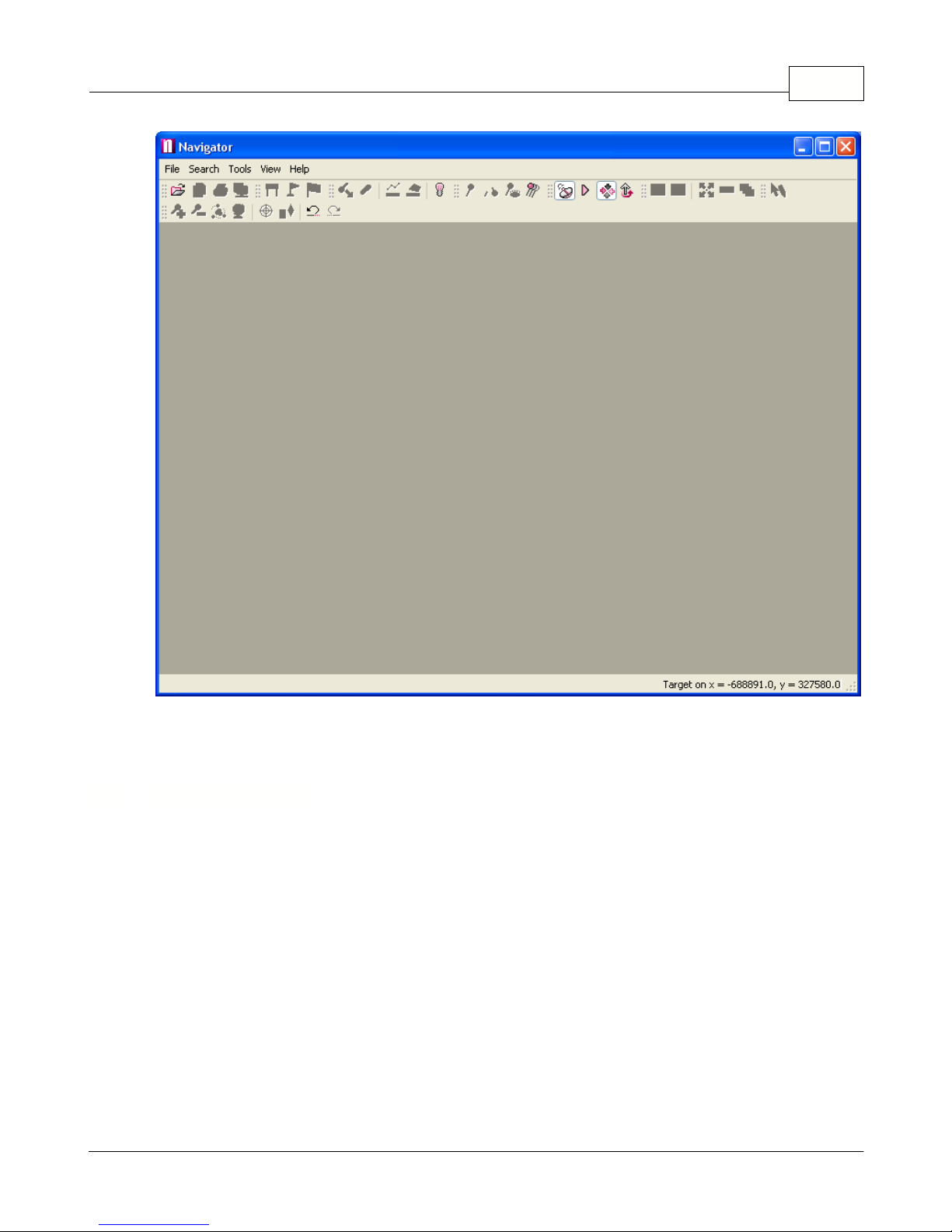
The main Navigator window, with a tool bar in the top part, will appear as shown below.
Introduction 6
© 2004 ... Directions Ltd
If you leave the mouse pointer over a toolbar button for more than 1 second a help bubble will pop up
with a brief description of what the button does. Note that if a button is greyed out it cannot be used.
1.3 Opening a map
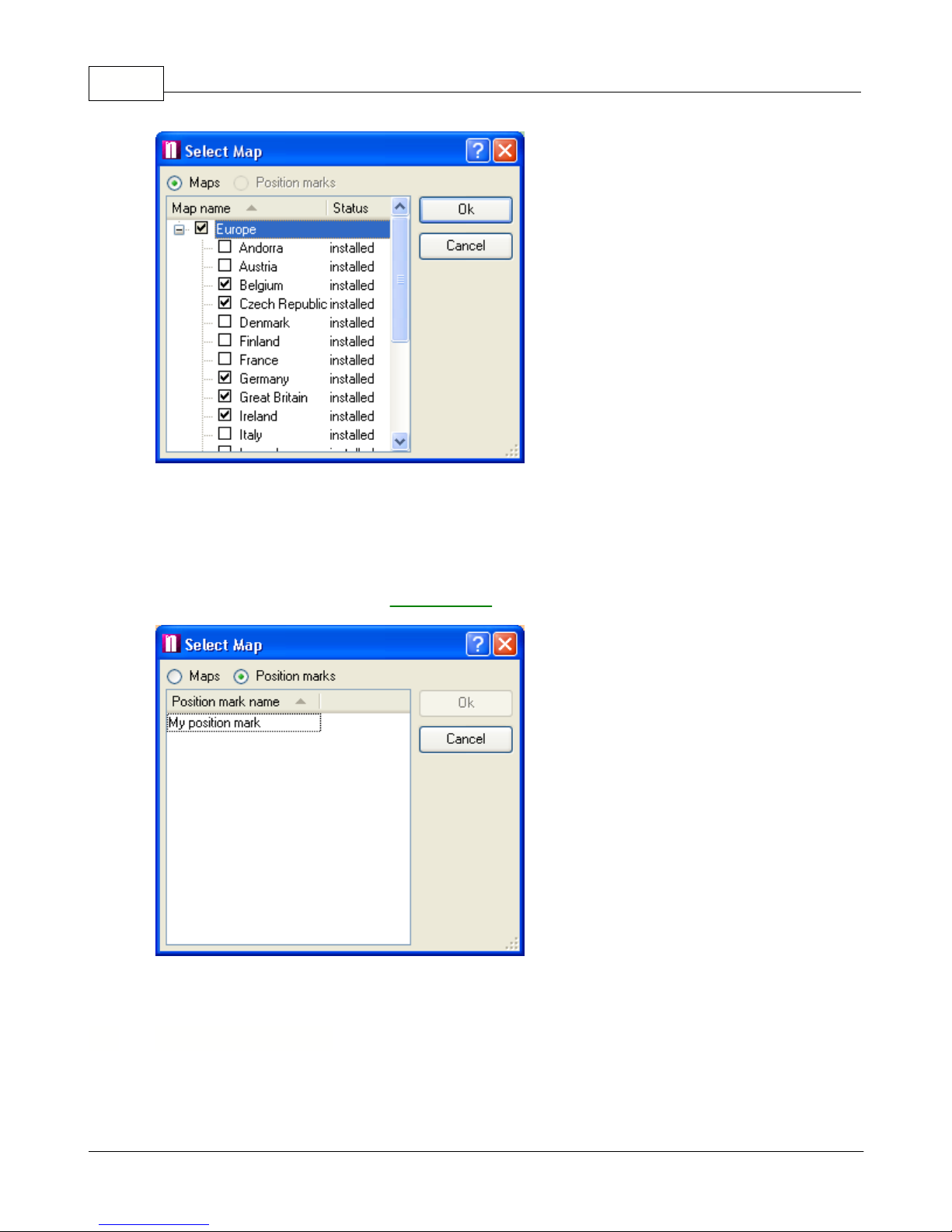
To display a new map click the button on the left of the toolbar. This brings up the
Select Map
dialog
box.
Navigator 4.0 Help7
© 2004 ... Directions Ltd
In the
Select Map
dialog box click to choose the map you want. You can select any combination of
countries in the list but only those that are installed. To select all the countries select
Europe
at the
top. Now click
OK
to confirm your selection. This will bring up a window containing the map you
selected. To see it across the whole screen click the maximize button in the top right corner of the
map window.
If you have previously saved any
Position Marks
then can select to open a map at the saved position.
Notice that once a map is opened all the buttons on the toolbar become active.
1.4 Exiting Navigator
From the menu select File/Exit to quit Navigator. If
Open last active map on startup
is ticked in
Settings/Application then Navigator will save your map position before closing.

Part II
Navigator 4.0 Help9
© 2004 ... Directions Ltd
2Using Navigator
2.1 NavigatorOverview
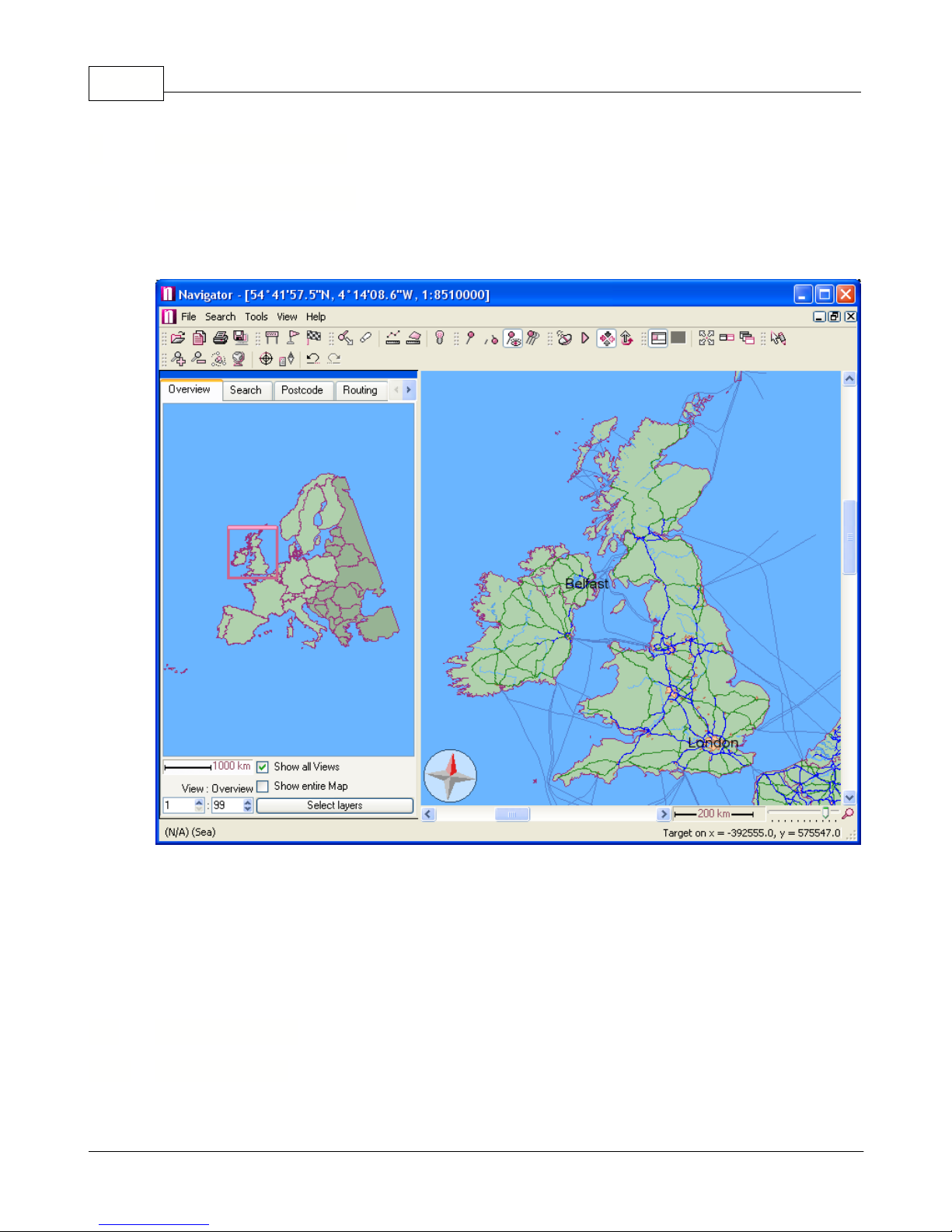
Once a map is loaded you will see something like this:
As you can see the window is divided into two panes, the input pane on the left and the map view on
the right. The input pane is where you can search for locations, postcodes, routes as well as navigate
and customise the map. A third pane, the results or output pane, is not visible initially and will only
appear after some search, route or GPS connection is initiated.
Before we examine the input pane lets first see what we can do with the map view.
2.2 The Map View
2.2.1 The map menu
Right click on the map and the following menu will appear,
Dieses Handbuch passt für folgende Modelle
1
Inhaltsverzeichnis
Andere AIRIS GPS Handbücher


