
Ambient XC Bedienungsanleitung

User Guide


Contents
1
Contents
Welcome to the amBIENT XC.....................................................................
Basics.........................................................................................................
Getting Started...........................................................................................
Touchscreen Features.................................................................................
The HOME Screen .....................................................................................
Changing the Timetable..............................................................................
The SETTINGS Screen................................................................................
The CURRENT TIME Screen......................................................................
Troubleshooting..........................................................................................
Specification...............................................................................................
Safety.........................................................................................................
Other Information........................................................................................
2
3
4
4
5
6
7
8
9
9
10
12
2
Welcome
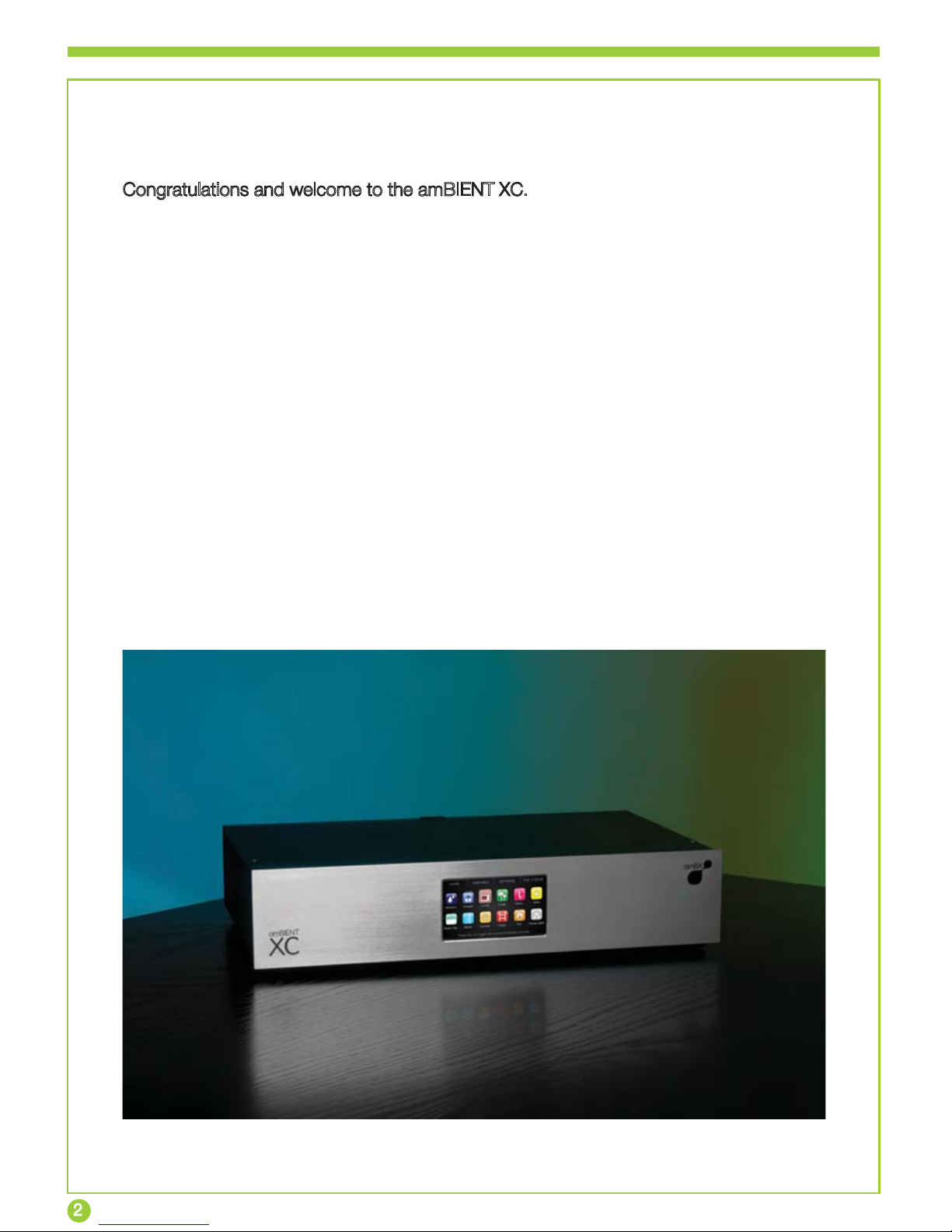
Congratulations and welcome to the amBIENT XC.
The amBIENT XC is a revolutionary lighting control system which radically changes the
way in which lighting and space are designed and how lighting combines with video and
sound to create immersive entertainment experiences.
Electrify and enhance the mood of your venue with the amBIENT XC. Whether it’s a club,
bar, cinema, retailer or landmark lighting intallation, the amBIENT XC will maximise the
potential of RGB LED lights and transforms your space into an ever changing dynamic
environment. The character of your venue can be changed to create ambience and mood
throughout the day. You can also synchronise your lights with sound and video to create
amazing effects that your customers would love.
The amBIENT XC is powered by amBX technology which is the new standard in the
creation and delivery of immersive entertainment experiences. You will be amazed by the
stunning array of amBX lighting effects that change your space into an entertainment
venue. Your LED lights can perform vibrant swirls, dynamic ripples, colourful bounces
and energetic sways all in harmony with sound and video.
This is revolutionary and now you are part of it!
Welcome to the amBIENT XC

Basics
3
Basics
Front Panel
Back Panel
Touchscreen
Easy to use touchscreen interface allows you to navigate through pre-installed ambient
lighting effects, change the daily schedule and alter the light settings.
Ethernet
For network connectivity and connection to other devices.
Video In
Allows LED lighting installation to be synchronised to video content, producing dynamic
lighting effects.
Audio In
Connects LED lighting installation to an audio source for automated dynamic lighting
effects synchronised to music.
RS232
Compatible connection to other devices and systems.
USB
For PC connection and use with PC based amBX applications.
DMX
Industry standard interface and connection to LED lighting installations. Single DMX 512
universe supported with 5 pin XLR connector.
Power
100 - 240V AC, 50-60Hz, 20W
Touchscreen
Ethernet
Video In
Audio In
RS232
USB
DMX Power
hs
c

4
Getting Started
Check that the power lead is connected to the amBIENT XC and turn on at the wall
socket.
This powers up the your amBIENT XC. When start up is complete, the HOME screen will
be displayed.
The touchscreen allows you to choose from the 12 amBX Modes, view and edit the
timetable and adjust the light settings.
There are four screens chosen by touching the window tab:
The HOME screen is used to preview the 12 bespoke amBX Modes that your
installer has designed and programmed for you.
The TIMETABLE screen allows you to view the current lighting schedule on the
seven day timetable chart, and alter it by hour for each day.
The SETTINGS screen allows you to change the brightness and colour saturation of
the lights, and the transition time between presets.
The CURRENT TIME screen allows you to set the current day and time.
Touchscreen Features
Getting Started
Window Tabs

The HOME Screen
5
Home
Touch an amBX Mode icon to select it and override the current scheduled effects.
When you touch the icon it will be highlighted to show your selection and its lighting
effects will immediately be displayed in your room until it is deselected.
To deselect the amBX Mode touch the icon again and it will no longer be highlighted.
When no amBX Mode is selected the amBIENT XC will return to playing the timetabled
effects.
Using the HOME Screen
Although the amBIENT XC comes pre-installed with 12 amBX Modes, installers will be
able to create 12 new amBX Modes to suit your preferences precisely. An amBX Mode
can automatically generate a near infinite combination of lighting effects triggered by
audio, video and time.
Within each amBX Mode there are a set of rules which define how audio, video and light
react with the space to generate mood.
Each mode has a defined base colour palette and ambient effect. How audio and video
react to those colour palettes can then in turn be customised and layered over the base.
amBX Mode Icon
amBX Mode Name
Icon is highlighted

Colour Tint
Adjusting Colour Tint
1
2
3
Touch the COLOUR tab to display
colour adjustment options.
Touch the Colour Tint Button to edit
the tint colour.
Adjust the HUE, SATURATION and
BRIGHTNESS sliders until the desired
tint colour is mixed.
The colour is previewed in the bottom
left hand corner.
Preview Box
?
The Colour Tint feature gives complete freedom to change the
colour of your lights by tinting the colours in the modes from a
light tint to a full block colour. Unlike BRIGHTNESS or
SATURATION, tint mixes a colour of your choice with the
selected mode.
For example: Running a predominantly white mode and setting a
blue tint to 50% would result in a light blue mode. Setting tint to
100% (Solid Colour) will result in the selected tint colour being
displayed at all times.
Colour Tint Button

Colour Tint
4
5
Press OK to select the tint colour.
Move the Tint Slider to adjust how
much all colours will be shifted
towards the tint colour.
When the Tint Slider is at 100%, only
the Tint Colour will be displayed.
Colour Tint Slider
6
Colour Tint is a global setting. Any
mode you select on the Home tab will
now be tinted.
To remove Colour Tint altogether,
return to the Colour tab and set the
Tint Slider to 0%
0% 100%

6
Timetable
3
Select the day of the week to enter the 24
hour view and alter the effects schedule for
that day.
To set the daily schedule, first select the
amBX Mode of your choice, then by
touching the ‘Schedule Setting Bar’,
select the hour that you want the amBX
Mode to be used.
Press again to clear a slot.
To view another day of the week select the
‘Previous’ button to view the previous day
or select the ‘Next’ button to view the
next day.
Touch the ‘back button’ to return to the
TIMETABLE window.
Touch the TIMETABLE tab to display
the week view schedule.
NextPrevious
2
1
Changing the Timetable
Back
Schedule Setting Bar
Inhaltsverzeichnis


