
AURES LCDSLIM Bedienungsanleitung

Rev.B
LCDSLIM 17’’ FP Series
Touch Screen LCD Monitors
USER’s GUIDE

The information contained in this document is subject to change without notice.
This document contains proprietary information that is protected by copyright.All rights
are reserved. No part of this document may be reproduced,translated to another language
or stored in a retrieval system, or transmitted by any means, electronic, mechanical,
photocopying, recording, or otherwise, without prior written permission. Windows is a registered
trademark of Microsoft, Inc. Other brand or product names are trademarks of their respective
holders.
The test results show that this device meets the FCC rules. Those limits are set to protect
residential areas from the devices with harmful emission. This device will produce, use and
radiate radio frequency energy. In addition, failure to follow the user’s manual to install or use
this device might produce harmful interference with radio communication. Not withstanding
the foregoing, it does not guarantee that this type of harmful interference does not occur in
some special installations. The interference caused by this device to the reception of radio
or television signals may be veried by turning it on and off. Any changes or modications to
this TFT LCD would void the user’s authority to operate this device.

Table of Contents
Usage Notice
Precautions..............................................................................................................................1
Introduction
About LCDSLIM 17’’ FP Series ...............................................................................................2
Touch Screen for LCDSLIM 17’’ FP ..............................................................................3
Package Overview .......................................................................................................4
Installation
Product Overview.........................................................................................................5
Front View...............................................................................................................5
Bottom View............................................................................................................5
Attaching the Side Brackets..........................................................................................6
Side Mount for Your Monitor .........................................................................................7
Sealing foam installation...............................................................................................9
Connecting the Display (Figure 10.1)..........................................................................10
(Figure 10.1)...............................................................................................................11
User Controls
Back Panel Controls...................................................................................................12
How to Use the OSD Menus.......................................................................................13
On-Screen Display Menus..........................................................................................14
Appendix
Troubleshooting..........................................................................................................15
Warning Signal...........................................................................................................16
No Signal... .................................................................................................................16
Going to Sleep............................................................................................................16
Out of Range..............................................................................................................16
Product Dimensions ...................................................................................................17
Compatibility Modes ...................................................................................................18
Touch Screen Driver Installation .................................................................................19
Optional Calibration Tool Install.......................................................................................20
Driver Install Instructions.................................................................................................22

Usage Notice
! Warning - To prevent the risk of re or shock hazards, do not expose
this product to rain or moisture.
! Warning - Please do not open or disassemble the product as this may
cause electric shock.
Precautions
Follow all warnings, precautions and maintenance as recommended in this user’s manual to
maximize the life of your unit.
Do:
• Turn off the product before cleaning.
• Touch screen surface may be cleaned using a soft clean cloth moistened with mild
window glass commercial cleaners or 50/50 mixture of water and isopropyl alcohol.
• Use a soft cloth moistened with mild detergent to clean the display housing.
• Use only high quality and safety approved DC adapter.
• Disconnect the power plug from AC outlet if the product is not going to be used for
an extended period of time.
Don’t:
• Do not touch the LCD Display screen surface with sharp or hard objects.
• Do not use abrasive cleaners, waxes or solvents for your cleaning.
• Do not operate the product under the following conditions:
- Extremely hot, cold or humid environment.
- Areas susceptible to excessive dust and dirt.
- Near any appliance generating a strong magnetic eld.
- In direct sunlight.
1

Introduction
About LCDSLIM 17’’ FP Series
The LCDSLIM 17’’ FP Series is a 17" at panel screen with an active matrix, thin-lm
transistor (TFT) liquid crystal display (LCD).
This unit is to be used as commercial and light industrial equipment only.
Features include:
• Direct Analog signal input
• Active matrix TFT LCD technology
• 1280 x 1024 XGA resolution
• 17” viewable display area
• 31.47 ~ 80 kHz horizontal scan
• 56 ~ 75 Hz high refresh rate
• 0.264mm x 0.264mm Pixel pitch
• Auto adjustment function
• Multilingual OSD user controls
• 100 mm VESA mount
• Bracket mount
• Projected Capactive touch screen with USB controller
2

Touch Screen for LCDSLIM 17’’ FP
• Projected Capactive touch screen for nger input only
• Surface: Glare treatment
• Interface: USB controller
• Transmittance: 90±5%
• HID: Windows® 7/8
• Driver: Windows® 7/8, VISTA, XP, 2000, CE, XP Embedded,
Linux kernel 2.6.X(32 bit & 64 bit), Apple®Mac OS.
3

Package Overview
4
Remote Key
(sold separately)
LCD Display Power Cord VGA Signal Cable
USB Cable (A to B)
Touch Driver CD
DC Power Supply
Side Brackets
Bracket Screws

Installation
Product Overview
• Front View
• Bottom View
5
RJ-TYPE VGAUSB DC INDVI

Attaching the Side Brackets
Depending on your mounting scheme, alternately, you may use the side brackets to mount
your displays onto your wall or device.
Find a suitable location for attaching side brackets.
A. The left and right sides
B. The Top and bottom sides
OR
Note:
You will need a screwdriver to attach the side brackets.
Your kiosk touch monitor included 4 side brackets and 8 screws.
This equipment is intended to be mounted in accordance with the proper hardware and the
installation instructions supplied with the product. Use of mounting brackets or screws other
than those specied in the installation instructions may cause a hazard.
6
Bracket
Bracket
MENU
SELECT
Bracket
Bracket
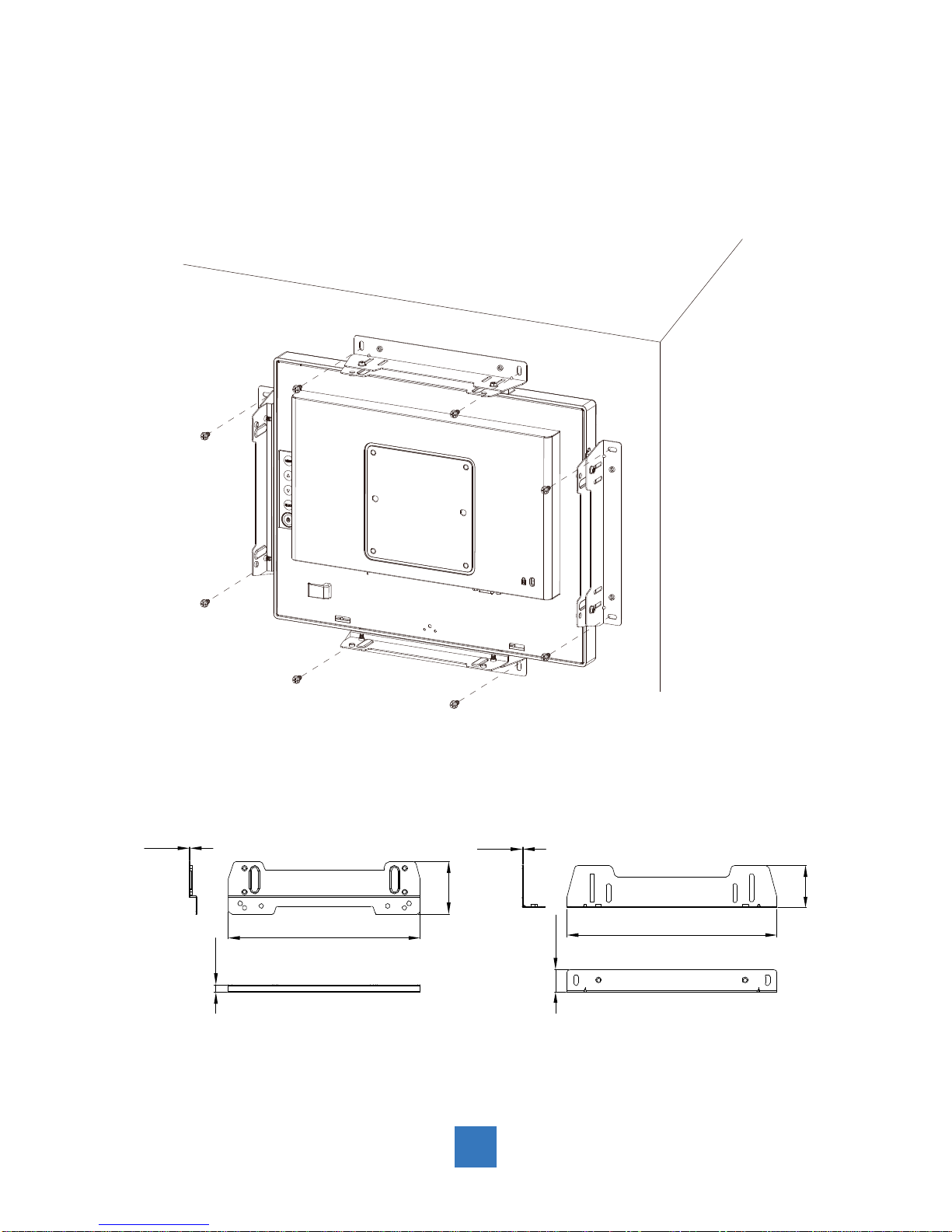
Side Mount for Your Monitor
This monitor can be mounted to the wooden or concrete wall with 4 screws and a pair
brackets on the opposites.
7
170.0 mm 186.0 mm
1.0 mm 1.0 mm
46.5 mm
37.4mm
7.0 mm
20.0 mm
Inhaltsverzeichnis
Andere AURES Monitor Handbücher


