
Blusafe Contour Bedienungsanleitung

1P
Blusafe Contour / Contour V
Lock User Manual v1.0
Please scan the QR to get newest
manuals on Blusafe Products

2
P

3P
1. IMPORTANT INSTRUCTIONS
1.1 THE ASTERISK AND DOORBELL KEYS
1.2 SLEEP MODE AND WAKEUP
1.3 INITIALIZE MODE
2. MANAGING ACCESS LEVELS AND UNLOCKING METHODS
2.1 INTRODUCTION
2.2 ADDING AN ADMINISTRATOR
2.3 REMOVING AN ADMINISTRATOR
2.4 ADDING A USER
2.5 REMOVING A USER
3. UNLOCKING YOUR CONTOUR SMART LOCK
3.1 UNLOKCING VIA THE FINGERPRINT SENSOR
3.2 UNLOCKING VIA KEYCARD
3.3 UNLOCKING VIA PASSCODE
3.4 UNLOCKING VIA BACKUP KEY
3.5 UNLOCKING VIA APPLICATION
3.6 UNLOCKING FROM INSIDE
4. OTHER FUNCTIONS
4.1 DOORBELL
4.2 CHANGE VOLUME
4.3 LOW VOLTAGE WARNING
4.4 BACKUP POWER
4.5 ANTI-PRYING (TAMPER) FUNCTION
4.6 ANTI-PEEKING FUNCTION
4.7 DATE AND TIME SETUP
4.8 VERIFY MODE SETUP
4.9 PASSAGE MODE SETUP
5 MANAGING SYSTEM LOCKOUT, RECOVERY, AND RESET
5.1 SYSTEM LOCKOUT
5.2 SYSTEM RECOVERY
5.3 FACTORY RESET
P 02
P 02
P 02
P 02
P 03
P 03
P 03
P 05
P 06
P 08
P 09
P 09
P 09
P 10
P 11
P 12
P 12
P 13
P 13
P 13
P 14
P 14
P 15
P 16
P 16
P 17
P 17
P 18
P 18
P 18
P 18
Table of Contents

4
P

01P
Blusafe Contour Lock
Battery Cover
Internal Handle
Louderspeaker Hole
Internal Panel
External Panel
Camera
(Only available in
Contour V)
Micro USB
Cylinder Cover
Key Card Area
Keypad
Fingerprint
Sensor
Mechanical
Key hole
External
Handle

02
P
1.3 INITIALIZE MODE
1.1 THE ASTERISK AND
DOORBELL KEYS
• The and keys are located at the
bottom of the lock’s external keypad.
• They are used as "Cancel"and
"Conrm"functions respectively in
system settings.
• The lock will set automatically
to "Sleep"mode if there are no
operations for more than ten
seconds and the keypad lights will
turn o to conserve power.
• Touch the key or swipe your hand
across the front of the lock to wake
up the keypad.
Scenario A:
No operations within 10 seconds, the
keypad lights will turn o and lock goes
to sleep mode;
Scenario B:
No passcode input, press the * key
twice, the keypad lights will turn o and
lock will enter sleep mode;
Scenario C:
5 seconds after passcode / key card /
ngerprint unlock, the keypad lights will
turn o and lock will enter sleep mode.
Illustrations of the lock entering "Sleep"
mode are shown below:
The rst time the lock is used or when
it is reset to "Default", the lock will enter
"Initialize Mode". Any ngerprint or key
card, or the default passcode (123456)
can unlock the lock.
1.2 SLEEP MODE AND WAKEUP
IMPORTANT INSTRUCTIONS
1. IMPORTANT INSTRUCTIONS P2
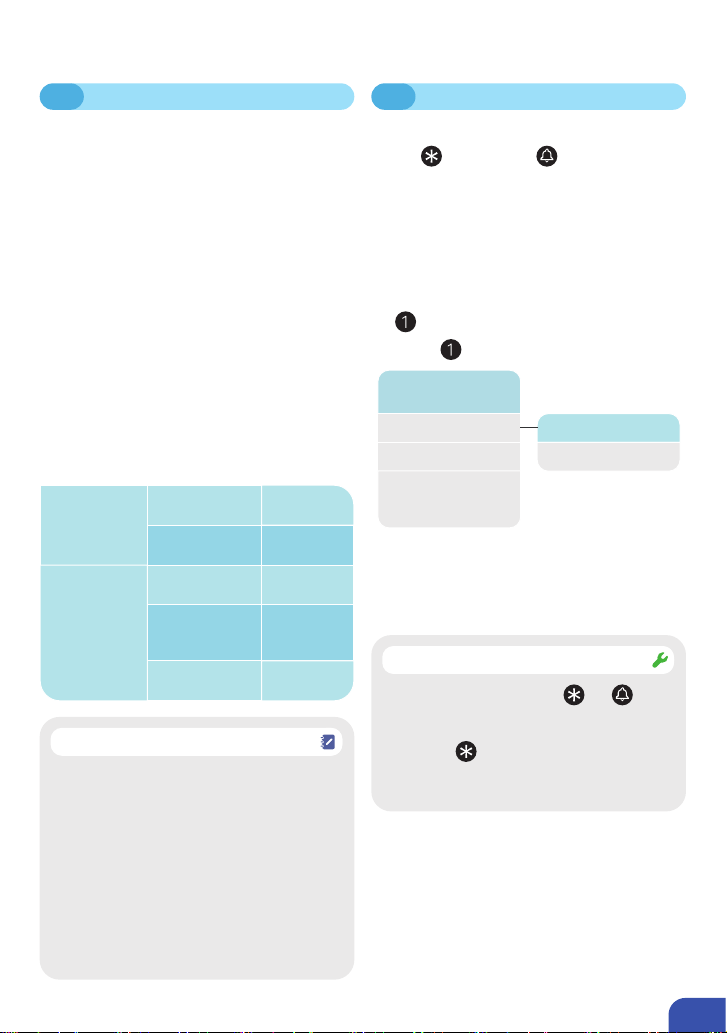
03P
2.1 INTRODUCTION
There are two levels of access on the
lock i.e., "Administrator"and "User"for
the lock. Each level exists in one of
three forms:
① ngerprint;
② key card or;
③ passcode.
The "Administrator"can control device
settings and operations and can add /
edit / delete all users. Those with "User"
access can only operate the device.
The table below provides explanation of
the dierent access levels.
Number
Allowable
Storage
Capacity
Admin
Fingerprint
9
100 MAX
100 MAX
100 MAX
User
RFID Key
Card
Passcode
291
2. MANAGING ACCESS LEVELS AND UNLOCKING ETHODS P3-P8
MANAGING ACCESS LEVELS AND UNLOCKING METHODS
The "Administrator"and "User"on the
lock are dierent to "Homeowner",
"Administrator"and "Common Member"
on the Application. The "Administrator"
and "User"on the lock are used for
accessing the lock’s system settings;
while the "Homeowner", "Administrator"
and "Common Member" are dierent
access levels for "Home"on the
Application.
Note
① Wake up the keypad, and then press
the followed by key.
② Use a registered Administrator’s
ngerprint / key card / passcode (the
rst time the lock is used, or after
resetting to default, the passcode is
123456) to enter the "Settings"menu.
③ Follow the voice navigation and press
1 to enter "Administrator Setup".
④ Press again to enter "Add a user".
⑤ Now add a ngerprint (5a), a key
card (5b), or a passcode (5c). Please
refer to respective steps below for
instructions.
2.2 ADDING AN ADMINISTRATOR
If any keys other than the and keys
is pressed after waking up the lock,
the lock will NOT enter "Settings".
Press the * key several times until the
keypad lights turn o, then restart the
process from the beginning.
Fix
1.Administrator
Setup
2.User Setup 1.Add a user
3.System Setup 2.Delete a user
4.Initialize Mode
Setup
(Reset to Default)

04
P
2. MANAGING ACCESS LEVELS AND UNLOCKING ETHODS P3-P8
2.2 ADDING AN ADMINISTRATOR
5a. ADDING ADMINISTRATOR
FINGERPRINTS
① Follow the voice prompts to add a
ngerprint to the lock; you will need
to press your nger against the
sensor about 5 times.
② You will hear a success tone
indicating the user ID if you have
added the ngerprint successfully.
③ Please take a note of the user ID and
save it elsewhere.
Please write down the corresponding
User ID or save it in another location,
such as the NOTES application on your
smart device.
Important !
The ngerprint sensor will need to take
several scans of your ngerprint. We
suggest that you change the position of
your nger during scans when adding a
new ngerprint.
When registering the ngerprint, make
sure the nger and ngerprint sensor
are clean, dry, and free of grease.
Tip

05P
2. MANAGING ACCESS LEVELS AND UNLOCKING ETHODS P3-P8
2.3 REMOVING AN ADMINISTRATOR
① Wake up the keypad, and then press
the followed by key.
② Use a registered Administrator’s
ngerprint / key card / passcode to
enter the "Settings"menu.
③ Follow the voice navigation and press
1 to enter "Administrator Setting".
④ Press to enter "Delete a user".
⑤ Enter the user ID to be deleted.
⑥ Press key to conrm.
⑦ Once deleted successfully, a voice
prompt "Operation success"will be
heard.
You cannot delete the administrator
who entered the setting menu. To delete
all administrators, please perform a
"Factory Reset".
Note
1.Administrator
Setup
2.User Setup 1.Add a user
3.System Setup 2.Delete a user
4.Initialize Mode
Setup
(Reset to Default)
5b. ADDING ADMINISTRATOR
KEY CARDS
① Follow the voice prompts and touch
the card to the card reading area on
the external keypad. You will hear a
success tone indicating the user ID if
you have added the card successfully.
② Please take a note of the user ID and
save it elsewhere.
Please write down the corresponding
User ID or save it in another location,
such as the NOTES application on your
smart device.
Important !
5c. ADDING ADMINISTRATOR
PASSCODES
① Follow the voice prompts to input a
6-8-digit passcode on keypad, then
press the key. Repeat the same
passcode on keypad and press the
· key again to conrm.
② You will hear a success tone
indicating the user ID if you have
added the passcode successfully.
③ Please take a note of the user ID and
save it elsewhere.
Please write down the corresponding
User ID or save it in another location,
such as the NOTES application on your
smart device.
Important !

06
P
2.4 ADDING A USER
① Wake up the keypad, and then press
the followed by key.
② Use a registered Administrator’s
ngerprint / key card / passcode (the
rst time the lock is used, or after
resetting to default, the passcode is
123456) to enter the "Settings"menu.
③ Follow the voice navigation and press
2 to enter "User Setup".
④ Press to enter "Add a user".
⑤ Now add a ngerprint (5a), a key
card (5b), or a passcode (5c). Please
refer to respective steps below for
instructions.
you cannot add a user if no admin has
been registered.
Note
2. MANAGING ACCESS LEVELS AND UNLOCKING ETHODS P3-P8
5a. ADDING USER FINGERPRINTS
① Follow the voice prompts to add a
ngerprint to the lock; you will need
to press your nger against the
sensor about 5 times.
② You will hear a success tone
indicating the user ID if you have
added the ngerprint successfully.
③ Please take a note of the user ID and
save it elsewhere.
Please write down the corresponding
User ID or save it in another location,
such as the NOTES application on your
smart device.
Important !
The ngerprint sensor will need to take
several scans of your ngerprint. We
suggest that you change the position of
your nger during scans when adding a
new ngerprint.
When registering the ngerprint, make
sure the nger and ngerprint sensor
are clean, dry, and free of grease.
Tip
1.Administrator
Setup
2.User Setup 1.Add a user
3.System Setup 2.Delete a user
4.Initialize Mode
Setup
(Reset to Default)
Andere Handbücher für Contour
1
Dieses Handbuch passt für folgende Modelle
1
Inhaltsverzeichnis
Andere Blusafe Türschloss Handbücher


