
CATVISION CSC-101 Bedienungsanleitung

For a Video on Installation and detailed version of the
User Manual please scan the QR code
or visit https://www.catvisiononline.in
Smart Security Camera
CSC-101
USER MANUAL

Thank you for using
Catvision’s Smart Security Camera CSC 101
Smart Security Camera Power Adapter Camera Mount
Screws Plastic Anchor User Manual Warranty Card
Sensor
Lens
Mic
Micro SD Slot
Front View Rear View
Speaker
Micro USB
Charging Port
Reset Button
Packaging Content
Product Overview
www.catvisiononline.in
2
Camera Mount

Product installation
www.catvisiononline.in
3
Drill two holes on the wall by using the base of
the camera mount as a template. It is
recommended that you mark the locaons of
the holes with a pencil before drilling. The
diameter of each hole is approximately 6 mm
and the depth is approximately 30 mm.
Installation Process
Insert the two plasc anchors into the holes
on the wall or ceiling. Place the camera mount
over them taking care to align the holes in the
base with the plasc anchors, then insert the
screws and ghten them with a screw driver.
Match the grooves on the boom of the
camera with the camera mount. Press down
unl the two surfaces are flush, then turn the
Screw Knobs A and B to align the camera to
the desired viewing posion.
Note: The pre-set posion of the camera is opposite the Reset buon. It is the
posion the camera will return to aer power is restored following a power
outage. It is advisable that the viewing posion and pre-set posion of the
camera is kept the same to avoid any re-alignment aer a power outage.
The CSC-101 can be placed on any horizontal flat surface and is ready for
use. For fixing on wall or ceiling you will need to first install the camera
mount.
Note: In case you wish to fix on the wall or ceiling please pair the camera
with mobile phone before the installaon (see below for pairing
instrucons).
B
A

Product Operating Instruction
Power On: Insert DC jack into the micro
USB input on the rear side of the camera
and turn on the power. The camera will
give a prompt tone.
Reset: Press & hold “Reset” buon on
the rear side of the camera for about 6
secs ll you hear a prompt tone.
Memory Card Inseron: Turn off power
to the camera. Insert a 8~128GB high-
speed MicroSD memory card in the slot
provided.
Pairing with Smart Phone
Download and install “Smart Life – Smart Living” app on your mobile phone
either by scanning the QR code below or from Google Play Store / Apple App
Store.
Open the “Smart Life– Smart Living “ app on your mobile phone, register
with your email address and login.
www.catvisiononline.in
4

Play Store QR Code
App Store QR Code
Open “Smart Life” App on your mobile phone.
Press the ‘+’ in the upper right corner of the main screen.
Choose “Security & Video Surveillance” on the le menu.
Click “Smart Camera (Wi-Fi)” to add camera.
Select “Make sure the indicator is flashing quickly or a prompt tone is
heard”. Then click “Next”.
Select 2.4GHz Wi-Fi network and enter password. Select Next buon to
go to next screen.
www.catvisiononline.in
5
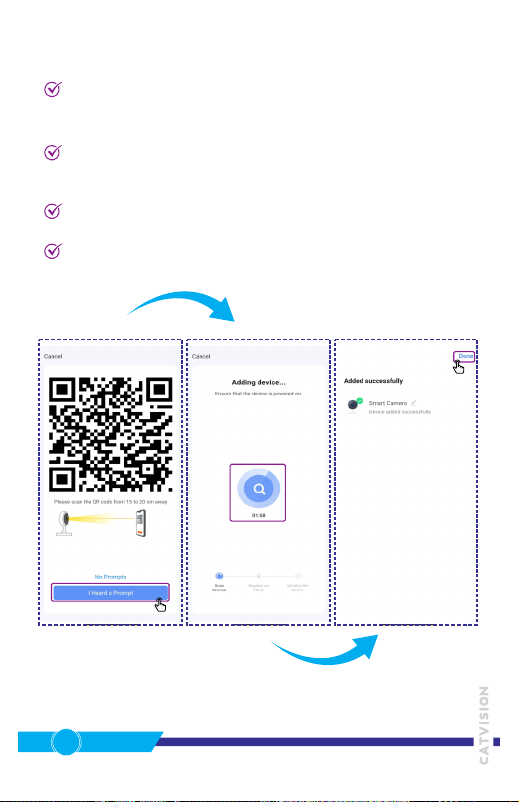
A QR code will appear on your mobile screen. Show this QR code screen
to the camera. Ensure the camera is about 20-30 cm away from the
phone screen.
You will hear a prompt sound from the camera, indicang that the
camera has scanned the QR code. Click “I Heard a Prompt” on the
mobile screen. Mobile screen shows “Adding device…”
Aer successful connecon, mobile screen shows “Added successfully”.
Press “Done”.
The screen will jump to camera’s live interface.
www.catvisiononline.in
6

Explanation of APP Menu
Seng: to open the camera sengs.
Preview mode (HD/SD): toggle the image quality between HD and SD.
Speaker mute: to mute the camera speaker.
Zoom the screen: it will zoom in the live image.
Landscape mode.
Screenshot: capture a picture to the local album in App.
Talk mode: press and hold to talk to people in front of the camera.
Record the video on your phone – press again to stop recording.
Expand: show more funcons.
A
B
C
D
E
F
G
H
I
www.catvisiononline.in
7

Expanded Menu
Landscape mode.
Playback: to see the stored video in Memory Card.
Gallery: to see the stored video and snapshot.
Theme: to select dark/light.
Private Mode: this will put the camera on stand-by mode. All funcons
will be suspended.
Moon tracking (on/off).
Moon detecon (on/off).
Buon management.
Alarm message: to check the noficaon.
Direcon: to move the camera up-down/right-le.
Cloud: check the video saved to the cloud.
More features.
J
K
L
M
N
O
P
Q
R
www.catvisiononline.in
8
S
T
U

Warranty terms
This product is under warranty against any defect arising out of faulty or
defecve material or workmanship for a period of 12 months from the date
of purchase.
To avail the warranty for this product, please register warranty at
www.catvisiononline.in.
Should a defect develop in this product during the period of warranty,
Catvision Limited undertakes to get the apparatus repaired free of charge at
their authorized service centre.
Defects are caused by improper or reckless use.
Accidental or deliberate damage.
Defects are caused by natural calamies, like lightning etc.
Accessories are not covered under this warranty.
Any repair work is carried out by persons other than authorized service
personnel.
Any modificaon or alteraon of any nature is made in the circuitry of
the product.
The serial number is deleted, defaced or altered.
Abnormal changes in external power and environment including
excessive moisture and excessive temperature.
During the warranty period, the customer should send the defecve
product to Catvision’s service center at E-14, Sector-8, Noida - 201301
(U.P.) India on freight paid basis. Catvision shall send back the repaired
product to customer on freight paid basis.
All disputes shall be subject to the exclusive jurisdicon of Delhi
courts.
www.catvisiononline.in
9
This warranty is not valid in case of the following events:

Is the Catvision smart camera made in China?
No, it is made in India at Catvision’s manufacturing unit.
Is it waterproof or water resistance?
No, it is for indoor use only.
Can we connect this camera to an external power bank ?
It can be powered by USB from power bank, but there is one risk or
possibility: the camera may restart automacally in case the external
power supply is not stable. So it is suggested not to connect camera to
external power bank.
Does the camera work on online stream in case I don’t want to use
SD card?
Yes, you can watch real me stream but it will not record.
Will the camera work on a PC or screen other than mobile?
No, it works on mobile screen only.
Can we see the live signal from out of staon?
Yes, you can watch the live signal from anywhere in the world using
the internet.
Can I buy mulple cameras and have access on the same phone?
Yes.
Can we reduce the video quality to increase the record me?
Yes, it has opon of SD/HD (low/high resoluon). Recording will be
longer on SD.
Can this camera operate 24x7 without switching off even for a
second?
Yes, it is meant for this purpose.
Frequently Asked Questions (FAQ)
?
?
?
?
?
?
?
?
?
?
www.catvisiononline.in
10
Andere Handbücher für CSC-101
1
Inhaltsverzeichnis
Andere CATVISION Sicherheitskamera Handbücher


