
Compucessory 55252 Series Fehlerbehebungshandbuch

Amplifier
55251, 55252, 55253, 55254 Series
INSTALLATION GUIDE & USER MANUAL
Amplificateur
Séries 55251, 55252, 55253, 55254
GUIDE D'INSTALLATION & MANUEL DE L'UTILISATEUR
Amplificador
Serie 55251, 55252, 55252, 55254
GUÍA DE INSTALACIÓN Y MANUAL DE USUARIO
Amplificador
Séries 55251, 55252, 55253, 55254
GUIA DE INSTALAÇÃO E MANUAL DO UTILIZADOR
Amplificatore
Serie 55251, 55252, 55253, 55254
GUIDA ALL’INSTALLAZIONE E MANUALE PER L’UTENTE
Verstärker
Serien 55251, 55252, 55253, 55254
INSTALLATIONSFÜHRER UND BEDIENUNGSANLEITUNG

1
ENGLISH
Thank you for purchasing a Compucessory Telephone & Multi-media Amplifier
Kit. This unit is designed and developed with the aim to provide busy users,
whether at home or in the office, the comfort and convenience of using
telephone and computer with a single unit, freeing their hands for more
important tasks. Compucessory amplifiers work with most retail and system
telephones in the market, with the exception of telephones with the dial-pad
inside the handset.
This guide will walk you through your basic installation and normal operations
of a your Compucessory Amplifier:
PART I GETTING COMFORTABLE
I.1 Understanding the Controls.
I.2 Connection and Preparations.
I.2.1 connect to telephone
I.2.2 connect to computer
I.2.3 connect to headset
I.2.4 configure the control unit
I.3 Features and Functions
I.3.1 external DC supply (optional)
I.3.2 power on/off switch
I.3.3 rotary transmit volume control
I.3.4 telephone/computer application switch
I.3.5 headset/handset application switch
I.3.6 mute switch
I.3.7 slide reception volume control
PART II BEGIN TO OPERATE
II.1 Telephone Communication
II.1.1 receiving calls/making calls using headset
II.1.2 using headset with computer
II.2 Troubleshooting
PART III ACCESSORIES & SPECIFICATIONS
III.1 Accessories
III.2 Specifications
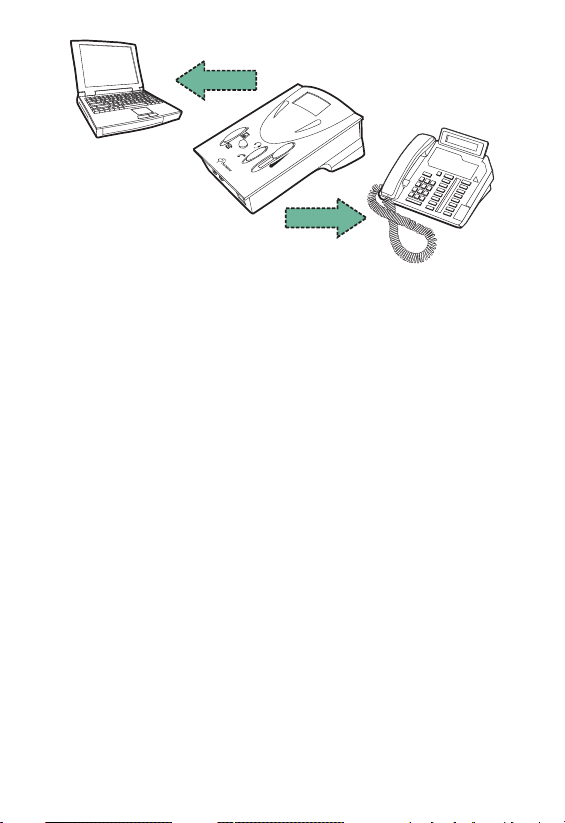
Computer
Telephone

2ENGLISH
MAIN SWITCHES AND INTERFACE
1. External DC Supply Jack (6V DC to 9V DC) – External Adapter
NOT Included
2. Telephone Configuration Switch
3. <Line In> Jack (3.5mm diameter stereo) from Computer Line Out
4. <Line Out> Jack (3.5mm diameter stereo) from Computer Line In
5. Power <On/Off> Switch
6. Rotary Transmission <Mic Volume> Control
7. <Mute> Switch
8. <Telephone/Computer> Application Switch
9. Computer Headset Jack (3.5mm diameter stereo) from
Speaker Plug
10. Computer Headset Jack (3.5mm diameter stereo) from
Microphone Plug
11. <Headset/Handset> Application Switch
12. Modular Jack for <Telephone> Headset
13. Slide Reception Volume Control
14. Modular Jack for <Telephone> Handset
15. Modular Jack for Input from Telephone Unit
16. Battery Compartment Door – Uses two AA size batteries
PART I GETTING COMFORTABLE
I.1 Understanding the Controls

3
ENGLISH
I.2.2 Connecting to Computer (not necessary when using with
telephone only)
Connect this unit to your computer with the audio cable provided.
The color of the plugs is already-color coded in accordance with the
universal standard of line-in and line-out. In another words, the
speaker output line is green, and the microphone input line is blue for
the computer.
CONNECTING TO THE UNIT:
Green plug goes to "Line-In" Jack (also green)(3).
Blue plug goes to "Line-Out" Jack (also blue) (4).
CONNECTING TO THE COMPUTER SOUND CARD:
Green plug goes to "Line-Out" or "Speaker Out" Jack (also green).
Blue plug goes to "Line-In" Jack (also blue).
I.2.1 Connecting to Telephone
Unplug the handset from your telephone base unit and insert it to the
Handset Modular Jack (14). Use the phone cord provided with RJ-11
modular plug on both ends to connect the control unit to your
telephone. Plug one end of the cord to your base unit (A) and the
other end to the Phone Input Modular Jack (15) on the back of the
unit. (See illustration below)

4ENGLISH
CONNECTING TO COMPUTER HEADSETS:
This applies only to computer headsets with separate microphone and
speaker plugs. Insert the Speaker Plug of the headset to the Jack on
the Front Panel with the "Speaker" sign (9) and the Microphone Plug
to the Jack with the "Microphone" sign (10).
I.2.3 Connecting to Headset
The amplifier provides the choice
of using telephone headset (with RJ-11
Modular Plug) or stereo computer
headset (with 3.5mm Diameter Plugs)
according to your preference. For users
who require stereo sound in their multimedia
application, you can choose from our wide
selection of our Compucessory computer headset series.
The headset included with the amplifier comes with a
special-designed Quick Disconnector (Q), giving you convenience
and compatibility.
CONNECTING TO THE TELEPHONE HEADSET:
Plug in the telephone headset to the RJ-11 Modular Jack (12) on the
front panel of the unit.
Quick Disconnect

5
ENGLISH
REPLACING BATTERIES:
Slightly depress the compartment
lid and slide it outwards. Install
batteries with polarities (+, –)
according to the battery diagram
inside the compartment. Close
the lid and turn the power
"ON". Two AA batteries are
required. Alkaline batteries are
recommended.
I.2.4 Configure the Control Unit
The 6-position Configuration Switch (2) at the back panel allows you to
select the proper setting so that the unit will work with your telephone
base unit. The control has 6 positions, which are (1 - 2 - 3 - 4 - 5 - 6).
Wear the headset over your head and switch the Handset/Headset
Switch (11) to the Headset position. Make sure to turn down the volume
adjustment to protect your ear. Check to see if the Telephone/Computer
Switch (8) is set to telephone position, if not, make sure it is. Now move
the switch through positions 1-6 slowly until you can hear a clear
dial tone.
If you receive a clear dial tone sound, then the receiving connection is
working. Note that there may be 2 matching setting, choose the clearer
setting or either one if both perform the same. There is at least one
setting which matches your telephone.

6ENGLISH
I.3.2 Power ON/OFF Switch (5)
Although the unit will return to standby mode automatically after each
extended period of inactivity, you will still want to turn it off when not
in use for a prolonged period of time to extend battery life. Turning
off the unit does not affect normal telephone communication through
the handset, so you can answer or make phone calls through the
handset as usual.
I.3.1 External DC Supply Jack (1)
The unit provides the choice of
using an optional external DC
supply instead of batteries.
When purchasing an AC adapter,
make sure the output polarity
(+/- voltage) matches the unit.
And the voltage should be between
6V DC to 9V DC.
I.3.3 Rotary Transmit Volume Control
The amplifier allows you to adjust the volume of the outgoing sound
volume, and the high and low frequencies associated with it. To fine-tune
the transmission volume, place a call and talk as usual using the headset.
Slowly rotate the Rotary Transmit Volume Control (6) with the small
screwdriver pin provided until the desired level is reached. The person
talking to you should be able to tell you when the optimum sound and
tone level is reached. Once this is set, there should be no need to make
further adjustments in the future. (See illustration next page)
CAUTION: Be careful when you adjust the volume control, as rotating
the volume to the maximum setting may cause headset to "squeal".
Reduce the volume and the "squealing" will disappear, but continuous
over-turning of the control may cause damage to the unit.

7
ENGLISH
I.3.4 Telephone/Computer Application Switch
The Telephone/Computer Application Switch (8) is for you to select
either computer operation or telephone communication. Should this
switching result with no sound, be sure to first check the
Headset/Handset Application Switch to see if it's set properly.
I.3.5 Headset/Handset Application Switch
The Headset/Handset Application Switch (11) is for you to choose
between using the handset of your telephone base unit or the
telephone headset provided. Again, do not forget to switch the proper
setting of Telephone/Computer Application Switch, before use.

8ENGLISH
I.3.6 Mute Switch
The Mute Switch (7) enables you to place a caller on hold by
pressing it down. When the button is pressed down, the caller cannot
hear you, but you can still hear them. To resume communication,
press it again to release the button. You can see a color bar
surrounding the button, when the color bar is visible, there is no mute,
and when the color bar is not visible, then the call is muted.
I.3.7 Slide Reception Volume Control
The Slide Reception Volume Control (13) is for adjusting the volume
of the sound to the headset speaker or speaker box. By sliding the
button up and down, you can obtain the desired volume.
Dieses Handbuch passt für folgende Modelle
3
Inhaltsverzeichnis
Sprachen:


