
Crisp Solutions UCommand-525 Bedienungsanleitung
Universal LCD Remote Control
With Touchscreen & Learning Function
User’s Guide

The UC-525 User’s Guide
ii
PrefacePreface
About this User’s Guide
This user’s guide is designed to assist you in setting up your
UCommand-525 Universal LCD Remote Control. Information in this docu-
ment has been carefully checked for accuracy; however, no guarantee is
given as to the correctness of the contents. The information contained in this
document is subject to change without notice.
Edition
First Edition, May 2001
Copyright
2001 Crisp Solutions LLC, all rights reserved. No part of this publication
may be reproduced, stored in a retrieval system, or transmitted in any form
or by any means (electronic, mechanical, photocopying, recording, or other-
wise), without the prior written permission of the publisher.
Trademarks
Trademarks and registered trademarks of products referred to in this user’s
guide are the properties of their respective holders.
Radio Frequency Interference
This device complies with Part 15 of the FCC Rules. Operation is subject to
the following two conditions:
This device may not cause harmful interference
This device must accept any Interference received, including interference
that may cause undesired operation.

Preface
iii
Table of Contents
PREFACE.............................................................................................II
CHAPTER 1..........................................................................................1
Unpacking the UC-525..........................................................2
UC-525 Features....................................................................2
Identifying Components.......................................................3
CHAPTER 2..........................................................................................4
Power Supply........................................................................4
Battery low icon .................................................................5
Power supply tips and precautions.....................................5
LCD Touch Screen Buttons .................................................7
Turning the LCD on............................................................7
Touch screen precautions..................................................8
UC-525 Buttons.....................................................................9
CHAPTER 3........................................................................................10
Before using the Learning Function..................................10
Using the Learning Function .............................................11
Using the Delete Function..................................................15
Deleting a command button.............................................16
Changing the LCD Layout..................................................19
Changing the AUX Device Layout......................................21
Macro Function...................................................................21
Macro setup.....................................................................22
Adjusting the LCD Backlight..............................................27
Toggling the Beep Signal On/Off.......................................31
Recalling the Original LCD Layout....................................31
APPENDIX A.......................................................................................33
UC-525 Specifications ........................................................33
APPENDIX B.......................................................................................34
Troubleshooting.................................................................34
APPENDIX C.......................................................................................37

The UC-525 User’s Guide
iv
Frequently Asked Questions..............................................37
APPENDIX D.......................................................................................39
Pre-configured X10 Codes .................................................39
APPENDIX E.......................................................................................40
Application Note: Applying Sound Field (DSP) commands
from SONY®Amplifiers.......................................................40

—Introducing the UC-525
Chapter 1Chapter 1
Introducing the UC-525
Congratulations on the purchase of the UC-525, the easy to use and
configure digital remote control.
UC-525 lets you manage all your infrared-controlled devices, elimi-
nating the need to search for all your device remotes. All you need is
the UC-525. This remote control does it all for you!
UC-525’s operating concept is based on the combination of a user-
friendly touch screen panel and easy-to-access hard buttons. The dis-
play buttons change automatically to accommodate the various
devices you wish to control. This unique concept reduces the number
of buttons for each device, which makes it easy to find the function
you want.
The UC-525 features eight pre-defined, customizable button layouts
for TVs, DSS/Satellite/Cable sources, Tape/Tuner, CD/DVD players,
Surround Sound Amplifiers, LD/VCDs, VCRs, and other devices. In
addition, it utilizes a multi-macro function that allows you to initiate
a chain of up to 25 commands with the touch of a button.
This user’s guide will help you learn how to use all the
advanced features of the UC-525. It does not explain
how to use the functions for your devices. Please
refer to your devices’ user’s guide for information re-
lated to your TV, VCR, DVD, etc.

The UC-525 User’s Guide
2
Unpacking the UC-525
After you have unpacked the UC-525, check the contents to make
sure the following items are included.
•UC-525
•This User’s Guide
•Registration Card
If any of the above items are missing or appear damaged, contact
your dealer immediately. Do not throw the shipping carton away in
case you need to return your UC-525 to your place of purchase.
UC-525 Features
This section provides an overview of the key features of the UC-525.
For more information on getting the most from these features, refer to
Chapter 2.
•Touch screen panel with automatic backlighting for visibility
in dim lighting.
•Macro function—any command button can hold a macro of
up to 25 commands.
•Controls eight customizable device layers including TV,
DSS/Satellite/Cable, Tape/Tuner, CD/DVD, Amplifier,
LD/VCD, VCR
•Learns the IR codes from your existing remote controls to
quickly set up devices.
•Adjustable backlight with four levels of ambient light sensi-
tivity.
•Direct access buttons for accessing frequently used functions
such as volume, channel, play, mute, power and stop.
•Intelligent power saving modes.
•Settings held in non-volatile flash memory. Keeps your con-
figuration even when batteries fail or are replaced.

—Introducing the UC-525
3
Identifying Components
This section provides an overview of the UC-525’s features and con-
trols. Please refer to the following illustrations to identify the
components of the UC-525. (Refer to Chapter 3 for details on using
the LCD panel and controls.)
IR Port
Point the IR port
at the IR receiver
of the device you
wish to operate
Battery Cover
Remove this cover
to replace the four
AAA batteries.
LCD & Keypad
The LCD panel & hard
buttons let you
configure and operate
your devices. Tap
either once to activate
the UCommand-525
Learning Eye
Point your original
remote control to
this eye for learning.
UC-525

The UC-525 User’s Guide
4
Figure 1Figure 1--1: Front and rear viewChapter 21: Front and rear viewChapter 2
Getting Started
This chapter will guide you through the steps for inserting the batter-
ies and using the many features.
Power Supply
The UC-525 operates on four AAA batteries. Batteries must be in-
serted before you can operate the UC-525. To insert the batteries,
refer to the following illustration:
Figure 2-1: Inserting the batteries
—Getting Started
5
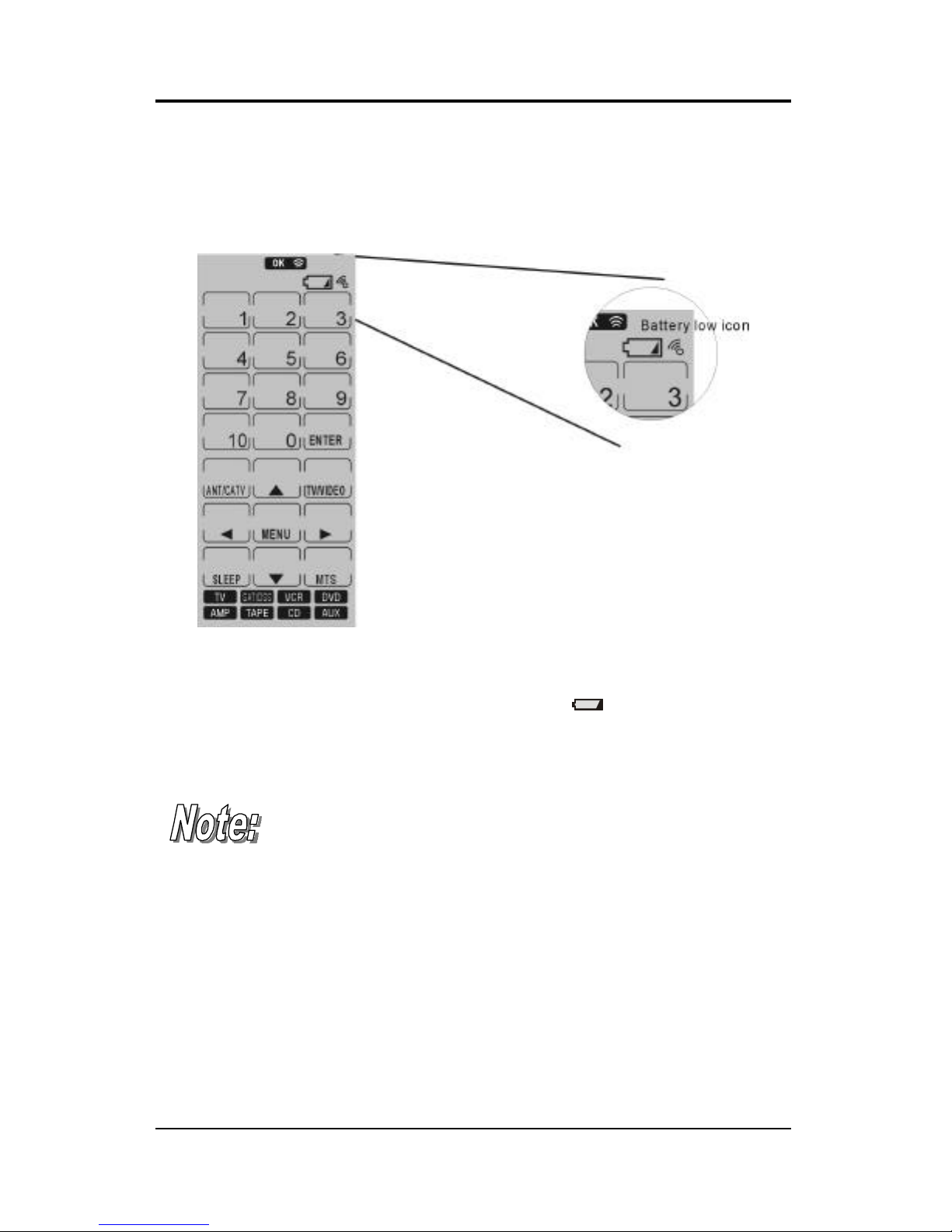
Battery low icon
When the battery charge is low, the battery low icon will be displayed
on screen:
Figure 2-2: The battery low icon
When the battery low-power warning icon appears, replace the
batteries with new ones as soon as possible.
Don’t worry: When the batteries fail or are being re-
placed, the UC-525 does not lose its configuration,
thanks to its non-volatile memory.
Power supply tips and precautions
•Be sure that the positive (+) and negative (-) polarities of
each battery match the polarities indicated in the compart-
ment.
•Do not expose the batteries to excessive heat or flame.

The UC-525 User’s Guide
6
•Keep batteries out of reach of children.
•When the batteries are weak, it will be harder to control
devices from a distance.
•Replace the batteries as soon as possible when the battery
low-power warning icon appears in the information
screen.
•Be sure to replace the batteries if they have been used for
longer than two years; there might be a danger of leakage.
•Device configuration data is automatically saved when batter-
ies are being replaced.
•Always dispose of used batteries in an environmentally-
friendly way.
The settings of the backlight have a big impact on bat-
tery life. For longest battery life, set the backlight
duration to “short” and the ambient light sensitivity to
“least” sensitive. See “Adjusting the LCD Backlight”.
Inhaltsverzeichnis
Andere Crisp Solutions Universalfernbedienung Handbücher


