delf DDL200 Bedienungsanleitung

DDL200
Delf Digital Smart Lock
User Manual

43

Table of Contents
1 General Information
1.1 Product Introduction 1
1.2 Product Specifications/ Features 1
1.3 Packing List 2
1.4 Product Overview 2
1.5 Routine Care & Maintenance 3
2 How to Use the Smart Lock
2.1 Unlock Methods 5
2.2 APP Installation Guides 6
2.2.1 Download App 6
2.2.2 Setup & Pairing 6
2.3 APP Operation Guides 8
2.4 Lock Operation Guides 45
3 Reminders
3.1 Low Voltage Alarm 48
3.2 Keypad Lock 48
3.3 Security Lock 48
4 FAQ and Troubleshooting 49
5 Warranty 50

Specications
System Support
Suitable Door Thickness
Communication Mode
Unlock Time
Power Supply
Emergency Power Source
Card Capacity
Fingerprint Capacity
PassCode Capacity
Static Current
Working Current
Working Temperature
Working Humidity
Housing Material
1.4 Product Overview
1.3 Packing List
Item Parts Name Qty
1 Lock – Indoor Body 1
2 Lock – Outdoor Body 1
3 Mechanical Key 2
4 Latch 1
5 Access Card 3
6 Waterproof Rubber Pad 2
7 Strike Plate & Box 1
8 Accessories Set 1
9 User Manual 1
10 Door Hole Drawings 1
Outdoor Unit Indoor Unit
Dimension
Indoor Unit
Outdoor Unit
Features
Unlock Method
72.5(W) x 300(H) x 73(D) mm
- Fingerprint
- PassCode
- APP
- Access Card
- Mechanical Key
iOS 7.0 or above, Android 4.3
or above
35 - 65mm
Bluetooth 4.1 BLE
≈ 500ms
4 * 1.5V AA batteries
Micro USB
200pcs
200pcs
150pcs
≦70μA
≦300mA
-10~55℃
0%~95%
Zinc Alloy & SS304
Keypad
Card Reader
Battery Cover
Lock
Cylinder
Lever
USB Emergency
Power
Security Lock
Fingerprint Sensor
21
1. General Information
1.1 Product Introduction
The smart functions of this lock could be operated through mobile APP to unlock door, send passcode, authorize control, check
unlock record or even send social media message. It also uses new advanced encryption and security technology to provide
ultimate protection.
1.2 Product Specications/ Features

1.5 Routine Care & Maintenance
43
Please read these precautions and notes thoroughly for your safety and convenience!
1. Never dismantle or attempt to work on the DDL200
The DDL200 is assembled in a precision electronics factory and is not designed to be dismantled
after manufacture and should never be opened up.
Opening up or tampering with the DDL200 electronics, other than as instructed in these installation
instructions will void the Warranty.
2. Do not user water to clean the product
Always use a soft, dry clean cloth to clean the product.
Using water to clean the inside of the unit, or exposing the inside to water will affect the electronics
and can void the warranty.
Never use harsh detergents or cleaning solvents as these can damage the surface finish.
3. Battery Life
In normal circumstances using quality Alkaline batteries, the expected battery life of the DDL200 is
between four to eight months (based on being used ten times a day).
4. Replacing the batteries
When the alarm signals the batteries are in need of replacement, always use 4 AA size quality alka-
line batteries of 1.5V. Note – Do not use Rechargeable batteries in the unit.
If the batteries are allowed to go flat (fully discharge), it’s still possible to open the door with finger-
print, touch-key and passcode by linking a micro USB to the outer body terminal.
5. Do not hang objects on the levers
Hanging objects from the levers can damage the internal workings of the lock and affect the long
term performance of the unit.

65
2.2 APP Installation Guides
2.2.1 Download App
Download App “Delf Smart Lock” from iOS or Android App Store, and register an account
2.2.2 Setup & Pairing
Functions Procedures APP
Pairing
(Keep phone & lock within 1
meter, the closer the better)
(1) Enable phone Bluetooth and login App
(2) Press “+” or “add lock” and
select “All Locks”
2. How to Use the Smart Lock
Default Administrator PassCode (Factory Setting): 123456#
2.1 Unlock Methods
The Delf DDL200 Smartlock can be opened using 5 methods
Item Method Instruction
1 Unlock by APP Guides section 2.3
2 Unlock by PassCode Guides section 2.4
3 Unlock by Fingerprint Guides section 2.4
4 Unlock by Access Card Guides section 2.4
5 Unlock by Mechanical Key -

(2) Click “Send eKey”
87
Pairing
(Keep phone & lock within 1
meter, the closer the better)
2.2.2 Setup & Pairing
Functions Procedures APP
2.1 eKey (App) Unlock
(This function could be
effectively performed
when there is Bluetooth
connection between lock
and phone)
2.2 Send eKey
(1) Enable phone Bluetooth and click lock name
(2) Press “Lock” icon to unlock
(wait for 5 seconds before conducting next eKey
unlock)
(1) Select door lock in main page
2.3 APP Operation Guides
Functions Procedures APP
(3) Touch keypad
(4) Click lock ID with “+” sign to pair
Lock ID is identified by phone
(5) Name the lock and click “OK”
(6) Click “Complete”
(6)
(5)

109
2.2 Send eKey 2.3 Delete eKey
(Admin Control)
(3) Select type of eKey
“Timed”: eKey is allow to set the start time and end
time
“Permanent”: no time limit
“One-time”: eKey is allowed to use one time only
“Recurring”:
This eKey will be repeated weekly
(1) Select door lock in main page
(2) Click “eKeys”
(3) Click“ ”on top right corner
(4) Enter recipient’s user name
Remarks: User name must be registered in Delf
Smart Lock APP
(5) Click “Send”
(4) Choose “Reset eKeys”
2.3 APP Operation Guides
Functions Procedures APP
2.3 APP Operation Guides
Functions Procedures APP
(4)
(5)

1211
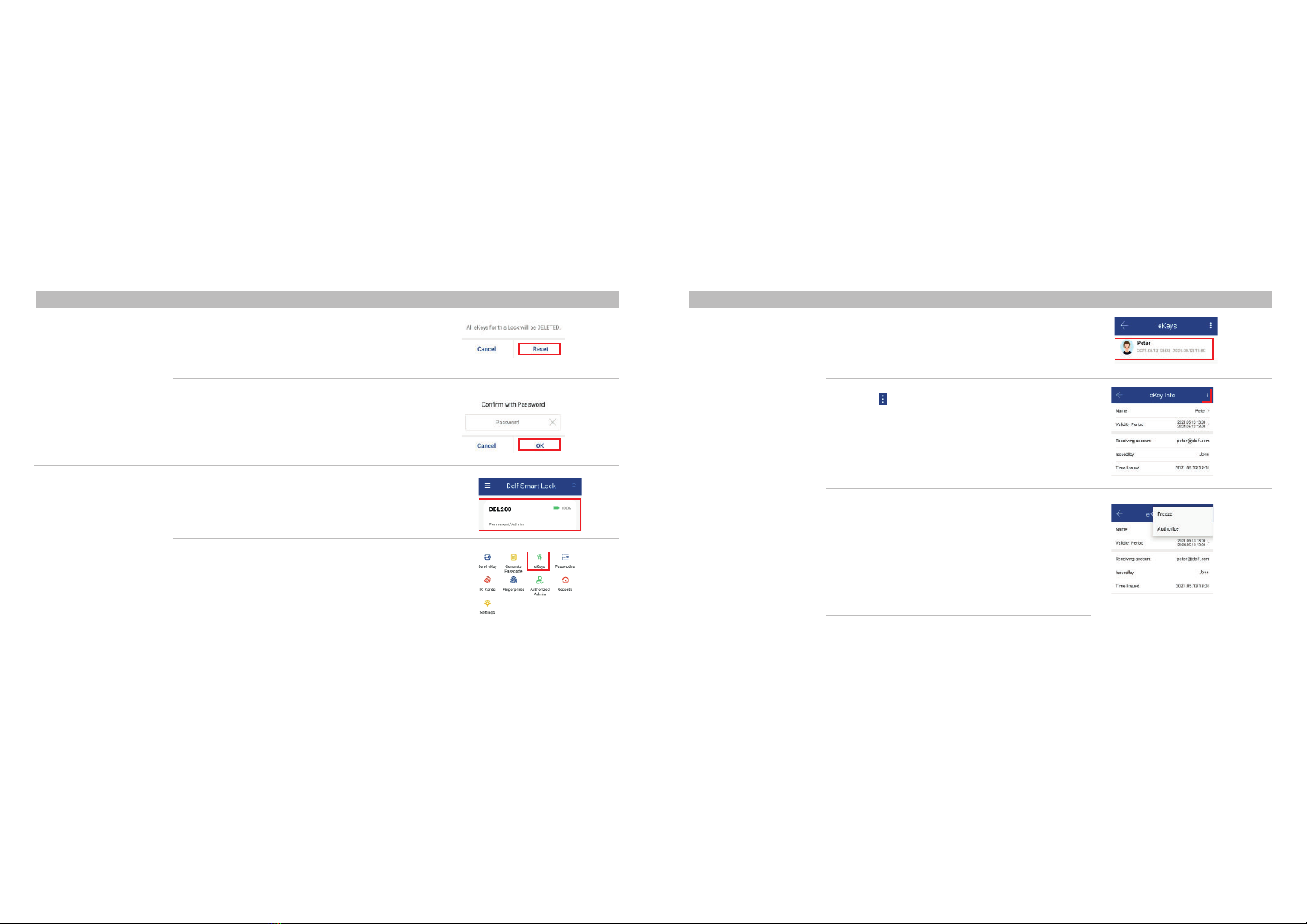
2.3 Delete eKey
(Admin Control)
2.4 Freeze/ Thaw/
Authorize/ De-Authorize
eKey
(Admin Control)
2.4 Freeze/ Thaw/
Authorize/ De-Authorize
eKey
(Admin Control)
(5) Double confirm by clicking “Reset” (3) Click on the specify eKey
(1) Select door lock in main page
(2) Click “eKey”
(6) Enter passcode & click “OK” for “Reset
eKeys” (4) Click“ ”on top right corner
(5) Select “Freeze/ Thaw/ Authorize/ De-Authorize”
Freeze: Suspend eKey
Thaw: Unsuspend eKey
Authorize: Authorize user rights
De-Authorize: De-authorize user rights
(6) Click “Freeze”/ ”OK” / “Authorize”/ ”De-Authorize” to
apply changes
2.3 APP Operation Guides
Functions Procedures APP
2.3 APP Operation Guides
Functions Procedures APP

1413
2.5 Send Guest PassCode 2.5 Send Guest PassCode
2.6 Delete Guest PassCode
(Valid if within Bluetooth
connection)
(1) Select door lock in main page (5) Click “Share”
You could send passcode by WhatsApp/ Messenger/
email or SMS which are enabled in your smart phone
(1) Select door lock in main page
(2) Click “Passcodes”
(2) Click “Generate Passcode”
(3) Specify passcode mode/ time
“Permanent”: no time limit
“Timed”: passcode is allow to set the start and end time.
“One-time”: passcode is allowed to use one time only.
“Erase”: App generates a code to user who keys in from
lock keypad to erase all passcode, this generated code is
valid for 24 hours.
“Custom”: passcode is allow to set the start time, end
time and create own passcode combination (4-9 digits).
“Recurring”: passcode is allow to set the start and end
time. This passcode will be repeated weekly
(4) Press “Generate Passcode”
2.3 APP Operation Guides
Functions Procedures APP
2.3 APP Operation Guides
Functions Procedures APP
(3)
(4)
Inhaltsverzeichnis