
Domenor D57 Bedienungsanleitung

HD_Video Conference Camera
User Manual
¿
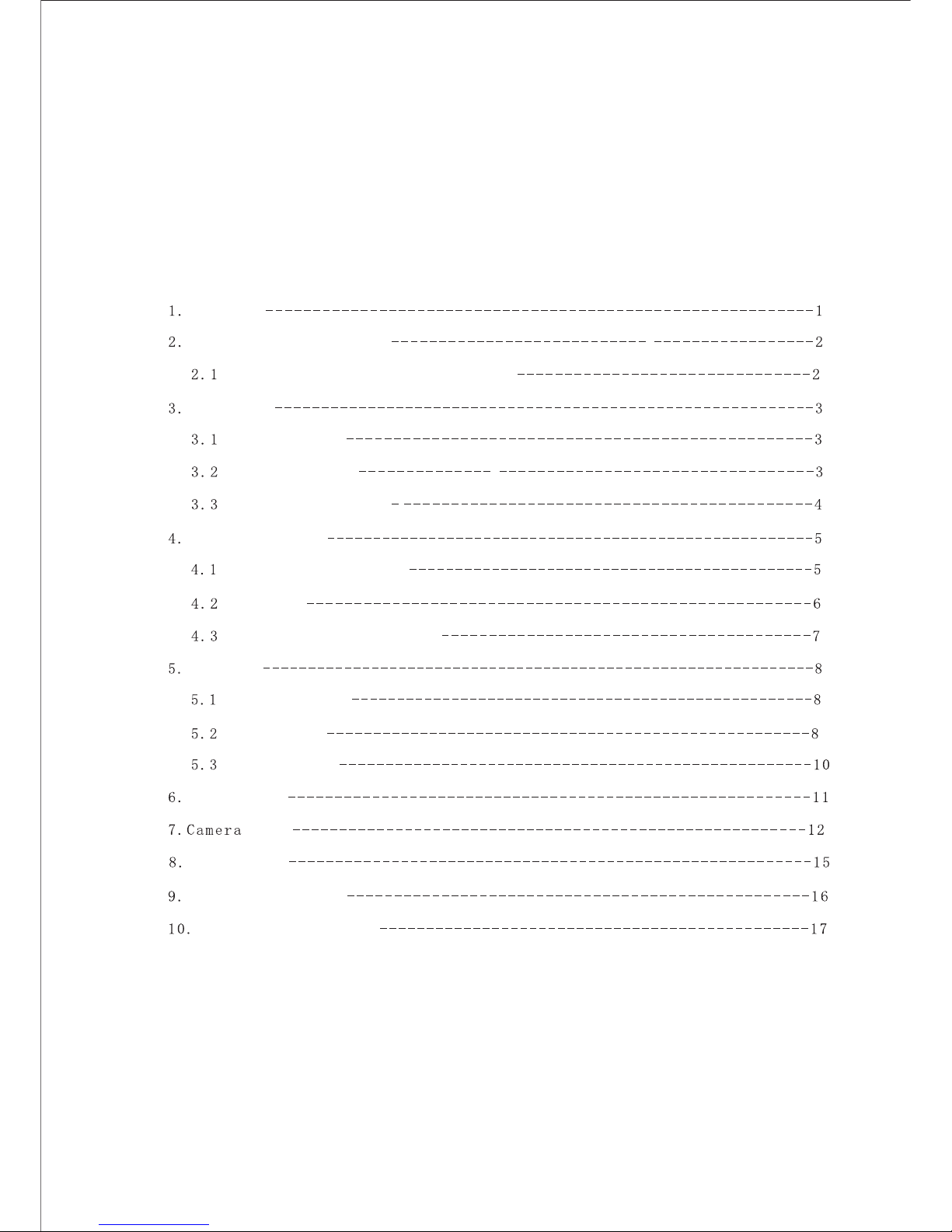
TABLE OF CONTENT
Precaution
Function instruction
positions of control system
Functions of remote controller
Instruction
Performance
Installation instruction
Pan/Tilt operation
camera control
Memory settings
dome parameter
camera parameter
performance & features
Application system diagram
Dimension
Maintenance service terms
Standard Definition operation illustration
System setting
System setting
setting

1. Precaution
Electrical Safety
Transportation with care
Installation with care
Requirements to service personnel
Do not disassemble the Pan/Tilt module
Environmental Requirements
Don't
Confirm country and local electrical safety standard when using or installing the product
The product itself has no power switch Please stop power supply or plug out power socket when it
is not in good working Vide
Product should be protected against extremes of pressure, vibration and humidity during transportation,
storage and installation. It is transported by integrated packing style
Pleas
e, which may cause malfunction; the camera parts belong to senior optical
products, please do not touch it by your hand in order to avoid scratch for protecting the imaging quality
All the service work should be done by qualified technicians
Do not disassemble screws and repair the parts of the Pan/Tilt module by yourself. Only qualified and
professional personnel can do this job
Environmental temp: -40~+60 Humidity: <95%
Air Pressure: 86~106 Kpa Power supply:DC12V 2V
Power consumption: Maximum 12W DC12V
o wire and control wire should be insulated and individual connected can
not mix-up with other wires
e read carefully user installation manual when installation Please pick up the camera parts
gently and do not press it, or els
Don't focus the camera on objects with strong light. Don't focus the camera direct to the sun or
other bright objects no matter when in use or not. Otherwise ,it may affect image quality
focus the camera on objects with strong light
Precaution

2. Application system diagram
Standard Definition camera operation illustration. for instance as below:
Operation illustration
Power cord(supplied)
To AC outlet
AC power adaptor
MPA-AC1(supplied)
To DC IN 12V
Computer,TV
or VCR with a
video input jack
To VISCA IN of
other EVI-D70/D70 Ps
To VISCA IN
RS-232C OUT
To VISCA RS-232C IN To RS-232C
To HDMI VIDEO
YPbPr cable
YPbPr VIDEO
To TV input
To Video input
Video cable
To VIDEO
To S VIDEO
Pb
Y
Pr

Performance
3.2 Camera parameter
3.1 Camera parameter
3. Performance
Electricity
Decoder Built in
Power supply
Power consumption
Rotation speed
Pan
Operation
Pan rotation
Environmental
Working
environmental temperature
Communications
Baud rate
Protocol
Address setting
Presets
Remote controller 9
Visca protocol 128
Stand-up position
Tilt rotation
Environmental humidity
No-condensation
net weight
Installation
Physical
20X Optical,12X Digital
4.7-94 mm()
Auto/Manual
Off/No
50dB
SDI
Off/No/Auto
24
KSS 20 Color
1/2.8Type Exmor CMOS Sensor
1.7lux/0.005lux
2 Mega pixel
720P50/60 1080I50/60 1080P25/30 (Optional)
PAL/NTSC
1/1-1/10000
55.4 (W)-2.9 T()
Signal system
Imaging element
Scanning system
Effective pixel (H V)
Minimum illumination
Zoom
Focus
Angle Field of view
IRIS Control
Focusing system
White balance
Back -light compensation
S/N ratio
Electronic shutter speed
Video output port
Wide Dynamic Range
Privacy zone masking
Model
Spec
Auto/Manual
Auto/Manual

Performance&Features
Ø
Ø
Ø
System
Input/Output port:
Features
Video signal: PAL color
Pixel:
Minimum distance for imaging: (wide view, the nearest settings under Visca protocol):10mm
S/N Ratio: 50 dB
Pan/Tilt: Pan 170 , maximum speed:100 /S
Tilt:+90 , -30 , maximum speed: 90 /S
Output: RCA tone socket 1vpp, 75 ohm, Non-balance Sync: Negative
Input/Output control connection port: Visca RS-232C: 8-Core Minisize DIN (input:1; output:1)
Mode of signal control: 9600bps data:8 bit Stop bit:1
Power connection port: JEITA 4
With Fast, wide Pan/Tilt functions
With RS-232C communication and Visca protocol, can control video conference camera by terminal
equipment and computer
Improved quality and definition of digital zoom image by the newest development digital signal
processor (DSP)
Can remove and attenuate IR light by attenuation-filter Besides, this filter can open and close
automatically; it provides image with good quality in high definition and strong brightness in large
scope
Can save 9 presets in memory, it's available for working when necessary
With 1 Multi function IR Remote controller, which is easily and convenient to control video con
ference camera
2mega
3.3 Performance&Features
Remark The parameter for each video camera module is different; please refer to the details in
Chapter 3.2
4

4. Functions
4.1 positions of control system
Lens
(may fix wide lens)
Sensor of remote
controller.
light of power
light of standby
Functions
Video interface
VIDEO
YPbPr
HDMI
IN RS-232C OUT
DCIN12V
YPbPr interface
HDMI Interface
Input interface
Output interface
DC 12v Power input interface

4.2 Dimension
The HighSize for definition video conference camera is as below:
POWER STANDBY
131.56
110
154
165
142
66 8
3030
9090
175175
175175
1/4-20 UNC,
6.5mm
Screw thread
Screw thread
1/4-20 UNC,
6.5mm
14
8
Functions
6

4. 3 Functions of remote controller
POWER
DATA SCREEN
BACK LIGHT
AUTO
FAR
NEAR
MANUAL
POSITION
PRESET
RESET
HOME
SLOW T
SLOW W
FAST T
FAST W
L/R DIRECTION/SET
open/close power
press for back light compensation.
press for auto-focus.
press for far zoom, focus on objects in far distance
press for near zoom, focus on objects in near distance.
press for Manual Auto/ focus.
Setting for preset and reset.
press any number from 0-9 within 2 seconds
after press preset to set preset.
press any number from 0-9 within 2 seconds
after press reset to delete preset.
Press any number to see preset.
press this key to set position in central of front side.
focus on near object slowly
focus on far object slowly
focus on near object fast
focus on far object fast
1.press 1 in 2 seconds
after press this key, camera start left to right rotation
under upside installation style; Press 2 in 2 seconds after
press this key, camera start left to right rotation under
upside-down installation style.
Enter OSD Menu, Continuous press 6 times (Every time
must be around 1 second), Restart may make the dome restore factory default.
11
12
13
10
Notes:
1. if the remote controller doesn't work, please change batteries.
2. camera can not work if there is any block between remote controller and camera, please make sure the
controller is direct to the sensor when using.
7
POWER
DATA SCREEN BACK LIGHT
AUTO
FOCUS
MANUAL
NEAR
FAR
STD REV
123
456
789
PRESET RESET
POSITION
PAN-TILT
HOME
SLOW
ZOOM
FAST
L/R
DIRECTION SET
3
5
7
1
2
46
8
9
10
11
12
13
Functions

Instruction
5. Instruction
5. 1 Pan/Tilt operation
1. Press direction keys to change the direction. If need to change vision angle of camera, please press the
right direction key. Press short time for slow moving, press long time for fast moving.
2. Press "Home" to set position in central of front side.
5. 2 Camera control
Focus
1. Auto focusing: press auto , camera will focus on the central object.
2. Manual focusing: press manual to switch auto and manual focusing. Under model of manual
focusing , press far to set focus in far distance, press near to set focus in near distance.
8
Inhaltsverzeichnis


