DSC PK5590CL Bedienungsanleitung

PK5590CL Touch Screen
Security Interface
Compatible with PowerSeries Control Panels
User Guide
IMPORTANT
This manual contains information on the limitations
regarding product use and function and information
on the limitations as to liability of the manufacturer.
Read the entire manual carefully.

INDEX..............................Page QUICK REFERENCE
Access Codes .....................13
Arming
....... Away .............................8
....... Stay...............................7
Brightness...........................11
Bypassing Zones ..................9
Chime....................................9
Clean Mode.........................11
Contrast ..............................11
Disarming...........................7,8
Emergency Buttons...............2
Functions ............................10
Language............................10
LED Indicators ......................2
Logs ......................................9
Silence Beeps.....................11
Zones, bypassing..................9
Status Indicators ...................2
Time/Date ...........................12
Troubles (see logs)................9
Welcome screen ...................4
Welcome > Main Menu >Settings > More > Access Codes
Welcome > Main Menu > Arm Away
Welcome > Main Menu > Arm Stay
Welcome > Main Menu > Settings > More > [Brightness]
Welcome > Main Menu > Bypass
Welcome > Main Menu > Settings > More > [Chime]
Welcome > Main Menu > Settings > [Start] (Cleaning Mode)
Welcome > Main Menu > Settings > More > [Contrast]
If not visible tap screen
Welcome > Main Menu > Functions > [Function 1/2/3/4]
Welcome > Main Menu > Settings > [English]/[French]
Welcome > Main Menu > Logs
Welcome > Main Menu > Settings > More > [Silence Beeps]
Welcome > Main Menu > Bypass
Welcome > Main Menu > Settings > More > Time/Date
Welcome > Main Menu > Logs
Disarm System to view Welcome screen

1
1. Introduction
The PK5590CL Touch Screen is an interactive touch-sensitive color LCD that can be used on Partition 1 of any PowerSeries
control panel. Due to the custom requirements of individual installations some of the features described here may perform dif-
ferently than described. Refer to your installer’s instructions for the details of your specific installation and to the User manual
for general security system information.
Specifications/Features
Display...........................................................................................................1/4 VGA (320x240 pixel) Color Touch Screen
Emergency Buttons ........................................................................................................................ 3 (Fire, Auxiliary, Panic)
LED Indicators............................................................................................................................ 3 (Ready, Armed, Trouble)
Dimensions (mounting) ....................................................................................................................................5-3/8”x3-7/8”
Wiring Distance ...................................................................................................................600ft (4-wire, 18 AWG Keybus)
NOTE: Programming changes may take up to 5 minutes to take effect. During this period the touch screen ignores user
input and displays “System Unavailable” in the Status Bar.

2
Controls & Indicators
The following table lists the Led Indicator and push button functions. Most operations are performed by tapping an
area indicated on the screen displayed.
Function Description
LED Indicators:
Ready Light (GREEN)
Armed Light (RED)
Trouble Light (YELLOW))
Emergency Keys:
ON indicates the system is ready for arming.
The system cannot be armed unless the Ready light is ON.
ON indicates the system has been successfully Stay Armed or Away Armed.
FLASHING indicates the system has been successfully armed with no entry delay.
ON indicates there is trouble on the system.
Press the Logs menu from the Main menu to view troubles.
Fire Assistance Required. Press and hold for 2 seconds to activate
Medical or other Assistance Required. Press and hold for 2 seconds to activate
Police Assistance Required. Press and hold for 2 seconds to activate
IMPORTANT NOTE: The Auxiliary and Panic Keys are ON by default. The Fire Key will not function unless programmed by the
Installer. If the keypad is programmed "Silent" the keypad will not change when a key is pressed. These events are recorded in the
LOG.

3
Figure 1, Controls & Indicators
Context Sensitive Help
Title Bar
Work Area
Time
LED Status
Indicators
Date Fire Auxiliary Panic
EMERGENCY BUTTONS
Status Bar

4
LCD Touch Screen
Welcome screen
The Touch Screen LCD is 1/4 VGA 320 x 240 pixel display
This screen will blank after 15 minutes of inactivity. Tapping the screen will restore the display.
During normal operation (unarmed) and system startup the WELCOME screen is displayed.
From here a series of screens can be accessed that allow the user to perform Arming/disarm-
ing and other User functions. To navigate through the various screens, refer to Quick Access
guide at the front of this document and to Figure 2, Touch Screen Flowchart
Indoor and Outdoor Temperature is displayed in the top left and right corners of the screen if
an Escort module and temperature sensors have been installed.
The INFO button provides context sensitive help for the current screen
Date & Time are displayed in the lower left and right corners of the screen
System Status (i.e., Ready, Armed, Exit Delay etc. is displayed in the bottom center of the
screen.
NOTE: Tapping Date or Time will display the Date/Time Programming screen
Tapping the screen anywhere between the upper and lower status bars will display the Main
Menu screen

5
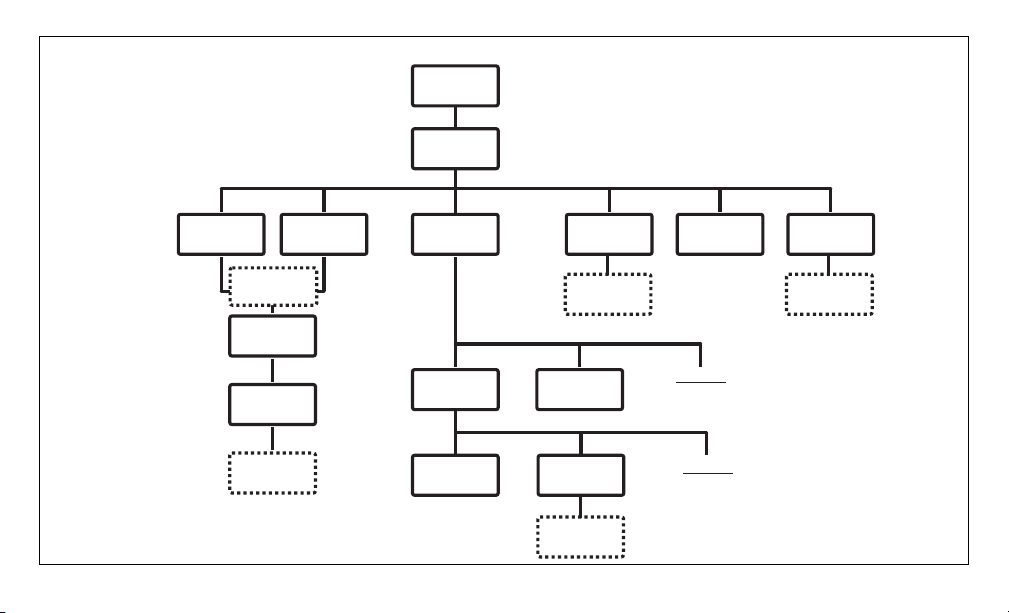
Figure 2, Touch Screen Flowchart
Settings (2)
Screen
Clean Mode
Screen
Time/Date
Screen
User Codes
Screen
Logs
Screen
Settings (1)
Screen
Functions
Screen
Settings
Chime
English/French
Settings
Silence Beeps
Brightness
Contrast
Save (Brightness/Contrast)
Bypass
Screen
Arming
Screen
Disarm
Screen
Stay Arm
Screen
Away Arm
Screen
Welcome
Screen
Main Menu
Screen
Numeric
Keypad
Numeric
Keypad
Numeric
Keypad Numeric
Keypad
Numeric
Keypad

6
Main Menu screen The Main Menu screen allows you to select the following functions. To select a function tap on
the associated virtual push button.
Note: If PowerSave has been enabled, the screen will blank after 1 minute.
Tap the screen once to display the Welcome screen.
Tap the screen again to display the Main Menu screen.

7
Stay Armed When Stay Arm is Selected:
NOTE: If Quick arm is not enabled by the installer, then a numerical keypad will be dis-
played. Enter a valid access code, then tap “Enter” to proceed.
•“System is Arming" will be displayed in the work area
• The Armed LED Indicator turns ON
•“Exit Delay-Bypass” is displayed in the Status Bar. The pre-programmed Exit Delay
begins
IF Cancel is selected during the Exit Delay:
• A numeric keypad is displayed
• Enter (tap) your Access Code then tap the Enter button
• Arming sequence is aborted and system returns to the Welcome screen
• Armed LED turns OFF
At the end of the pre-programmed Exit Delay:
• "The Disarm screen is displayed
• The Ready Indicator turns OFF
•“Stay Armed-Bypass”- is displayed in the Status Bar
NOTE: This screen will blank after 15 minutes. Tap to unblank the screen.
IF Disarm is selected
• A numerical keypad is displayed
• Enter your Access Code in the keypad then tap Enter
• The system returns to Welcome screen, The RED Armed indicator turns OFF
• Alarm status is momentarily displayed in the status bar then “Ready” is displayed
• Green Ready indicator turns ON

8
Away Arm When Away Arm is Selected:
NOTE: If Quick Arm is not enabled by the installer, then a numerical keypad will be dis-
played. Enter a valid access code, then tap “Enter” to proceed.
•“System is Arming" will be displayed in the work area
• The Armed LED Indicator turns ON
•“Exit Delay” is displayed in the Status Bar. The pre-programmed Exit Delay begins
• The Touchscreen “chirps” at a 1-second urgency interval during the Exit Delay. Then will
sound 3 chirps in the last 10 seconds.
IF Cancel is selected during the Exit Delay:
• A numeric keypad is displayed
• Enter (tap) your Access Code then tap the Enter button
• Arming sequence is aborted and system returns to the Welcome screen
• Armed LED turns OFF
At the end of the pre-programmed Exit Delay:
• "The DISARM screen is displayed
• The Ready Indicator turns OFF
•“Away Armed”is displayed in the Status Bar
NOTE: This screen will blank after 15 minutes. Tap the screen to unblank.
IF DISARM is selected
• A numerical keypad is displayed
• Enter you access Access Code in the keypad then tap "Enter"
• Returns to Welcome screen, The RED Armed indicator turns OFF
• Alarm status is momentarily displayed in the Status Bar then “Ready” is displayed.
• Green Ready indicator turns ON
Andere Handbücher für PK5590CL
3
Inhaltsverzeichnis
Andere DSC Touchscreen Handbücher
Beliebte Touchscreen Handbücher anderer Marken

IBASE Technology
IBASE Technology ASTUT-152-RE1S Bedienungsanleitung

YASKAWA
YASKAWA TP 610C Bedienungsanleitung

B&R
B&R Power Panel C Series Bedienungsanleitung

Beijer Electronics
Beijer Electronics X2 control Bedienungsanleitung

AXIOMTEK
AXIOMTEK GOT321W-521 Bedienungsanleitung

TRIDONIC.ATCO
TRIDONIC.ATCO x-touchBOX Bedienungsanleitung