Element P220 Bedienungsanleitung

Stationary Barcode Scanner
P220
User Manual
Rev.1.0

Disclaimer
Please read all the contents of the manual carefully before using the products described in this
manual to ensure the safe and effective use of the products. After reading, please keep this manual
properly for the next time you use it.
Do not disassemble or tear the sealed bidding of the scanner on your own, otherwise our company
shall not assume the responsibility of warranty or replacement of the scanner.
The images in this manual are for reference only. If there are some pictures that do not match the
actual product, please refer to the actual product. For the improvement and renewal of this product,
our company reserves the right to modify the document at any time without notice.
All information contained in this manual is protected by copyright, and our company reserves all rights.
No unit or individual may, in any way or for any reason, extract or copy all or part of the contents of
this document in any form without written permission.
The products described in this manual may include the copyrighted software of our company or a
third party. Unless authorized by the relevant rights holder, no unit or individual can copy, distribute,
modify, extract, decompile, disassemble, decrypt, reverse engineer, rent, transfer, Sub-license and
other infringement of software copyright.
Our company has the final right of interpretation of this statement.

Change Record
Rev.
Date
Description
1.0
2020.06.10
Initial release

CONTENT
Chapter 1 Introduction ........................................................................................................................................ 1
1.1 Appearance and Dimension................................................................................................................... 2
1.2 Scanner Data Cable Interface Definition................................................................................................ 3
1.3 Power on, Power off and Restart........................................................................................................... 4
1.4 Maintenance.......................................................................................................................................... 4
1.5 Communication Interface ...................................................................................................................... 5
1.6 Barcode Recognition.............................................................................................................................. 6
1.7 Use the Setting Barcode......................................................................................................................... 6
1.8 Restore Factory Defaults........................................................................................................................ 6
Chapter 2 Communication Interface.................................................................................................................... 7
2.1 Serial Interface....................................................................................................................................... 7
2.2 USB Interface ......................................................................................................................................... 9
2.2.1 HID Virtual Keyboard................................................................................................................... 9
2.2.2 USB International Keyboard Setting............................................................................................ 9
2.2.3 USB Virtual Serial Port............................................................................................................... 20
2.3 VID & PID Table.................................................................................................................................... 20
Chapter 3 Recognition Mode............................................................................................................................. 21
3.1 Manual Mode ...................................................................................................................................... 21
3.2 Sensing Mode ...................................................................................................................................... 21
3.3 Continuous Mode ................................................................................................................................ 22
3.4 Command Trigger Recognizing Mode.................................................................................................. 22
Chapter 4 LED Light............................................................................................................................................ 23
Chapter 5 Other Functions................................................................................................................................. 24
5.1 Recognition Successful Sound.............................................................................................................. 24
5.2 Barcode Reverse Setting ...................................................................................................................... 24
5.3 Common End Mark Suffix Settings....................................................................................................... 26

Chapter 6 Barcode Symbol Parameter............................................................................................................... 27
Chapter 7 Troubleshooting ................................................................................................................................ 45
Chapter 8 Scanner Settings................................................................................................................................ 46
8.1 Global settings (default HID once scan mode)..................................................................................... 47
8.2 Virtual serial port mode command settings ........................................................................................ 54
8.3 Barcode Enabling settings.................................................................................................................... 55

P220 Stationary Barcode Scanner User Manual 1
Chapter 1 Introduction
P220 uses the international leading chip intelligent image recognition technology, and it mainly
uses for image-based 2D scanner.
2D decoding chip combines the advanced image recognition algorithm with advanced chip
design and manufacturing technology that greatly simplifies the design difficulty of 2D barcode to
scan products, and establishes an excellent benchmark for high performance, high reliability and low
power consumption of 2D l image products.
P220 can recognition all kinds of 1D barcodes and standard 2D barcodes (various versions of
PDF417, QR code, and Data matrix) can easily scan paper, plastic cards, LCD and other barcode printed
media. Its fully integrated design makes it easy to embed in a wide range of product applications.
About Manual
This guide mainly provides various functional setup instructions for P220. By scanning the setup
barcodes in this guide, you can change the functional parameters of P220, such as communication
interface parameters, scanning mode, prompt mode, data processing and output, etc. P220 provides
parameter configurations that are suitable for most used functions at the factory. and in most cases
users can put them into use without making adjustment. In most cases, users can put it into use
without making adjustment.

P220 Stationary Barcode Scanner User Manual 2
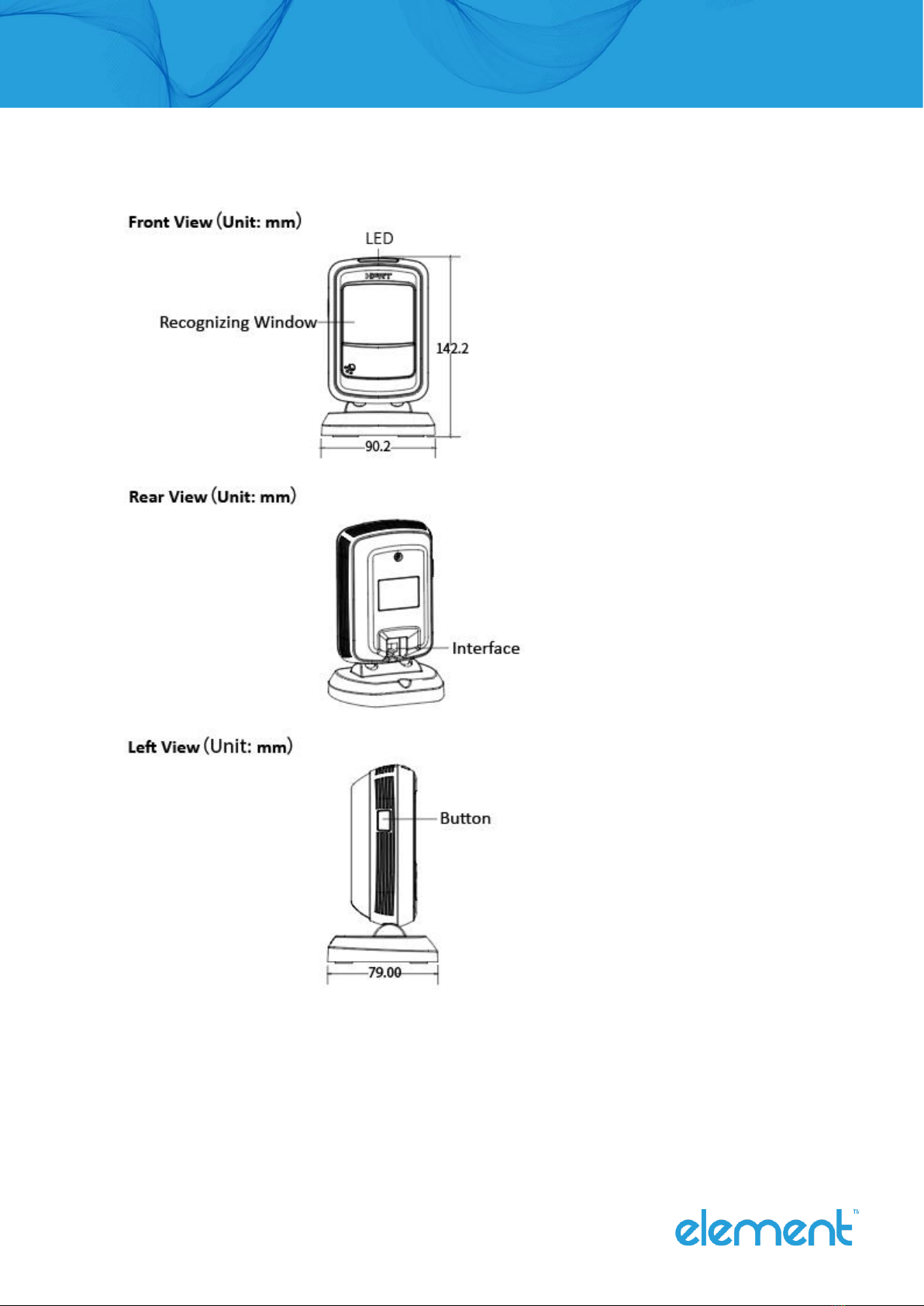
1.1 Appearance and Dimension

P220 Stationary Barcode Scanner User Manual 3
1.2 Scanner Data Cable Interface Definition
USB Interface Define
Serial Interface Define
PIN
Define
Color
Function
1
V Bus
RED
+5V
2
Data-
WHITE
-Data
3
Data+
GREEN
+Data
4
GND
BLACK
GND
PIN
Define
Input/Output
Function
1
USB_DP
I/O
USB Signal
2
USB_DM
I/O
USB Signal
3
GND
POWER
Ground Wire
4
VBUS
POWER
Power, +5V
5
NC
NC
NC
6
GND
POWER
Ground Wire
7
CTS
I
RS232 Clear to Send
8
RTS
O
RS232 Request to Send
9
RXD
I
RS232 Receive
10
TXD
O
RS232 Send

P220 Stationary Barcode Scanner User Manual 4
1.3 Power on, Power off and Restart
Power on: plug and play interface, power on automatically when the scanner is connected to the host.
Power off: unplug the data cable.
Restart: if the P220 scanner freezes or does not respond, please restart the data cable.
1.4 Maintenance
The recognition window must be kept clean. Supplier is exempt from warranty liability for
damage caused by improper maintenance.
Avoid hard and rough objects to scratch the recognition window.
Remove the stains from widow with a brush.
Please use a soft cloth to clean the window, such as glasses cloth.
Do not spray any liquid on the window.
Do not use any cleaner other than cleaning water.

P220 Stationary Barcode Scanner User Manual 5
1.5 Communication Interface
P220 must be connected to a host. The host can be a PC, POS machine, or with a USB, RS-232
interface in any of the intelligent terminal.
USB
Connect the scanner to the host
via a USB cable.
RS-232
Connect the scanner to the host
via a serial cable.
Inhaltsverzeichnis
Andere Element Barcode-Lesegerät Handbücher
Beliebte Barcode-Lesegerät Handbücher anderer Marken

POSMicro
POSMicro Datalogic PowerScan D7100 Bedienungsanleitung

Marson
Marson MT780 Kurzanleitung zur Einrichtung

NCR
NCR RealPOS Bedienungsanleitung

Motorola
Motorola SE3300 Kurzanleitung zur Einrichtung

Motorola
Motorola Symbol LS3008 Installations- und Betriebshandbuch

Meec tools
Meec tools OBD-II / VAG Bedienungsanleitung