Ferguson Ariva HDplayer 310 Leitfaden

ENGLISH
1. What’s in the box?
Ariva HDplayer 310
EN User manual
PL Instrukcja obsługi
GIGABIT
User manual Remote Control
Unit
2x AAA baterries USB 3.0 A-B and
A/V cable
AC power
adaptor
2. Connect - basic audio/video connections
HDMI (Best quality)
Qucik Start Guide

ENGLISH
3. Setup
APress to turn on.
BPress SETUP to enter Setup menu.
CSelect System tab then“Menu Language”option and press OK.
DUse keys to select a language option in the menu and press OK to conrm.
EAdjust other settings if needed
FPress SETUP to exit.
4. Use
ACopy multimedia les to USB memory.
BConnect USB memory to USB port in Ariva player
CUse keys to navigate in the menu. Choose option“Files Manager” then select
USB from the devices list and select le that you want to play
DPress OK to start playback.
ETo stop playback, press STOP.
CAUTION!
Refer to the user manual for more information.
Qucik Start Guide

ENGLISH
Introduction
1 Product Overview
2 Safety Information
3 User manual
3 Software upgrade
4 Symbols used on the device
4 Setup
Connections
5 Connecting to a TV
6 Connecting the power cord
7 Optional: Connecting to an Stereo
System
7 Optional: Connecting Digital AV Receiver
8 Optional: Connecting a supported USB
devices
9 Optional: Connecting to computer
10 Optional: Connecting Ethernet network
10 Optional: Connecting WiFi network
Functional Overview
11 Front, Side and Rear panels
12 Remote Control Unit (RCU150)
Getting Started
13 Step 1: Inserting batteries into the
Remote Control
13 Step 2: Setting up the TV
14 Step 3: Setting language preference
Major functions
15 Upscaling
15 Playable Content
17 Basic playback controls
18 Operations for video playback
20 Playing pictures or audio les
21 File copy
21 Internet Media
22 Web Browser
22 SATA bay
23 NAS function (Samba server)
23 BitTorrent client
Setup Menu Options
25 Audio setup menu
25 Video setup menu
26 Network setup menu
27 System setup menu
28 Misc setup menu
Troubleshooting
Specication
Glossary
Contents

10
ENGLISH

1
ENGLISH
Introduction
Product Overview
Thank you for purchasing the Ariva
HDplayer 310. This user manual provides
step-by-step instructions for installing
and using your new HD media player. This
player has the following functionality.
Network Feature
A/V streaming/transmission via Ethernet
(10/100/1000Mb) & WiFi (802.11b/g/n)
A/V streaming via UPnP Media Server
File sharing via Samba server
FTP Server
UPnP Server
Internet Radio (SHOUTcast) client
Bittorrent download client
Video podcast
Web browser (Webkit)
Movie Playback
Fast forward/rewind
Subtitle support. Subtitle control: font
color / oset / font size
Supports major audio and video formats
(HD video decoding - up to 1080p)
Music Playback
Fast forward/rewind
Shue
Repeat
Supports major loss and lossless audio
formats
Photo Viewing
You can view photos in slide show mode
with background music.
Zoom in/out, Rotate
Supports major image formats
USB 3.0 &2.0 Support
USB 3.0 DEVICE port (for computer
connection, compatible to USB 2.0 )
Two USB 2.0 HOST ports (for USB storage
devices)
Card reader
SD/MMC
File Copy
Supports copying & moving les among
USB, HDD and other devices.

2
ENGLISH
Safety Information
Please observe all warnings and
instructions on the equipment and
contained in these operating instructions.
Please carefully read this user’s manual
before using the device.
To avoid electric-shock hazards, do not
open the cabinet, refer servicing to
qualied personnel only. If cabinet is
opened warranty will be invalid.
Please switch o completely the device
during thunder, during abnormal
phenomenon, before cleaning it and in
case it remains out of service for a long
period.
Do not expose the device under the
sunlight. And keep it away from the heat
source or humid environments. Do not
block ventilation holes of the device so
that air can circulate freely.
Please place the device in horizontal and
stable conditions, keeping it away from
vibrating.
If device is moved from warmer place to
a colder one some problem might occur.
Please switch o the device and turn it on
after 1 or 2 hours.
Keep the device away from ower
vases, tubs, sinks, etc., in order to avoid
damaging the equipment. Do not touch
power supply with wet hands.
Don’t put any objects on the device.
Be sure to turn the device o and
disconnect the AC power cord before
cleaning the receiver surface. If the
surface is dirty, wipe clean with a cloth
which has been dipped in a weak soap/
and/water solution and wrung out
thoroughly, and then wipe again with a
dry cloth.
Do not connect cables while power is
plugged.
Do not use damaged cables for
connections: you could cause res.
Please switch o completely the device
while making all connections.
The product purchased is a sophisticated
electronic device which is not suitable for
children under 18 years.
We do not assume responsibility for
damages caused to people or object,
deriving from use of the device made by
people under 18 years.
Regularly backup the data in the hard
disk so that it can be recovered in the
event of data corruption or loss. Ferguson
company takes no responsibility for loss
of data stored on the hard disk.
Introduction

3
ENGLISH
Software upgrade
Periodically Ferguson will issue software
upgrade to enhance your user experience.
To download and install the latest
software to the player
Visit the Ferguson website
www.ferguson-digital.eu to check the
availability of the latest software upgrade.
User manual
Ferguson has used all the available
means to ensure the latest information
regarding its products. Ferguson does not
give a warranty regarding the contents
of this User Manual and waives any
implied warranties regarding market
value or tness for specic purposes. The
information contained herein provide
guidelines allowing the operation and
maintenance of the receiver.
Ferguson reserves the right to make
changes, corrections or to translate
the User Manual without giving prior
notice of such changes. Therefore, it is
recommended that users visit our website
regularly to receive the latest information.
IMPORTANT!
All the information contained in this
manual was correct at the time of
publication. However, as our engineers
are always updating and improving the
product, your device’s software may
have a slightly dierent appearance or
modied functionality than presented in
this manual.
To obtain the most current user manual
Visit the Ferguson website
www.ferguson-digital.eu to check the
availability of the latest version of user
manual. Please visit the FAQ section too.
Introduction

4
ENGLISH
Symbols used on the device
CAUTION!
DO NOT OPEN
RISK OF ELECTRIC SHOCK
ACHTUNG!
NICHT ÖFFNEN
LEBENSGEFAHR
UWAGA!
NIE OTWIERAĆ
RYZYKO PORAŻENIA
The caution risk of electrical shock - do
not open symbol
This symbol tells you that you are
not allowed to open the device. Only
authorized (service) technicians are
allowed to open the box.
The CE mark
This mark tells you that the device is
following the provisions of Council
Directive 2004/108/EC on the
approximation of the laws of the Member
States relating to the electromagnetic
compatibility and the provisions of
Council Directive 2006/95/EC and
93/68/EEC on the approximation of the
laws of the Member States relating to low
voltage and electrical safety.
The double insulation symbol
This symbol tells you that the device is
electrically safe within the normal use of
the device as stated in the safety chapter.
The RoHS mark
This mark tells you that the device is
following The Directive on the Restriction
of the Use of Certain Hazardous
Substances in Electrical and Electronic
Equipment 2002/95/EC (commonly
referred to as the Restriction of Hazardous
Substances Directive or RoHS)
Setup
Finding a suitable location
– Place the set on a at, hard and stable
surface.Do not place the set on a carpet.
– Do not position the set on top of other
equipment that might heat it up (e.g.
reciever or amplier).
– Do not put anything under the set (e.g.
CDs, magazines).
– Install this system near the AC outlet
and where the AC power plug can be
reached easily.
Space for ventilation
– Place the apparatus in a location
with adequate ventilation to prevent
internal heat buid up.Allow at least 10 cm
clearance from the rear and the top of the
set and 5 cm from the left and right to
prevent overheating.
10cm 10cm
5cm
5cm
Avoid high temperatures, moisture,
water and dust
– Apparatus shall not be exposed to
dripping or splashing.
– Do not place any sources of danger on
the apparatus (e.g., liquid lled objects,
lighted candles).
Introduction

5
HD Ready/Full HD TV
ENGLISH
IMPORTANT!
– You only need to make one video
connection from the following options,
depending on the capabilities of your
TV system.
– Connect the player directly to the TV.
– When there is no picture on screen
press repeatedly TV SYS. key.
Using HDMI (High Denition
Multimedia Interface) sockets
HDMI transfers an uncompressed digital
signal for the clearest sound/image
quality.
It has plug and play capability using only
one cable for both audio/video output.
AUse a HDMI cable to connect the player’s
HDMI to HDMI IN on the HDMI TV.
- It may take a while for the Ariva player
and input device to communicates and
initialise.
Connections
Using DVI (Digital Visual Interface)
sockets
If your TV has a DVI IN socket, you need a
HDMI-DVI adapter cable to connect the
HDMI socket on the Ariva player.
This HDMI-DVI cable has only video
output capability.
AUse a HDMI-DVI cable (not supplied) to
connect the Ariva player’s HDMI to DVI IN
on the DVI TV.
Helpful hint:
To hear sound from the Ariva player, use
one of the audio connections.
Connecting TV

6
ENGLISH
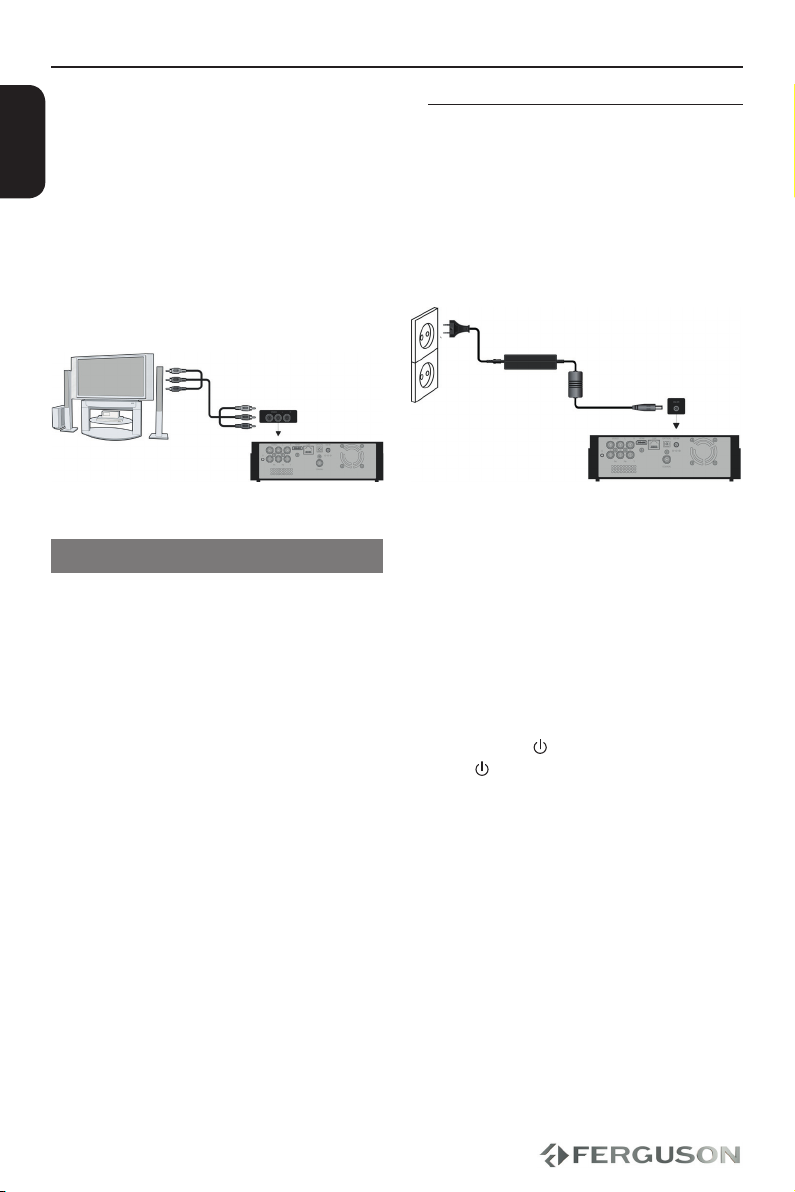
Using Composite Video Jacks (CVBS)
AUse the composite video cable (yellow) to
connect the Ariva player’s CVBS(VIDEO)
jack to the video input jack (or the
labled as A/V in , Video In, Composite or
Baseband ) on the TV.
BTo hear the sound of this Ariva Player
through your TV, use the audio cables
(white/red) to connect AUDIO OUT
(L/R) jacks of the Ariva player to the
corresponding AUDIO IN jacks on the TV.
Connections
After everything is connected properly,
connect the power cable to the media
player’s DC connector, and then plug
the opposite end into an AC power
outlet. The media player powers up
automatically.
Never make or change any connections
with the power switched on.
Press POWER on the RCU. Standby-On
diode will change color on the front
panel.
Connecting the power cord
Inhaltsverzeichnis