
Huawe EchoLife EG8145V5-V2 Bedienungsanleitung

EchoLife EG8145V5-V2
Quick Start
Issue 01
Date 2021-12-23
HUAWEI TECHNOLOGIES CO., LTD.

Copyright © Huawei Technologies Co., Ltd. 2021. All rights reserved.
No part of this document may be reproduced or transmitted in any form or by any means without prior
written consent of Huawei Technologies Co., Ltd.
Trademarks and Permissions
and other Huawei trademarks are trademarks of Huawei Technologies Co., Ltd.
All other trademarks and trade names mentioned in this document are the property of their respective
holders.
Notice
The purchased products, services and features are stipulated by the contract made between Huawei and
the customer. All or part of the products, services and features described in this document may not be
within the purchase scope or the usage scope. Unless otherwise specied in the contract, all statements,
information, and recommendations in this document are provided "AS IS" without warranties, guarantees
or representations of any kind, either express or implied.
The information in this document is subject to change without notice. Every eort has been made in the
preparation of this document to ensure accuracy of the contents, but all statements, information, and
recommendations in this document do not constitute a warranty of any kind, express or implied.
Huawei Technologies Co., Ltd.
Address: Huawei Industrial Base
Bantian, Longgang
Shenzhen 518129
People's Republic of China
Website: https://www.huawei.com
Email: [email protected]
Issue 01 (2021-12-23) Copyright © Huawei Technologies Co., Ltd. i

Contents
1 Placing the Device................................................................................................................... 1
2 Connecting Cables................................................................................................................... 4
3 Indicator Description.............................................................................................................. 6
4 Technical Specications......................................................................................................... 8
5 FAQs............................................................................................................................................ 9
EchoLife EG8145V5-V2
Quick Start Contents
Issue 01 (2021-12-23) Copyright © Huawei Technologies Co., Ltd. ii

1 Placing the Device
NO TE
● Do not install the ONT outdoors or in an outdoor cabinet.
● The ONT can be mounted onto a wall or placed on a desk. Do not install the ONT in
other modes, such as ceiling.
● Keep 10 cm clearance on all sides to ensure adequate ventilation.
● It is recommended that the computer and ONT be put far away from electric appliances
that generate strong magnetic or electric elds, such as microwave ovens.
Mounting an ONT on the desk
The gure below shows an ONT that is horizontally placed on a desk.
EchoLife EG8145V5-V2
Quick Start 1 Placing the Device
Issue 01 (2021-12-23) Copyright © Huawei Technologies Co., Ltd. 1

NO TE
The appearance shown in this document may be dierent from the actual appearance of
the product. The actual product prevails.
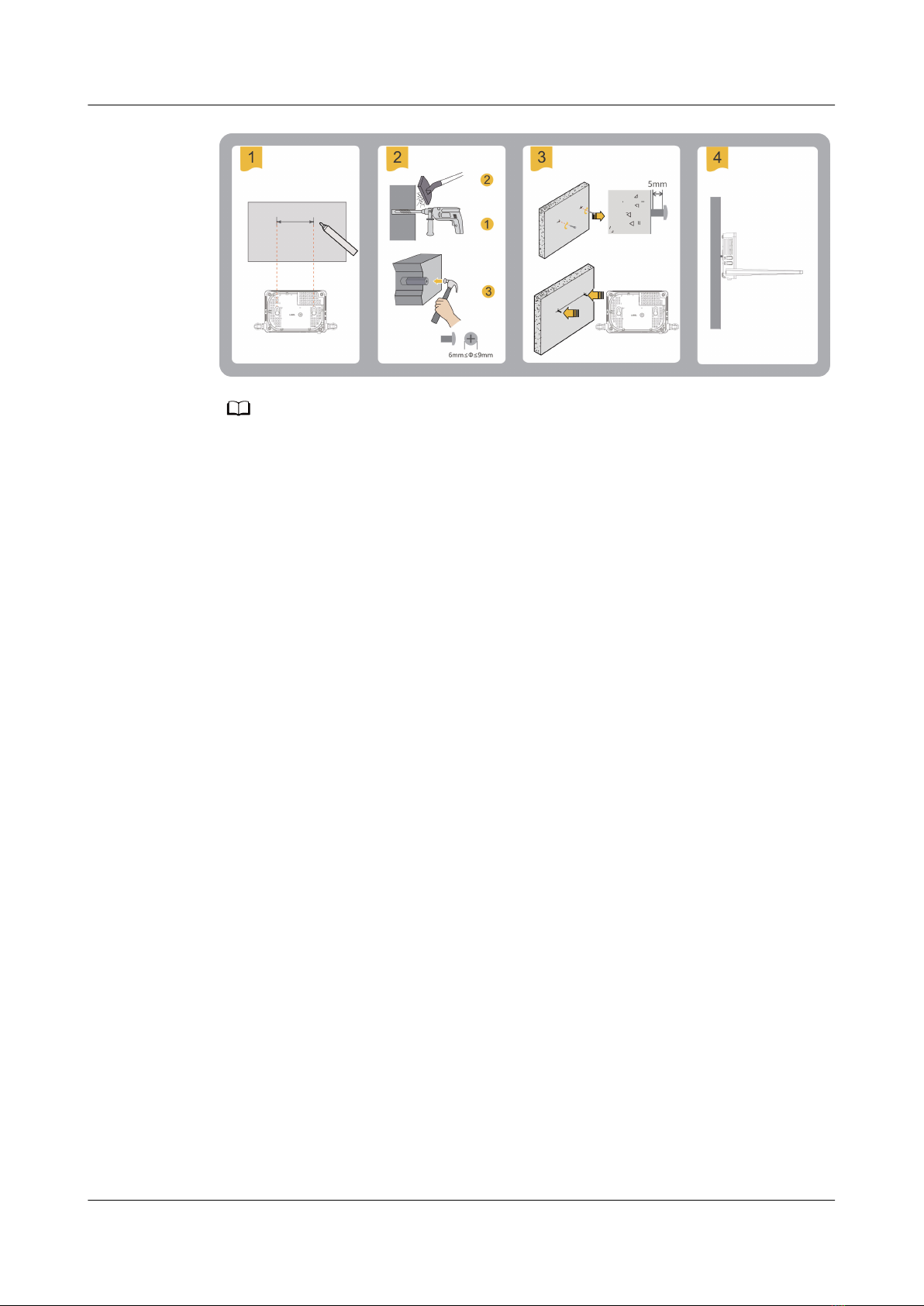
Mounting an ONT onto the wall
1. Mark two positions with the same spacing as that between the two mounting
holes of the ONT using a marker on a wall.
2. Select a proper drill bit according to the outer diameter of the screws. Use a
hammer drill to drill the marked positions on the wall. Then clean the holes
and install two expansion bolts.
3. Use a screwdriver to fasten the screws into the expansion bolts, reserving 5
mm ends out of the wall, and mount the ONT onto the screws.
EchoLife EG8145V5-V2
Quick Start 1 Placing the Device
Issue 01 (2021-12-23) Copyright © Huawei Technologies Co., Ltd. 2
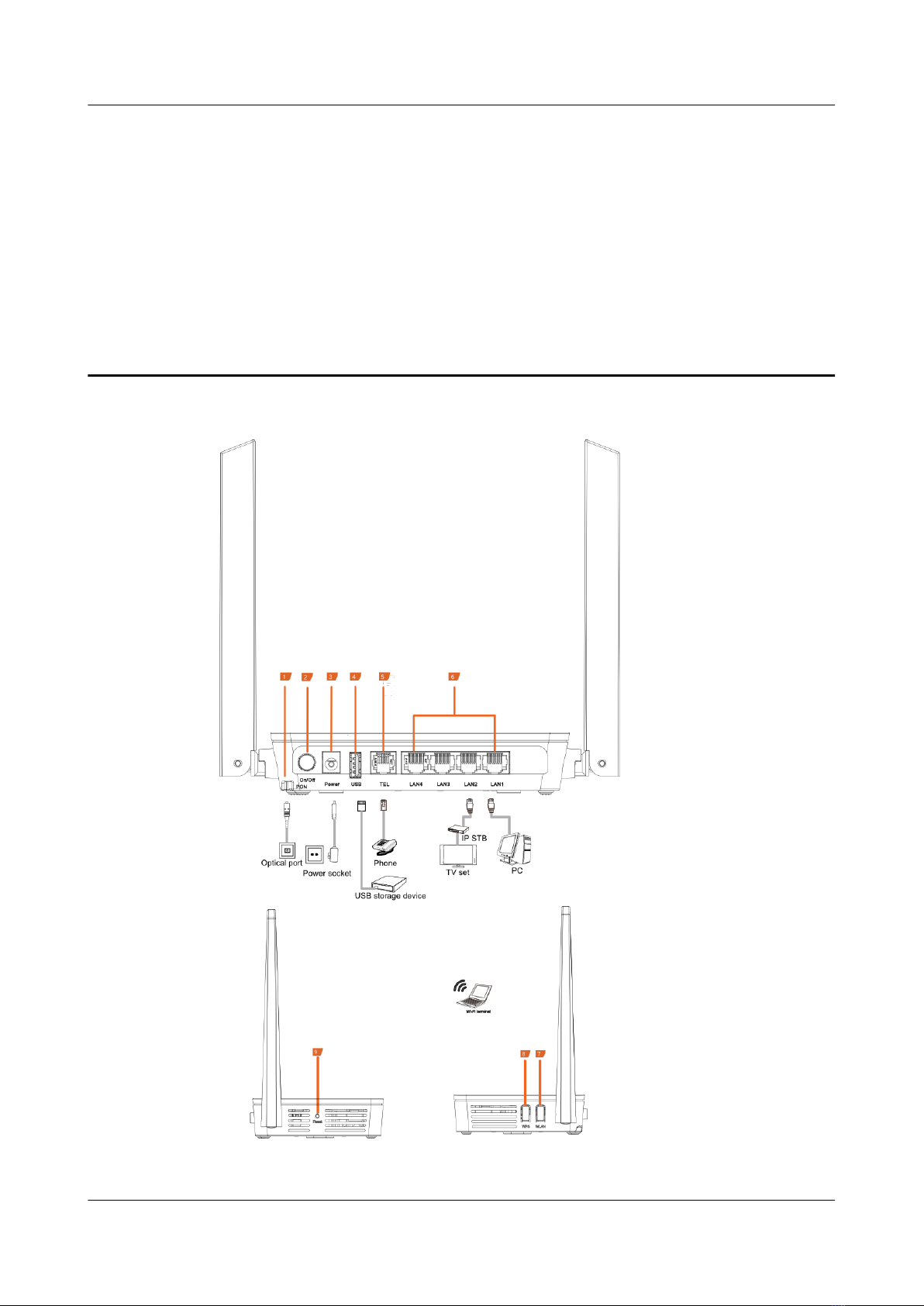
NO TE
It is recommended that the screw be about 4 mm in diameter and longer than 20 mm.
EchoLife EG8145V5-V2
Quick Start 1 Placing the Device
Issue 01 (2021-12-23) Copyright © Huawei Technologies Co., Ltd. 3
2 Connecting Cables
EchoLife EG8145V5-V2
Quick Start 2 Connecting Cables
Issue 01 (2021-12-23) Copyright © Huawei Technologies Co., Ltd. 4
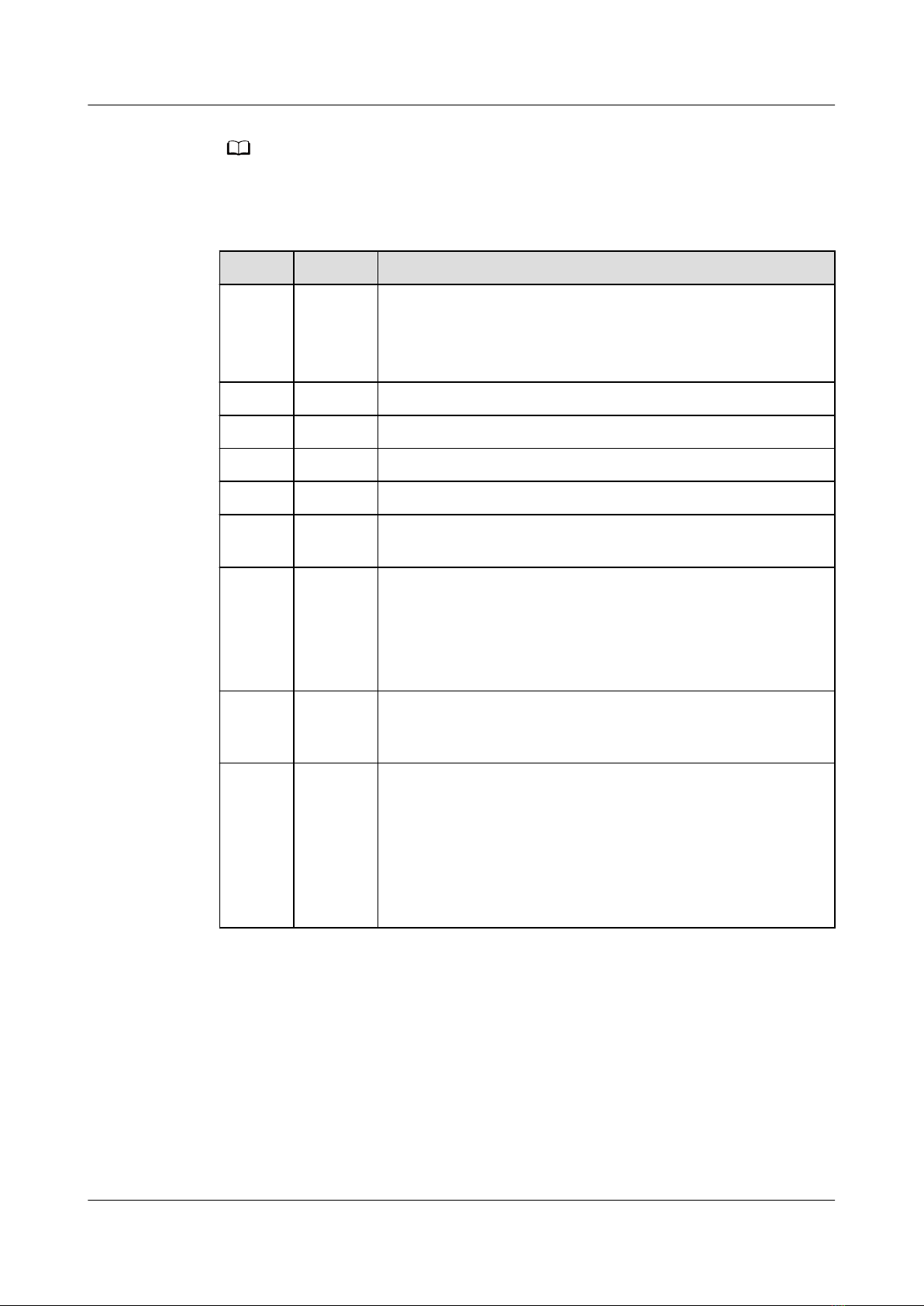
NO TE
● The ber connector connected to the optical port on the wall varies depending on
actual conditions.
● To ensure normal use of bers, make sure that the ber bending radius is larger than 30
mm.
No. Item Description
1 Optical
port
The optical port is equipped with a rubber plug and
connected to a ber for upstream transmission.
The type of the optical connector connected to the optical
port can be SC/APC.
2On/O Powers the ONT on or o.
3 Power Connects to a power adapter.
4 USB Connects to USB storage devices.
5 TEL Connects to the port on a telephone or fax machine.
6 LAN1-
LAN4
Connects to PCs or IP set-top boxes (STBs).
7 WLAN Used to enable or disable the WLAN function
- When the WLAN is disabled, press the WLAN button (>
3s) and release the button to enable the WLAN.
- When the WLAN is enabled, press the WLAN button (>
3s) and release the button to disable the WLAN.
8 WPS When the WLAN is on, press the WPS button (> 3s) and
release the button to start Wi-Fi protected setup (WPS)
negotiation.
9 Reset Press the button for a short time to reset the device; or
press the button for a long time (longer than 10s) to
restore the device to the default settings and reset the
device.
NOTE
Reset Huawei ONTs with caution. Otherwise, the ONTs may fail to
access the Internet. If an ONT cannot access the Internet after a
reset, contact your Internet service provider.
EchoLife EG8145V5-V2
Quick Start 2 Connecting Cables
Issue 01 (2021-12-23) Copyright © Huawei Technologies Co., Ltd. 5
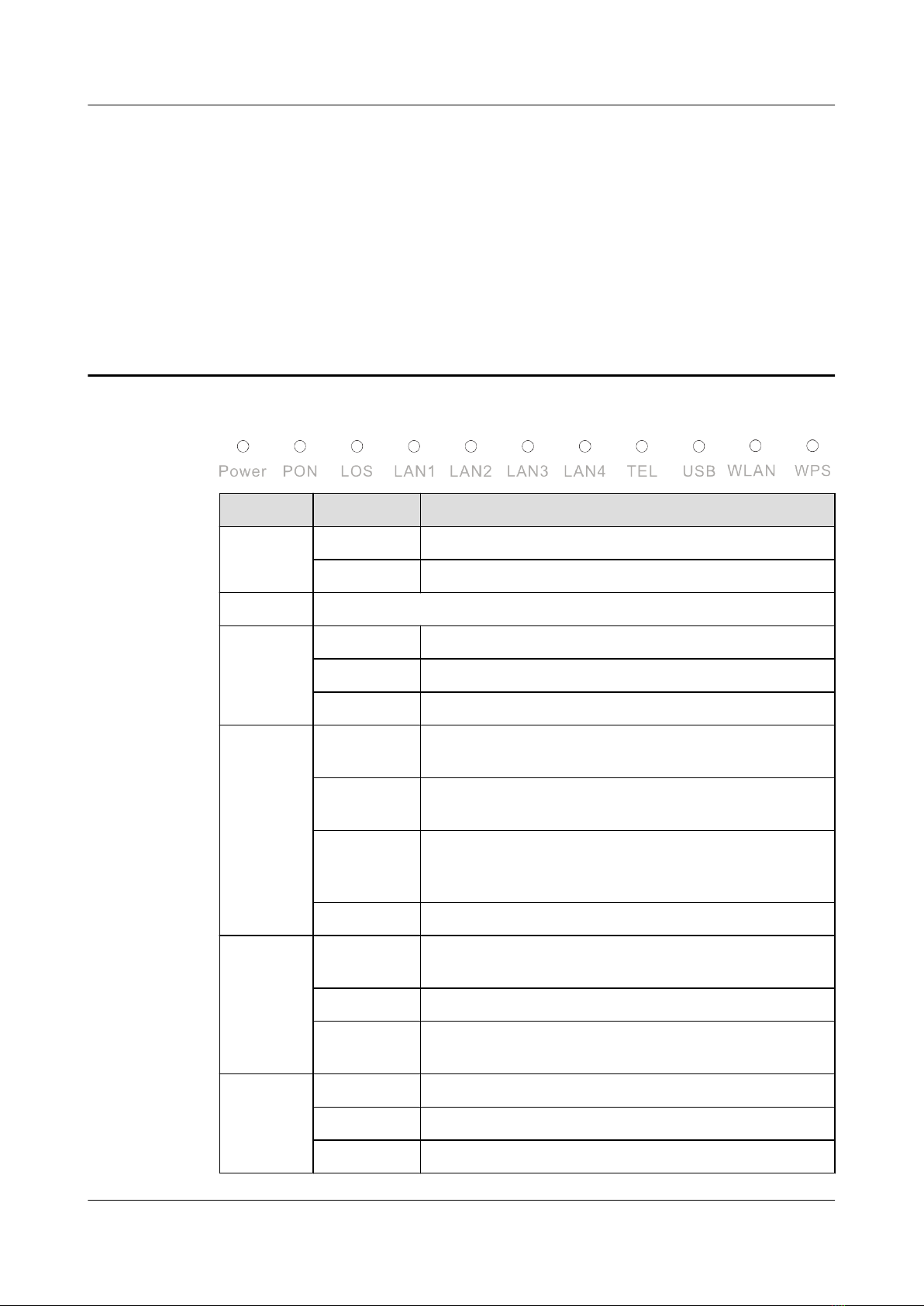
3 Indicator Description
Indicator Status Description
Power Steady on The ONT is powered on.
O The power supply is cut o.
PON/LOS See the following table .
LAN1-
LAN4
Steady on The Ethernet connection is in the normal state.
Blinking Data is being transmitted over the Ethernet port.
O The Ethernet connection is not set up.
TEL Steady on The ONT is registered with the softswitch but no
service ows are transmitted.
Blinks twice
a second
The ONT is registered with the softswitch, and data
is being transmitted on the port.
Blinks once
every 2
seconds
The ONT fails to be registered with the softswitch.
O The POTS port is disabled.
USB Steady on The USB port is connected and working in the host
mode, but no data is transmitted.
Blinking Data is being transmitted on the USB port.
O The system is not powered on or the USB port is not
connected.
WLAN Steady on The WLAN function is enabled.
Blinking Data is being transmitted over the WLAN port.
O The WLAN function is disabled.
EchoLife EG8145V5-V2
Quick Start 3 Indicator Description
Issue 01 (2021-12-23) Copyright © Huawei Technologies Co., Ltd. 6
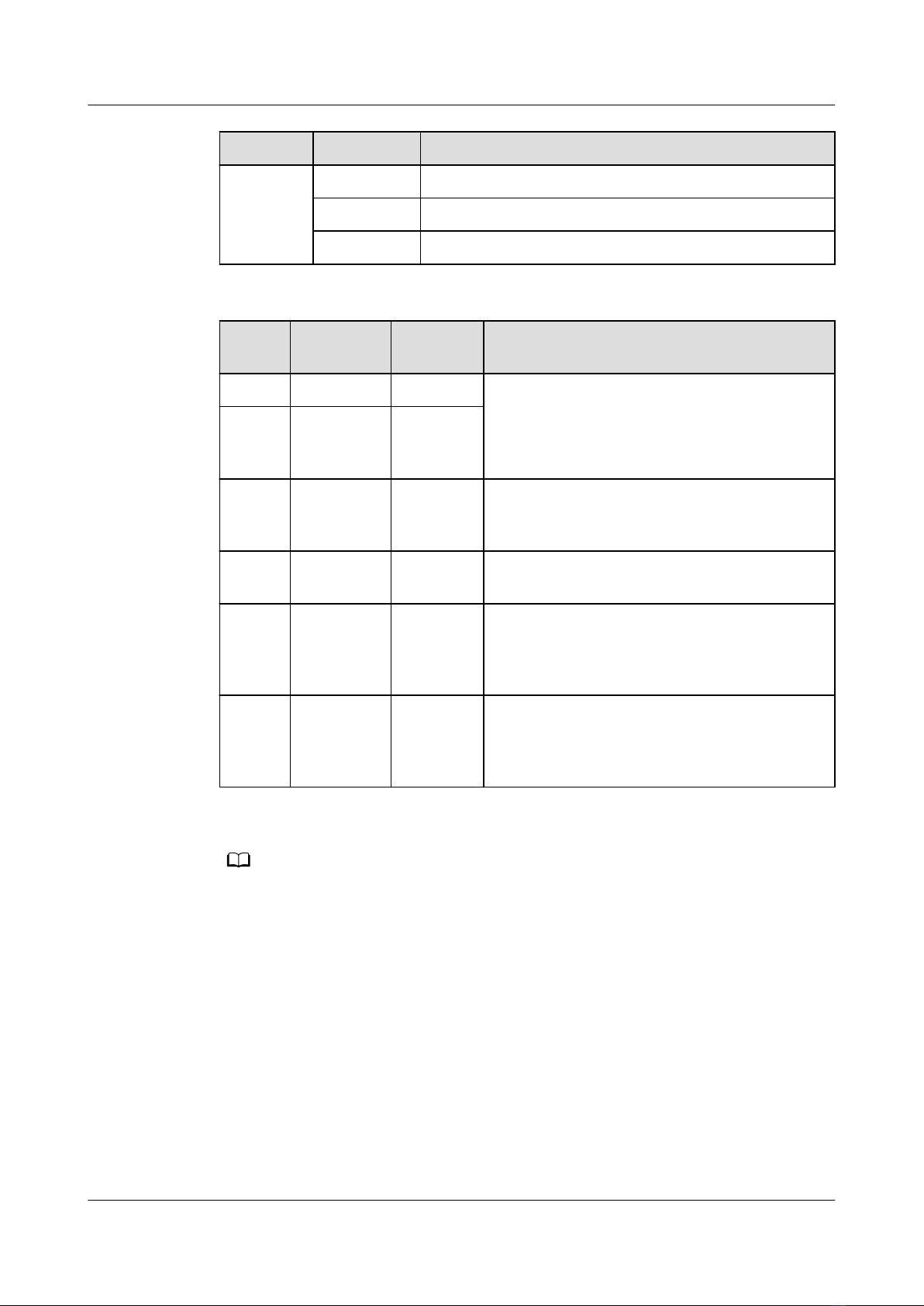
Indicator Status Description
WPS Steady on The WPS function is enabled.
Blinking A Wi-Fi terminal is accessing the system.
O The WPS function is disabled.
Status
No.
PON
Status
LOS
Status
Description
1O O The ONT is prohibited by the upper-layer
device or blinks abnormally. Contact the
service provider for help.
2 Blinks
twice a
second
Blinks
twice a
second
3 Blinks
twice a
second
O The ONT attempts to set up a connection
with its upper-layer device.
4 Steady on O A connection is set up between the ONT and
its upper-layer device.
5O Blinks
once
every 2
seconds
The ONT is not connected to bers or does
not receive optical signals.
6 Blinks once
every 2
seconds
Blinks
once
every 2
seconds
The hardware is faulty.
NO TE
If the ONT is not powered on or the power switch is turned o, all indicators are o.
EchoLife EG8145V5-V2
Quick Start 3 Indicator Description
Issue 01 (2021-12-23) Copyright © Huawei Technologies Co., Ltd. 7
Inhaltsverzeichnis
Beliebte Netzwerk-Router Handbücher anderer Marken


NETGEAR
NETGEAR FS526T - Switch Bedienungsanleitung

Korenix
Korenix JetNet 5710G Series Bedienungsanleitung

Automated Logic
Automated Logic ZN551 Betriebsanleitung

Cisco
Cisco ASR 1000 Series Bedienerhandbuch

EnGenius
EnGenius ESR-9710 Bedienungsanleitung

Cisco
Cisco 805 Series Bedienungs- und Sicherheitshinweise