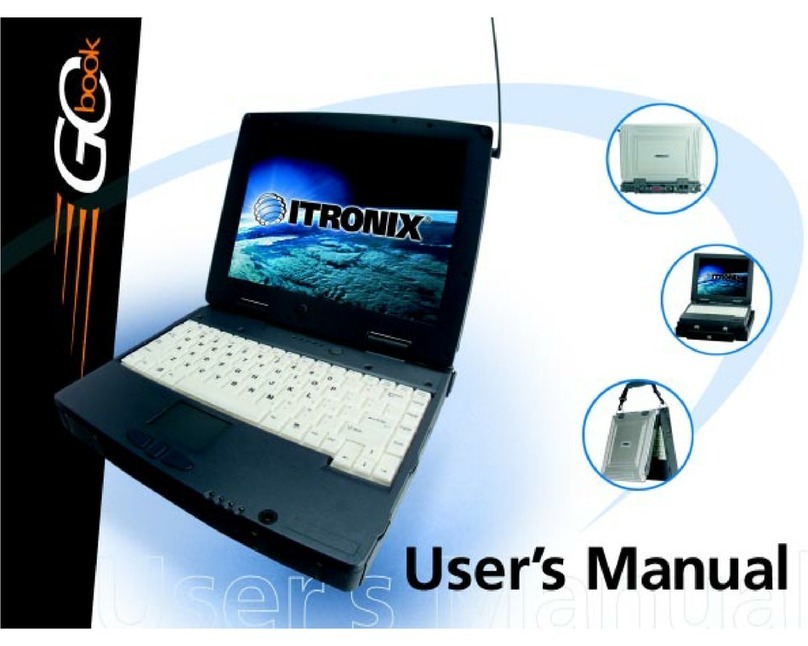
Itronix GoBook III Referenzhandbuch

Getting Started
Congratulations on your purchase of the Itronix GoBook III computer! Your new GoBook III features
the most innovative advances in portable computing technology. It combines state-of-the-art ergonomics
with a rugged, durable architecture to provide you with a notebook computer that is compact, powerful,
rugged and easy to use. Designed for a wide range of business and personal productivity applications,
the GoBook III is an ideal choice for use in applications that require durability and performance.
For maximum expandability without compromising portability, the GoBook III has a USB interface and
aPC card slot. The high capacity hard disk drive provides you with plenty of storage space for
multimedia files and applications.
The GoBook III features a standard 87-key Nitevue® keyboard (89-key international). The high-
resolution 12.1-inch touch screen LCD panel provides clear and crisp viewing with the convenience of a
touch screen.
This online document, GoBook III Help, contains all the information you need to set up and use your
new GoBook III. It describes all the features of the GoBook III in an easy-to-read yet thorough manner.
For information on printing, navigating or otherwise using GoBook III Help see How to Use This Help
System.
GoBook III®Help
Pa
g
e 1 of 80GoBook III Hel
p
7/5/2004file://C:\Documents%20and%20Settin
g
s\harwoodm.ITRXNT1\Local%20Settin
g
s\Tem
p
\~h...

Checklists
After opening the package, carefully inspect the contents. Contact your dealer if any items are missing
or appear damaged. The shipping carton should contain the following:
STANDARD
zThe Itronix GoBook III computer
zBattery
zADP-90AB or ADP-75FB AC adapter with power cord
z12.1 inch XGA display
zStylus
zShoulder Strap
zGoBook III Quick Start Guide
OPTIONS
The following items are normally optional, but some vendors may include them in the standard package.
Some items may not be available in some countries, or some vendors may choose not to carry all the
items.
zFloppy disk drive
zCD-ROM drive
zCD-RW Drive
zDVD-ROM drive
zSoft Handle
zMedia Bay Li-Ion battery pack
zHard Disk Drive Heater
zLCD Heater
CAUTION When purchasing any of the accessories listed above, purchase only those accessories that
are approved for use with your computer. The above accessories are proprietary items. Your system
vendor can obtain these approved accessories. If you use items that are not approved for use with this
computer, you may cause your computer to malfunction, or to emit or receive electromagnetic radiation
in excess of local regulations. For non-proprietary accessories such as PC Cards or printers, ensure that
the accessor
y
functions
p
ro
p
erl
y
in
y
our com
p
uter before makin
g
the
p
urchase. Your s
y
stem vendor
Pa
g
e 2 of 80GoBook III Hel
p
7/5/2004file://C:\Documents%20and%20Settin
g
s\harwoodm.ITRXNT1\Local%20Settin
g
s\Tem
p
\~h...

may be able to recommend reliable brands and models.
Features
High Capacity Hard Disk Drive
The computer has a high capacity hard disk drive, enabling you to install your favorite programs and
store large multimedia files.
Full Array of Ports and Connectors
Your computer includes standard ports for connecting to peripherals such as USB devices and monitors.
USB ports allow you to add many types of peripherals.
Large XGA LCD
Your computer has a large, easy to view XGA LCD panel.
Built-in Microphone and Stereo Speakers
The stereo speakers and internal microphone enable you to run a variety of multimedia applications.
Function Keys
Function keys allow you to suspend your computer, shut the LCDs off, and give you easy control of
audio and your monitor.
Where to Look For Information
About Your Computer
This Help System describes the key elements of your computer. New users can find a simple step-by-
step orientation in this chapter.
About Windows
For more extensive information and help about Windows go to Help and Support, found on the Start
Menu.
72_0119_001
28 June 2004
© 2004 Itronix Corporation. All rights reserved.
Pa
g
e 3 of 80GoBook III Hel
p
7/5/2004file://C:\Documents%20and%20Settin
g
s\harwoodm.ITRXNT1\Local%20Settin
g
s\Tem
p
\~h...

Precautions
You can use your computer under a wide range of environmental conditions. However, to ensure long
use and continued high performance, consider the following factors when setting up your computer:
zFollow all warnings and instructions noted in this documentation and in Windows Help and
Support, found on the Start Menu.
zThe first time you use your computer, we recommend that you carefully read the section on Power
Management to familiarize yourself with some basic battery information and to ensure optimum
performance
zThere is danger of explosion if the battery is incorrectly replaced. Replace only with the same or
equivalent type recommended by the manufacturer. Dispose of used batteries according to the
manufacturer's instructions.
zDo not open the RAM door by yourself.
zUnplug the computer from the power outlet before cleaning. Use a damp cloth for cleaning. Do
not use aerosols, solvents, or strong detergents
zSlots and openings in the computer case are for ventilation purposes. Do not block or cover these
openings or the system could overheat
zOn the bottom of the GoBook III, there is a label with information on the power requirements of
this system. These requirements must be followed. If you are unsure of your local power supply,
consult your dealer or local Power Company
zDo not step on or place anything on the power cord
zIf you use the computer with an extension cord, ensure that the total ampere ratings of all the
devices sharing the extension do not exceed the rating of the extension cord or the rating of the
wall outlet
zUnless instructed, never push foreign objects into the computer through any of the slots or
openings. Dangerous voltages are present, which could cause electric shock, fire, or damage
sensitive components
zFor best results, use a power strip with a built-in surge protector. Do not use inferior extension
cords as this may result in damage to your computer
GoBook III®Help
Pa
g
e 4 of 80GoBook III Hel
p
7/5/2004file://C:\Documents%20and%20Settin
g
s\harwoodm.ITRXNT1\Local%20Settin
g
s\Tem
p
\~h...

72_0119_001
28 June 2004
©2004 Itronix Corporation. All rights reserved.
The First Time. . .
Using your computer for the first time involves:
zInstalling the battery
zConnecting the AC adapter to the computer
zTurning the Computer On and Off
zAdjusting the Volume
Installing the Battery
Make sure the computer is sheltered when you install the Lithium Ion battery; the computer is not
weather sealed until the battery is properly installed. The battery should be fully charged before you
operate the unit on battery power. To get the most from your battery, follow the guidelines in the Power
Management section.
To install the battery
1. Remove the battery door.
2. Align the battery connectors and place the battery in the computer.
3. Replace the battery door and rotate the door latches to secure the door.
NOTE When the battery is installed and the computer is connected to AC power, see Connecting the
AC Adapter below, it starts charging automatically. At moderate temperatures, approximately 70°
Fahrenheit (21°C), the battery will be fully charged in four to six hours. In warmer or cooler
temperatures, the battery can take much longer to fully charge. Refer to the Power Management section
for additional information.
Connecting the AC Adapter
To connect the ADP-90AB or ADP-75FB AC adapter
1. Connect the AC adapter power cord to the AC adapter.
2. Connect the AC ada
p
ter to the
p
ower
j
ack at the rear of
y
our com
p
uter.
GoBook III®Help
Pa
g
e 5 of 80GoBook III Hel
p
7/5/2004file://C:\Documents%20and%20Settin
g
s\harwoodm.ITRXNT1\Local%20Settin
g
s\Tem
p
\~h...

3. Connect the AC adapter power cord to an AC outlet.
4. Lift the display to open the LCD.
5. Open the LCD panel to a comfortable viewing angle.
6. Press the Power Button to turn ON the power.
Turning the Computer On and Off
You can operate the computer while the battery is charging, while on external power , or on battery
p
ower only.
To turn on the computer
zPress the Power Button button once, and then give the system time to respond.
To turn off the computer
1. From the Start menu, select Turn Off Computer.
2. Then, from the Shut Down Windows screen select Turn Off.
If you need to leave the system for a short time, or if you want to conserve battery power, you can
suspend the computer by pressing FN+F3. See Power Management for additional information.
Suspend to RAM In a suspend to RAM, the contents of your computer's memory are held intact, while
almost all the components in your computer either turn off completely, or reduce power consumption to
a minimum. In a suspend to RAM, your computer remains active, but with a minimum possible power
consumption. Return the computer to full power by pressing any key. A fully-charged battery can
maintain a Suspend to RAM for many hours.
Suspend to Disk (Hibernate) Suspend to Disk is similar to turning off the computer, except that the
current state of the computer is copied to the hard disk as a special file. In a Suspend to Disk there is no
p
ower consumption. When the computer returns from suspend mode , the desktop appears with the same
files and programs open as when the computer was suspended. Suspend to Disk is very useful when you
don’t want to take the time to shut down all open programs one by one to shut off the computer. This
mode is also called hibernation mode.
CAUTION Shutting down the computer improperly could result in lost or corrupted data.
Adjusting the Volume
Volume for the computer is adjusted by using function key combinations.
zFN + F8 decreases the volume
zFN + F9 increases the volume
Pa
g
e 6 of 80GoBook III Hel
p
7/5/2004file://C:\Documents%20and%20Settin
g
s\harwoodm.ITRXNT1\Local%20Settin
g
s\Tem
p
\~h...

zFN + F10 toggles the volume mute on or off
You can also adjust the volume with the Windows volume control applet, which is located on the
taskbar and looks like this .
NOTE Adjusting the volume using the function keys produces only a slight change with each press. It
may take several presses to increase or decrease the volume to a level that you desire.
72_0119_001
28 June 2004
©2004 Itronix Corporation. All rights reserved.
Calibrating the Touch Screen
Your GoBook III computer has a touch screen display. Follow the guidelines below to calibrate the
touch screen for optimum use.
Calibrating the touch screen
To calibrate the touch screen, open the Calibration Applet by selecting Start, Programs, Mobile
Computer Tools, Touch Screen Calibrator. You can also open the Calibration Applet by selecting Start,
Settings, Control Panel, Touch Screen Calibrator.
After the Calibration Applet starts, click on the Calibrate button
After you have completed calibration by touching the four highlighted points with an approved stylus,
select OK to have the new settin
g
s take effect.
GoBook III®Help
CAUTION
zAlways use an approved stylus or your finger.
zNever use sharp, hard, or abrasive implements on the touch screen such as ball point pens,
pencils, or keys. They could damage the screen.
zTo clean the touch screen panel, apply a household glass cleaner to a soft, clean, dry cloth an
d
wipe the screen.
Pa
g
e 7 of 80GoBook III Hel
p
7/5/2004file://C:\Documents%20and%20Settin
g
s\harwoodm.ITRXNT1\Local%20Settin
g
s\Tem
p
\~h...

NOTE If you cannot select objects accurately with the stylus you may need to re-calibrate the touch
screen. This can be accomplished by revisiting the procedure above.
Adjusting the Screen
You can adjust the display brightness for better viewing.
Use the following keys to make adjustments:
Setting the Date and Time
To set the date and time
1. Tap the Start button, Settings, Control Panel, and double-tap the Date / Time icon.
2. From the Date / Time Properties menu, make changes to the Time and Date, and then close this
screen by selecting OK.
To Do This... Press
Lighten the display FN+F7
Darken the display FN+F6
Pa
g
e 8 of 80GoBook III Hel
p
7/5/2004file://C:\Documents%20and%20Settin
g
s\harwoodm.ITRXNT1\Local%20Settin
g
s\Tem
p
\~h...

72_0119_001
28 June 2004
©2004 Itronix Corporation. All rights reserved.
Startup Problems?
If your computer does not operate, try these solutions.
zConnect the AC adapter to charge the battery if it is not charged.
NOTE The Power LED on the AC adapter should be lit as well as the External Power Indicator
on the GoBook III if the AC adapter is connected and functioning properly. Additionally, one
of the power icons should appear in the task tray.
zIf the AC adapter is connected, make sure the electrical outlet you are using works.
zCheck to make sure the battery is installed and charged properly.
zIf the battery doesn’t begin charging, remove the battery, connect the AC adapter, and turn on the
computer by pressing On. Reinstall the battery. The Battery Power Indicator LED is solid
while the battery is charging.
The Troubleshooting section lists additional solutions you can try.
72_0119_001
28 June 2004
©2004 Itronix Corporation. All rights reserved.
Getting Familiar with Your Computer
The GoBook III computer is a ruggedized , weather-sealed laptop computer system built for the
demanding environment of the mobile worker. Designed for use by mobile workforces, this computer is
a superior work tool for collecting, managing, and communicating information in the field.
The following pages describe the external and internal features of your GoBook III computer.
GoBook III®Help
Pa
g
e 9 of 80GoBook III Hel
p
7/5/2004file://C:\Documents%20and%20Settin
g
s\harwoodm.ITRXNT1\Local%20Settin
g
s\Tem
p
\~h...

Individual Parts
The following diagrams and descriptions provide an overview of your GoBook III computer.
Hover the mouse over each number on the picture to see a description.
Front View
GoBook III®Help
1. Touch Screen Display
2. Display Latches
3. Antenna (internal mini-WLAN)
4. GPS and/or Bluetooth Antenna
5. LED Activity Indicators
6. Power Button
7. Touchpad
8. Scrolling Button
9. Touchpad Buttons
10. Power / Wireless Modem Indicators
11. Speakers
Pa
g
e 10 of 80GoBook III Hel
p
7/5/2004file://C:\Documents%20and%20Settin
g
s\harwoodm.ITRXNT1\Local%20Settin
g
s\Tem
p
\~h...
Andere Handbücher für GoBook III
1
Inhaltsverzeichnis
Andere Itronix Desktop Handbücher