Kbit HANARO Bedienungsanleitung


Hanaro Cam
(Model : KBHC-1)
User Manual
rGpG{GjUSGsU
rGpG{GjUSGsUrGpG{GjUSGsU
rGpG{GjUSGsUG
G
aVVUU
aVVUUaVVUU
aVVUUU
UU
UG
GG
G

Before Use
FCC Compliance Statement
This device complies with Part 15 of the FCC Rules. Operation is
subject to the following two conditions : (1) this device may not
cause harmful interference, and (2) this device must accept any
interference received including interference that may cause undesired
operation.
INFORMATION TO THE USER
This equipment has been tested and found to comply with the limits
for a Class B digital device, pursuant to part 15 of the FCC Rules.
These limits are designed to provide reasonable protection against
harmful interference in a residential installation. This equipment
generates, uses and can radiate radio frequency energy and, if not
installed and used in accordance with the instructions, may cause
harmful interference to radio communications. However, there is no
guarantee that interference will not occur in a particular installation.
If this equipment does cause harmful interference to radio or
television reception, which can be determined by turning the
equipment off and on, the user is encouraged to try to correct the
interference by one or more of the following measures:
Reorient or relocate the receiving antenna.
Increase the separation between the equipment and receiver.
Connect the equipment into an outlet on a circuit different from that
to which the receiver is connected.
Consult the dealer or an experienced radio/TV technician for help.
WARNING
Changes or modifications not expressly approved by the
manufacturer could void the use’s authority to operate the
equipment.

Installation and User Guide
2
< Contents >
1. Product Specifications and Features ..................................... 3
2. Software included and system requirements ........................ 4
3. USB Camera specification ................................................... 5
4. KBIT USB Camera Installation ........................................... 6
5. Hanaro Cam Driver Installation ........................................... 7
6. Hanaro Cam Setup .............................................................. 13
7. Hanaro Cam Server Program Instructions .......................... 15
8. System Configuration ......................................................... 30
9. Running Server Program .................................................... 34
10. Monitoring Camera from Remote Site ............................. 35
gTips .................................................................................... 38

Hanaro Cam
3
1. Product Specifications and Features
1) Product Features
•Monitoring abilities from any location
•High resolution image with 320,000 pixels and image sensor
•Automatic exposure and white balance adjustment
•High speed Image transmit
•Various application for security or monitoring
2) Product Specifications
Optical elements : 320,000 pixels CMOS image sensor
Lens : F2.8
Focus : 6.28 mm
Exposure : Automatic
White balance : Automatic
Electricity consumption : 1.3W
Output method : USB
Dimension : 69.5 x 71.2 x 36.0 mm
Frame speed :
USB Camera Mode : VGA(640x480) 15 frames/sec
CIF(320x240) 30 frames/sec
QCIF(160x120) 30 frames/sec
Hanaro Cam Mode : CIF(320x240) max. 30 frames/sec
Client View Mode : CIF(320x240) max. 30 frames/sec

Installation and User Guide
4
2. Software Included and System
Requirements
Software Included:
•Windows 98/2000 Driver
•Hanaro Cam POP Security Program
•Hanaro Cam Program
Package Included:
•Hanaro Cam Main Body
•Install CD
•Manual
•Audio Cable
•USB Cable
System Requirements:
•Pentium processor MMX 233 MHz or over
•USB port
•Minimum 64 MB memory
•CD-ROM Drive
•VGA graphic adapter with 16 bits, 640x480 resolution
•Internet connection (LAN or Modem)

Hanaro Cam
5
3. USB Camera Specification
1) Snap shot : Press the button to capture an image and save it
to your hard disk.
2) Focus volume : Use this to focus the lens.
3) Indicator : You’ll see a red light when camera is running.
4) Lens
5) Base
1
2
3
4
5

Installation and User Guide
6
4. KBIT HANARO CAM Installation
Guide
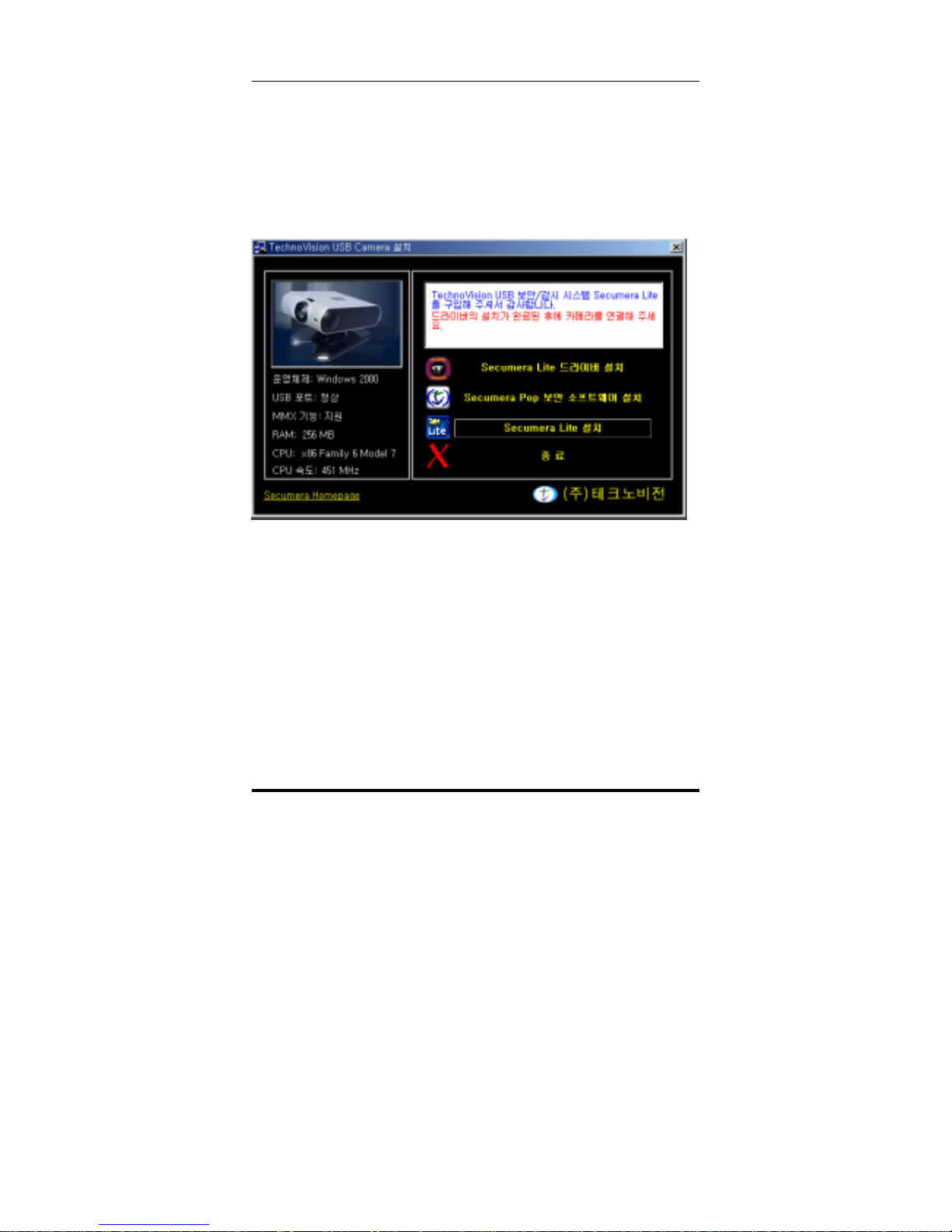
Insert the program CD in the CD-ROM Drive and you’ll see the
dialog box below.
First, click on “Secumera Lite OOOO OO”, and driver setup will
begin. This setup program will automatically detect your system and
automatically install the driver to your computer. For further
information, check “Chapter 5 HANARO CAM Driver Installation”
Next, Click on the “HANARO CAM Setup” to setup a server to
watch images using a camera and to copy homepage files to your
hard drive in order to watch camera images from other computers not
in the area. For further information, please refer to “Chapter 6
HANARO CAM Setup”.
Click “Exit” when you’re done.

Hanaro Cam
7
5. HANARO CAM Driver Installation
1) Windows 98/SE/ME driver installation
Insert the program CD and click “HANARO CAM Driver Setup”
(USB port installation will begin when you have finished installing
the USB driver.)
This dialog box indicates that USB
driver setup has began
Click “Next”

Installation and User Guide
8
Click “Next”
Click “Finish” to
complete the setup.
The Hanaro Cam USB camera Driver installation is complete.
As soon as you plug your camera to the USB port, your computer
will automatically detect your USB camera.
Dieses Handbuch passt für folgende Modelle
1
Inhaltsverzeichnis