KGuard Security QRT-301 Bedienungsanleitung

QRT-301
User's Manual
Day & Night
WI-FI Network Camera
Web Client user name: admin
Web Client default password: admin
P2P user name: admin
P2P default password: 123456

2
WI-FI Network Camera User’s Manual
Introducon
Features..................................................4
Package Contents ...................................4
Product Overview...................................5
Connecon Diagram...............................6
Making Connecon
Network Conguraon...........................7
Wireless Router ...................................7
Wireless Router With WPS
Funcon ...........................................7
Wireless Router Without WPS
Funcon ...........................................8
Wired Router/Modem .......................11
DHCP...............................................11
Stac IP and PPPoE.........................13
Connect to Camera...............................17
Using a Portable Device .....................17
Using a PC ..........................................20
Install Camera.......................................21
Before Installaon..............................21
Installaon Procedures ......................21
Fixed Mounng...............................21
Dynamical Mounng ......................21
Web Client
Log In .................................................22
Main Screen.......................................23
Task Bar..............................................24
Right Panel Control ............................25
Congure the Camera Sengs ..........26
Device.............................................27
Video ..............................................27
Audio ..............................................28
Moon Detecon ...........................28
Alarm..............................................29
Network..........................................30
Wireless Lan ...................................32
UPNP ..............................................32
DDNS ..............................................33
Cruise..............................................33
Indicator .........................................34
Users...............................................34
Log..................................................35
Date & Time....................................36
E-mail(SMTP) ..................................36
FTP..................................................37
SD Card...........................................38
P2P Sengs....................................39
Local Sengs..................................39
System ............................................40
Playback .............................................41
Searching and Playing Videos.........41
Appendix
Specicaons........................................43
Web Client Browser Compability .......44
Contents

WI-FI Network Camera User’s Manual
3
Safety Informaon
Warning
This is the symbol for indicang any potenal hazard,
risk or condion requiring special aenon.
The user needs to refer to the important operang
and maintenance or servicing instrucons.
Cauon
The lighng ash with an arrow head symbol, in an
equilateral triangle, is intended to alert the user.
There is dangerous “voltage” presence near by the
product’s enclosure which may be risk of person.
Safety Precauons
1. Read the user manual carefully before aempng
to install the camera and keep the manual for future
reference.
2. Follow all instrucons.
3. Always keep the glass lens clean to obtain the best
picture quality. Clean only with dry cloth.
4. Do not install near water or heat sources such as
radiators or other apparatus that produce heat.
5. Do not install the camera in places with high humidity.
6. Do not install the camera in places highly exposed to
gas or oil.
7. Do not install the camera in places enclosed by metal.
This may shield the electromagnec waves and cause
signal recepon to fail.
8. Do not touch the camera with wet hands.
9. Do not expose the camera to radioacvity or place
near medical equipment with radio waves.
10. Do not service the camera by yourself. Refer all
servicing to authorized personnel.
11. Always handle the device with care.
Warning
To prevent re or shock, DO NOT expose the unit to rain or
moisture.
Cauon
To reduce the risk of electric shock, DO NOT use other power
cables other than the one supplied.
FCC Compliance Statement
This equipment has been tested and found to comply
with the limits for a Class C digital device, pursuant to Part
15 of the FCC Rules. These limits are designed to provide
reasonable protecon against harmful interference when
the equipment is operated in a commercial environment.
This equipment generates, uses and can radiate radio
frequency energy and, if not installed and used in
accordance with the instrucons, may cause harmful
interference to radio communicaons. Operaon of this
equipment in a residenal area is likely to cause harmful
interference in which case the user will be required to
correct the interference at his own expense.
Modicaons not expressly approved by the
manufacturer could void the user’s authority to operate
the equipment under FCC rules.
Copyright
Copyright @All Rights Reserved.
All other trademarks menoned in this manual are
trademarks of their respecve companies.
Limitaon of Liability
• This publicaon is provided “AS IS” without warranty of
any kind, either expressed or implied, including but not
limited to, the implied warranes of merchantability,
tness for any parcular purpose, or non-infringement
of a third party’s rights.
• This publicaon may include technical inaccuracies
or typographical errors. Changes may be made to
the informaon herein, at any me, for publicaon
improvements and/or of the corresponding device(s).
Disclaimer of Warranty
In no event shall the supplier be liable to any party
or any person, except for replacement or reasonable
maintenance of the product, for the cases, including but
not limited to the following:
• Any damage or loss, including but without limitaon,
direct or indirect, special, consequenal or exemplary,
arising out of or relang to the device;
• Personal injury or any damage caused by inappropriate
use or negligent operaon of the user;
• Unauthorized disassemble, repair or modicaon of
the device by the user;
• Any problem, consequenal inconvenience, or loss or
damage, arising out of combining the system with the
devices of a third party;
• Any claim or acon for damages, brought by any
person or organizaon being a photogenic subject, due
to violaon of privacy with the result of pictures from
a surveillance camera, including saved data, for some
reason, becomes public or is used for the purpose
other than for surveillance.
Safety and Regulatory Info

4
WI-FI Network Camera User’s Manual
Thank you for choosing our Wi-Fi Network Camera. The QRT-301 features an easy-to-congure network interface,
allowing you to access the camera on your mobile/pad anywhere at any me.
If you are using a wireless router with the WPS funcon, all you need to do is to pair the router with the camera,
download the Kview QR applicaon on your portable device, scan the QR code to add the camera, and start viewing
the remote live view. The network conguraon can be completed without the use of a computer.
Introduction
2s
DC IN1234 WPS RESET
Internet
WPS
QR
Features
• IEEE 802.11b/g/n 150Mbps Wireless Transmission
• WPA-PSK & WPA2-PSK Wireless Encrypon Support
• 720p (1 Mega pixels) High Quality Recording and Playback Support
• WPS Support
• Standard H.264 Compression For Enabling Smoother Video Images
• Built-in SD Memory Card Slot for up to 32G
Package Contents
The following items come with your package. If any of them is missing or damaged, please contact your retailer.
• Antenna
• Quick Installaon Guide
• Soware & User Manual CD
• Power Adapter
• RJ45 Cables
• Screw Kit
• Bracket
• WPS/Reset Pin Tool
1
2
3
4
5

WI-FI Network Camera User’s Manual
5
Introduction
Product Overview
WiFi Antenna
QR Code Label
Lens
Status LED (red)

6
WI-FI Network Camera User’s Manual
Introduction
Connecon Diagram
LOCK
DC IN1234WPS RESET
Internet
*Pin Tool
Sensor In
Alarm Out
SD Card
Electrical Outlet
Speaker
Microphone
LAN Port
(RJ45)
LAN
WiFi Antenna
WAN
NOTE: The Pin tool can be used to start the WPS funcon (see “Wireless Router With WPS Funcon” on page 7) or
to reset the camera (insert and hold in the reset hole for 15 seconds unl the LAN port LEDs switch o).

WI-FI Network Camera User’s Manual
7
Network Conguraon
Procedures of Network Conguraon depend on the type of Router/Modem you are using.
For Wireless router, check if your wireless router supports WPS funcon.
For Wired router/modem, conrm which type of internet connecon (DHCP, Stac IP and PPPoE) you are using with
your Internet Service Provider (ISP) to complete the setup.
Wireless Router
If you are using a wireless router, check if your router supports WPS funcon before wireless setup.
Wireless Router With WPS Funcon
If your wireless router supports WPS funcon, perform the following to establish a connecon from the camera to the
wireless router. Make sure the WPS funcon on router is acvated rst.
1. Connect the camera to the power socket, using the power adapter.
2. Using a Pin tool, press and hold down the WPS/Reset buon for 2 seconds. The camera’s status LED (red)
starts blinking.
3. On your wireless router, press the WPS funcon key for a minute, to start WPS pairing.
IMPORTANT: For the WPS pairing process, you must press the WPS funcon within 1 minute aer
pressing the WPS/Reset buon in Step 2. However, the step may vary, depending on the wireless router’s
conguraon.
DC IN123
4W
PS RESET
Internet
WPS
Making Connection

8
WI-FI Network Camera User’s Manual
Making Connections
4. When the red status LED (see “Product Overview” on page 5) turns o, wait for 10 seconds unl the
Camera boots up and starts rotang.
NOTE: When the red status LED starts blinking with a second interval, it means the wireless network
connecon is successful.
5. Download KviewQR applicaon and view the live view on your mobile devices. See “Connect to Camera” on
page 16.
Wireless Router Without WPS Funcon
If your wireless router does not support WPS funcon, perform the following to establish a connecon from the
camera to the wireless router:
1. Connect the camera to the power socket, using the power adapter.
2. Connect one end of the RJ45 cable (supplied) to the camera and the other end to the wireless router.
DC IN1234WPS RESET
Internet
3. Make sure your camera and computer are connected to the same router.
DC IN1234WPS RESET
Internet

WI-FI Network Camera User’s Manual
9
Making Connections
4. Insert the CD (supplied) to your PC’s CD drive. Click on Search IP.
5. The program lists the camera by IP address. Double-click on the camera’s IP address eld.
The camera’s web client opens in your PC’s default web browser.
NOTE: The available funcons/menu opons may vary depending on the type of web browser. See “Web
Client Browser Compability” on page 44.
6. Enter the user name and password. NOTE: The default user name and password are “admin”.
7. Click Login.
8. Click and go to the Wireless LAN tab.
9. Click Search to search for wireless router.

10
WI-FI Network Camera User’s Manual
Making Connections
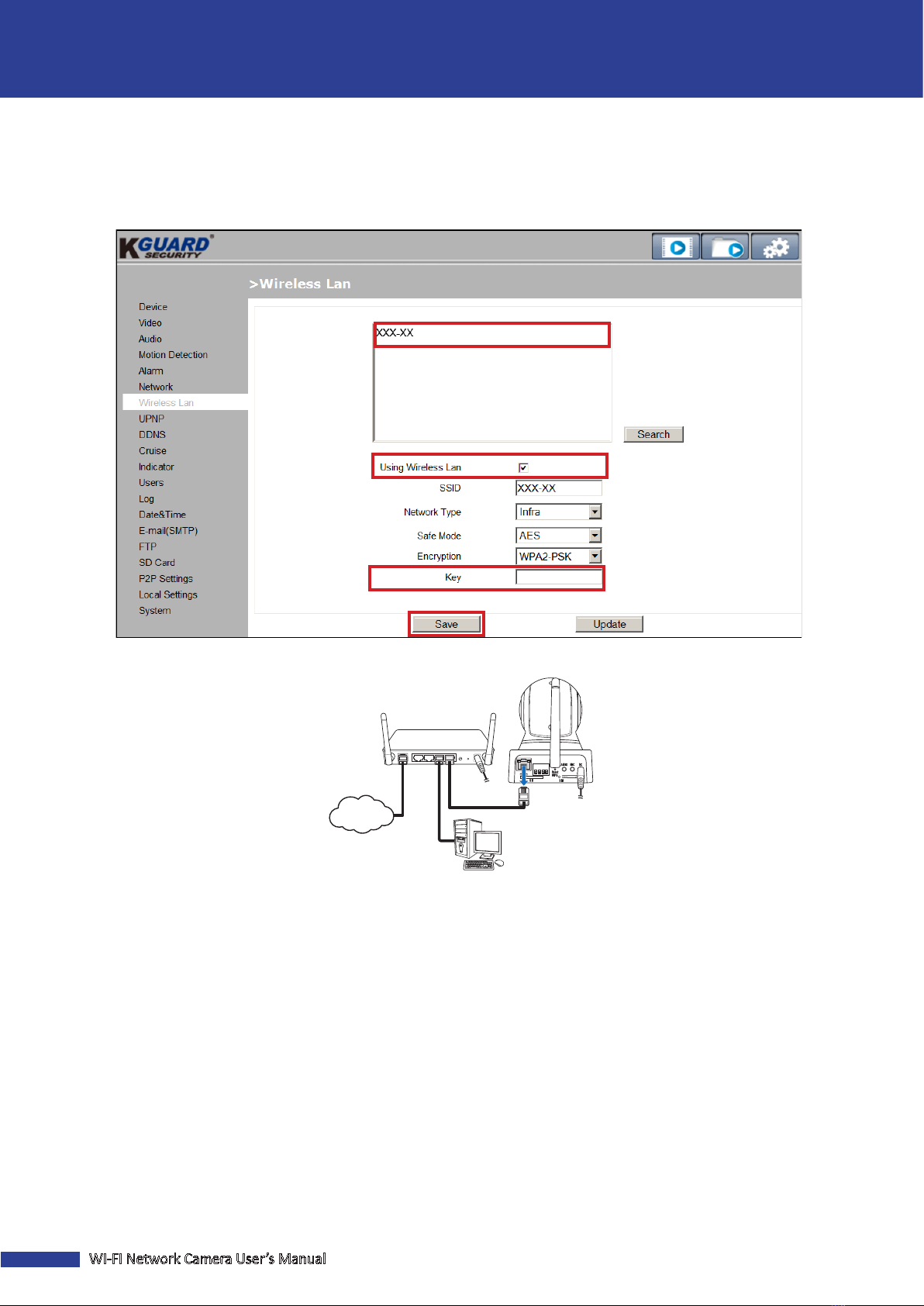
10. Click on the router name and modify the following.
• Check Using Wireless LAN opon.
• Enter the wireless router’s password in Key eld.
11. Click Save.
12. Disconnect the RJ45 Ethernet cable from the camera.
DC IN1234WPS RESET
Internet
13. Disconnect and connect the power adapter, to restart the camera.
14. When the red status LED (see “Product Overview” on page 5) turns o, wait for 10 seconds unl the
Camera boots up and starts rotang.
NOTE: When the red status LED starts blinking with a second interval, it means the wireless network
connecon is successful.
15. Download KviewQR applicaon and view the live view on your mobile devices. See “Connect to Camera” on
page 16.
Inhaltsverzeichnis
Andere KGuard Security Sicherheitskamera Handbücher