
Latsen Technology Pawfit 2 Bedienungsanleitung

Pawfit 2 User Manual
2022
V.1.2
Latsen Technology LTD

Contents
Section 1 –In the box ......................................................................................................................... 3
Section 2 - Setting up your Pawfit tracker.......................................................................................... 3
Section 3 –Looking after your Pawfit tracker....................................................................................4
Section 4 –How to charge Pawfit....................................................................................................... 5
Section 5 –Turning on/off your Pawfit 2 tracker and confirming online status................................. 5
5.1 –Switching your tracker on...................................................................................................... 5
5.2 –Checking the tracker is online................................................................................................ 5
5.3 –Switching off your tracker .....................................................................................................6
Section 6 –Tracker LED lights and colours explained....................................................................... 6
Section 7 –A guide to the Map Page..................................................................................................6
7.1 –How to locate you and pet on the map................................................................................... 6
7.2 –Tracker Status Cards.............................................................................................................. 7
7.3 –Live tracking mode ................................................................................................................ 8
7.4 –Light....................................................................................................................................... 8
7.5 –Alarm .....................................................................................................................................9
7.6 –Pawfit Voices.........................................................................................................................9
7.7 –Switching between trackers ................................................................................................... 9
7.8 –Understanding the Map buttons........................................................................................... 11
Section 8 –A guide to the Activity page..........................................................................................13
8.1 –Daily Step Goal....................................................................................................................13
8.2 –Activity data.........................................................................................................................14
8.3 –Switching between pets........................................................................................................ 14
8.4 –Sharing your pet’s activity data ...........................................................................................14
Section 9 –A guide to the History page ...........................................................................................15
9.1 –Understanding the history page............................................................................................15
9.2 –Switching between pets........................................................................................................ 15
9.3 –Exporting History data.........................................................................................................15
Section 10 –A guide to the Walk page............................................................................................. 17
10.1 –Before you start a Walk –adding/removing pets to the Walk........................................... 17
10.2 –Understanding the icons on the Walk map ........................................................................19
10.3 –Walk Reports .....................................................................................................................19
10.4 –Pawfit Contacts.................................................................................................................. 20
Section 11 –A guide to the Profile page ..........................................................................................22
Section 12 –Your Pawfit User Profile..............................................................................................23
12.1 –Settings............................................................................................................................... 23

Section 13 –Your Pet’s Profile.........................................................................................................24
13.1 –Choosing your pet’s activity goal ...................................................................................... 24
13.2 –Family Pet Care.................................................................................................................. 24
Section 14 –Advanced Settings........................................................................................................25
Section 15 –Safety Zones................................................................................................................. 26
15.1 –How to create a Safety Zone.............................................................................................. 26
15.2 –How to edit your zones ......................................................................................................27
15.3 –Why is there sometimes a delay in receiving Safety Zone notifications?.......................... 27
Section 16 –Pawfit Voices...............................................................................................................28
16.1 –How to create and manage Pawfit Voices..........................................................................28
Section 17 –Pawfit Family Pet Care................................................................................................30
17.1 –Before you begin................................................................................................................30
17.2 –Adding someone to your pet’s Family Pet Care ................................................................ 30
17.3 –Managing your pet’s Family Pet Care ...............................................................................32
17.4 –Using Walk ........................................................................................................................ 32
Section 18 –The Pawfit Pals Referral Programme...........................................................................33
18.1 –How it works......................................................................................................................33
18.2 The finer details ....................................................................................................................33
Section 19 –Using the Pawfit app on your smart watch ..................................................................34
19.1 –Navigating the Pawfit smart watch app .............................................................................34
Section 20 –using the Pawfit app on multiple devices.....................................................................36
Section 1 –In the box
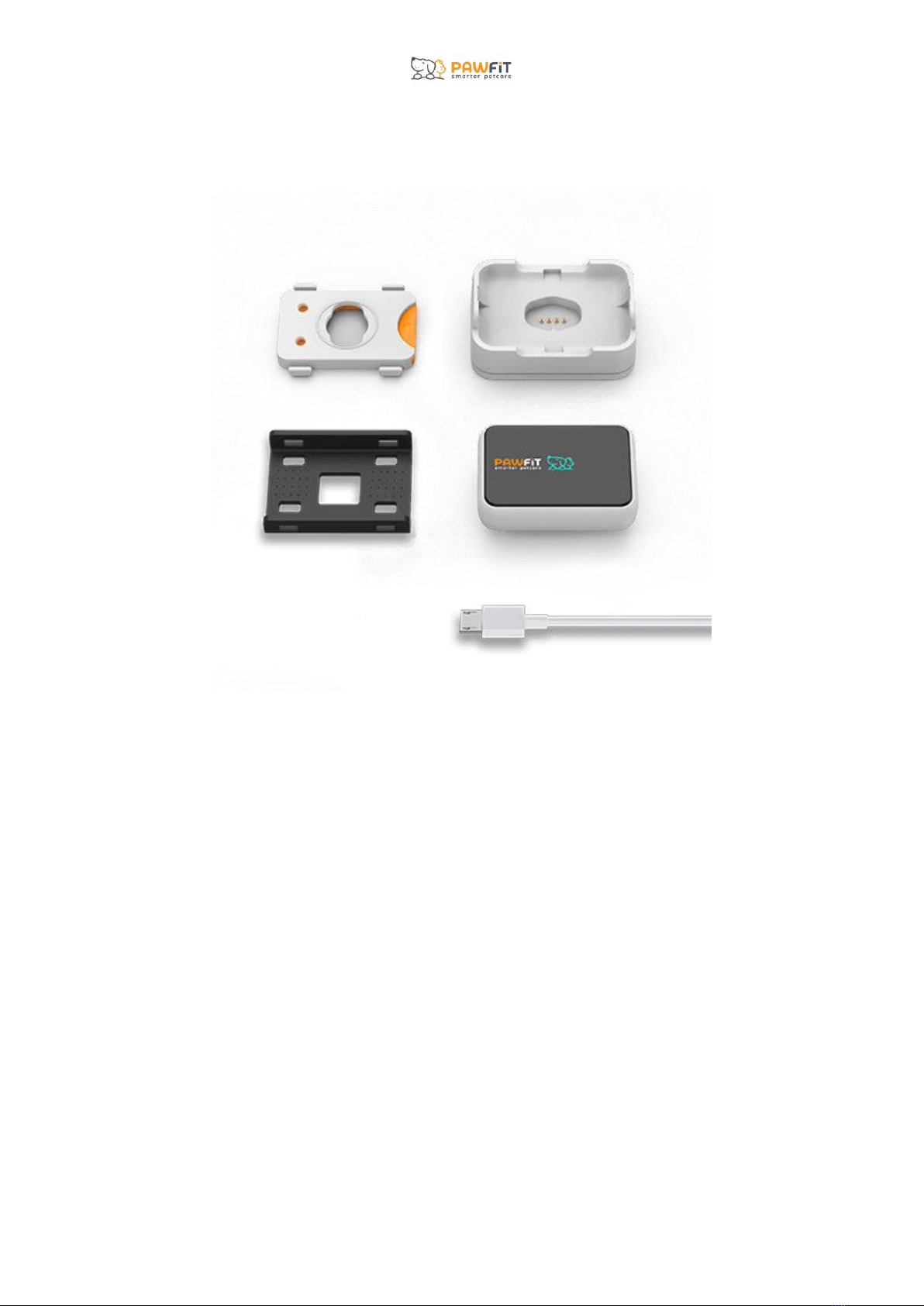
Inside your Pawfit box, you’ll find your Pawfit 2 tracker, charging dock, USB charging cable, and
collar attachment clips.
If there is anything missing from your Pawfit 2 box, please get in touch with our customer support
team asap.
Section 2 - Setting up your Pawfit tracker
Before you can start setting up your Pawfit 2 tracker, it will need to be fully charged.
Pawfit charges best when you use a quality USB charger with an output no greater than 5v. A poor
quality USB charger cannot guarantee stable output and any sudden power surges may trigger the
protection unit to shut down the battery and in the worst case might damage the entire circuit.
Now your tracker is charged, it’s time to download the Pawfit app to your smart phone.
Scan the QR on the side of your Pawfit 2 box or search for the Pawfit app in your phone’s app store.
The Pawfit app is compatible with Apple devices using iOS 9.0 or above and android devices using
5.0 or above.
When you have downloaded the Pawfit app, tap its icon to open it up.
Your first step will be to create a free Pawfit account.

Once you have created an account and logged into the app, you’ll be asked if you want to Register a
Pet or Look After Other’s Pet.
Please choose the Register a Pet option and complete the following steps to set up your tracker:
Step 1 –Pet Registration
-Enter your pet’ basic information to complete their profile
Step 2 –Add a profile picture
Step 3 –Add your tracker
-Scan the QR code on the back of the tracker or the tracker box, or type in the tracker’s ID
number which is found underneath the QR code
Step 4 –Choose a WIFI network
-Identifying a WiFi network where your pet spends most of their time will optimise battery life
-You will not need to enter a password
-This can be completed after tracker registration by going to the settings in your pet’s profile
Step 5 –Select a safety zone
-Create a new safety zone or choose from an existing one
-This can be completed after tracker registration by going to the settings in your pet’s profile
If you need any assistance with setting up your tracker, please feel free to contact our customer
support team.
Section 3 –Looking after your Pawfit tracker.
Our Pawfit 2 tracker is designed to be durable and long lasting but it’s not completely indestructible.
To ensure your Pawfit 2 tracker has a long happy life, we recommend showing it some TLC with the
following care tips:
Before you put your tracker on charge, make sure it’s 100% dry, especially the copper
contacts.
Keep Pawfit 2 out of your pet’s mouth to avoid it being chewed and damaged.
Got a dirty Pawfit 2 tracker? Rinse clean with warm water (no soap) or use an antibacterial
wipe before leaving to dry completely.
Regularly check for any dirt and/or water blocking the speakers as this can affect the sound
quality. Give it a rinse and a shake and leave to dry thoroughly.
After contact with sea water, please rinse the tracker in clean water (no soap) before you next
charge it.

Section 4 –How to charge Pawfit
When the battery level is lower than 15%, the tracker’s LED light will flash red every 10 seconds to
indicate the battery is low. You will also receive a low battery notification on your phone when the
battery level is lower than 15% to remind you to charge it too.
Pawfit charges best when you use a quality USB charger with an output no greater than 5v. A poor
quality USB charger cannot guarantee stable output and any sudden power surges may trigger the
protection unit to shut down the battery and in the worst case might damage the entire circuit.
Once your tracker is fully charged, the LED light will turn green. Remove the tracker from the
charger and press the power button for 3 seconds until you hear the “Welcome to Pawfit” message to
turn the tracker back on.
We strongly advise not over charging your tracker as this can shorten the life expectancy of its
battery. Do not leave charging once tracker is fully charged.
Section 5 –Turning on/off your Pawfit 2 tracker and confirming online status
Before you go out with your Pawfit 2 tracker, we always advise checking that it is switched on and
online. When the tracker is online, it means that it has connected to the 2g network and is able to send
and receive data to the Pawfit app.
5.1 –Switching your tracker on
To turn on your Pawfit 2 tracker, press and hold the power button for 3 seconds until you hear the
“Welcome to Pawfit” message.
5.2 –Checking the tracker is online
You can confirm the tracker is online by pressing the power button. If the status light flashes blue, the
tracker is online. If the light flashes red, the tracker is offline and is still trying to connect to a
network. Please allow at least 30 seconds for the tracker to connect to a network after it has been
turned on.
If your tracker is not connected to a network and there is sufficient 2g coverage, you will need to
move to a different location, ideally outside in open air, and restart the tracker. To restart the tracker,
you will need to press and hold the power button for 3 seconds to turn it off. Once the light goes off,
press and hold the power button again for 3 seconds to turn it on. When the tracker restarts, you will
hear the “welcome to Pawfit” message. Wait for 30 seconds and then press the power button. The
status light on the tracker should now flash blue. If not, wait a bit longer or try again in a new
location.
If you have tried multiple times without success, please feel free tocontact our support team.
5.3 –Switching off your tracker
To switch off your Pawfit 2 tracker, press and hold the power button until you hear the “Goodbye”
message. Pressing the button again once it is switched off will turn it back on.
Section 6 –Tracker LED lights and colours explained
The Pawfit 2 tracker features one built in light which shows the status of your Pawfit 2 and can be
used as a tracking light.
The status light flashes in several colours which each have a different meaning:
Red –the tracker is offline and cannot connect to a network (seen when the power button is
pressed), or to show that the tracker is being charged.
Flashing red –the tracker’s battery level is below 15% and the tracker needs charging.
Blue –the tracker is powering up and the tracker is online and connected to a network, (seen
when the power button is pressed).
Green –the tracker is fully charged.
Section 7 –A guide to the Map Page
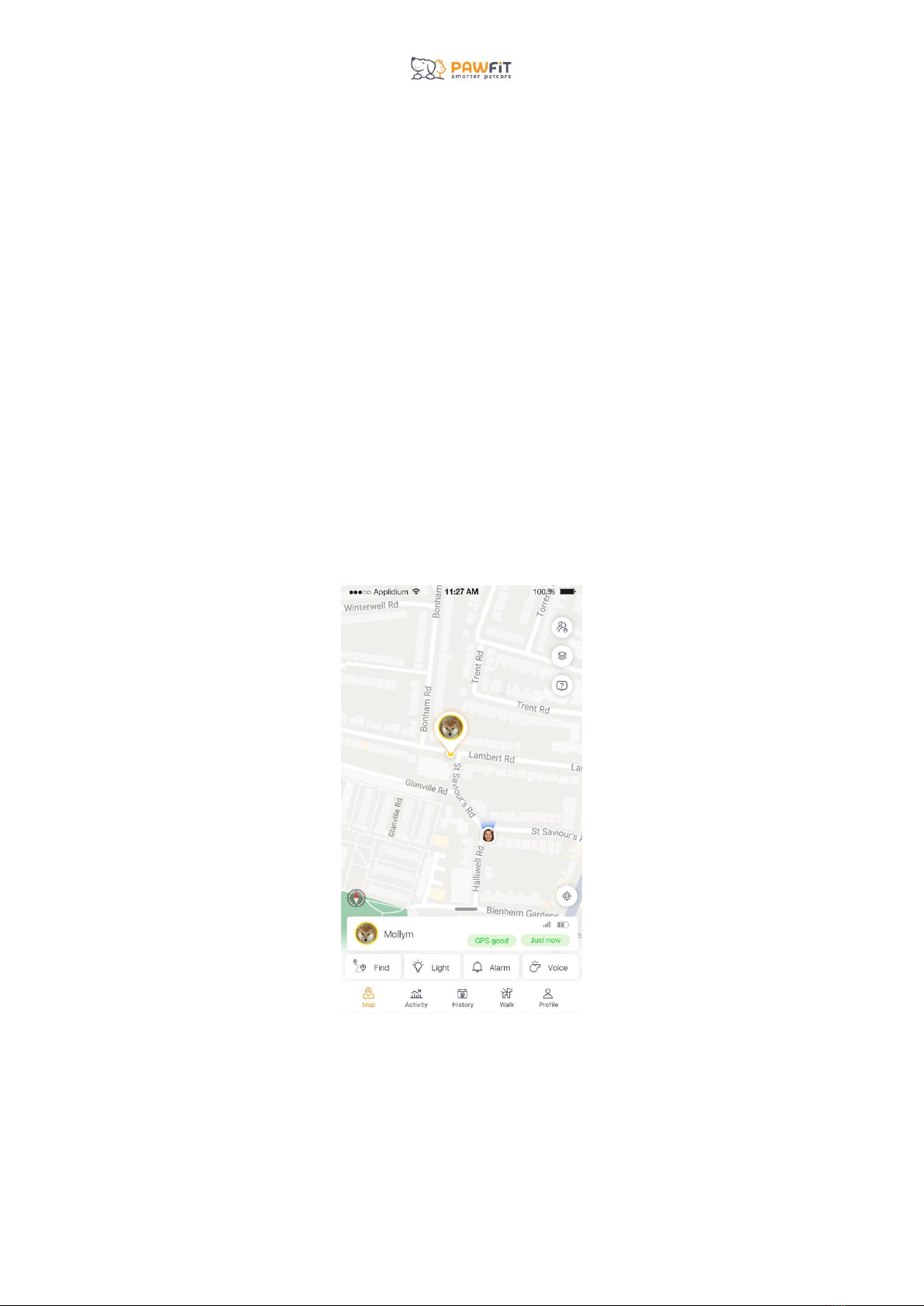
The Map page is the Pawfit App’s home page. The Map screen will show the location of your pet’s
tracker as well as your phone’s location. The Map page is where you can access security features like
live tracking, etc.
7.1 –How to locate you and pet on the map
On the Pawfit map, you will see your phone’s location and your pet’ tracker location.
Your pet’s tracker location is represented by their profile picture or if no profile picture was chosen,
their first initial.

Your location will be your Pawfit profile picture, or if no picture was chosen your initials. Your icon
will also have blue arrows around it. These will show the direction your phone is pointing in in
relation to your pet’s tracker. As you turn your phone, the blue arrows will rotate around on the map.
7.2 –Tracker Status Cards
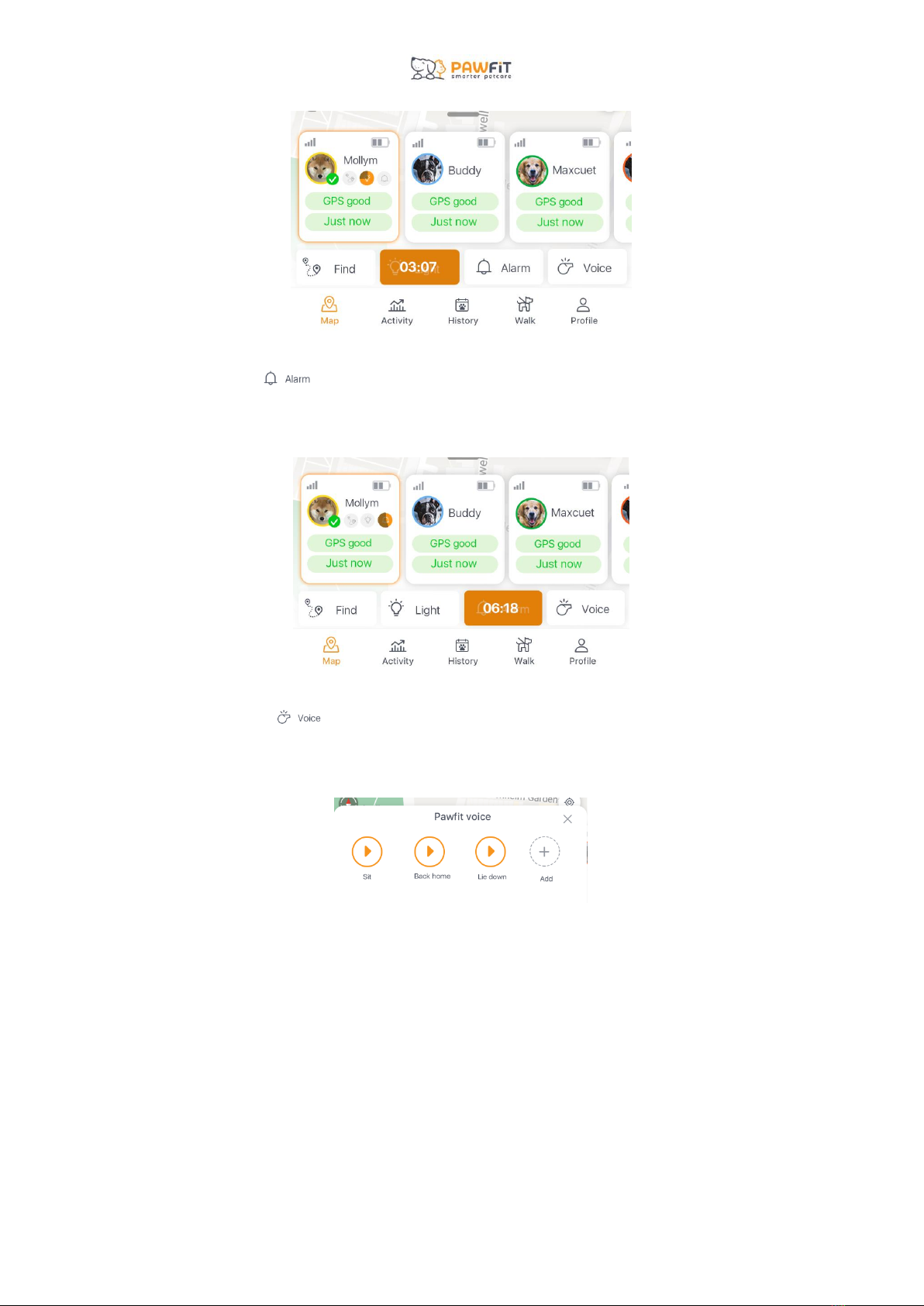
On the map page, each tracker has a status card which is located at the bottom of the map. On each
status card, you’ll be able to see your pet’s profile picture the battery level of each tracker, the time
since the last location update, the strength of the GPS signal when the last location update was
received and the cellular network strength.
Beneath the status information, you’ll find the icons for live tracking mode (now called Find), the
alarm, light and your Pawfit voices.
Tap each icon to turn the features on. When enabled, each feature will stay on for 10 minutes and a
countdown timer will appear to show how much time remains. To turn off a feature before the timer
runs out, tap the icon/timer again.

7.3 –Live tracking mode
In live tracking mode, your Pawfit tracker will send location updates every 5 seconds. To turn this
mode on tap the Find icon
When you are live tracking your pet, their routes will be recorded as a solid line once the tracker is
connected to a strong GPS signal. This helps you see where your pet has been and get a better idea of
where they are going.
Depending on the GPS availability and network conditions in your location, the time it takes to find
the initial GPS signal can vary. Try not to turn live tracking off while it is searching for GPS signal,
unless you’d just like an update on the tracker’s approximate location.
7.4 –Light
Tapping the light icon turns on the tracker’s LED light. The green light will flash for 10
minutes unless turned off by tapping the icon again
7.5 –Alarm
Tapping the bell icon turns on the tracker’s alarm. The alarm plays out of the speaker on your
tracker for 10 minutes unless turned off by tapping the icon again.
7.6 –Pawfit Voices
Tapping the Voice icon will show your recorded Pawfit Voices and give you the option to add
new ones if space is available. To find out more about recording Pawfit Voices, see section 17.
7.7 –Switching between trackers
If you have more than one tracker registered to your Pawfit account and have all trackers viewable on
the map, you will see all their status cards beneath the map.
Inhaltsverzeichnis


