
LaView LV-PB784F2 Bedienungsanleitung

User Manual
1
IP Camera User Manual

User Manual
1
Contents
Introduction.......................................................................................................................................................3
1. Overview.......................................................................................................................................................4
1.1 Range of Application.............................................................................................................................4
1.2 Product Description...............................................................................................................................5
1.3 Operation Environment ........................................................................................................................5
2. Device Connection......................................................................................................................................6
3. Device Operation Instructions...................................................................................................................7
3.1 Check Connection.................................................................................................................................7
3.2 Searching Device..................................................................................................................................8
3.3 Installation of Controls and Login to System ..................................................................................11
3.3.1 Preview..........................................................................................................................................12
3.3.2 Playback(optional function)...................................................................................................14
4 Parameter Setting.......................................................................................................................................16
4.1 Display Configuration .........................................................................................................................16
4.2 Image Control......................................................................................................................................18
4.3 Video Blocking.....................................................................................................................................19
4.4 ROI (if applicable) ...............................................................................................................................20
5.Record Parameters....................................................................................................................................21
5.1Rec Parameters....................................................................................................................................21
5.2Schedule................................................................................................................................................21
6. Network Parameters.................................................................................................................................22
6.1 Network Parameters...........................................................................................................................22
6.2 Bit stream setting.................................................................................................................................24
6.3 E-Mail Configuration...........................................................................................................................25
6.4 DDNS Configuration...........................................................................................................................27
6.5 IP Filtering............................................................................................................................................28
6.6 RTSP.....................................................................................................................................................28
6.7 FTP........................................................................................................................................................30

2
7. Alarm Parameter.......................................................................................................................................31
7.1 Mobile Detection..................................................................................................................................31
7.2 I/O Alarm (if applicable)......................................................................................................................33
7.3 Lens Blocking.......................................................................................................................................33
8. Device .........................................................................................................................................................34
8.1 SD Card(optional function)...........................................................................................................34
8.2 Audio.....................................................................................................................................................35
8.3 Logs.......................................................................................................................................................35
9. System Parameters...................................................................................................................................36
9.1 Basic Information.................................................................................................................................36
10. Advanced..................................................................................................................................................40
10.1 System Update..................................................................................................................................40
10.2 Default Parameters...........................................................................................................................40
10.3 System Maintenance........................................................................................................................41
11. Intelligent..................................................................................................................................................42
11.1 Smart Schedule.................................................................................................................................42
11.2 Smart Analysis...................................................................................................................................43
11.3 Perimeter Intrusion Detection(PID)...........................................................................................43
11.4Line Crossing Detection(LCD)....................................................................................................44
11.5 Stationary Object Detection.............................................................................................................45
11.6 Pedestrian Detection(PD)................................................................................................................47
11.7 Face Detection(FD).....................................................................................................................48
11.8 Cross Counting(FD)..........................................................................................................................49

3
Introduction
Thank you for using our network camera products. Our network camera products are integrated and
developed for network video monitoring, including Storage Network Bullet, Wireless Storage Network
Bullet, IR Network Dome, IR Network Weather-Proof Cameras and High-Speed Network Ball.
High-performance single SOC chips are used in media processor for audio/video acquisition,
compression and transmission/transfer. Standard H.264 encoding algorithm is applied to ensure clear
and smooth video representation and transfer performance. Embedded Web Server offers users access
to real-time surveillance and remote control of front-end camera through IE browser.
The network cameras are easy to install and operate. The network cameras are applicable to large and
medium-size enterprises, governmental projects, large mall, chain supermarkets, intelligent buildings,
hotels, Hospitals and schools and other group customers, as well as to applications requiring remote
network video transmission and monitoring.
Instructions:
For purpose of this manual, IP camera means network camera.
Single click means a single click on the left mouse button.
Double click means a double-click on the left mouse button.
The default factory IP address for IP camera is 192.168.1.168.
The default factory administrator user name for IP camera is admin (in lowercase), and the
password is admin (in lowercase).
The default Web port number is 80 and the default media port number is 9988.
Statement:
Some information contained in this manual may differ from the actual product. For any problems you
cannot solve with the use of this manual, please contact our technical support or the authorized dealers.
This manual may be subject change without prior notice.

4
1. Overview
1.1 Range of Application
The network cameras with powerful image processing capacity may be applied at various public places
such as mall, supermarket, school, factory and workshop, as well as in environments requiring HD video
image such as bank and traffic control system, as shown below:
Monitoring
Center

5
1.2 Product Description
An IP camera is a digital online surveillance camera embedded with Web server and capable of
independent operation, giving user access to real-time monitoring through web browser or client
software from any place across the world.
IP camera is based on the latest Hisilicon solution, an integrated media processing platform for
audio/video acquisition, compression and network transmission on a single board. It is in compliance
with H.264/ H265 High Profile encoding standards. Any remote user can have access to real-time
monitoring by entering the IP address or domain name of the IP camera in web browser. This network
camera solution is applicable to residential or business environmentas well as a wide range of situations
requiring remote network video monitoring and transmission. The IP camera products are easy to install
and operate.
The IP cameras can be managed by several users with different authorization levels.
IP cameras allows mobile detection, and sends e-mail and snapshot taken in case of emergency and
store the image or video snapshot in SD card for retrieval.
1.3 Operation Environment
Operating system: Windows 7/Windows 8/Windows 2008 (32/64-bit),
Windows 2003/Windows XP/Windows 2000 (32-bit)
CPU: Intel Core Duo II dual-core processor or higher
Memory: 1G or more Video memory: 256M or more
Display: 1024 ×768 or higher resolution
IE: IE 6.0 or higher version

6
2. Device Connection
IP camera can be connected in two ways:
1. Connection to PC
Connect IP camera to PC via straight-through network cable, with power input connected to a DC
12V adaptor, and set the IP addresses of the PC and IP camera in one network segment. The IP
camera will communicate with PC within one minute after being powered on if the network operates
normally.
2. Connection to router/switch
This is more commonly used in connecting the IP camera to Internet, where the camera and PC are
connected to LAN ports of a router/switch, with gateway of the camera set to the IP address of the
router.

7
3. Device Operation Instructions
3.1 Check Connection
1. The default factory IP address for IP camera is 192.168.1.168 and the subnet mask is
255.255.255.0.Allocate to your computer an IP address in the same network segment as the IP
camera, for example, 192.168.1.69, and a same subnet mask as that of the IP camera.
2. Test whether the IP camera is connected properly and started normally by clicking on Start >
Run and entering "cmd" and pressing ENTER, and entering "ping 192.168.1.168" in the
command line window to
Check whether the IP camera is accessible. If the PING command is executed successfully, it
indicates that the IP camera operates normally and the network is connected properly. If the PING
command fails, check IP address and gateway setting of the PC and connectivity of the network.
8
3.2 Searching Device
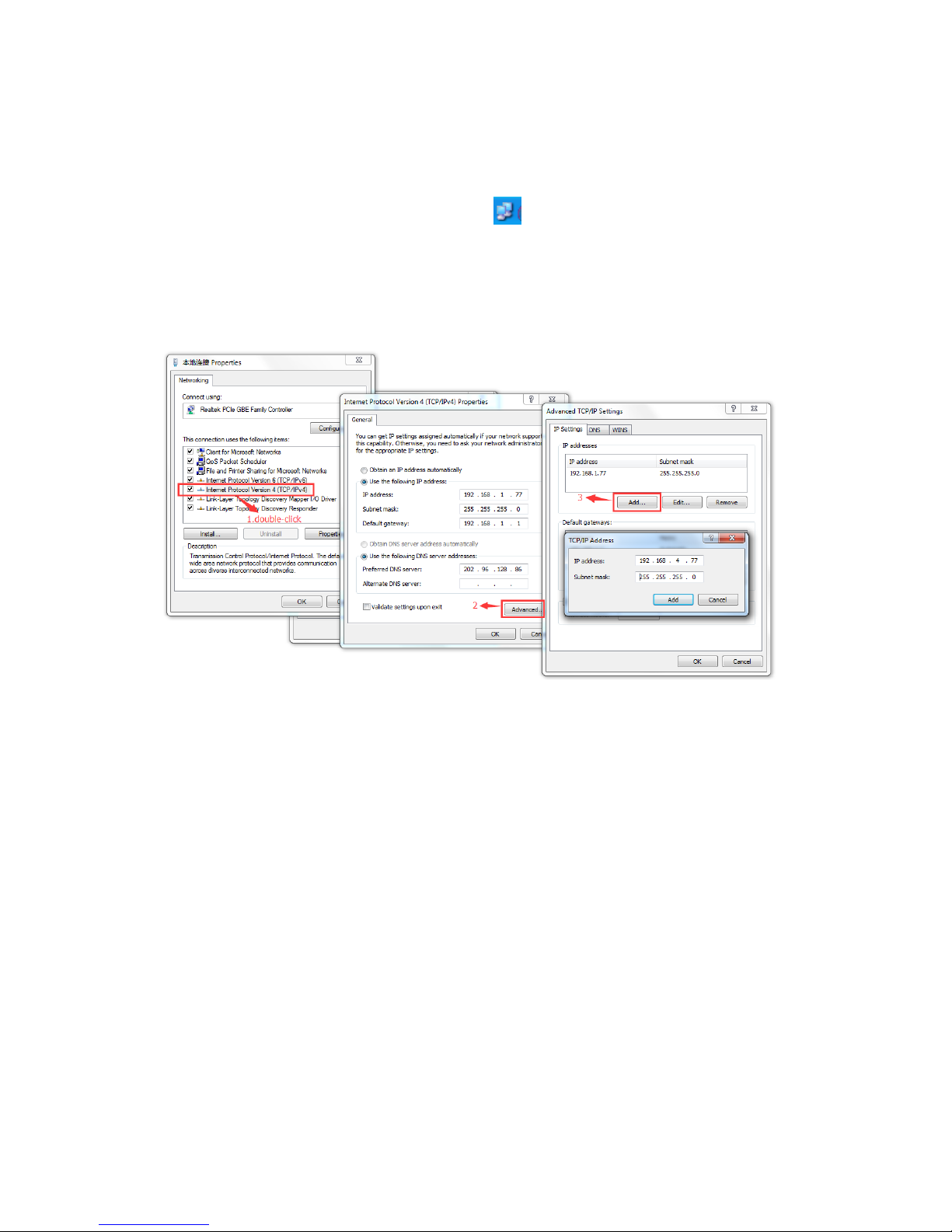
Tips: IPC Device Search may be used for device searching across network segments. Before
running IPC
Device Search, click on the local connection icon at the lower right corner of the desktop;
1. Add IP addresses of several network segments in TCP/IP setting for local connection (as shown
below). By running the searching tool you can search any device with IP address in the same
network segment.
Note:
IPC Device Search uses multicast protocol for device searching across segments but any firewall
forbids traffic of multicast data packets, so any firewall must be disabled in order that network the
information on device can be acquired.

9
Online device searching procedure
1. Run IPC Device Search by double clicking icon . It will search and display any online IPC and
its IP address, port number, number of channels, device type and version, subnet mask, gateway,
MAC address and connection pattern.
Andere Handbücher für LV-PB784F2
1
Inhaltsverzeichnis
Andere LaView IP-Kamera Handbücher


