8
6. Authorized number
6.1 Set the authorized number by SMS
SMS Command: $SMS,000000;W010,NO.,Phone Number,ABC;!
Description: Set authorized number and related functions.
Explain:
NO.: authorized number’s serial number, range of: 1~3.
Phone Number: authorized number, range of: 0~19 characters.
A: switch for Geo-fence function, range of: 0~1(0 means disable this function, 1 means
enable this function), default is 0.
B: switch for monitoring function, range of: 0~1(0 means disable this function, 1 means
enable this function), default is 0.
C: switch for SOS emergency calling, range of: 0~1(0 means disable this function, 1 means
enable this function), default is 0.
For example:
Set the 1st authorized number is 13800000000 and just enable monitoring function.
$SMS,000000;W010,1,13800000000,010;!
6.2 Easy authorized phone no. setup by calling
Tracker only supports three authorized numbers. We can set the authorized number by phone
call if authorized number is not full (Disable all functions).
Set as follows:
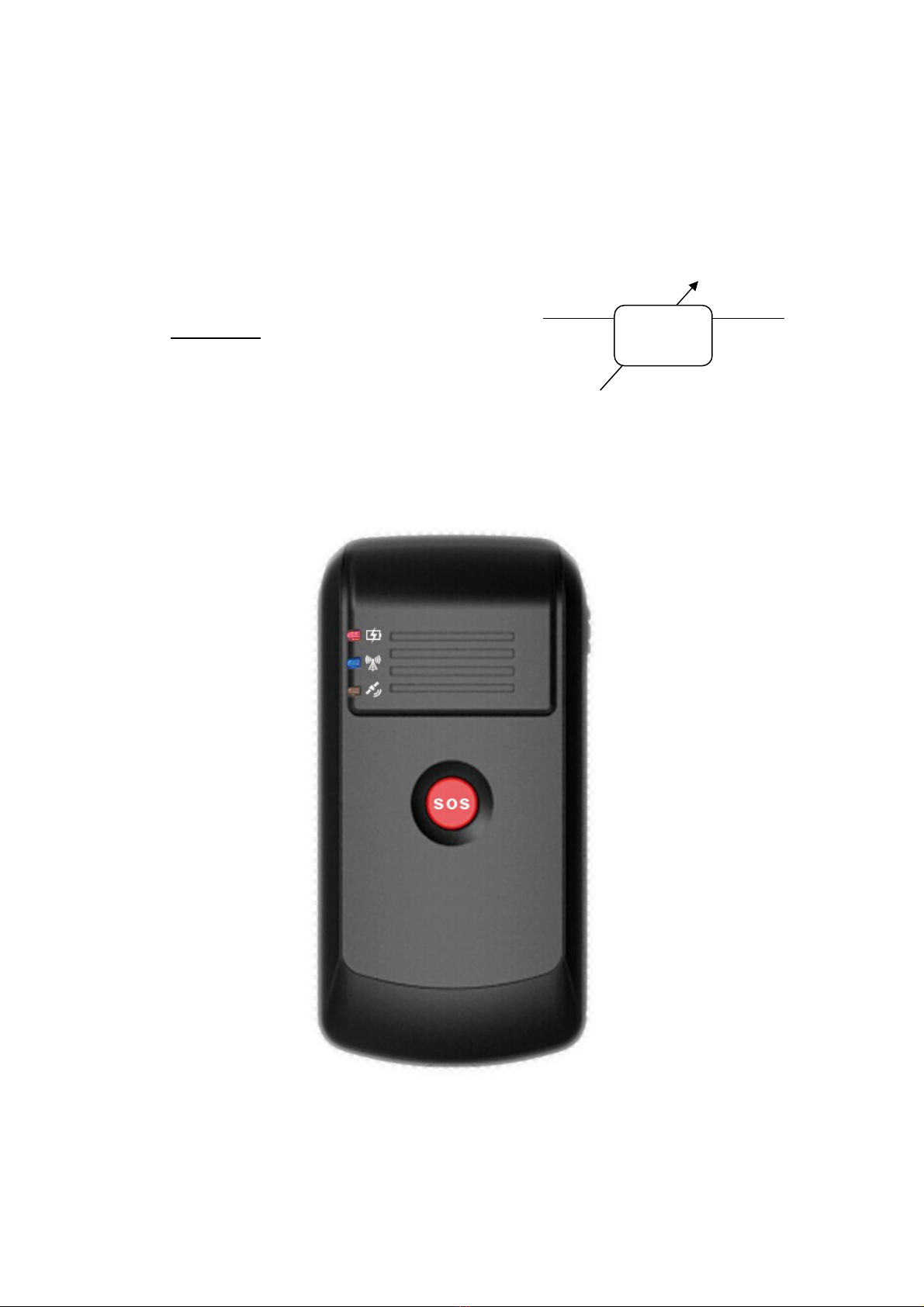
Any non-authorization number calls to the tracker over than 10 seconds, the tracker will cut
off the line automatically and the Yellow Led will blink for 30 seconds. During this 30 second
blinking, press SOS button less than 3 seconds, and then it set this call in number as a new
authorization number and send SMS to that number to confirm the setting OK.
6.3 Monitoring function
If enable this function, when the authorization number call in to the device, it will connect to
the call and shut down the speaker, then the background voice of the device will be listened.
(Note: Please make sure the SIM card installed supports displaying caller ID.)
6.4 Two-way communication
If you turn the monitoring function off when set authorized number, use this authorized
number call to tracker, bell will ring, at this time, press the SOS button (less than 3s) to
answer the phone call, so you can speak each other.
Press SOS button also can make a phone call to authorized number (see “SOS emergency
calling”).