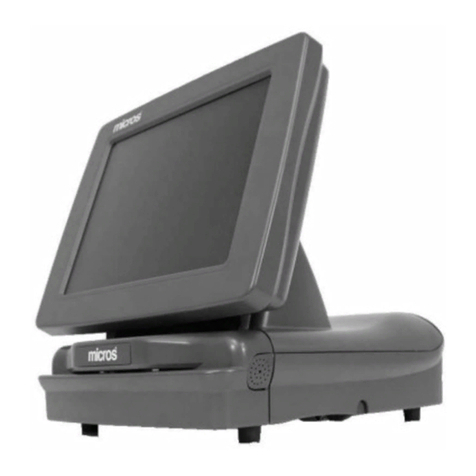
Micros Systems Ultra Bedienungsanleitung

micros® Systems, Inc.
PC Workstation
Ultra
Setup Guide
Copyright 1998, 1999
By MICROS Systems, Inc.
Beltsville, Maryland USA
All Rights Reserved
Part Number 100016-103 (2nd Edition)

ii
Declarations
Warranties Although the best efforts are made to ensure that the
information contained in this manual is complete and correct,
MICROS Systems, Inc. makes no warranty of any kind with
regard to this material, including but not limited to the implied
warranties of marketability and fitness for a particular purpose.
Information in this manual is subject to change without notice.
MICROS Systems, Inc. shall not be liable for errors contained
herein or for incidental or consequential damages in connection
with the furnishing, performance, or use of this material.
Trademarks MICROS is a registered trademark of MICROS Systems, Inc
Intel, Pentium, and MMX are registered trademarks of Intel Corporation
IBM, AT, XT, VGA, EGA, XGA, PS/2, and PC-DOS are registered trademarks
of International Business Machines Corporation
Microsoft, Windows, Windows 95 Windows 98, Windows NT, Windows Sound
System, and Microsoft SQL Server are trademarks of Microsoft Corporation in
the United States of America and in other countries.
Intel, Pentium, and MMX are registered trademarks of Intel Corporation.
PCnet, AMD, the AMD logo, and combinations thereof are trademarks of
Advanced Micro Devices, Inc
Chips & Technologies is a registered trademark of Chips & Technologies, Inc
Adobe and FrameMaker are trademarks of Adobe Systems, Incorporated
CorelDraw is a registered trademark of the Corel Corporation
Printing History New editions of this manual incorporate new and changed
material since the previous edition. Minor corrections and
updates may be incorporated into reprints of the current edition
without changing the date or edition number.
1st Edition - October 1998
2nd Edition - October 1999

PCWS Ultra Setup Guide iii
Index
Table of Contents
Preface
Purpose ........................................................................................x
Who Should Use This Manual? ..................................................x
Related Manuals ..........................................................................x
Symbols.........................................................................................xii
Document Design and Production ..............................................xii
Chapter 1: The System
What is the PC Workstation?..............................................................1-2
Profile............................................................................................1-2
Display and Touchscreen ............................................................1-3
System Boards..............................................................................1-3
PCWS Accessories ........................................................................1-4
Expansion Capabilities ...............................................................1-4
Diagnostics Utilities ....................................................................1-4
PCWS API ....................................................................................1-4
Specifications ...............................................................................1-5
Approvals .....................................................................................1-7
Care and Handling..............................................................................1-8
Environmental Requirements ....................................................1-8
Cleaning .......................................................................................1-9
Transporting the Workstation ....................................................1-9
Connecting the Basic System..............................................................1-10
Rear Connector Panel .................................................................1-10
External AC Adapter ...................................................................1-12
PCWS Floppy Diskette Unit .......................................................1-13
PC Keyboard ................................................................................1-15
PS/2 Mouse ..................................................................................1-16
Remote Customer Display ..........................................................1-17
Chapter 2: Setup Utility
Starting the PhoenixBIOS Setup Utility ........................................... 2-2
Main Menu........................................................................................... 2-4
Advanced Menu................................................................................... 2-5
Security Menu......................................................................................2-10
Power Menu.........................................................................................2-11
Boot Menu............................................................................................2-13
Exit Menu ............................................................................................2-14

iv
Table of Contents Index
Chapter 3: PCWS Ultra Hardware Configuration
Remove the Cover................................................................................3-2
Removing/Securing the PCWS Low Profile Cover .....................3-2
Removing/Securing the PCWS AD Cover ..................................3-3
What’s Inside? .....................................................................................3-4
The PC Workstation Ultra Assembly .........................................3-4
Ultra System Board Components ...............................................3-6
Ultra System Board Connectors .................................................3-10
Ultra System Board Jumpers and DIP Switches ......................3-11
Ultra System Board Memory Map .............................................3-12
Ultra System Board IO Port Map ..............................................3-13
Ultra System Board IRQ Assignments ......................................3-14
Processor..............................................................................................3-15
Main Memory ......................................................................................3-21
Hard Disk ............................................................................................3-24
Customer Display................................................................................3-29
LCD Configuration..............................................................................3-32
Expansion Card Installation ..............................................................3-34
Chapter 4: PCWS Ultra Diagnostics
Basic Troubleshooting......................................................................... 4-2
Diagnostics LEDs................................................................................ 4-4
POST Error Messages......................................................................... 4-6
POST Error Beep Codes...................................................................... 4-7
Glossary
Appendix A: Equipment Dimensions
Overview.............................................................................................. A-2
PC Workstation - Low Profile............................................................. A-3
PC Workstation - Adjustable Display ................................................ A-4
PC Workstation Floppy Diskette Unit............................................... A-5
PCWS LP Adjustable Stand ............................................................... A-6
PCWS Remote Pole Display................................................................ A-7
Cash Drawer........................................................................................ A-8
Cash Drawer, Low Profile................................................................... A-9
Appendix B: Connector and Cable Diagrams
Overview..............................................................................................B-2
PCWS Ultra Connectors .....................................................................B-3
LCC Port ......................................................................................B-3
RS232 Interface ...........................................................................B-3
Parallel Port Connector ..............................................................B-4

PCWS Ultra Setup Guide v
Table of Contents
Index
Cash Drawer Connectors ............................................................B-5
PS/2 Keyboard Connector ...........................................................B-5
Power +24VDC Connector ..........................................................B-6
Remote Customer Display ..........................................................B-6
Ethernet Connector .....................................................................B-7
IDN Device Port ..................................................................................B-8
8-Pin to 6-Pin Hook-up RS422 Cable (300319-001)...........................B-9
Cash Drawer Extension Cable ...........................................................B-10
Appendix C: FCC/DOC Statement
Index

vi
Table of Contents Index
List Of Figures
Figure 1-1: The PCWS Low Profile and Adjustable Display ..........1-2
Figure 1-2: The PCWS Ultra Rear Connector Panel .......................1-10
Figure 1-3: Connecting the External AC Adapter ...........................1-12
Figure 1-4: Installing the PCWS Floppy Diskette Unit ..................1-13
Figure 1-5: Connecting a PC Keyboard ............................................1-15
Figure 1-6: Remote Pole Display Assembly .....................................1-18
Figure 3-1: Removing/Securing the PCWS Low Profile Cover .......3-2
Figure 3-2: Removing/Securing the PCWS AD Cover ......................3-3
Figure 3-3: The PC Workstation Ultra Assembly .............................3-4
Figure 3-4: The Ultra System Board Components ...........................3-6
Figure 3-5: PCWS Ultra System Board Connectors .........................3-10
Figure 3-6: Ultra System Board Jumpers and DIP Switches ..........3-11
Figure 3-7: Ultra System Board Memory Map .................................3-12
Figure 3-8: Ultra System Board IO Port Addresses.........................3-13
Figure 3-9: Ultra System Board IRQ Assignments .........................3-14
Figure 3-10: The Processor Heat Sink and Air Duct (side view) .....3-16
Figure 3-11: Remove the Fan Power Cable .......................................3-17
Figure 3-12: Releasing the Heat Sink Clip........................................3-17
Figure 3-13: Removing the Air Duct and Heat Sink ........................3-18
Figure 3-14: Remove/Replace the Processor .....................................3-18
Figure 3-15: Re-installing the Heat Sink/Air Duct Assembly .........3-19
Figure 3-16: Jumper Settings for Intel and AMD Processors ..........3-20
Figure 3-17: DIMM Orientation ........................................................3-22
Figure 3-18: Installing a DIMM ........................................................3-22
Figure 3-19: Removing a DIMM ........................................................3-23
Figure 3-20: The Hard Disk Bracket .................................................3-25
Figure 3-21: Assembling the hard disk bracket ................................3-26
Figure 3-22: Mounting the Drive Assembly ......................................3-27
Figure 3-23: Attaching the Customer Display (Low Profile Case) ..3-29
Figure 3-24: Removing the PCWS AD Cover ....................................3-30
Figure 3-25: Mounting the Customer Display Board .......................3-31
Figure 3-26: Ultra Backlight Inverter Board ....................................3-32
Figure 3-27: LCD Configuration Jumpers and DIP Switches .........3-33
Figure 3-28: The Ultra PCI/ISA Riser Card .....................................3-35
Figure 3-29: Installing an ISA Card ..................................................3-36
Figure 3-30: Installing a PCI Card ....................................................3-37
Figure 3-31: Installing the PCI/ISA Riser Card ...............................3-37
Figure 3-32: Securing the Riser Card ...............................................3-38
Figure 4-1: Ultra System Board Diagnostics LEDs .........................4-4
Figure 4-2: Phoenix BIOS 4.0 Fatal POST Beep Codes ...................4-7

PCWS Ultra Setup Guide -ix
Contents
Preface
In this preface, you’ll find information about this manual. Refer
to the preface if you have questions about the organization,
conventions, or contents of this manual.
In this section
Why Read This Manual?.............................................................. x
How This Manual Is Organized .................................................xi
Notation Conventions ................................................................xii

x
Preface
Why Read This Manual? Contents
1st Page
Why Read This Manual?
Purpose This guide is intended for those who will be setting up and
installing the PCWS Ultra hardware and as such is not specific
to a particular software application. To use the PCWS with a
specific application, consult the Related Manuals section listed
below.
Who Should Use This Manual?
This manual is intended for quailifed service personel who have
experience with upgrading and configuration of personal
computer based systems.
Related Manuals > Ultra Workstation Architectural Overview P/N 100016-106
> Schematic Diagrams For The PCWS Ultra, PN 100016-107

PCWS Ultra Setup Guide xi
Preface
How This Manual is Organized
1st Page Contents
How This Manual is Organized
This manual is divided into five chapters, briefly discussed
below.
Chapter 1 describes the PC workstation family, then lists each
accessory and provides instructions for installation.
Chapter 2 describes how to use the Phoenix BIOS Setup Utility
to configure the system board hardware.
Chapter 3 covers the Ultra system board hardware
configuration issues. This includes how to remove the cover,
identify the major components, and how to upgrade or configure
such items as the main memory and hard disk, or to add a
internal customer display.
Chapter 4 provides basic troubleshooting data in the form of
BIOS error messages and beep codes.
A Reference section consisting of a Glossary, Equipment
Dimensions, FCC/DOC Statement, and Connector Diagrams
can be found at the end of this manual.
SHOCK HAZARD
No user serviceable parts inside.
Refer servicing to qualified personnel.

xii
Preface
Notation Conventions Contents
1st Page
Notation Conventions
Symbols
Document Design and Production
Desktop Publishing by Adobe FrameMaker 5.1.1.
Illustrations by Corel Draw!™ 7.0, and Paint Shop Pro 4.0,
running under Windows 95
NOTE
This symbol brings special attention to a related item.
WARNING
This symbol indicates that specific handling
instructions or procedures are required to prevent
damage to the hardware or loss of data.
SHOCK HAZARD
This symbol calls attention to a potential hazard that
requires correct procedures in order to avoid personal
injury.
STATIC SENSITIVE DEVICES
This symbol indicates that specific ESD handling
procedures are required.
Inhaltsverzeichnis
Andere Micros Systems Desktop Handbücher