
OXANCE PLA200 Bedienungsanleitung

May 10, 2004
PLA200 Powerline adapters plug into an electrical
outlet to convert the power system into a LAN or
WAN network.
The PLA200 adaptor creates a smart access
point providing Ethernet access at speeds of up
to 14 Mbps with an automatic repeater function,
and offers advanced administration features and
greater security.
PLRP Automatic Repeater Mode
(PowerLine Routing Protocol)
Oxance has developed a powerful routing algorithm
specically for powerline communications, which
enables the PLA200 to act in automatic repeater
mode in transmit and/or receive, guaranteeing
optimal bandwidth and increasing the coverage
of your powerline network.
Advanced Administrative Functions
Managing your powerline network is easy with
the PLA200, which includes an HTTP server,
making the conguration interface compatible
with all operating systems.
An SNMP V1, V2c and V3 agent with trap control
ensures compatibility with other network
administrators.
A Syslog daemon logs system events. An integrated
network performance utility displays the powerline
network performance in real time.
Upgradable rmware in the PLA200 can be
updated via the network.
Enhanced Security Level
MAC address ltering means you can eliminate
the Network Neighbourhood on Windows PCs,
enable or disable PLA200 use or conguration,
control network access, and control the bandwidth
allocated to users.
The AES 128 bit encryption protocol guarantees
the integrity and security of data transmissions.
Optionally, it may be used with the DES 56 bit
security protocol included in the HomePlugTM
1.0.1 protocol.
The PLA200 offers two-layer data security without
sacricing performance.
For optimal use of your PLC modules, we recommend
that you read this manual carefully.
For more information on our products, please
visit our website : www.oxance.com
PowerLine Communication
PLA200

CONTENTS 2
Contents
1 Safety Instructions 4
2 The Powerline Communication Network 5
3 The Most Common Architectures 6
3.1 Your business network via electrical outlets. . . . . . . . . . . . . . . . . . . 6
3.2 Schools, government office, museums, hotels . . . . . . . . . . . . . . . . . 7
3.3 Industries, services, stores . . . . . . . . . . . . . . . . . . . . . . . . . . . . 8
4 The Advanced Features of the PLA200 9
4.1 Dynamic Routing (selecting the best route) . . . . . . . . . . . . . . . . . . 9
4.2 Automatic Repeater (improving distances) . . . . . . . . . . . . . . . . . . . 10
4.3 MACAddressFiltering .............................. 10
4.4 ManagingBandwidth ............................... 11
4.5 Communications Counter (kbytes) . . . . . . . . . . . . . . . . . . . . . . . 11
4.6 Complete information about the status of the powerline network (best
routes, noise, network quality) . . . . . . . . . . . . . . . . . . . . . . . . . . 11
4.7 DES 56 bit and AES 128 bit Security Protocols . . . . . . . . . . . . . . . . 11
4.8 Configuration by HTTP Server . . . . . . . . . . . . . . . . . . . . . . . . . . 12
4.9 SNMP V1, V2, and V3 Agent with Trap Control . . . . . . . . . . . . . . . . 12
4.10Locating a Remote PLA200 . . . . . . . . . . . . . . . . . . . . . . . . . . . . 12
5 Product Presentation 13
5.1 PackageContents ................................. 13
5.2 RequiredConfiguration.............................. 13
5.3 Description of the Device . . . . . . . . . . . . . . . . . . . . . . . . . . . . . 14
5.3.1 Lights .................................... 14
5.4 Features and Recommendations . . . . . . . . . . . . . . . . . . . . . . . . . 15
6 Installing the PLA200 16
7 Configuring the IP address 17
7.1 New Network or Existing Network . . . . . . . . . . . . . . . . . . . . . . . . 17
7.2 Example of IP address assignment (auto_ip mode) . . . . . . . . . . . . . . 18
8 Graphic Configuration 19
8.1 HomePage ..................................... 19
8.2 GlobalNetwork................................... 22
8.2.1 Global Network - Products List . . . . . . . . . . . . . . . . . . . . . . 22
8.2.2 Global Network - Quality . . . . . . . . . . . . . . . . . . . . . . . . . 24
8.2.3 Global Network - Setup . . . . . . . . . . . . . . . . . . . . . . . . . . 27
8.2.4 Global Network - Security . . . . . . . . . . . . . . . . . . . . . . . . . 31
8.2.5 Global Network - Test . . . . . . . . . . . . . . . . . . . . . . . . . . . 38
8.2.6 Global Network - Monitoring . . . . . . . . . . . . . . . . . . . . . . . 39

CONTENTS 3
8.2.7 Global Network - Save Config . . . . . . . . . . . . . . . . . . . . . . . 40
8.3 PLASelection.................................... 41
8.3.1 PLA Selection - Setup . . . . . . . . . . . . . . . . . . . . . . . . . . . 42
8.3.2 PLA Selection - System Log . . . . . . . . . . . . . . . . . . . . . . . . 46
8.3.3 PLA Selection - Route . . . . . . . . . . . . . . . . . . . . . . . . . . . 48
8.3.4 PLA Selection - LAN/PLA . . . . . . . . . . . . . . . . . . . . . . . . . 49
8.3.5 PLA Selection - Save Config . . . . . . . . . . . . . . . . . . . . . . . . 50
9 PLA 220 (Bridge) 51
9.1 PLA200 Compatibility with HomePlug 1.0.1 devices . . . . . . . . . . . . . 52
9.2 Segment a Powerline Network . . . . . . . . . . . . . . . . . . . . . . . . . . 55
9.3 Examples of how PLA bridges are used . . . . . . . . . . . . . . . . . . . . . 58
9.3.1 A Powerline Network with 15 PLA200s and 15 PL100s . . . . . . . . 58
9.3.2 A Powerline Network composed of 21 PLA200s . . . . . . . . . . . . 59
9.3.3 A Powerline Network composed of 75 PL100s . . . . . . . . . . . . . 60
9.3.4 A Powerline Network composed of 75 PLA200s . . . . . . . . . . . . 61
9.3.5 A Powerline Network composed of 21 PLA200s and 30 PL100s . . . 62
10 Specifications 63
11 Troubleshooting 64
12 Mounting Kit 65
13 Data Sheets 66
13.1How do I find the MAC address of a network device? . . . . . . . . . . . . 66
13.2UpdatingthePLA2xxs............................... 68
13.3Setup and optimize a PLC network with a PocketPC . . . . . . . . . . . . . 72
14 Glossaire 78
15 Note 80

1 SAFETY INSTRUCTIONS 4
1 Safety Instructions
This device is intended for use in alternating current (AC) electrical systems.
Please take the following precautions :
Read and follow all of the safety instructions and warnings appearing on the device and in this manual.
Your electrical system must be equipped with a circuit breaker to prevent short circuits.
Make sure that your electrical outlets are equipped with fuse or circuit-breaker protection with a maximum
current of 16 Amps.
Slots and openings on the case are provided for ventilation.
To ensure reliable operation of the device and to protect it from overheating, never block or cover the slots or
openings.
Power supply cords should be routed so that they are not likely to be stepped on or pinched by items placed
on or against them.
It should not be installed in a location exposed to direct sunlight or heat sources.
Never use liquid or aerosol cleaners.
If necessary, unplug the device and clean it with a damp cloth.
Never use this device near a source of water, for example, a bathtub, sink, washing machine, a damp cellar
or near a swimming pool.
The device should be operated only from the type of power source indicated on the device’s electrical ratings
label.
Do not overload wall outlets and extension cords as this can result in a risk of fire or electrical shock.
Do not attempt to service this device yourself.
Opening or removing covers may expose you to dangerous voltage or other hazards, and cancels the
warranty.
None of the internal parts can be replaced except by qualified service personnel, so you should not open the
device.
If your device needs servicing, contact an authorised service provider.
Unplug the unit from the wall outlet and have it repaired by qualified service personnel under the following
conditions :
If the power-supply cord or plug is damaged.
If liquid has been spilled into or onto the device.
If the device has been exposed to rain or water.
If the device does not operate normally.
If the device has been dropped or damaged in any way.
If the device exhibits a distinct change in performance.

2 THE POWERLINE COMMUNICATION NETWORK 5
2 The Powerline Communication Network
Powerline Communications (PLC) technology uses the existing power system to communicate
without the need for additional or specific wiring. PLCnetTM devices use the existing electrical
wiring to transport information. The technology consists of overlaying a higher frequency (4.3
to 20.9 Mhz bandwidth), low-power signal on top of the 50 Hz signal. This signal travels over
the electrical wires and is then received and decoded by all the PLCnetTM devices on the power
system.
The power system is an environment subject to varying levels of interference. The distance bet-
ween outlets, the number of connections and the load are very hard to predict. To optimise this
media, Oxance has designed devices using PowerPacketTM technology, developed by IntellonTM.
This technology is the basis for the HomePlugTM specification.
PowerPacketTM operates with OFDM (Orthogonal Frequency Division Multiplexing) modulation
that is used in digital terrestrial television and the 802.11a standard. OFDM is a broadband wi-
reless transmission technology capable of overcoming obstacles on the transmit-receive system.
OFDM solves the problem of transmitter-receiver alignment. For a very fast broadband connec-
tion (several megabits per second), the transmitter and the receiver must be perfectly aligned
which is rarely the case in an urban environment where there are many buildings. With OFDM
devices, this is not a problem, since the system transmits a signal on several frequencies at once.
Even if only one weak signal passes, the receiver can reconstruct the message, regardless of any
obstacles encountered on the other frequencies.
The protocol used is CSMA/CA (Carrier Sense Multiple Access with Collision Avoidance), similar
to 802.11, as well as priority classes and latency control. The frequency bandwidths range from
4.3 Mhz to 20.9 Mhz for a transfer rate of 14 Mb/s, or roughly 6 Mb/s effective data rate.
The communication distances are approximately 200 m, with the communication distance and
the transfer rate theoretically proportional to the SNR (Signal to Noise Ration) and dependant on
the quality of the network connections. Anything that reduces the SNR (switching power supplies,
halogen lamps, dimmer switches, etc.) or that modifies the impedance of the network (extension
cords, power strips, etc.) is likely to decrease the communication distances and/or the transfer
rates.
PowerPacketTM adjusts the transmission rates and times by forcing segmentation of frames that
exceed a certain duration to provide the best quality of service (QoS). The PowerPacketTM privacy
mechanism creates a logical network in which all stations share a common encryption key.
A 56-bit DES algorithm encrypts each frame. By using several different keys, several secure, in-
dependent logical networks can be created.
On the three-phase network, the high frequency coupling of the phases in the input cable may
be sufficient to allow PLCnetTM units plugged into different phases to communicate with each
other. For systems with long wiring or a band-stop filter, we recommend installing an Oxance
capacitive coupler (CPL3PH) for better performance.

3 THE MOST COMMON ARCHITECTURES 6
3 The Most Common Architectures
Multiple combinations are possible. Below we provide a few concrete examples.
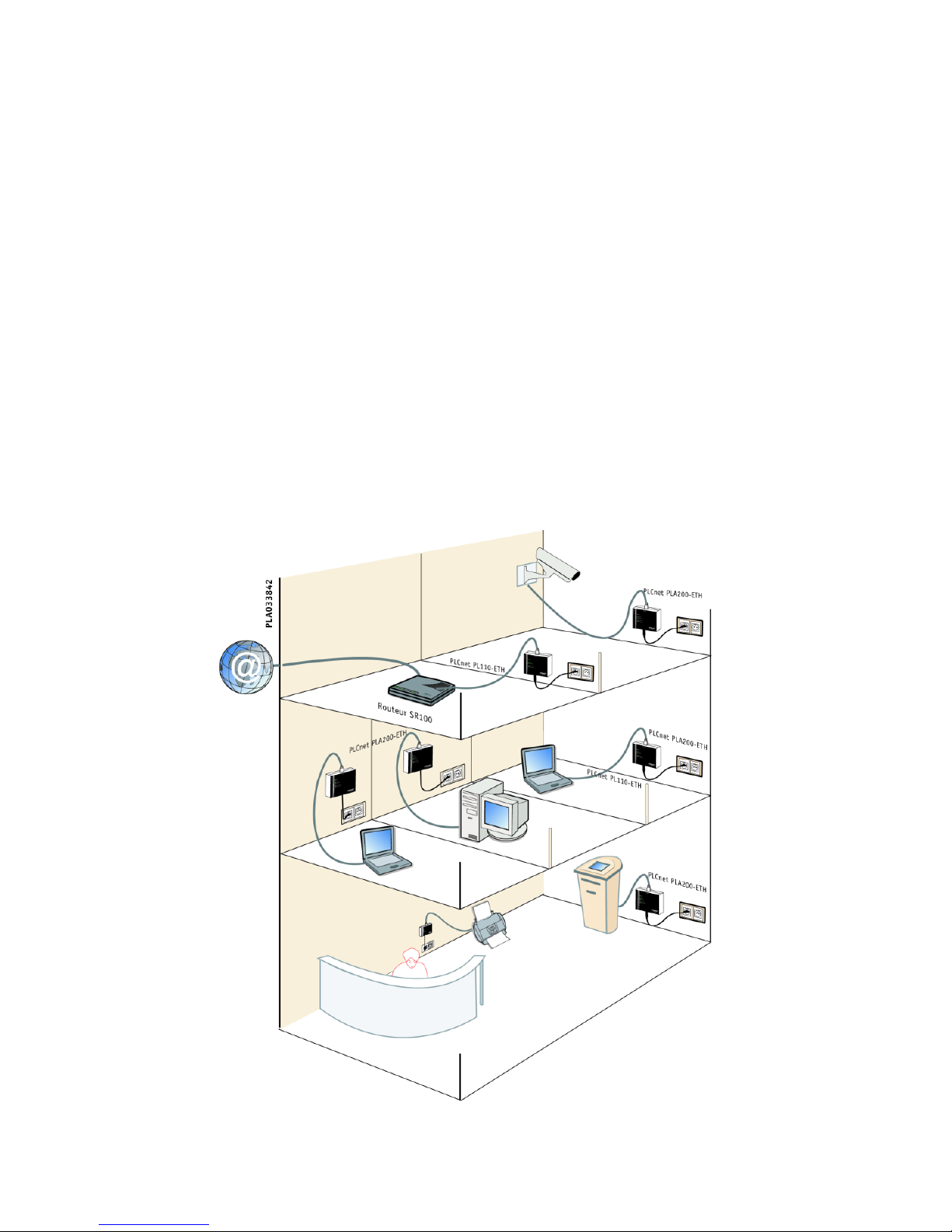
3.1 Your business network via electrical outlets.
(1) Your DSL internet access is limited to one computer or located in just one
room : Connect a PLA200 to the Hub/Switch where the router is plugged in and you
have instant, simultaneous internet access for all the computers in your company.
(2) and (5) Some rooms in your company are not wired to the Ethernet network :
Connect your computers to the powerline network via the PLA200 units, and access all
network applications, shared files, and the Internet.
(3) You need to connect an Ethernet network room to the other floors in your
company : Plug in a PLA200 to the Hub/Switch and access all of the other PLA200s
(computer, router, printer, etc.).
(4) You need to isolate a noisy machine to improve working conditions : Connect
a PLA200 to your photocopier, printer, or other Ethernet unit and place it in an out-of-
the-way location.
3 THE MOST COMMON ARCHITECTURES 7
3.2 Schools, government office, museums, hotels
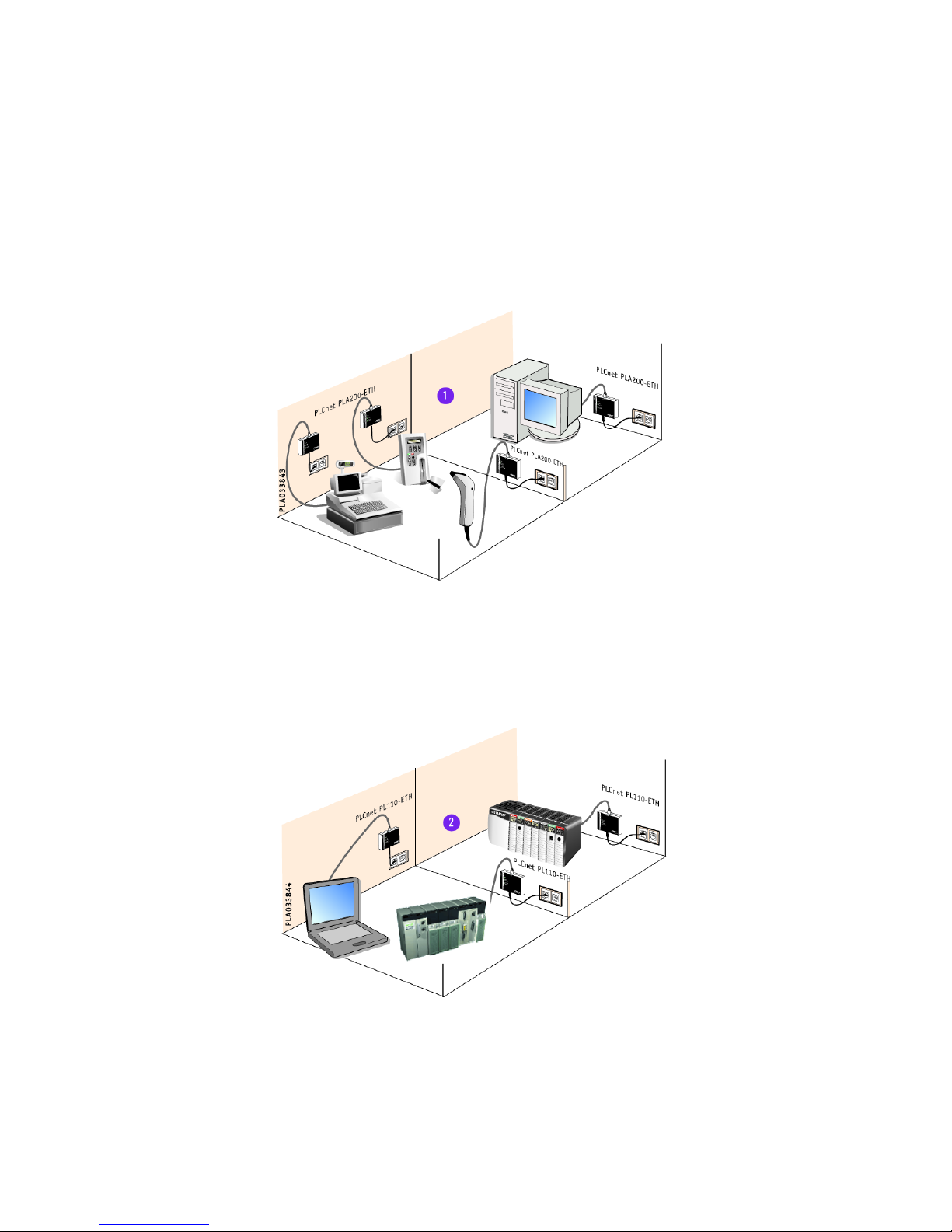
(1) Your lobby is not connected to the computer network :
Connect a PLA200 to a multimedia terminal and get all the benefits of a network (com-
pany presentation, free internet access).
(2) You have many rooms that are not wired or do not need Ethernet access at all
times :
As the need arises, plug in the PLA200 to get an instant access point (hotel rooms,
offices, training rooms, etc.)
(3) You want to control a location or monitor a parking lot or sensitive are at a
lower cost :
Connect the PLA200 to an Ethernet-enabled video camera and you can conduct your
video-surveillance over the powerline.
3 THE MOST COMMON ARCHITECTURES 8
3.3 Industries, services, stores
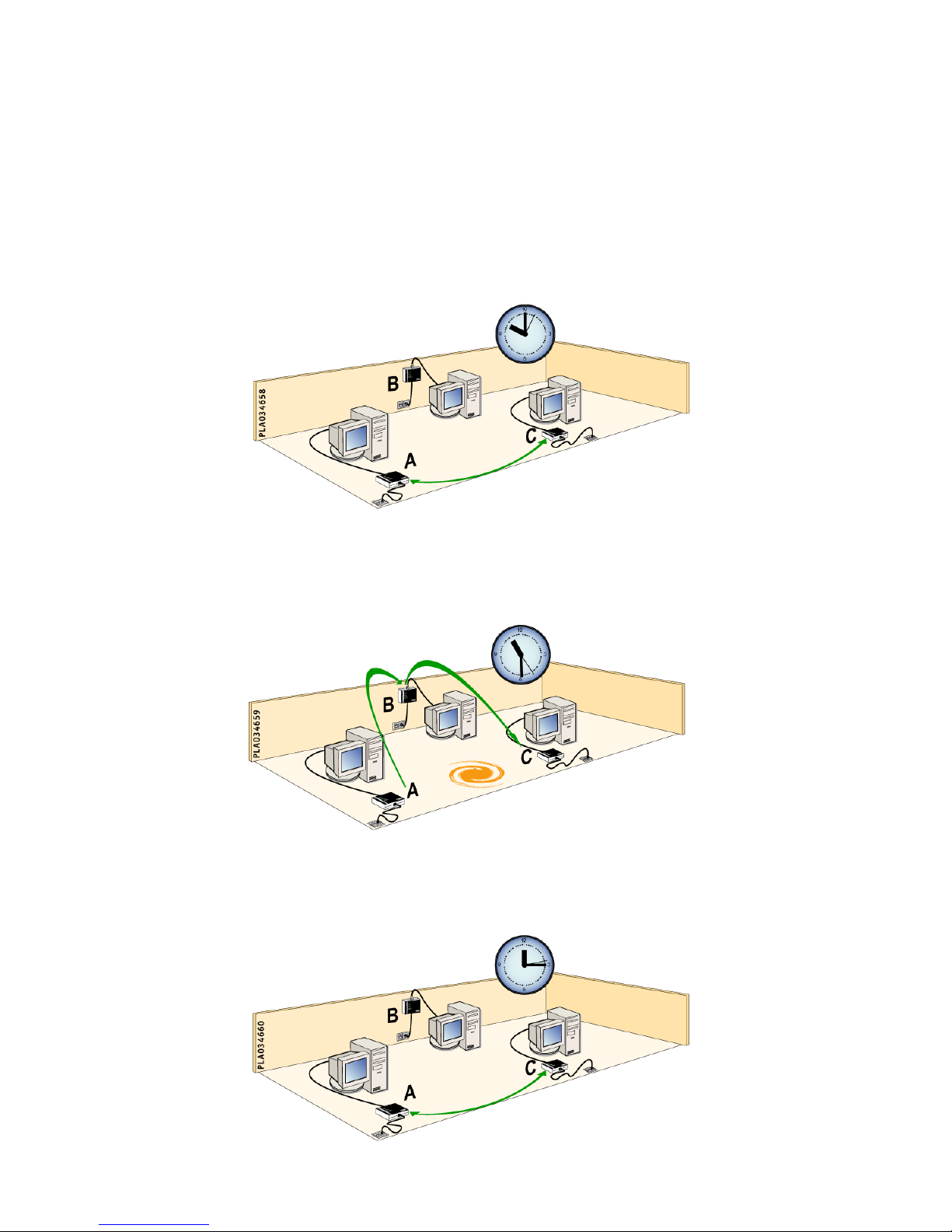
(1) You want to add or move a point of sale in your store :
Connect the PLA 200 to your cash register, bar code reader or payment system and you
have an instant network with no special wiring.
(2) You want to control industrial equipment via the Ethernet network (control-
lers, sensors, maintenance systems, access control, etc.) :
Connect the PLA200 to your unit and place it where you want, without wiring or rewi-
ring.
4 THE ADVANCED FEATURES OF THE PLA200 9
4 The Advanced Features of the PLA200
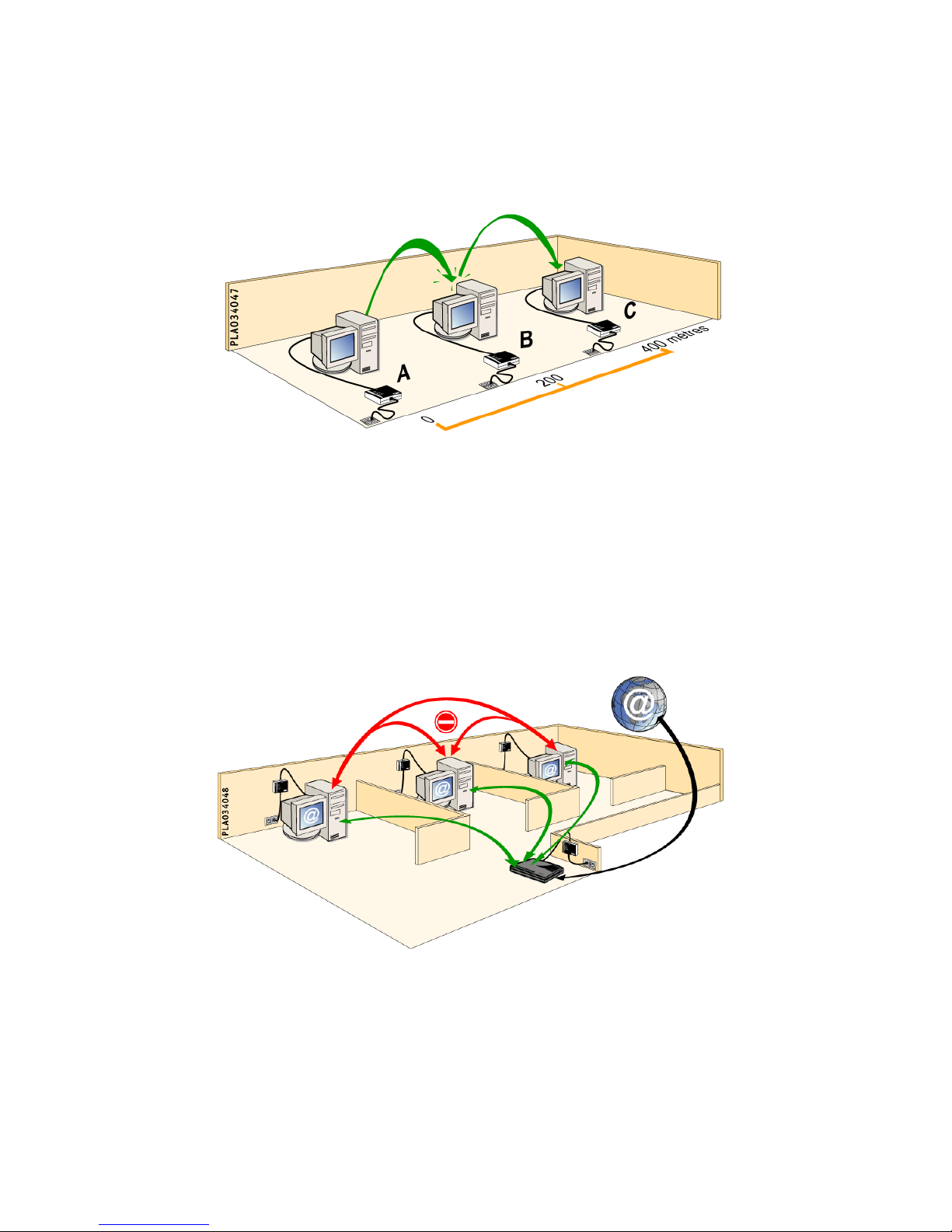
4.1 Dynamic Routing (selecting the best route)
•At 10 :00 AM : Communication between A and C is direct ; there is no interference.
•At 11 :30 AM : Electrical interference between A and C results in lower performance.
The data is automatically relayed via B in order to optimise transmission rates.
•At 12 :15 AM : The electrical interference is resolved and direct communication is
once again the best choice, so the relay via B is eliminated.
4 THE ADVANCED FEATURES OF THE PLA200 10
4.2 Automatic Repeater (improving distances)
Example of the relay feature : PLA200s A and C are too far apart to be able to communi-
cate with each other. PLA200 B is automatically used as a relay to create a connection
between A and C.
4.3 MAC Address Filtering
You can restrict data traffic on the Ethernet network.
The principle is similar to a firewall, in which the data are filtered between a source and
a destination.
Example :
All of the rooms in a hotel have internet access, but for security reasons, access between
the rooms is impossible.
Inhaltsverzeichnis


