
QNAP SAS JBOD CLI 1.0 Bedienungsanleitung

SAS JBOD CLI 1.0
TL-R1220Sep-RP
TL-R1620Sep-RP
User Guide
Document Version: 1
15/03/2021

Contents
1. Setting Up Access to the CLI
2. Accessing the CLI from a Terminal Emulator
3. Conventions and CLI Commands
Device Access.............................................................................................................................................. 5
Help.......................................................................................................................................................... 5
Log Out Shell............................................................................................................................................6
Nickname..................................................................................................................................................6
Set Password........................................................................................................................................... 7
System Commands.......................................................................................................................................7
System Info...............................................................................................................................................7
System Status.......................................................................................................................................... 8
Get SAS Address..................................................................................................................................... 8
Route Table Read.....................................................................................................................................9
Display Info for All Physical Layers.......................................................................................................... 9
Display or Reset All Physical Layer Counters........................................................................................ 10
Device Control.............................................................................................................................................11
Link Rate.................................................................................................................................................11
Link Rate Control....................................................................................................................................12
Fan Speed..............................................................................................................................................13
Fan Speed Control................................................................................................................................. 13
Enable or Disable EDFB.........................................................................................................................14
Locate Disk.............................................................................................................................................14
Enable or Disable Buzzer.......................................................................................................................15
Zone....................................................................................................................................................... 15
Reset Expander......................................................................................................................................17
Command-Line Interface User Guide
1

1. Setting Up Access to the CLI
QNAP SAS JBOD enclosures come with a command-line interface (CLI) that you can use to configure the
enclosures from a terminal emulator on a Windows, macOS, or Linux computer.
This task requires a console cable and a USB adapter. The console cable came with your SAS JBOD, but
the USB adpater is a separate purchase. Ensure that a USB connector on the adapter matches a USB port
on your computer.
1. Power on the device.
2. Connect one end of the console cable to the 3.5 mm line-out jack.
For details on the location of the 3.5 mm line-out jack, see the Rear Panel in your SAS JBOD User
Guide.
3. Connect the other end of the console cable to the USB adapter.
4. Locate an open USB port on your computer and plug in the USB connector from the adapter.
Command-Line Interface User Guide
Setting Up Access to the CLI 2

2. Accessing the CLI from a Terminal Emulator
For Windows, you must use a terminal emulator to access the CLI. For macOS and Linux, you can use the
Terminal. QNAP uses Tera Term, an open-source terminal emulator for Windows, for this User Guide. This
task requires that your computer is already successfully connected to the SAS JBOD.
1. Download Tera Term from https://ttssh2.osdn.jp/index.html.en, and then follow the on-screen
instructions to install the software.
2. Open Tera Term.
The Tera Term: New connection window opens.
3. Click Cancel.
4. Go to Setup > Serial Port .
The Tera Term: Serial port setup and connection window opens.
5. Check the port connection.
a.
Right-click , and then select Device Manager.
The Device Manager window opens.
b. Click Ports (COM & LPT), and then check the port connected to the SAS JBOD.
6. Select the Port and Speed.
a. Select the port that is connected to the SAS JBOD.
b. Select 115200 as the speed.
Note
Depending on the terminal emulator you use, you may be required to enter the port and speed.
Command-Line Interface User Guide
Accessing the CLI from a Terminal Emulator 3

7. Optional: Configure the remaining options.
8. Click New open.
9. Press ENTER.
The SAS JBOD connects to Tera Term.
10. Enter the default password.
Note
The default password is 00000000.
You can now use the CLI.
Command-Line Interface User Guide
Accessing the CLI from a Terminal Emulator 4

3. Conventions and CLI Commands
The following table describes the typographic conventions used in the documentation.
Convention Description
[] This convention indicates optional values.
Example: [a | b] indicates that you can choose a, b, or none.
{} This convention indicates required values.
Example: {a | b} indicates that you must choose a or b.
| This convention indicates that you have a choice between two or more
choices.
<> This convention indicates placeholder text that is replaced by the user
or the system.
This following table covers all available CLI commands. Each command topic includes at least three of the
following sections.
Section Description
Description This section describes the purpose of the command.
Command This section is the main or entire command you enter in the CLI.
Syntax This section shows any mandatory or optional parameters you add to
the main command.
For details on how to differentiate between optional or mandatory
parameters, see Conventions.
Parameters This section is any mandatory or optional argument or arguments and
their possible values you enter in the CLI.
Examples This section shows an example or examples of the command in the
CLI.
Device Access
The CLI commands in this section are related to device access.
Help
Description
Display all available commands.
Command
help
Command-Line Interface User Guide
Conventions and CLI Commands 5

Examples
Log Out Shell
Description
Log out of the CLI.
Command
lo
Examples
Nickname
Description
Display or change the device nickname.
Command
nickname
Syntax
nickname [<xxx>]
Parameters
<xxx>
Command-Line Interface User Guide
Conventions and CLI Commands 6

Enter the device's new nickname.
Examples
The following example shows the current nickname of the device and then changes the nickname.
Set Password
Description
Set a new login password for CLI.
Command
setpass
Note
Enter a maximum of eight ASCII characters for the new password.
Examples
The following example sets the new password to 00000000.
System Commands
The CLI commands in this section are related to system control.
System Info
Description
Display system and firmware information.
Command
systeminfo
Command-Line Interface User Guide
Conventions and CLI Commands 7

Examples
System Status
Description
Display the chip and ENC temperatures.
Command
system status
Examples
Get SAS Address
Description
Display the SAS addresses of connected ports.
Command
sasaddr
Examples
Command-Line Interface User Guide
Conventions and CLI Commands 8
Route Table Read
Description
Display the default route and the routes for specific destination addresses.
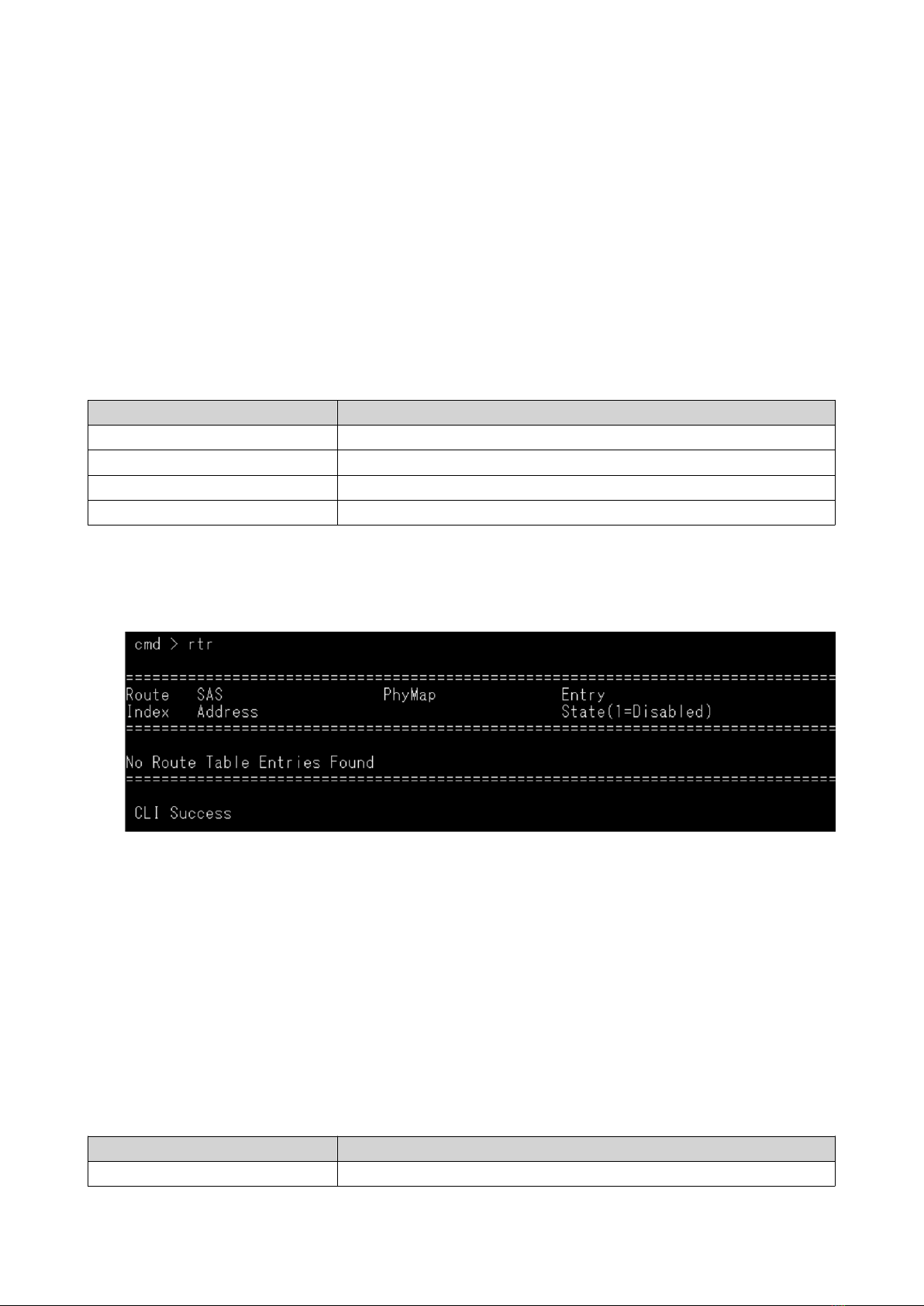
Command
rtr
Syntax
rtr [d | z | dz]
Parameters
Parameter/Value Description
None Display enabled routes with a non-zero SAS address.
dDisplay disabled routes.
zDisplay routes with no SAS address.
dz Display all routes.
Examples
The following example shows the default output.
Display Info for All Physical Layers
Description
Display information about physical layers.
Command
phyinfo
Syntax
phyinfo [help | edfb | power | up | cable | <phynum>]
Parameters
Parameter/Value Description
None Display the default output.
Command-Line Interface User Guide
Conventions and CLI Commands 9
Dieses Handbuch passt für folgende Modelle
2
Inhaltsverzeichnis
Andere QNAP Gehäuse Handbücher

QNAP
QNAP TL-D400S Bedienungsanleitung

QNAP
QNAP TL-R1220Sep-RP Bedienungsanleitung

QNAP
QNAP TR-004U Bedienungsanleitung

QNAP
QNAP TS-53BE Series Bedienungsanleitung

QNAP
QNAP TR-004 Bedienungsanleitung

QNAP
QNAP TL-R1200C-RP Bedienungsanleitung

QNAP
QNAP TL-R1200S-RP Bedienungsanleitung

QNAP
QNAP SilentNAS HS-264 Bedienungsanleitung

QNAP
QNAP TL-R400S Bedienungsanleitung

QNAP
QNAP REXP-1220-RP Gebrauchsanweisung


