Regin Tech SkyBox S1 Bedienungsanleitung

SkyBox S1 User Manual
Table of Contents
1. Introduction.........................................................................................................2
1.1 Package Contents.....................................................................................3
1.2 Product Specification.................................................................................4
1.3 Main Features...........................................................................................4
1.4 Minimum System Requirements ...............................................................6
1.5 SkyBox S1 LED.........................................................................................7
1.6 Customer service......................................................................................7
2. Install Skype Software........................................................................................8
2.1 Install Skype and Quick Start....................................................................8
3. Setup SkyBox S1 .............................................................................................12
3.1 SkyBox S1 Hardware Setup....................................................................12
3.2 SkyBox S1 Software Setup.....................................................................13
4. Use SkyBox S1 ................................................................................................20
4.1 Before Making a Call...............................................................................20
4.2 SkyBox S1 Icons.....................................................................................20
4.3 SkyBox S1 GUI .......................................................................................21
4.3.1 Options……………………………………………………………… 23
4.3.2 General Setting Page………………………………………………25
4.3.3 Audio Setting Page…………………………………………………30
4.3.4 Phone Setting Page………………………………………………. 32
4.3.5 Speed Dial Setting Page…………………………………………. 35
4.4 Make a Skype/landline Call.....................................................................37
4.5 Make a SkypeOut Call.............................................................................38
4.6 Answer a Call..........................................................................................41
4.7 End a Call................................................................................................41
4.8 Skype Caller ID.......................................................................................41
4.9 Other IM Mode........................................................................................44
5. FAQs................................................................................................................48
6. Regulation........................................................................................................73

1. Introduction
Thank you for choosing SkyBox S1 Skype USB Adapter. After SkyBox S1 is
connecting with company PBX trunk line or an analog phone, SkyBox S1 allows
you to make traditional landline calls or Skype™ calls, using company desktop
phone or a regular analog wired/cordless phone or a DECT phone without having
to stay close to your computer for a Skype talk. With SkyBox S1 integrated with
landline and Skype line through one cordless phone, you can carry the handset
away from computer and don’t worry about missing any landline or Skype call.
Even when SkyBox S1 is not plugged into PC USB port, landline is still available
for emergency calls. After SkyBox S1 is integrated with office PBX, employees out
of office or abroad can call office via mobile phone Skype to save money.
SkyBox S1 supports Skype or landline interrupt call. User can pick up the Skype or
landline interrupt call by pressing “*1” phone keys and switch both calls via “*1”
keys. If user pressed “*2” phone keys, one three party landline and Skype
conference will be established.
Skype doesn’t support Speed Dial function after version 4.0. You can set speed
dial number for Skype contacts or SkypeOut contacts from SkyBox S1 Speed
Dial setting page. Speed dial number can be set up to 5 digits 0~9 Arabic
numerals. Speed dial list can be exported for back up and imported for future
use. Skype 8.x doesn't have any developer’s API for Skype contacts information.
You can add your contacts via Speed dial page. It is good for you to save and
export the speed dial list for usage in another PC.
SkyBox S1’s IM mode can support other IM/Softphone (Team/Skype for business,
Google voice/hangouts, WhatsApp, Facebook Messenger, LINE, Zoom) as an
audio device. You can make/receive IM calls from PC and then pick up the SkyBox
S1 connecting phone for conversation. If SkyBox S1 is connected with office
existing analog conference phones like from Polycom, voice quality of Skype

conference or other internet conference (SkyBox S1 IM mode) will be much
enhanced.
Voice quality of Skype 8.x is much better compared with that of Skype 7.x. And
recent Skype 8.x version can support audio/video recording and convenient file
sharing. SkyBox S1 supports Skype 8.30.0.50~8.34.0.78 version now.
SkyBox S1 introduction YouTube link: You can enable YouTube caption
setting. https://www.youtube.com/watch?v=bNaTskJVTR4
The document of SkyBox S1 comprises of several parts as followings: A quick
installation guide can help you install and use SkyBox S1 quickly. For any
questions about this product, please refer to SkyBox S1 user manual or SkyBox
S1 on-line help. On-line help can be accessed from the SkyBox S1 system tray
icon at the right-bottom corner of Windows desktop once the SkyBox S1
program is running. Also, FAQs (Frequently Asked Questions) can be found
from on-line help and user manual. For further questions, please feel free to
contact us directly. The contact information for customer service is provided in
on-line help and our company website. Thank you again.
1.1 Package Contents
SkyBox S1 - Skype phone call saving box
One type B USB cable(Male Ato male B)
One RJ11 telephone cable
Installation CD including SkyBox S1& Skype setup program, EN, TC and
SC quick installation guide and user manual. User can also go to Regin
Technology web site www.regintech.com.tw/download.htm to download
related document.

1.2 Product Specification
Model Number SkyBox S1
Dimensions L x W X H: 95 X 66 X 22 mm
Operating System Support Microsoft Windows 10, 8, 7
Skype Version Support Skype 8.30.0.50 ~ 8.34.0.78 versions (Only
support traditional Chinese, Simplified Chinese and English Skype GUI now)
Interface Ports
One USB port for computer
One PHONE port for analog phone
One LINE port for landline
LED Indicator: Blue(Skype mode), Green(landline mode)
Stand by (Slow on/off)
Ringing (Fast on/off)
Call Active (Always on)
Error (Always off)
Audio 16 bit PCM
Power USB power and no external power needed
Operation Temperature 0 to 55 degrees Celsius
Regulatory Compliance FCC Class B, CE
Warranty 1 year
Note: Specifications are subject to change without notice.
1.3 Main Features
Flexibility
Make both Skype and landline calls with an existing regular or cordless
phone
After SkyBox S1 is integrated with existing PBX, employees can call
Skype/SkypeOut™via desk phone
Support standard windows USB audio device with unique device ID
Support international busy tone to make connection with PBX feasible
SkyBox S1 is at the Landline mode for an emergency call by default when
computer is off
Support 20, 25, 30 and 50Hz ring frequency
Support 2 REN standard loads
Mobility
With SkyBox S1, you can have a free Skype call for office(Support Skype chat

to send office extension number, please refer FAQ 28 for details) or home to
save roaming or expensive mobile fee when you are out of office or home
Connect Skype through your phone, no need of microphone and speaker
Support various cordless phones including DECT, 900 MHz, 2.4GHz, 5.8GHz
or others
Simplicity
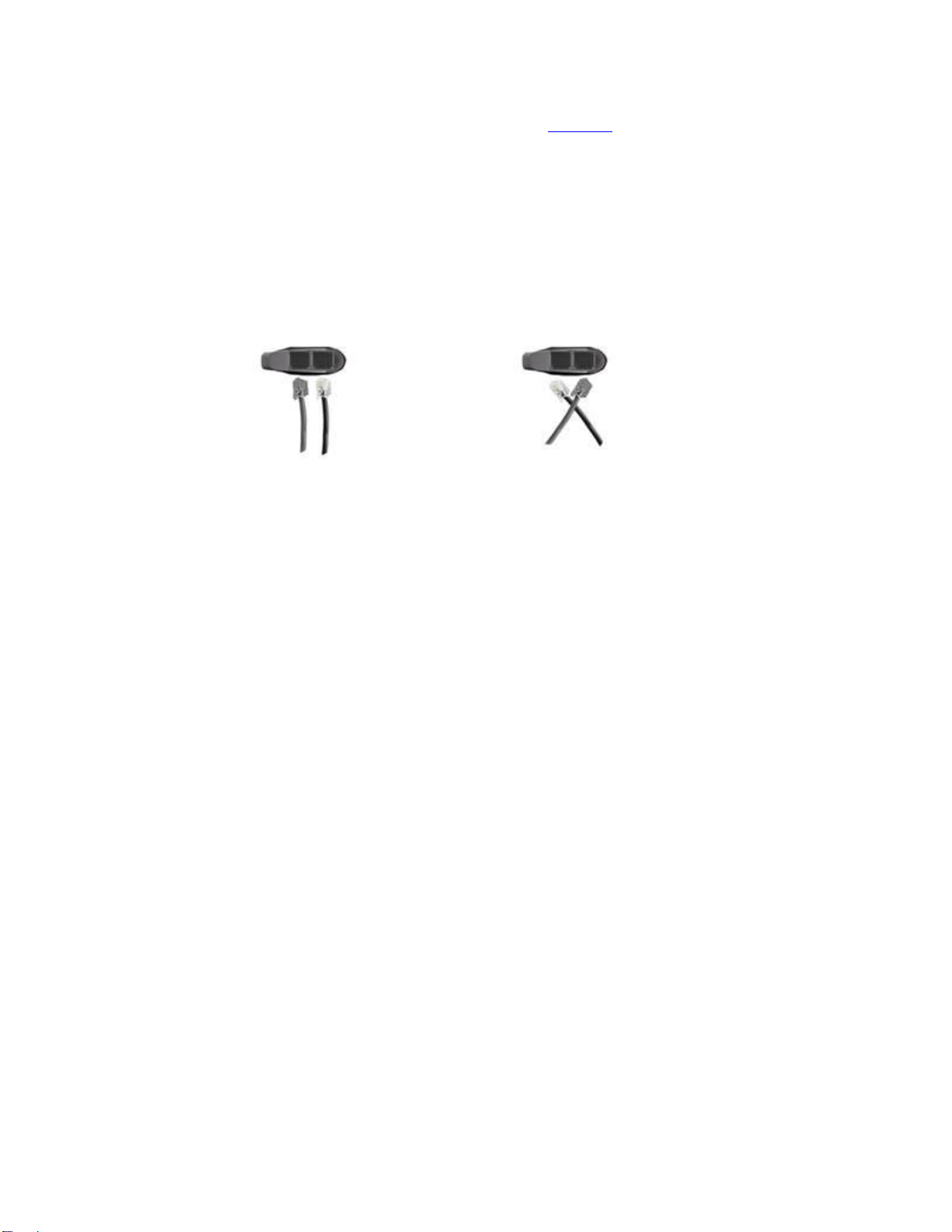
LINE and PHONE RJ11 ports Auto-Detection and Auto-Swap:
Normal Wiring
Wrong Wiring but
Functional
Support Skype/ SkypeOut speed dial and SkypeOut direct number dial
through the phone keypad
Auto-configure Skype audio device after SkyBox S1 is connected to PC USB
port and initialized completely
When landline is not connected, auto-switch to Skype line
Receive a Skype call in the way as you do with your existing phone line
Similar dialing behavior as a traditional landline call
Support FSK caller ID for Skype calls with speed dial number, Skype display
name and calling time for easy call back
Easy use and user friendly interface
USB internal power
Functionality
Skype speed dial export for back up and import for use
Support Skype video call and automatic assigned Skype/SkypeOut call when
phone is off-hook
Support assigned PBX extension number dialing for incoming Skype calls
during SkyBox S1 PBX application
Switch between Skype and landline mode by pressing phone key “#”

Switch between a landline call and a Skype call by pressing phone keys “*1”
and hang up the current call by pressing phone key “*”
Add an interrupt Skype call or an interrupt landline call into a Skype & landline
conference by pressing phone keys “*2”
Support Skype or landline call waiting (Skype←→landline ) by pressing phone
keys “*1”
Skype 8.34.0.78 or later version has built in audio and video call recording
function
Audio recovery button resolves Skype call party’s problem to hear each other
IM mode supports other IM/VOIP like Team/Skype for business, Google
voice/hangouts, WhatsApp, Facebook Messenger, LINE, Zoom... as an audio
device (Ear/Microphone function). When SkyBox S1 connects with office
existing conference phones, the conference phones will become dedicated
Skype conference phones. And the conference phones becomes IM
conference phones when SkyBox S1 is set at IM mode
Support SkyBox S1 software on line upgrade or latest version heck/download
Accurate 2nd dial( like PBX extension number)
Support phone line polarity reversal
1.4 Minimum System Requirements
To keep normal functions of SkyBox S1, user needs to make sure his/her
system to meet the following minimum requirements:
One computer running at 1G Hz or better and 512 MB RAM with a USB port
Microsoft Windows 10, 8, 7
50MB free hard disk space
Support Skype 8.30.0.50 ~ 8.34.0.78 versions(Only support Traditional
Chinese, Simplified Chinese and English Skype GUI now)
Internet connection(WiFi, ADSL, 56kbps Modem, ...., etc

1.5 SkyBox S1 LED
1.6 Customer service
Regin Technology Corp. LTD.
Office: 886-3-5735360
Fax: 886-3-5739231
Mobile: 886-936071552
Email: [email protected].tw
Address: 3F, NO. 41, Lane 42, Dongguang Rd., Hsinchu, Taiwan
Web: https:/www.regintech.com.tw
Skype: regin.skype

2. Install Skype Software
The first step of setting up SkyBox S1 is to install Skype on the computer.
2.1 Install Skype and Quick Start
If Skype has been installed, check if it is the version which SkyBox S1 claims to
support as SkyBox S1 user manual section 1.4 Minimum System Requirements. If
the answer is yes, user can skip this section and go to the next section. If not,
download Skype version 8.30.0.50 ~ 8.34.0.78.
1. Please go to Regin Technology web site and download Skype 8.34.0.78
https://www.regintech.com.tw/download.htm. SkyBox S1 only supports
Skype version 8.30.0.50 ~ 8.34.0.78 now.
2. After downloading, double-click on the SkypeSetup.exe icon.
3. The installing Skype window as below will appear. Choose the language you
preferred and click “I agree-next”button
4. Next there pops out one window for “install Skype Click to Call”option.

Make the decision and click Continue
5. Make Bing your search engine and MSN your home page options window
pops out. Make your decision and click Continue

6. After installation is complete, Skype will ask for account login or create a new
account. Please login and then Skype is running
Andere Handbücher für SkyBox S1
1
Inhaltsverzeichnis
Andere Regin Tech Adapter Handbücher