
Safire SF-KB1005 Bedienungsanleitung

SF-KB1005 Keyboard
User Manual
SF-KB1005
User Manual of SF-KB1005 Keyboard
1
Regulatory information
FCC information
FCC compliance: This equipment has been tested and found to comply with the limits for a digital device, pursuant
to part 15 of the FCC Rules. These limits are designed to provide reasonable protection against harmful
interference when the equipment is operated in a commercial environment. This equipment generates, uses, and
can radiate radio frequency energy and, if not installed and used in accordance with the instruction manual, may
cause harmful interference to radio communications. Operation of this equipment in a residential area is likely to
cause harmful interference in which case the user will be required to correct the interference at his own expense.
FCC conditions
This device complies with part 15 of the FCC Rules. Operation is subject to the following two conditions:
1. This device may not cause harmful interference.
2. This device must accept any interference received, including interference that may cause undesired operation.
EU Conformity Statement
This product and - if applicable - the supplied accessories too are marked with "CE" and comply therefore with the
applicable harmonized European standards listed under the Low Voltage Directive 2006/95/EC, the EMC
Directive 2004/108/EC, the RoHS Directive 2011/65/EU.
2012/19/EU (WEEE directive): Products marked with this symbol cannot be disposed of as unsorted municipal
waste in the European Union. For proper recycling, return this product to your local supplier upon the purchase of
equivalent new equipment, or dispose of it at designated collection points. For more information see:
www.recyclethis.info.
2006/66/EC (battery directive): This product contains a battery that cannot be disposed of as unsorted municipal
waste in the European Union. See the product documentation for specific battery information. The battery is
marked with this symbol, which may include lettering to indicate cadmium (Cd), lead (Pb), or mercury (Hg). For
proper recycling, return the battery to your supplier or to a designated collection point. For more information see:
www.recyclethis.info.

User Manual of SF-KB1005 Keyboard
2
Preventive and Cautionary Tips
Before connecting and operating your keyboard, please be advised of the following tips:
Ensure unit is placed in a well-ventilated, dust-free environment.
Keep all liquids away from the keyboard.
Please check the power supply to avoid the damage caused by voltage mismatch.
Please make sure the keyboard work in the allowed range of temperature and humidity.
Please keep the device horizontal and avoid the installation under severe vibration
environment.
The dust board will cause a short circuit after damping. Please dedust regularly for the board,
connector, and chassis fan with brush.

User Manual of SF-KB1005 Keyboard
3
Table of Contents
Chapter 1 Product Overview........................................................................................................ 4
1.1 Device Introduction..................................................................................................... 4
1.2 Typical Application..................................................................................................... 4
1.3 Controlling Mode........................................................................................................ 4
Chapter 2 Device Appearance...................................................................................................... 6
2.1 SF-KB1005 Keyboard ................................................................................................. 6
2.2 SF-KB1005 Keyboard Joystick ................................................................................... 7
Chapter 3 Keyboard Application .................................................................................................. 8
3.1 USB Keyboard Mode.................................................................................................. 8
3.1.1 Setting Keyboard Mode .................................................................................. 8
3.1.2 Keyboard Control............................................................................................ 8
3.2 USB Joystick Mode................................................................................................... 10
3.2.1 Keyboard Parameter Settings........................................................................ 10
3.2.2 Keyboard Control.......................................................................................... 10
Appendix1: Specification............................................................................................................... 12
Appendix2: Device Upgrade.......................................................................................................... 13
User Manual of SF-KB1005 Keyboard
4
Chapter 1 Product Overview
1.1 Device Introduction
SF-KB1005 keyboard is a kind of USB interface controlling keyboard which supports USB
HID protocol; it can be applied with USB joystick mode and supports various programmable
keys for users to set custom functions. It is equipped with simple interfaces and the operation is
simple. This keyboard can be widely used in public security and transportation as other fields.
1.2 Typical Application
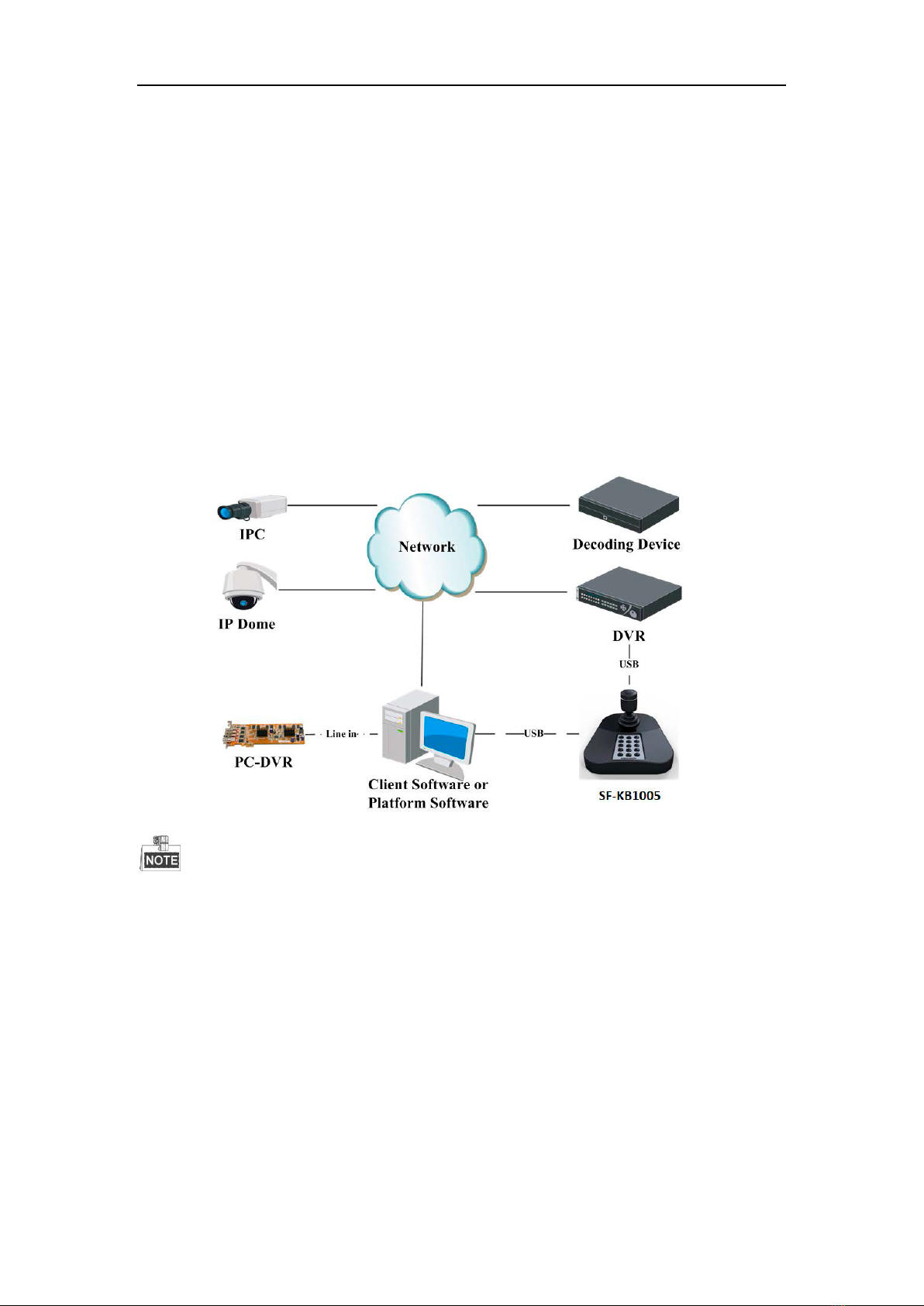
Make sure the DVR and PC-DVR connected support the SF-KB1005 keyboard access.
SF-KB1005 is a USB keyboard independently developed by our company and it can be
accessed directly by the client software, platform software of Safire programs, DVR and PC-
NVR, and can realize functions such as windows switch, PTZ control, capture, recording, etc.
1.3 Controlling Mode
The SF-KB1005 keyboard connects with PC via keyboard USB interface and supports two ways
of controlling: USB keyboard mode and USB joystick mode.
SF-KB1005 is compatible with the USB joystick via USB HID protocol, and can access to
the third-party platform software. It can be applied with USB joystick mode and supports
capture,

User Manual of SF-KB1005 Keyboard
5
PTZ control and window switch. The default mode is set as USB joystick mode when it is
powered on for the first time; there is no need to install the drive.
USB keyboard mode supports private SDK accessing and functions such as quick switch, PTZ
control, capture and recording.
It is required to install a drive before setting the SF-KB1005 to USB keyboard mode. Two types
of drives can be selected, depending on 32 BIT system or 64 BIT system.
User Manual of SF-KB1005 Keyboard
6
Chapter 2 Device Appearance
2.1 SF-KB1005 Keyboard
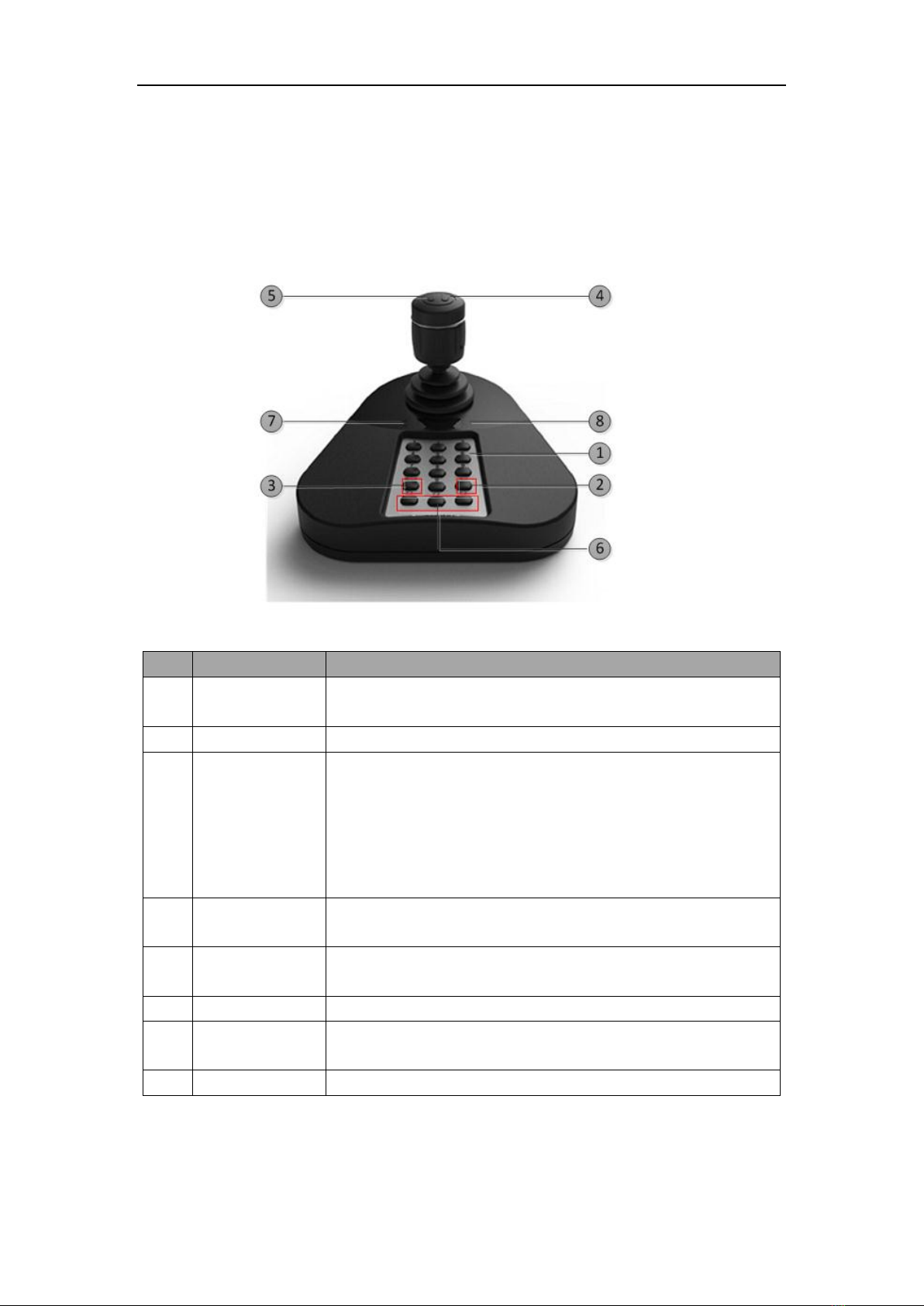
Refer to the following table for the description of the keyboard:
NO.
Key Name
Function Description
1
Number Key
USB Keyboard Mode: For selecting window or channel;
USB Joystick Mode: For custom shortcuts;
2
OK
USB Keyboard Mode: For confirming the input number;
3
Window/Channel
Press and hold it for 5s to switch between keyboard mode and
joystick mode;
USB Keyboard Mode: For selecting window switching mode or
channel switching mode;
(The window indicator lights while in window switching mode;
and the channel indicator lights while in channel switching mode.)
4
Capturing
USB Keyboard Mode: Capture;
USB Joystick Mode: Custom shortcut as number 12;
5
Recording
USB Keyboard Mode: For recording;
USB Joystick Mode: Custom shortcut as number 11;
6
F1, F2, F3
USB Keyboard Mode: Custom Shortcut;
7
Indicator
Single Indicator: The keyboard is in USB keyboard mode;
Double Indicator: The keyboard is in USB joystick mode;
8
Digital Tube
Display the input number.
User Manual of SF-KB1005 Keyboard
7
2.2 SF-KB1005 Keyboard Joystick
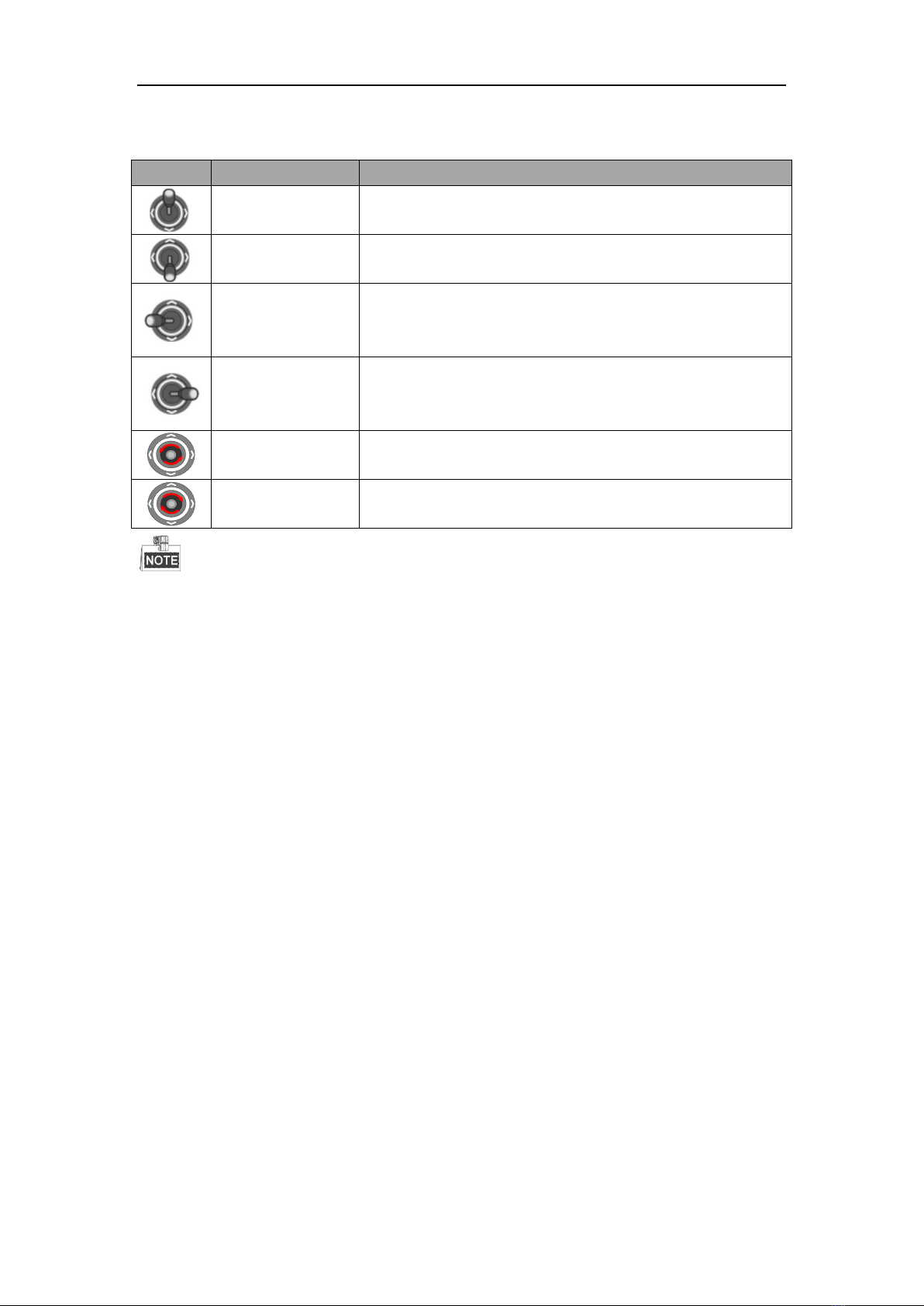
Graphic
Operation
Function
Up
PTZ control mode: Move the PTZ up.
Down
PTZ control mode: Move the PTZ down.
Left
PTZ control mode: Move the PTZ left.
Right
PTZ control mode: Move the PTZ right.
Contrarotate
Zoom Out(ZOOM-)
Clockwise Rotate
Zoom In(ZOOM+)
With the joystick moving in different ranges, the PTZ moves with different speeds that can divide
in 7 levels of speed.
User Manual of SF-KB1005 Keyboard
8
Chapter 3 Keyboard Application
3.1 USB Keyboard Mode
3.1.1 Setting Keyboard Mode
Press and hold the key Window/Channel for 5s, and the keyboard will auto switch its mode. If
the single indicator is on, it implies that it is in USB keyboard mode.
3.1.2 Keyboard Control
USB keyboard mode supports window switch between client live view interface and video wall
interface, focusing window channel switch and PTZ control functions. The buttons F1, F2 and F3
can be set as functions like previous, next, preset, etc. according to certain needs and it supports
capturing and recording functions in the live view interface.
1. Shortcut Switch:
Click the button Window/Channel in the main live view interface or video wall interface, and the
window indicator will light. Click the number Iand the OK button, and it will switch to the
corresponding window. If the client supports camera switch function, you can click the button
Window/Channel and the indicator will light; then you click the number Jand the OK button to
switch the channel Jto window I.
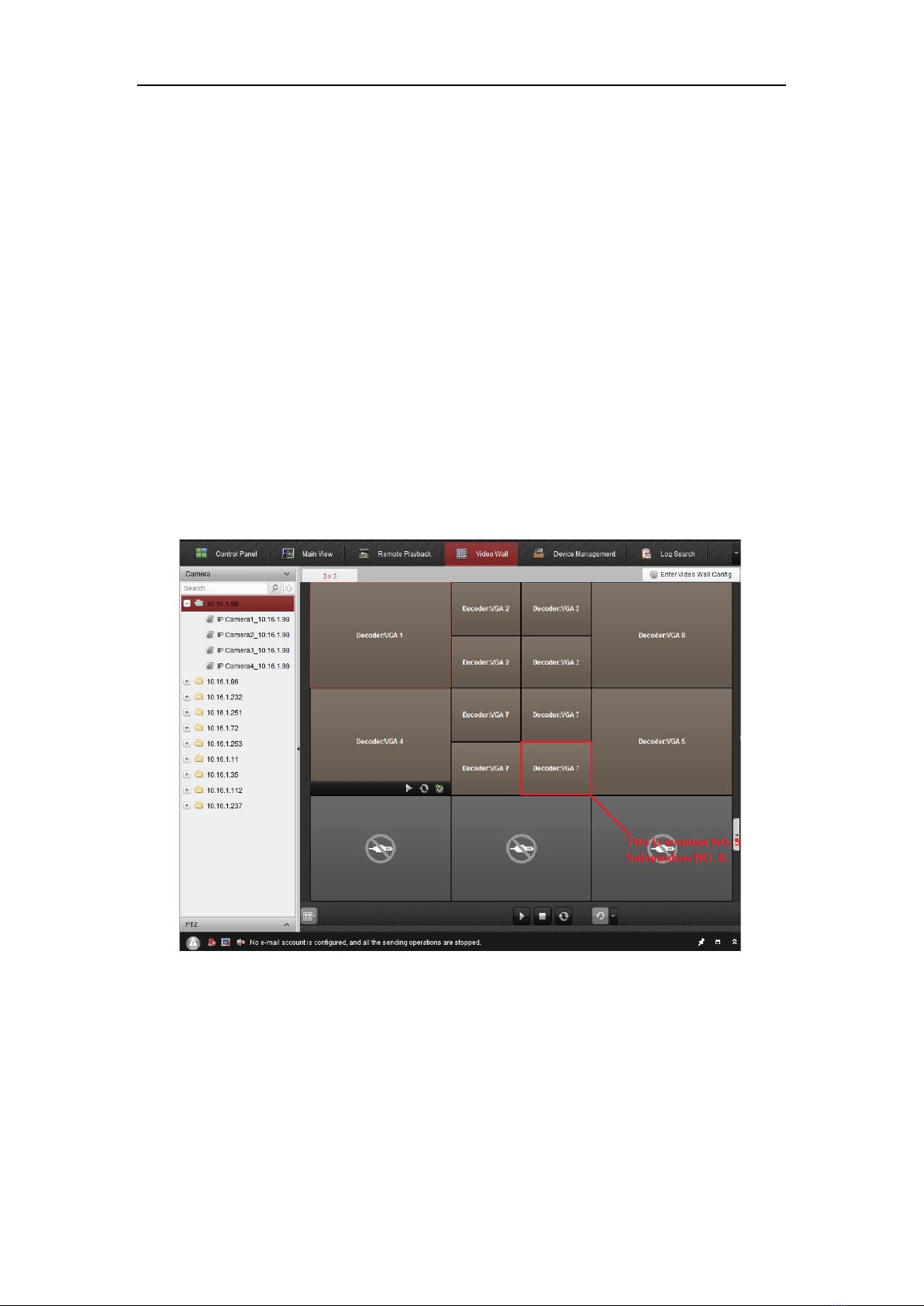
Example: You can input number 504 or 0504 with the OK button as the figure above to switch to
the sub window 4 of window 5.
User Manual of SF-KB1005 Keyboard
9
The input number I can be at most 4-digit number;
When the input number Iis 1-99, it implies the number of the selected window. It can be at
most 99 windows;
When the input number I is 1112, it implies the sub window 12 of window 11. When the input
number is 3-digit or 4-digit, the last two numbers implies sub window number, and the first one or
two numbers implies the window number. If the input number is 101, the selected window is sub
window 1 of window 1; if the input number is 0016, the selected window is window 16.
When the input number Iis hundreds (e.g., 100,200), the input number is invalid and the client
will not respond.
The window number and sub window number are counted from left to right and from top to
bottom.
2. Joystick: After selecting window in live view or video wall interface, move the joystick to
control the direction and zoom in or zoom out the channel of window. The moving speed of
dome is related to the movement of the joystick.
3. F1, F2, F3:
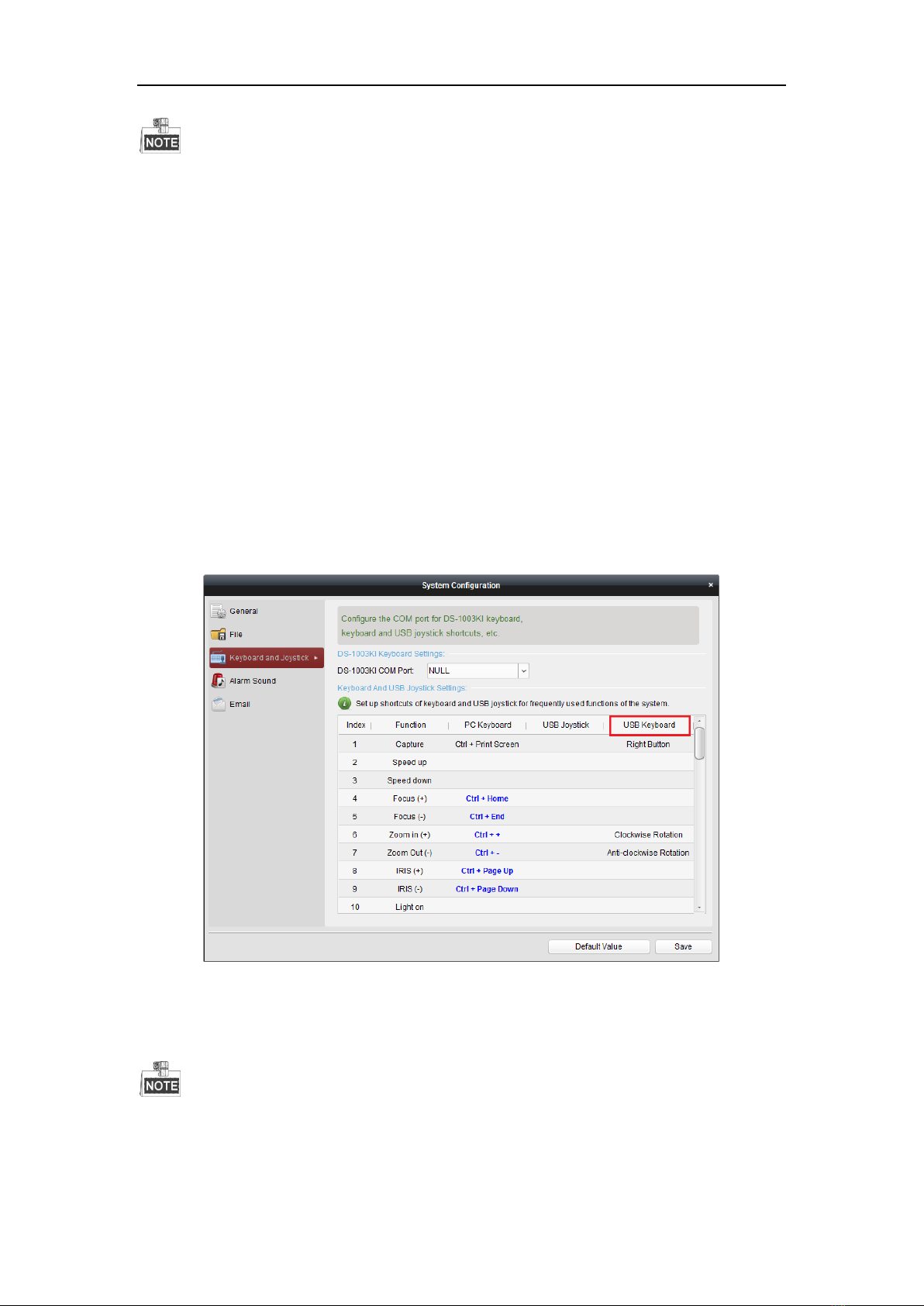
Click Tool-> System Configuration-> Keyboard and Joystick-> USB Keyboard on client and
then configure the corresponding shortcut keys of F1, F2, and F3. Select the window in live view
mode or video wall interface and operate according to each shortcut.
It supports shortcut settings as Speed Up, Speed Down, Focus, IRIS, Turn on the light,
Turn on the windshield wiper,Auto-Scanning,Auxiliary Focus, Lens Initialization, Previous,
Next, Preset, Patrol, Pattern;
Inhaltsverzeichnis
Andere Safire Tastatur Handbücher


