
Sam4s ELLIX 20 Bedienungsanleitung

OPERATOR’S Manual
All specifications are subject to change without notice
ELLIX 20
RECEIPT PRINTERٻ
www.AnchorData.co.uk
Anchor Data Systems (NI) Ltd
Unit 36 North City Business Centre
Duncairn Gardens, Belfast, BT15 2GG
(028) 9074 0315 www.AnchorData.co.uk

ٻڈٻ2ٻڈ
Warning - U.S.
This equipment has been tested and found to comply with the limits for a Class A digital
device pursuant to Part 15 of the FCC Rules. These limits are designed to provide
reasonable protection against harmful interference when the equipment is operated in a
commercial environment. This equipment generates uses, and can radiate radio frequency
energy and , if not installed and used in accordance with the instruction manual, may
cause harmful interference to radio communications. Operation of this equipment in a
residential area is likely to cause harmful interference in which case the user will be
required to correct the interference at his own expense.
Notice - Canada
This Apparatus complies with class “A” limits for radio interference as specified in the
Canadian department of communications radio interference regulations.
Get appareil est conforme aux normes class “A” d’interference radio tel que specifier par
ministre canadien des communications dans les reglements d’interference radio.
Caution
Some semiconductor devices are easily damaged by static electricity. You should turn the
printer “OFF”, before you connect or remove the cables on the rear side, in order to guard
the printer against the static electricity. If the printer is damaged by the static electricity,
you should turn the printer “OFF”.
INTRODUCTION
The ELLIX 20 Roll Printer is designed for use with electronic instruments such as system
ECR, POS, banking equipment, computer peripheral equipment, etc.
The main features of the printer are as follows:
1. High speed printing : 52 lines per second.
2. Low noise thermal printing.
3. RS-232 serial / IEEE1284 parallel / USB / Ethernet / Bluetooth / Wireless LAN
interface.
4. The data buffer allows the unit to receive print data even during printing.
5. Peripheral units drive circuit enables control of external devices such as cash drawer.
6. Characters can be scaled up to 64 times compared to it’s original size.
7. Bar code printing is possible by using a bar code command.
8. Different print densities can be selected by DIP switches.
9. 2-dimantional bar code(PDF-417) and Two color printing.
Please be sure to read the instruction in this manual carefully before using your ELLIX20.
NOTES : The socket-outlet shall be near the equipment and it shall
be easily accessible.
www.AnchorData.co.uk

ٻڈٻ3ٻڈ
Table of Contents
CHAPTER 1. SETTING UP THE PRINTER
ډډډډډډډډډډډډډډډډډډډډډډډډ ڏ
G
1-1. UNPACKING ډډډډډډډډډډډډډډډډډډډډډډډډډډډډډډډډډډډډډډډډډډډډډډډډ ڏG
1-2. CONNECTING THE CABLES ډډډډډډډډډډډډډډډډډډډډډډډډډډډډډډډډډډډډډډ ڐG
1-3. CONNECTING THE COMPUTER ډډډډډډډډډډډډډډډډډډډډډډډډډډډډډډډډډډډ ڑG
1-4. CONNECTING THE DRAWER ډډډډډډډډډډډډډډډډډډډډډډډډډډډډډډډډډډډډډ ڒG
1-5. CONNECTING THE POWER SUPPLY ډډډډډډډډډډډډډډډډډډډډډډډډډډډډډډډډ ړG
1-6. INSTALLING OR REPLACING THE PAPER ROLL ډډډډډډډډډډډډډډډډډډډډډډډ ڌڋG
1-6-1. Partition Installation ډډډډډډډډډډډډډډډډډډډډډډډډډډډډډډډډډډ ڌڌG
1-6-2. Wall Mount Installation ډډډډډډډډډډډډډډډډډډډډډډډډډډډډډډډ ڌڍG
1-6-3. Paper Roll Installation ډډډډډډډډډډډډډډډډډډډډډډډډډډډډډډډډ ڌڎG
1-7. ADJUSTMENTS AND SETTINGS ډډډډډډډډډډډډډډډډډډډډډډډډډډډډډډډډډډ ڌڏG
1-7-1. Serial Interface Specificationډډډډډډډډډډډډډډډډډډډډډډډډډډډ ڌڐG
1-7-2. Parallel Interface Specification ډډډډډډډډډډډډډډډډډډډډډډډډډ ڌڑG
1-8. USING THE PRINTER ډډډډډډډډډډډډډډډډډډډډډډډډډډډډډډډډډډډډډډډډډ ڌڒG
1-8-1. Control Panel ډډډډډډډډډډډډډډډډډډډډډډډډډډډډډډډډډډډډډډډډ ڌڒG
CHAPTER 2. HEXADECIMAL DUMPING
ډډډډډډډډډډډډډډډډډډډډډډډډ ڌړ
G
CHAPTER 3. THE SELF TEST
ډډډډډډډډډډډډډډډډډډډډډډډډډډډډډډډډډډ ڌڔ
G
CHAPTER 4. CODE TABLE
ډډډډډډډډډډډډډډډډډډډډډډډډډډډډډډډډډډډډډ ڍڋ
G
CHAPTER 5. CONTROL COMMANDS
ډډډډډډډډډډډډډډډډډډډډډډډډډډډ ڎڍ
G
5-1. EPSON MODE COMMANDS ډډډډډډډډډډډډډډډډډډډډډډډډډډډډډډډډډډډډ ڎڍG
5-2. STAR MODE COMMANDS ډډډډډډډډډډډډډډډډډډډډډډډډډډډډډډډډډډډډډډ ڎڐG
APPENDIX
ډډډډډډډډډډډډډډډډډډډډډډډډډډډډډډډډډډډډډډډډډډډډډډډډډډډ ڎړ
G
A. MISCELLANEOUS NOTES ډډډډډډډډډډډډډډډډډډډډډډډډډډډډډډډډډډډډډډډډ ڎړG
B. TWO-COLOR PRINTING ډډډډډډډډډډډډډډډډډډډډډډډډډډډډډډډډډډډډډډډډډ ڏڋG
C. RECOVERY FORM THE AUTO CUTTER ERROR ډډډډډډډډډډډډډډډډډډډډډډډډډ ڏڌG
D.GPRINTER HEAD CLEANING ډډډډډډډډډډډډډډډډډډډډډډډډډډډډډډډډډډډډډډ ڏڍG
E. CONNECTORS ډډډډډډډډډډډډډډډډډډډډډډډډډډډډډډډډډډډډډډډډډډډډډډډډ ڏڎG
D.1 Interface Connector ډډډډډډډډډډډډډډډډډډډډډډډډډډډډډډډډډډډډ ڏڏG
D.2 Drawer Connector ډډډډډډډډډډډډډډډډډډډډډډډډډډډډډډډډډډډډډډ ڏڒG
F. ERROR STATUSډډډډډډډډډډډډډډډډډډډډډډډډډډډډډډډډډډډډډډډډډډډډډډډ ڏړG
G. ADJUSTING THE ROLL PAPER NEAR-END SENSOR LOCATIONډډډډډډډډډډډډډ ڐڋG
H. SPECIFICATION ډډډډډډډډډډډډډډډډډډډډډډډډډډډډډډډډډډډډډډډډډډډډډډ ڐڌG
G.1 General Printer specification ډډډډډډډډډډډډډډډډډډډډډډډډډډډډډ ڐڌG
G.2 Paper specification ډډډډډډډډډډډډډډډډډډډډډډډډډډډډډډډډډډډډډ ڐڍG
www.AnchorData.co.uk
ٻڈٻ4ٻڈ
Chapter 1. Setting Up the Printer
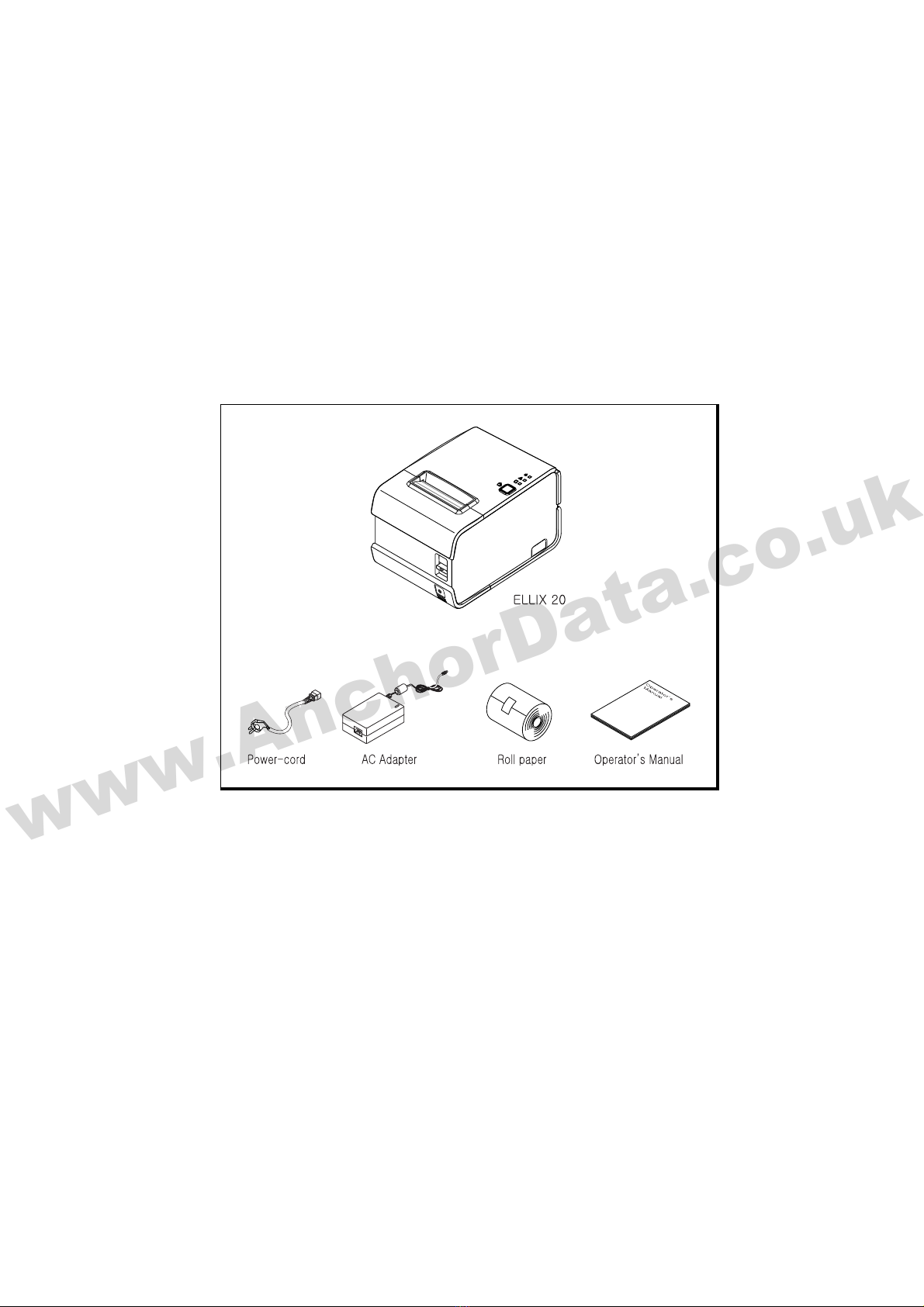
1-1. Unpacking
Your printer box should include these items. If any items are damaged or missing, please
contact your dealer for assistance.
www.AnchorData.co.uk

ٻڈٻ5ٻڈ
1-2. Connecting the Cables
You can connect up to three cables to the printer. They are all connected to the connector
panel on the back of the printer, which is shown as below:
NOTES : Before connecting any of the cables, make sure that both
the printer and the computer should be turned off.
www.AnchorData.co.uk

ٻڈٻ6ٻڈ
1-3. Connecting the computer
You need an appropriate interface cable.
1. Plug the cable connector securely into the printer’s interface connector.
2. Tighten the screws on both sides of the cable connector.
3. Attach the other end of the cable to the computer.
www.AnchorData.co.uk

ٻڈٻ7ٻڈ
1-4. Connecting the Drawer
WARNING:
Use a drawer that matches the printer specification. Using an improper drawer may
damage the drawer as well as the printer.
CAUTION:
Do not connect a telephone line to the drawer kick-out connector; otherwise the printer
and the telephone line may be damaged.
Plug the drawer cable into the drawer kick-out connector on the back of the printer next to
the power supply connector.
www.AnchorData.co.uk

ٻڈٻ8ٻڈ
1-5. Connecting the Power Supply
Use the optional Power supply for your printer.
WARNING:
Make sure that you use the attached Power supply or equivalent. Using an incorrect power
supply may cause fire or electrical shock.
CAUTIONS:
When connecting or disconnecting the power supply from the printer, make sure that the
power supply is not plugged into an electrical outlet. Otherwise you may damage the
power supply or the printer.
If the power supply’s rated voltage and your outlet’s voltage do not match, contact your
dealer for assistance. Do not plug in the power cord. Otherwise, you may damage the
power supply or the printer.
1. Make sure the printer is turned off.
2. Pull the hole of the Cover-Wire to separate from the printer.
3. Plug the DC cord connector into the power jack on the printer.
4. If it is necessary to connect the interface, plug the interface connector into the
interface port on the printer.
5. If it is necessary to connect the drawer, plug the drawer connector into the drawer
port on the printer.
6. Put the two hooks into the two holes of the Case-Lower backward and close the
Cover-Wire until it locks firmly.
7. Plug the AC Adapter power cord into the wall outlet.
NOTES : If you want turn the ELLIX20 off, press and hold the powe
r
button about four seconds until the POWER LED is off.
NOTES : To remove the DC cable connector, make sure that the
power supply’s power cord is unplugged; then grasp the
connector at the arrow and pull it straight out.
www.AnchorData.co.uk

ٻڈٻ9ٻڈ
12
34
56
78
www.AnchorData.co.uk

ٻڈٻ10ٻڈ
1-6. Installing or Replacing the Paper Roll
ٻ
ٻ
CAUTION : Be careful the manual cutter.
www.AnchorData.co.uk
Andere Handbücher für ELLIX 20
1
Inhaltsverzeichnis
Andere Sam4s Drucker Handbücher

Sam4s
Sam4s ELLIX50 Bedienungsanleitung

Sam4s
Sam4s giant 100 series Bedienungsanleitung

Sam4s
Sam4s ellix 30 Bedienungsanleitung

Sam4s
Sam4s ELLIX 20 Bedienungsanleitung

Sam4s
Sam4s GIANT-100 Bedienungsanleitung

Sam4s
Sam4s ELLIX35III Bedienungsanleitung

Sam4s
Sam4s ELLIX 35III Bedienungsanleitung

Sam4s
Sam4s Gcube-100 Bedienungsanleitung


