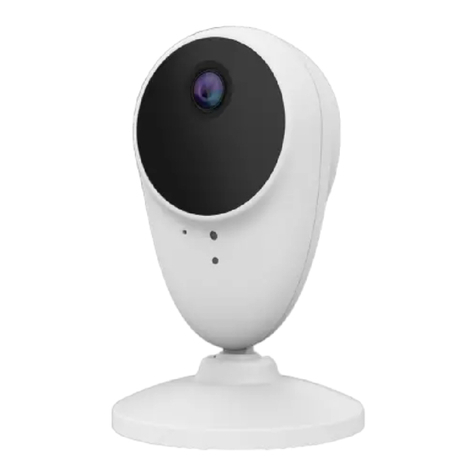
Sercomm RC8522 Bedienungsanleitung

WiFi IP Camera
User’s Guide


i
Table of Contents
CHAPTER 1 INTRODUCTION..............................................................................................1
Overview ............................................................................................................................1
Physical Details - WiFi IP Camera ..................................................................................2
Package Contents ..............................................................................................................4
CHAPTER 2 BASIC SETUP ...................................................................................................5
System Requirements........................................................................................................5
Installation .........................................................................................................................5
Wall Mounting...................................................................................................................7
CHAPTER 3 VIEWING LIVE VIDEO................................................................................10
Overview ..........................................................................................................................10
Requirements...................................................................................................................10
Connecting to a Camera on your LAN..........................................................................10
APPENDIX A SPECIFICATIONS........................................................................................12
WiFi IP Camera...............................................................................................................12
Regulatory Approvals.....................................................................................................12
Copyright 2015. All Rights Reserved.
Document Version: 2.0
All trademarks and trade names are the properties of their respective owners.


1
Chapter 1
Introduction
This Chapter provides information of the WiFi IP Camera's features,
components and capabilities.
Overview
Congratulations on the purchase of your new WiFi IP Camera. The WiFi IP Camera is a
Day/Night WiFi IP Camera with 1080p resolution and 802.11ac WiFi connectivity. With built-
in White Light LEDs, the WiFi IP Camera can provide illumination around 5 meters long
under low light conditions in a simple, economical manner.
The WiFi IP Camera also comes with smart zoom feature, which allows images to be zoomed
without losing picture quality. The central part of the picture is trimmed and enlarged without
image processing.
Moreover, the duo-hinge and compact design of the camera can be extended from the wall and
easily moved around, while still being firm enough to hold for odd angles.
Features
Standalone Design. The WiFi IP Camera is a standalone system with built-in CPU and
Video encoder. It requires only a power source and a connection to your Wireless iHub.
Dual Video Support. The WiFi IP Camera can support H.264 and MJEPG video for
different image compression.
Suitable for Home, Business or Public Facilities. Whether for Home, Business or
Public Facility surveillance, or just for entertainment and fun, the WiFi IP Camera has the
features you need.
IR LED Support. Each WiFi IP Camera has two infrared LEDs. The LEDs can provide
illumination around 5 meters long, that can help to output a better video quality while
under low-light conditions such as on cloudy days, or in the morning or evening.
Smart Zoom Support. With its 16x (QHD) optical zoom, you can move closer without
taking a single step, and the pictures captured by the image sensor of the camera are
enlarged without losing quality.
Wireless Features
Supports 802.11ac Wireless Standard. The 802.11ac standard provides backward
compatibility with the 802.11n standards. The WiFi IP Camera can work with all
802.11ac, 802.11n, 802.11b and 802.11g Wireless stations.
Supports WPS. WPS (Wi-Fi Protected Setup) can simplify the process of connecting you
WiFi IP Camera to your wireless network by using the push button configuration (PBC) on
the Wireless Access Point, or entering a PIN code if there's no button.
Wired and Wireless Network. The WiFi IP Camera can be connected either with wire
or wirelessly to your network.
WPS Support. WPS (WiFi Protected Setup) can simplify the process of connecting any
device to the wireless network by using the push button configuration (PBC) on the
Waterproof HD IP Camera, or entering a PIN code if there's no button.

1

2
Physical Details - WiFi IP Camera
Front Panel
Figure 1: Front Panel
Light Sensor
This is hardware sensor to detect LUX.
Lens
No physical adjustment is required or possible for the lens, but you
should ensure that the lens cover remain clean. The image quality is
degraded if the lens cover is dirty or smudged.
Rear Panel
Figure 2: Rear Panel
Microphone
The built-in microphone is useful for bi-direction voice
conversation.

3
LAN port
Use the provided RJ-45 USB cable to connect your WiFi IP Camera
to a 10/100BaseT hub or switch.
Note:
Plugging in the RJ-45 USB cable will disable the Wireless
interface. Only 1 interface can be active at any time.
The RJ-45 USB cable should only be connected or disconnected
when the camera is powered OFF. Attaching or detaching the
RJ-45 USB cable while the camera is powered on does NOT
switch the interface between wired and wireless.
WPS/Reset Button
Push the WPS button on the device and on your other wireless
device to perform WPS function that easily creates an encryption-
secured wireless connection automatically.
WPS PBC Mode. When pressed and released (less then 3
seconds), the WiFi IP Camera will be in the WPS PBC mode
(Auto link mode).
WPS Pin Code Mode. When pressed and held for over 3
seconds, the WiFi IP Camera will be in the WPS Pin Code
mode.
Reset to manufacturer default valued and reboot. When
pressed and held over 10 seconds, the settings of WiFi IP
Camera will be set to their default values.
DC Power Input
Connect the supplied 12V power adapter here. Do not use other
power adapters; doing so may damage the camera.
Power LED
Network/WPS LED

4
Package Contents
The following items should be included in the package: If any of these items are damaged or
missing, please contact your dealer immediately.
.

5
Chapter 2
Basic Setup
This Chapter provides information on how to install and configure the WiFi
IP Camera.
System Requirements
To use the Wireless interface on the wireless model, other Wireless devices must be
compliant with the IEEE802.11ac, IEEE802.11n, IEEE802.11a, IEEE802.11b or
IEEE802.11g specifications. All Wireless stations must use compatible settings.
Mode: Infrastructure
SSID: ANY
Wireless Security: Disabled
Domain: USA
Channel No.: Auto
Installation
1. Find the Location
Identify the location for the WiFi IP Camera.
2. Connect the LAN Cable
Connect the WiFi IP Camera to a 10/100BaseT hub or switch, using the supplied
RJ-45 USB cable and a standard LAN cable.
2

6
For this Model, it will disable the Wireless Interface. The
Wireless and LAN interfaces cannot be used simultaneously.
Using the LAN interface is recommended for initial
configuration. After the Wireless settings are correct, the
Wireless interface can be used.
The first time you connect to the camera, you should connect
the RJ-45 USB cable and configure the WiFi IP Camera with
appropriate settings. Then you can unplug the RJ-45 USB
cable and power off the camera. The WiFi IP Camera will be in
wireless interface when you power on the camera again.
3. Power Up
Connect the supplied 12Vpower adapter to the WiFi IP Camera and power up. Use only
the power adapter provided. Using a different one may cause hardware damage.
4. Check the LEDs
The Power LED will turn on briefly, then start blinking. It will blink during startup, which
will take 55 to 57 seconds.After startup is completed, the Power LED should remain ON.
The Network/WPS LED should be ON.
Inhaltsverzeichnis
Andere Sercomm Sicherheitskamera Handbücher

Sercomm
Sercomm XHC3 Bedienungsanleitung

Sercomm
Sercomm BC855 Bedienungsanleitung

Sercomm
Sercomm iCamera OC825 Bedienungsanleitung

Sercomm
Sercomm RC8111 Bedienungsanleitung

Sercomm
Sercomm RC8520 Bedienungsanleitung

Sercomm
Sercomm SCD2R0-29 Bedienungsanleitung

Sercomm
Sercomm RC8110 Bedienungsanleitung

Sercomm
Sercomm OC835-ADT Bedienungsanleitung

Sercomm
Sercomm RC8221 Bedienungsanleitung

Sercomm
Sercomm DBC831 Bedienungsanleitung