Signal NVR 2708 Bedienungsanleitung

- 1 -
USER MANUAL
NVR 2708
NVR2716

- 2 -
Thank you for purchase our product. Please read this user manual carefully to ensure that you
can use the device correctly and safely
Important Safeguards and Warding:
◆
Do not place heavy objects on the NVR.
◆
Do not let any solid or liquid fall into or infiltrate the NVR.
◆
Please brush printed circuit boards,connectors,fans,machine box and so on regularly.Before the dust
cleaning please switch off the power and unplug it.
◆
Do not disassemble or repair the NVR by yourself.Do not replace the components by yourself.
Environment:
◆
Please place and use the NVR between 0and 40.Avoid direct sunlight.Stay away from heat source.
◆
Do not install the NVR in the damp environment.
◆
Do not use the NVR in smoky or dusty environment.
◆
Avoid collision or strong fall.
◆
Please insure the NVR level installation in a stable workplace.
◆
Please install in ventilated place.Keep the vent clean.
◆
Use within the rating input and output scope.

- 3 -
CONTENT
CONTENT..................................................................................................................................................................3
1 Open-package check and cable connections...................................................................................................4
1.1 Open-package check.....................................................................................................................................4
1.2 Front panel.................................................................................................................................................4
1.3 Rear panel.....................................................................................................................................................5
2 Basic operation......................................................................................................................................................5
2.1 Turn on..........................................................................................................................................................6
2.2 Turn off .........................................................................................................................................................6
2.3 System Login ................................................................................................................................................6
2.4 Preview .........................................................................................................................................................7
2.5 Desktop shortcut menu..................................................................................................................................8
3 Main menu...........................................................................................................................................................18
3.1 Record.........................................................................................................................................................18
3.2 Alarm Function ...........................................................................................................................................21
3.3 System setup ...............................................................................................................................................25
3.4 Advanced.....................................................................................................................................................43
3.5 Info..............................................................................................................................................................48
Appendix 1.Remote controller operation............................................................................................................50

- 4 -
1 Open-package check and cable connections
1.1 Open-package check
When you receive the NVR, please check first.
First, please check whether there is any visible damage to the package appearance. The protective
materials used for the package of the NVR can protect most accidental clashes during transportation.
Then, please open the box and get rid off the plastic protective materials. Check whether there is
any visible damage to the NVR appearance.
At last, please open the machine crust and check the data wire in the front panel, power wire, the
connection between the fan power and the main board.
1.1.1Front panel and rear panel
♦The key function specification in the front panel and the interface specification in the real panel
are in the specification.
♦Please check the product type in the front panel whether is accordant with the product type you
order.
The label in the real panel is very important for the after service. Please protect it carefully. When
you contact us for after service, please provide the product type and serial number in the label.
1.1.2.Check
After open the cover,you should check if it has obvious damage trace,also please check the front
panel data cable,power cord and motherboard's connection are loose or not.
1.2 Front panel
The front panel of T series
1)STANDBY: Press to power the system standby.
2)IR Sensor: IR receiver for the remote control.
3)LED Indicators: Shows status of alarm, rec, power.
4)Channel/Numbers/Playback: Press buttons 0~9 to view the selected channel in full-screen;

- 5 -
press buttons 0~9 to input passwords and user IDs; during playback, press the following:
5) : Increase reverse playback speed 1X, 2X, 4X
6) : Press to freeze playback to one frame, then press again to advance frame-by-frame
7) : Press to start playback
8) : Press to slow playback speed by 1/2, 1/4, 1/8
9) : Press to increase forward playback speed 1X, 2X, 4X
10)MENU/ OK: Press to open/close the main menu.or confirm.
11)Navigation: Press the Navigation buttons to perform the following:
•: In menus, press to confirm selections; in PTZ mode, press to change the navigation buttons to
control the connected PTZ camera (not included)
• : Press to move cursor up; in PTZ mode, press to pan camera up
• : Press to move cursor down; in PTZ mode, press to pan camera down
• : Press to move cursor left; in PTZ mode, press to pan camera left
• : Press to move cursor right; in PTZ mode, press to pan camera right
12)USB: Connect a USB flash drive to the top port for data backup and firmware upgrades connect a
USB mouse to the bottom port.
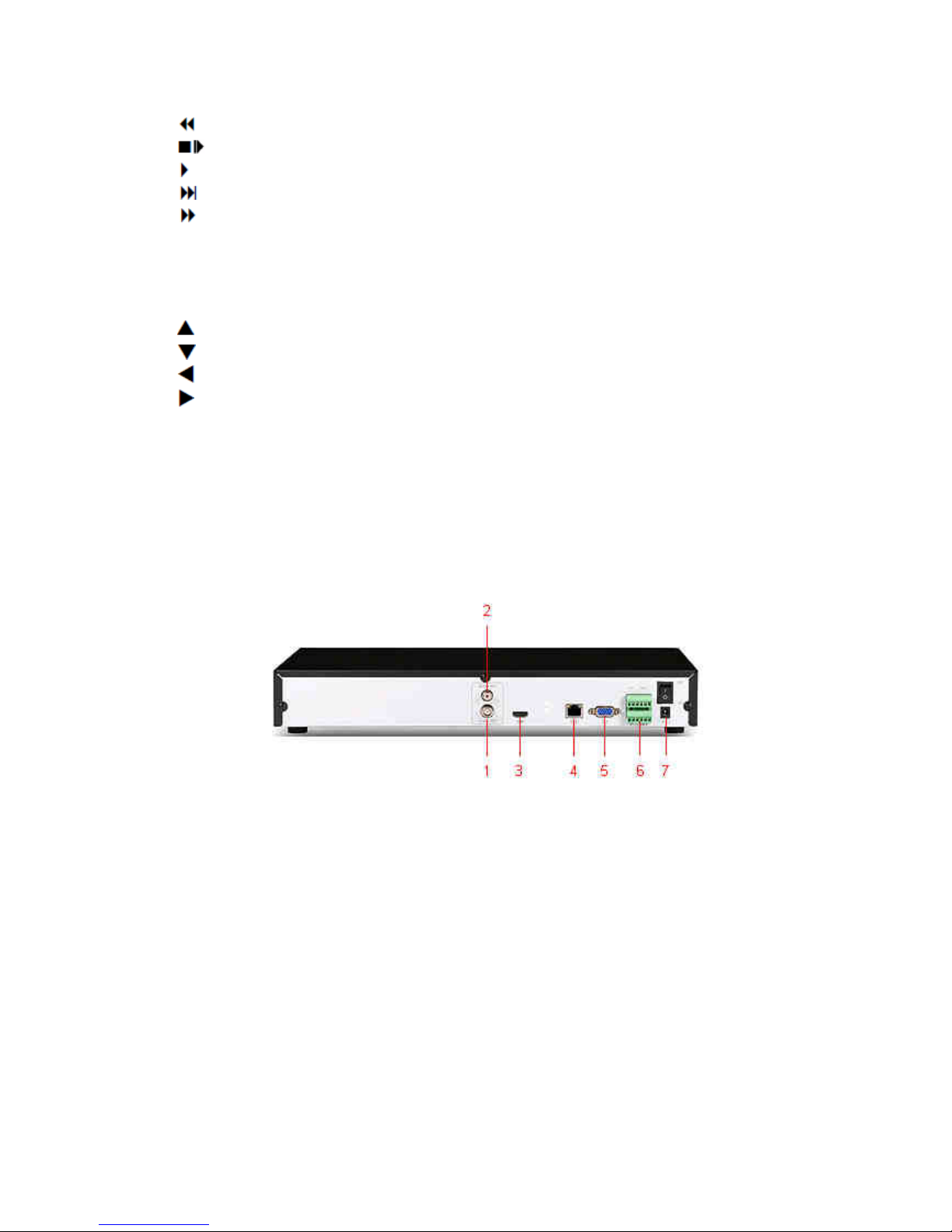
1.3 Rear panel
The rear panel of T series
(1) Video Output (2) Audio Output (3) HDMI Output
(4) Network (5) VGA Output (6) RS-485, Alarm
Input/Output
(7) Power
2 Basic operation
Note: The button in gray display indicates nonsupport.and the picture is only for reference,please make the
object as the standard

- 6 -
2.1 Turn on
Plug the power supply and turn on the power supply switch. Power supply indicator light shining
indicates turning on the video recorder. After the startup you will hear a beep. The default setting of video
output is multiple-window output mode. If the startup time is within the video setting time, the timing video
recording function will start up automatically. Then the video indicator light of corresponding channel is
shining and the NVR is working normally.
Note:1. Make sure that the input voltage corresponds with the switch of the NVR power supply.
2. Power supply demands: 220V±10% /50Hz.
Suggest using the UPS to protect the power supply under allowable conditions.
2.2 Turn off
There are two methods to turn off the NVR. Entering [main menu] and choosing [turn off] in the [turn
off the system] option is called soft switch. Pressing the power supply switch is called hard switch.
Illumination:
1、Auto resume after power failure
If the NVR is shut down abnormally, it can automatically backup video and resume previous
working status after power failure.
2、Replace the hard disk
Before replacing the hard disk, the power supply switch in the real panel must be turned off.
3、Replace the battery
Before replacing the battery, the setting information must be saved and the power supply switch
in the real panel must be turned off. The NVR uses button battery. The system time must be checked
regularly. If the time is not correct you must replace the battery, we recommend replacing the battery
every year and using the same battery type.
Note: The setting information must be saved before replacing the battery otherwise
information will lose.
2.3 System Login
When the NVR boots up, the user must login and the system provides the corresponding functions
with the user purview.There are three user settings. The names are admin, guest and default and
these names have no password. Admin is the super user purview; guest and default’s permissions are
preview and video playback. User admin and guest’s password can be revised, while their permissions
can’t be revised; user default is the default login user whose permission can be revised but not its
password.

- 7 -
Picture 2.3 System Login
Password protection: If the password is continuous wrong three times, the alarm will start. If
the password is continuous wrong five times, the account will be locked. (Through reboot or after
half an hour, the account will be unlocked automatically).
For your system security, please modify your password after first login.
2.4 Preview
You can right click mouse to choose the switch between the windows.
The system date, time and channel name are shown in each viewing window. The surveillance video
and the alarm status are shown in each window.
Table 2.4.0 Preview icon
1
Recording status 3
Video loss
2
Motion detect 4
Camera lock

- 8 -
Pic 2.4.1 Preview interface
(1) Channel name and status display,click
“channel” can pack up (2)
Screen switch
(3) Full screen display (4)
on the next page turning,when choosing a
non maximum number of channels,the
operation can be carried out
Note:It’s main stream’s resolution under single window,and it’s extra stream’s resolution under
multi-screen.
2.5 Desktop shortcut menu
In preview mode you can right click mouse to get a desktop shortcut menu,as the picture 2.2
shows.The menu includes: main menu, record mode, playback, PTZ control, High Speed PTZ,
Alarm Output,Output adjust, Logout, full screen(leave full screen).
..
.
Non full screen full screen
Picture 2.5.0 Shortcut Menu
Note:When under non full screen display”full screen”,and when under full screen display”leave
full screen”.
1
2 3 4

- 9 -
2.5.1 Main menu
When you login, the system main menu is shown as below.
Pic 2.5.1 Main menu
2.5.2 Playback
There are two methods for you to play the video files in the hard disk
1.In the desktop shortcut menu
2.Main Menu>Record>playback
Note: The hard disk which saves the video files must be set as read-write or read-only state.
1
3
4
6
7
5
8
9

- 10 -
Pic 2.5.2.0 Video playback
1
Playback control 2 Operation hint 3 Record mode 4 Time interval
choosing
5
Switch by
time,file mode 6 File searching 7 Channel
choosing 8 Date choosing
9
Storage device
choosing 10 File information 11 Listed files 12 Time searching
【Listed files】Look up the listed files that accord with the searching criteria.
【File information】Look up the found file information.
【Playback control】See detail in below chart
Button Function Button Function
/
Play/Pause
Backward play
Slow forward
Fast forward
Previous frame
Next frame
Previous file
Next file
Round play
Full screen
Stop
Table 2.5.2.1 Playback control key
Note: play under frame by frame, the playback status should be paused firstly.
【Operation hint】show function of the key that cursor placed.
2
11
10
Dieses Handbuch passt für folgende Modelle
1
Inhaltsverzeichnis
Beliebte Netzwerk-Hardware Handbücher anderer Marken

Matrix Switch Corporation
Matrix Switch Corporation MSC-HD161DEL Bedienungsanleitung

B&B Electronics
B&B Electronics ZXT9-IO-222R2 Bedienungsanleitung

Yudor
Yudor YDS-16 Bedienungsanleitung

D-Link
D-Link ShareCenter DNS-320L Bedienungsanleitung

Samsung
Samsung ES1642dc Gebrauchsanweisung

Honeywell Home
Honeywell Home LTEM-PV Montageanleitung