
Skiller Pro+ Bedienungsanleitung

Handbuch
Manual

SKILLER PRO
+
2
Table of Contents
1. Keyboard Features 3
2. Software Features 3
3. Keyboard Specifications 3
4. Package Contents 4
5. The Skiller PRO+ at a Glance 4
5.1 Lighting Color Change 5
5.2 Profile Keys 5
5.3 Macro Keys 5
5.4 Function Keys with Preset Multimedia Actions 5
5.5 Profile LED Status Display 5
5.6 Lighting Effect 5
5.7 Gaming Mode Deactivated 5
5.8 Other Shortcuts 6
6. Connecting to the PC 6
7. Installation of the Gaming Software 6
8. Configuration of the Gaming Software 7
8.1 Launch Program 7
8.2 Main Control 8
8.3 Assign Keys 10
8.4 Create Game Profile 10
8.5 Save Game Profile 11
8.6 Load Game Profile 11
8.7 Edit Game Profile 11
8.8 Macro Manager 11
8.8.1 Record Macro 11
8.8.2 Edit Macro 12
8.8.2.1 Record Additional Keystrokes 13
8.8.2.2 Insert/Edit Delay Time 13
8.8.2.3 Delete Recordings 14
8.8.3 Delete Macro 14
8.9 Reset to Factory Default 14
9. Macro Settings 15
9.1 Key Selection 15
9.1.1 Assign Macro 16
9.1.2 Media Player 16
9.1.3 Basic 16
9.1.4 Standard 16
9.1.5 Assign Shortcut 16
9.1.6 Deactivate 16
9.2 Color Settings 16
10. Advanced Settings 17
SKILLER PRO
+
3
1. Keyboard Features
• Gaming Keyboard with 7 LED Colors
• Adjustable Lighting Effect: 10% - 100%, Pulsating Single Color, Pulsating Changing Colors, Off
• 9 Multimedia, 6 Macro and 3 Profile Keys
• Individually Configurable Key Functions
• 3 Game Profiles with Automatic Activation at the Start of the Game
• Multi-Key Rollover Support
• Max. Polling Rate: 1,000 Hz
• Onboard Memory
• Integrated Palm Rest
• 3-Block Layout
• Gold-Plated USB Plug
2. Software Features
• Free Programming of Key Functions in Games and Other Applications.
• Supports Three Different Game Profiles.
• Free Programming of the Key Functions including Macros, Macro Loops,
Delay Time and Multimedia Actions.
• 7 Color Backlight Illumination Customization and Pulsating Effect Option.
• Polling Rate Customization and Windows Key Deactivation.
• Adjustable Key Response Time.
3. Keyboard Specifications
Switch Technology Rubber Dome
Connector USB
Cable Length 150 cm
Input Voltage 5 V
Operating Life Cycles of Keys Min. 10 Million Keystrokes
Dimensions (L x W x H) 480 x 190 x 32 mm
Weight incl. Cable 888 g
SKILLER PRO
+
4
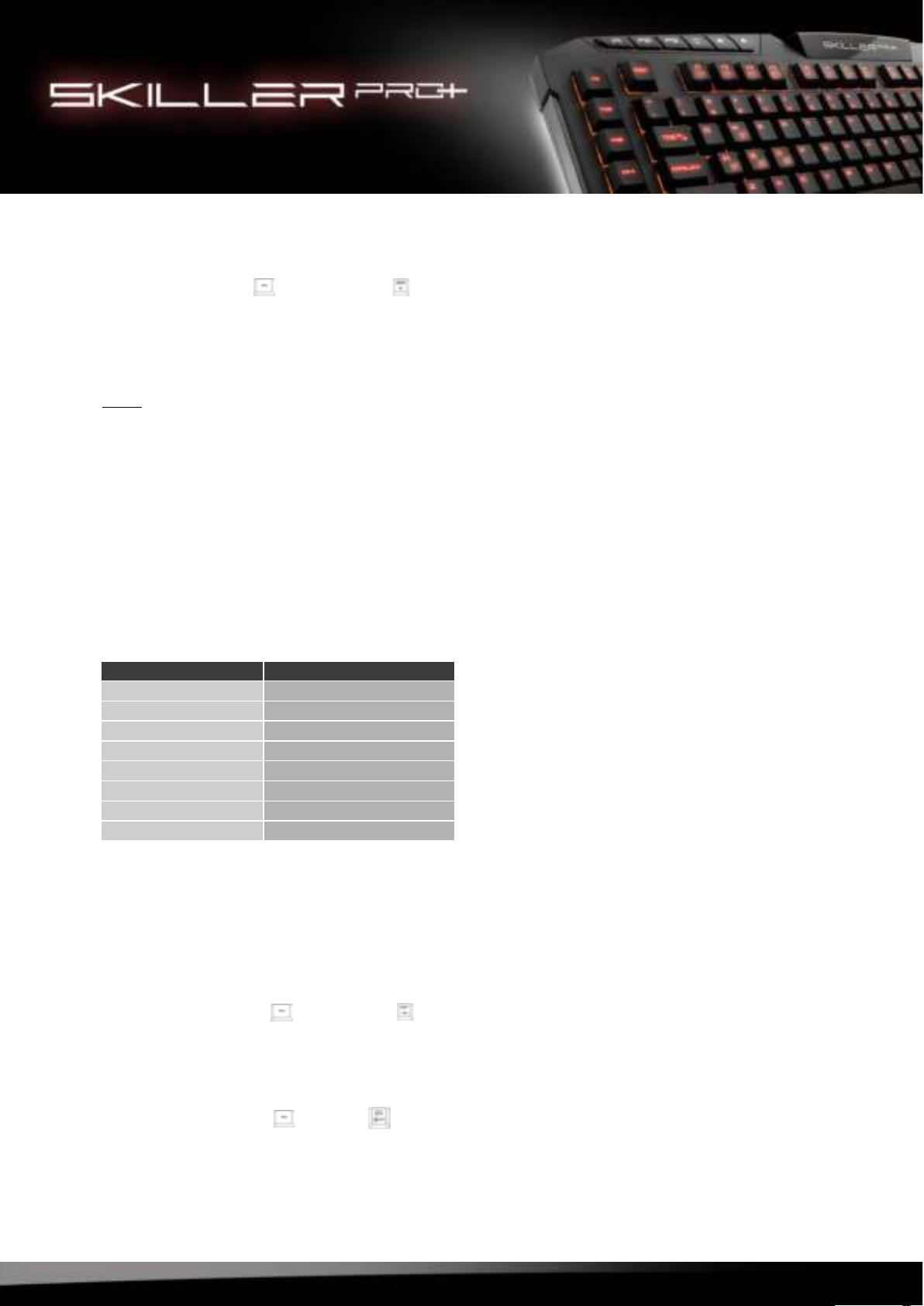
(A) Lighting Color Change
(B) Profile Keys
(C) Macro Keys
(D) Function Key
(E)
Function Keys with Preset Multimedia Actions
(F)
Profile LED Status Display
(G)
Lighting Effect
(H)
Gaming Mode Off
Some Skiller PRO+ keys are preset with additional functions. These functions can be activated by pressing
the Function Key.
B
4. Package Contents
• Skiller PRO+
• CD with Software and Manual
• Set Anti-Sliding Stand
Note:
Should any of the above items be missing, please contact our customer service by E-mail:
[email protected] (International)
A
CD
EF
5. The Skiller PRO+ at a Glance
G
H
SKILLER PRO
+
5
5.1 Lighting Color Change (A)
Press Function Key + Pause Break , to switch to different colors.
5.2 Profile Keys (B)
The profile keys quickly and easily switches through game profiles 1 - 3.
Note:
Once a profile has been activated and the keyboard is switched to the Gaming Mode the Windows
Key is disabled by default. This however can be customized for each Game Profile via software.
5.3 Macro Keys (C)
These six keys can be individually programmed and allow quick access to the preset functions (see 9).
5.4 Function Keys with Preset Multimedia Actions (E)
The preset multimedia actions are launched by pressing the Function Key and the F5 - F12 keys:
5.6 Lighting Effect (G)
Press the Function Key + Scroll Lock , to adjust the light intensity from 10% - 100%,
Pulsating
Single Color, Pulsating Changing Colors, Off.
5.5 Profile LED Status Display (F)
The profile status LEDs indicate in which Game Profile the keyboard is currently.
5.7 Gaming Mode Deactivated (H)
Press the Function Key + Prt Scr , to turn the Gaming Mode off. When the Gaming Mode is
disabled the keyboard switches to Standard Mode and the Profile Status LEDs turn off. In this mode
only the basic features of the keyboard and the Windows Key are available.
Key Combination Function
FN + F5 Play/Pause
FN + F6 Stop
FN + F7 Previous Track
FN + F8 Next Track
FN + F9 Open Media Player
FN + F10 Mute
FN + F11 Volume Down
FN + F12 Volume Up

SKILLER PRO
+
6
6. Connecting to the PC
1. Connect the USB plug of the Skiller PRO+ to an available USB port on your PC.
2. The operating system will automatically recognize the Skiller PRO+ keyboard and install all ne-
cessary drivers.
3. If the Skiller PRO+ is not recognized, disconnect it and try a different USB port on your PC.
7. Installation of the Gaming Software
Before starting with the installation of the included Gaming Software, ensure that there is no other
keyboard software installed on your PC. If you have other software already installed, please unins-
tall before continuing.
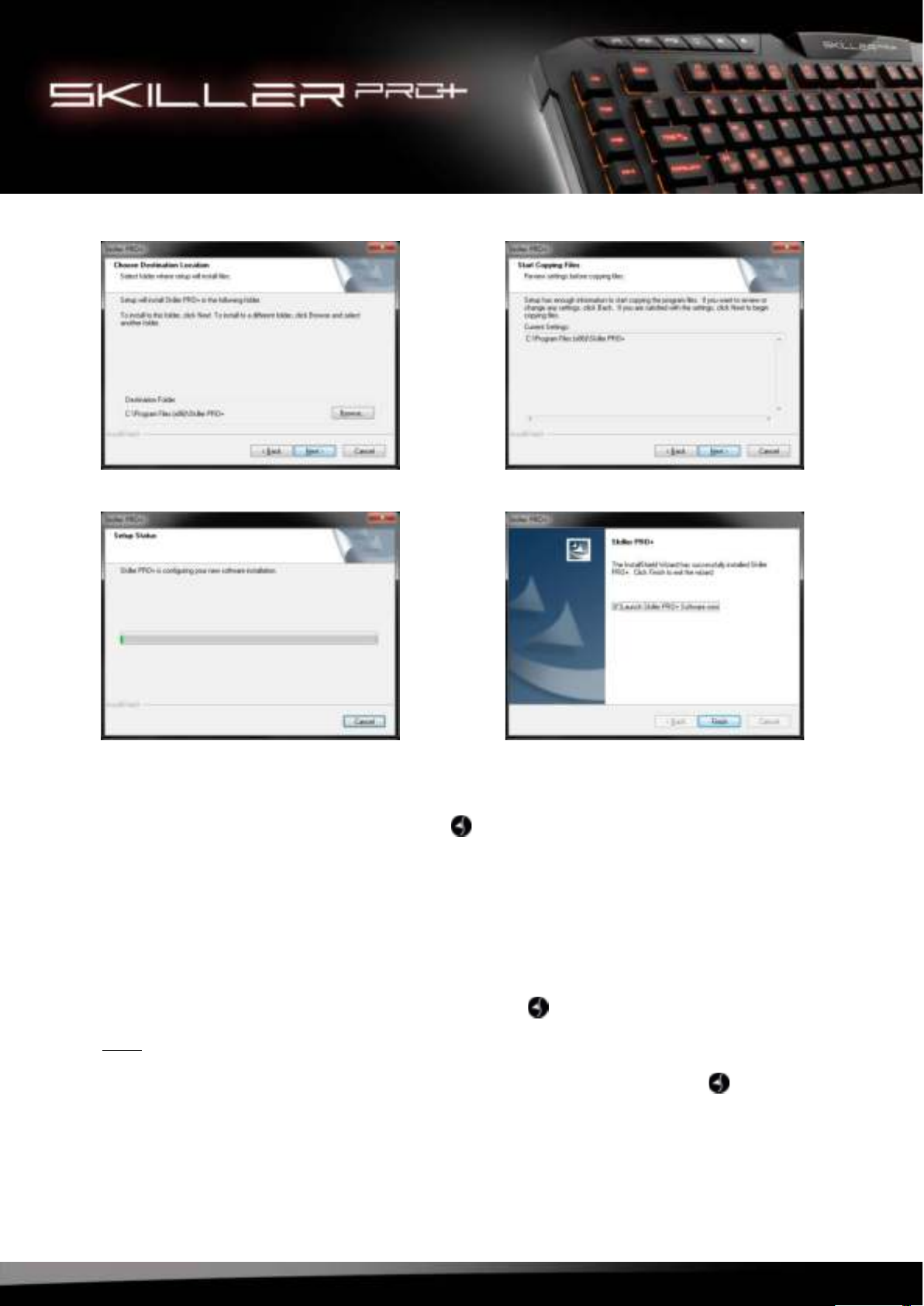
1. Insert the CD into your CD/DVD drive.
2. Open the drive that contains the CD (e. g. D:\).
3. Open the folder “Gaming Software”.
4.
Run the executable setup file “Skiller PRO+ Configuration Setup” and follow the onscreen
inst
ructions.
5.8 Other Shortcuts
Key Combination Function
FN + F1 Key Response Time Getting Slow
FN + F2 Key Response Time Getting Fast
FN + F3 Polling Rate Getting Slow
FN + F4 Polling Rate Getting Fast
FN + Windows Key Interchange of Function WASD - Arrow Keys
SKILLER PRO
+
7
5. Click “Finish” to complete the installation.
Once installation is complete, the Skiller PRO+ icon will be shown in your taskbar. The gaming soft-
ware has now been successfully installed on your PC.
8. Configuration of the Gaming Software
8.1 Launch Software
To launch the software, double-click the Skiller PRO+ icon in your Windows taskbar.
Note:
The gaming software runs continuously in the background while your PC is running. This is necessary to
ensure all functions of the Skiller PRO+ are always available. The Skiller PRO+ icon will stay displayed
in the taskbar while the gaming software is running.

SKILLER PRO
+
8
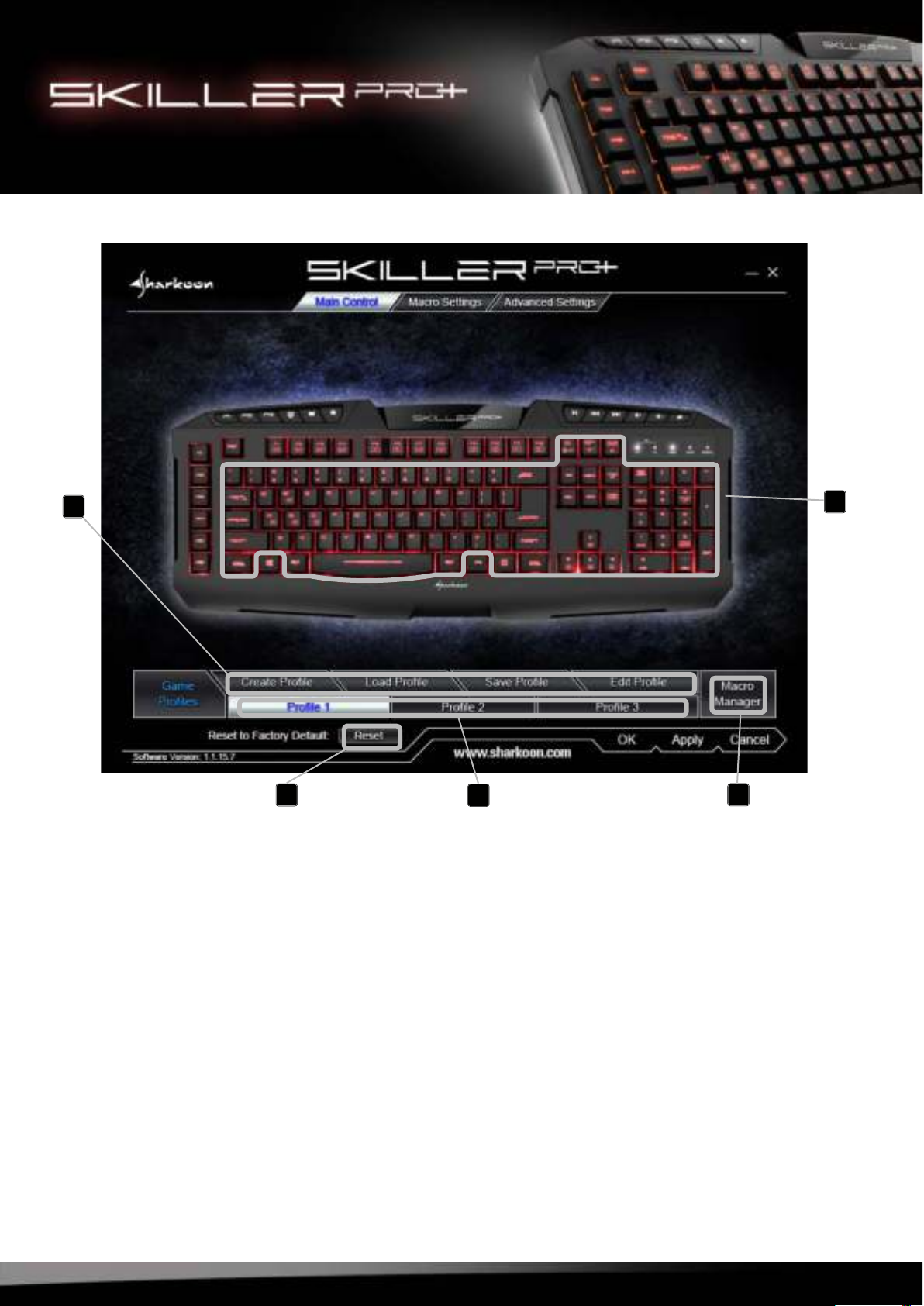
The Main Control tab is where you can create, edit, save or load your Game Profiles or make single key
assign
ments that suit your personal needs. Access to the Macro Settings and Advanced Settings is
also
available. If necessary, you can also reset all settings to factory default.
8.2 Main Control
SKILLER PRO
+
9
D
(A)
Click to select the desired profile. An active profile is highlighted in white.
All changes must be
confirmed by clicking the “Apply” button.
(B) Create, edit, save or load a profile.
(C) Launch the Macro Manager.
(D) Every single key can be individually assigned.
(E) Reset all settings to factory default.
A
B
EC
SKILLER PRO
+
10
8.3 Assign Keys
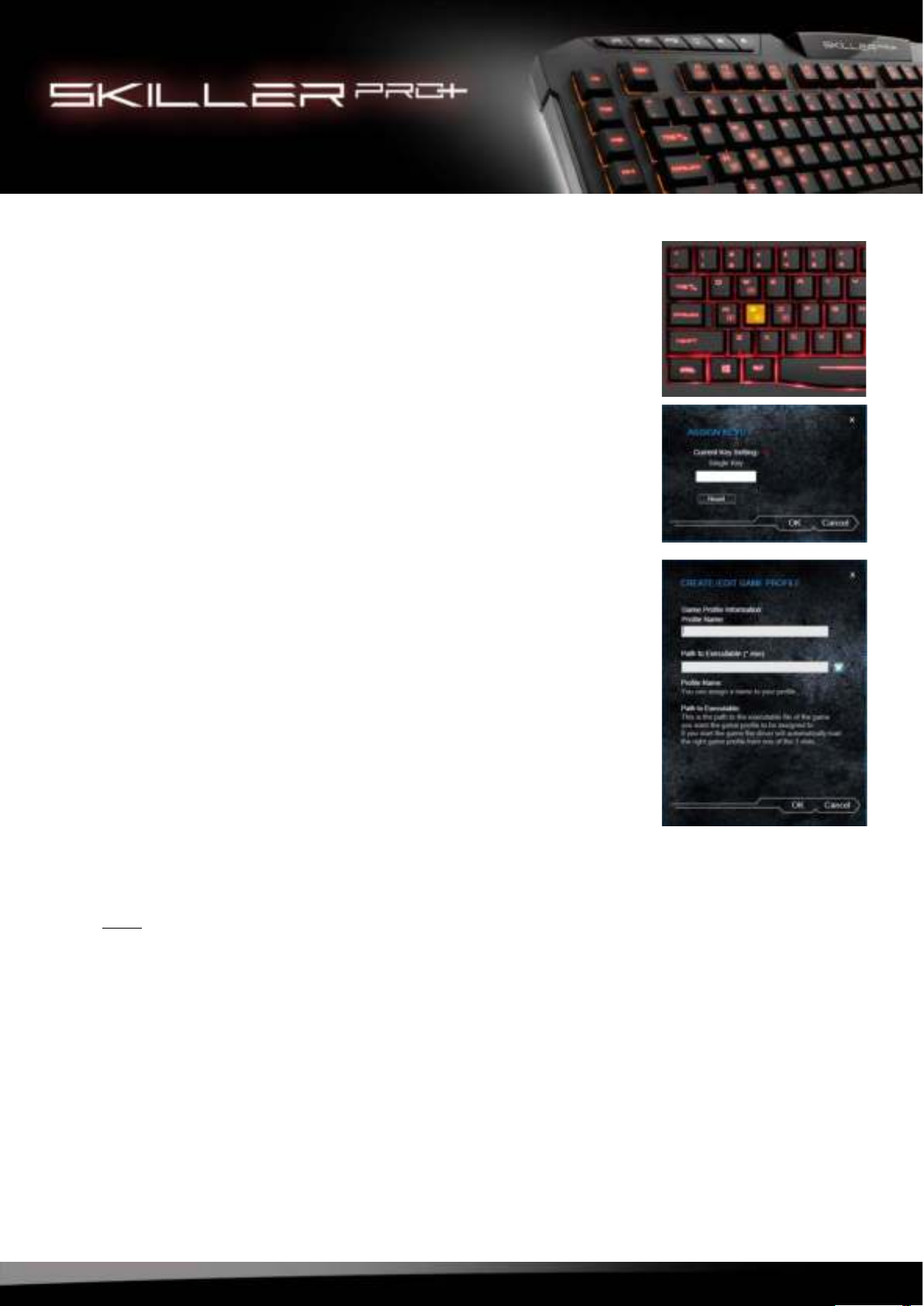
When moving the pointer over a key, the orange color indicates
the possibility for it to be configured. To make a key assignment,
select a key. The key will then be highlighted. By clicking the left
mouse button, you can access the “Assign Keys” menu.
The current key setting will be displayed in red.
You can assign a single key. Press “OK” to confirm your setting.
The key will be displayed in blue afterwards within the layout. This
gives an overview of all keys with changed assignments and ea-
ses the re-editing or reset.
To activate the changes in the profile, click “Apply“.
8.4 Create Game Profile
You can save your individual profile settings in order to reload
them later or assign them to a different game profile. Also, you
can assign the game profile to a game or other application. If
you start the game, the game profile with all its settings will be
automatically activated.
To create a game profile, select “Create Profile“.
Assign a name in the text field below “Profile Name” and, op-
tionally, select a game or application where the profile shall be
activated with.
Select “OK“.
The game profile is now setup and can be saved in the Main
Control.
Note:
If a game or application has been assigned to more than one profile,
then the lowest numbered profile will be activated.
Inhaltsverzeichnis
Andere Skiller Tastatur Handbücher


