Skype mouse USB skype mouse Bedienungsanleitung

User Manual for USB Skype Mouse
- 1 - Version 1.0.0.0 2007-03-22
Unpacking 2
Learn About Your Phone 3
Overview 3
Specifications 3
System Requirements 3
Mouse Layout 4
Getting Started 5
Used as a Mouse and a Hi-Fi Speaker 5
Used as a VoIP phone 5
Step 1: Install the Latest VoIPApplications 5
Step 2: Install the Latest Skype Mouse Driver 5
Step 3: Activate a Needed VoIPApplication 7
Step4: Set the Intelligent Router for SkypeOut 7
Update the Skype Mouse Driver 9
The Call Functions 10
Make a VoIP call 10
Make a SkypeOut call 11
Receive a VoIP call 11
End a call 11
Other Functions 12
Select a Chord Music Ring Tone 12
Adjust Volume for Speaker 12
FAQ 13

User Manual for USB Skype Mouse
- 2 - Version 1.0.0.0 2007-03-22
Unpacking
When you receive your Optical USB Skype Mouse, please check to make sure that
your package contains the following items:
One optical USB Skype mouse
One set of earphone
One mini installation CD
Note:
This user manual is written for the Skype Mouse driver version 0.9.0.4.

User Manual for USB Skype Mouse
- 3 - Version 1.0.0.0 2007-03-22
LearnAboutYourPhone
Overview
With high quality USB audio feature, this optical USB Skype Mouse can also be used as a mini
computer hi-fi speaker to play music. Moreover, when you flip the cover of the mouse, the fully
functional keypad inside can help you make/receive VoIP calls even easier. No doubt it is the
best PC companion for you to surf the Internet and enjoy various popular VoIP services.
As a mouse:
z1.8m USB cable (USB 1.1)
z800 dpi optical sensor
As a Hi-Fi Speaker:
zCrystal clear sound quality
z48 KHz sampling rate
zSupplied earphone to protect your privacy.
As a VoIP Phone:
zAuto detection between mouse and VoIP phone
zSeamlessly integrated with Skype, VoipButser, VoipStunt, VoIPCheap, VoipDiscount,
SparVoip, Internetcalls, poivY, WebCallDirect, VoipCheapCom, FreeCall and
NetAppel.
zHands-free speakerphone function.
zVarious chord music ring tones catering to different tastes.
zRings loudly on an incoming call.
zAcoustically isolated earpiece and microphone to eliminate echo.
zFull-duplex communication with crystal clear voice.
Specifications
Weight 119g
Dimensions 105mm*55mm*33mm
Cabling 1.8M USB Cable (USB 1.1)
Mouse Optical Sensor 800 dpi
Earphone Connector 2.5mm
Voltage 4~5.25 V
Operating Humidity 5~95%RH
Operating Temperature 0~40℃
SystemRequirements
9Microsoft Windows 2000/XP
9Pentium 400MHz above processor/128MB RAM/16MB free hard disk capacity.
9One USB port available.
9Internet connection (ADSL, Cable Modem, Dial-Up, Wireless LAN)

User Manual for USB Skype Mouse
- 4 - Version 1.0.0.0 2007-03-22
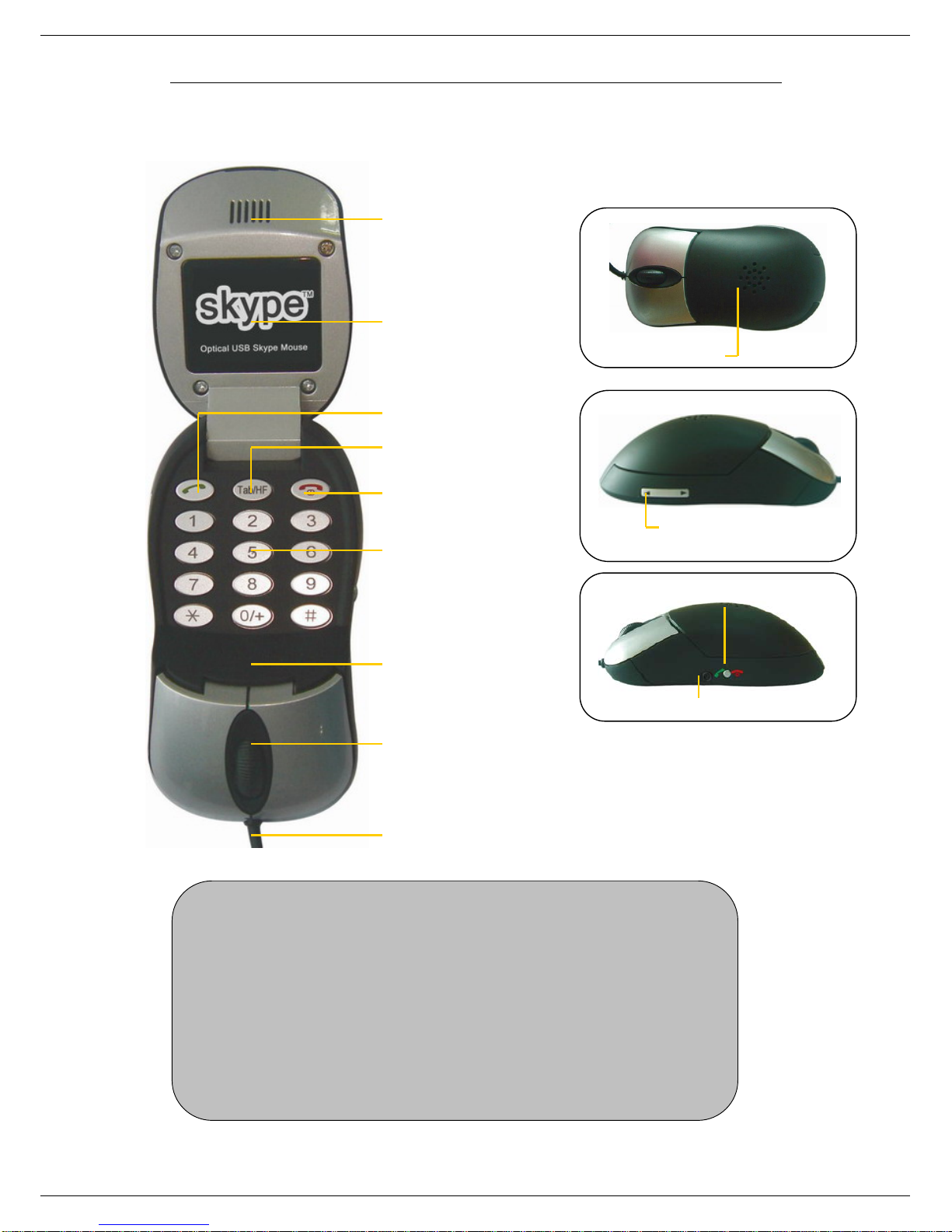
MouseLayout
Receiver
End
/
Cancel ke
y
Numbers
Tab/ Hands-free key*
Answer/Call
Microphone
End/Answer Key
Scroll Button;
Volume Adjuster*
Hi-Fi Speaker
USB Cable
Earphone Connector
Mouse Wheel /
Volume Adjuster*
Note:
LED screen*: The blue LED beneath the screen will be on when making an VoIP call; and
it flashes quickly to indicate an incoming call while slowly to indicate that the hands-free
mode has been activated.
Volume Adjuster*: for detailed usages of Volume Adjusting when the mouse is closed or
opened, please refer to “Other Functions” ---“Adjust Volume for Speaker” in this manual.
Tab/Hands-free key*: Switch between different tables of Skype window on standby
mode; activate the hands-free function during a call. (For detailed usages of the Hans-free
key, please refer to “FAQ” Q4 in this manual.)
LED screen*

User Manual for USB Skype Mouse
- 5 - Version 1.0.0.0 2007-03-22
GettingStarted
UsedasaMouseandaHi-FiSpeaker
Plug the Skype Mouse into the USB port of your PC and you can use it as a mouse and a
Hi-Fi speaker now.
UsedasaVoIPphone
To use it as a VoIP phone, you need to install some needed softwares as shown below:
Step 1: Install the Latest VoIP Applications
The latest version of Skype (Version 2.0 or above) is strongly recommended. You can
download it from Skype’s official website:
http://www.skype.com/download/skype/windows/
Other VoIP applications can be downloaded in the following websites:
VoipBuster http://www.voipbuster.com/en/download.html
VoipStunt http://www.voipstunt.com/en/download.html
VoIPCheap http://www.voipcheap.co.uk/en/download.html
VoipDiscount http://www.voipdiscount.com/en/download.html
SparVoip http://www.sparvoip.de/de/download.html
Internetcalls http://www.internetcalls.com/en/download.html
NetAppel http://www.netappel.fr/fr/download.html
FreeCall http://www.freecall.com/en/download.html
WebCallDirect http://www.webcalldirect.com/en/download.html
VoipCheapCom http://www.voipcheap.com/en/download.html
Poivy http://www.poivy.com/en/download.html
Step 2: Install the Latest Skype Mouse Driver
You can insert the supplied installation CD into your PC or download the latest version of
Skype Mouse driver from http://www.skyu2m.com/download/SkypeMouseSetup.exe.
When the Skype Mouse driver runs for the first time, Skype will pop up the following
window. Please select “Allow this program to use Skype” as the illustration shown below:

User Manual for USB Skype Mouse
- 6 - Version 1.0.0.0 2007-03-22
Now, you can see a green icon in the task bar which indicates you are ready to
make/receive calls with the Skype Mouse.
Driver Icons Indications
(Green) The mouse works normally.
(Grey) The mouse fails to communicate with VoIP applications. (Please
refer to “FAQ” Q1 in this manual)
(Red) The mouse fails to communicate with your computer. (Please refer to
“FAQ” Q2 in this manual.)

User Manual for USB Skype Mouse
- 7 - Version 1.0.0.0 2007-03-22
Step 3: Activate a Needed VoIP Application
Right click the driver icon and “Active VoIP”, and choose the application that
you want to use.
Step4: Set the Intelligent Router for SkypeOut
There are some other famous VoIP applications except Skype providing cheaper or free
VoipOut service for subscribers. The “Intelligent Router for SkypeOut” is designed for you
to enjoy this cheaper or free VoipOut services when you make a SkypeOut calls. You can
set the “Intelligent Router for SkypeOut” as follows:
Right click on the driver icon , choose “Options” and go to “VoIP Application” panel.
Now whenever you make a SkypeOut call, the call will be routed to the selected VoIP
service automatically.
Select a VoIP service

User Manual for USB Skype Mouse
- 8 - Version 1.0.0.0 2007-03-22
To make a free VoIP calls, you can click “Use a FREE VoIP service to make SkypeOut
calls”. If the free VoIP service is unavailable, the SkypeOut calls will be made thru
SkypeOut service.
If you click both “Use a FREE VoIP service to make SkypeOut calls” and “Use the below
VoIP service to make SkypeOut calls”, the SkypeOut calls will be routed to the selected
VoIP service if the free VoIP service is unavailable.

User Manual for USB Skype Mouse
- 9 - Version 1.0.0.0 2007-03-22
Update the Skype Mouse Driver
Please remember to update the Skype Mouse driver regularly. You can follow this
guideline here:
Right click the icon and choose “Check for
Update”.
Or you can enable your driver to check for update automatically in the driver’s panel as
follows:
①Right click the icon , and choose “Options”.
②Go to “General” panel and check before “Check for update automatically”.

User Manual for USB Skype Mouse
- 10 - Version 1.0.0.0 2007-03-22
The Call Functions
MakeaVoIPcall
There are two ways to make a VoIP call.
1. Use the hands-free function to make a VoIP call.
①Press to activate a VoIP window
②Use your mouse wheel to scroll up/down the VoIP contact list to select the contact.
③Click on the “Call” button on Skype window to make the call.
2. Use the phone keypad to make a VoIP call
①Open the mouse
②Use on your mouse to scroll up/down to select the contact.
③Press to make the call.
Note:
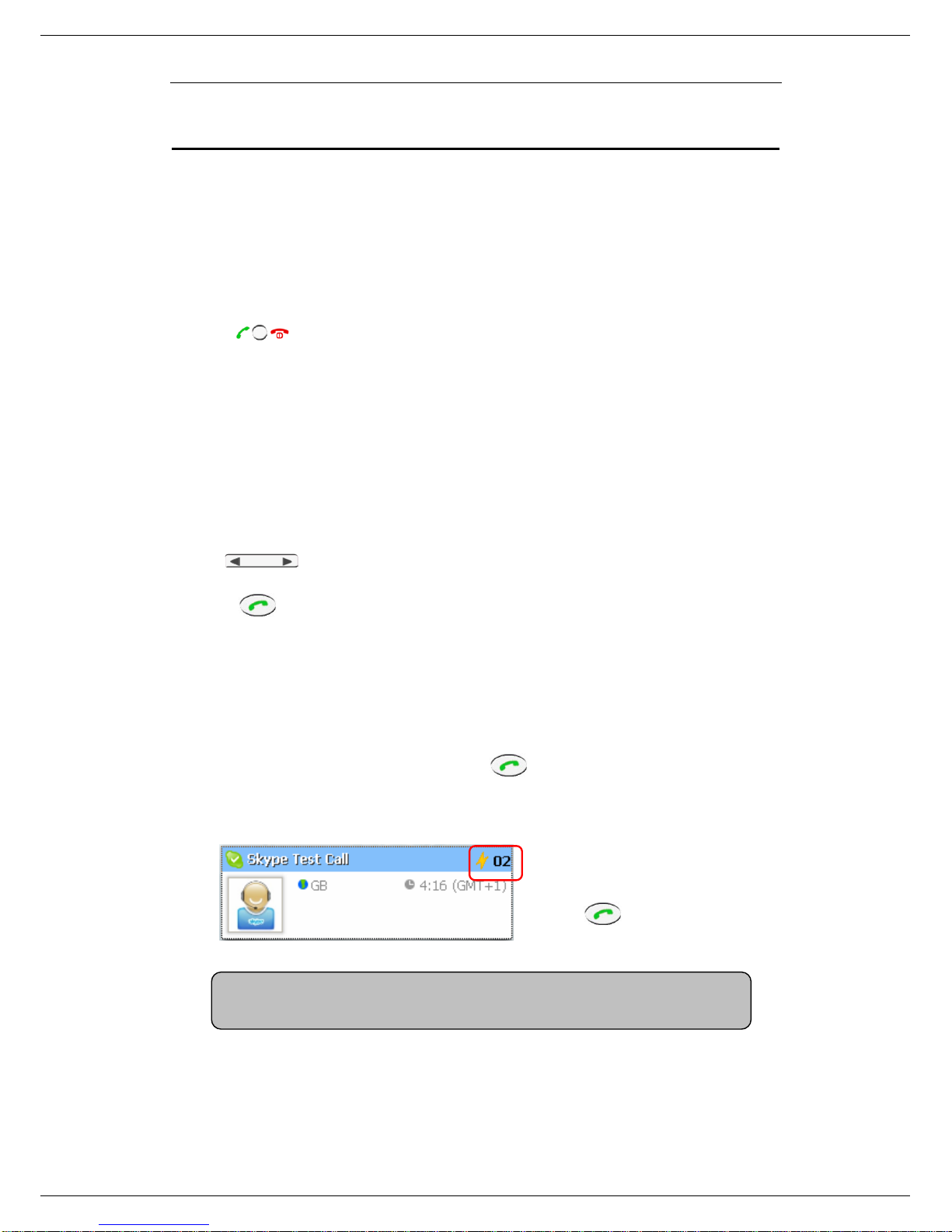
Or you can use Speed-dial number to make calls.
①Open the mouse.
②Dial the Speed-dial number and press to make the call.
Example:
Supposed you want to make calls to
this Skype contact. Please dial:
“02” +
Note:For how to assign Speed Dial for your contacts, please refer to “FAQ”Q5 in this
manual.
Inhaltsverzeichnis