Stellar Cyber Model 3000A & 6000A Installation & Quick Start
Rev 04 7
Changing the Management Configuration
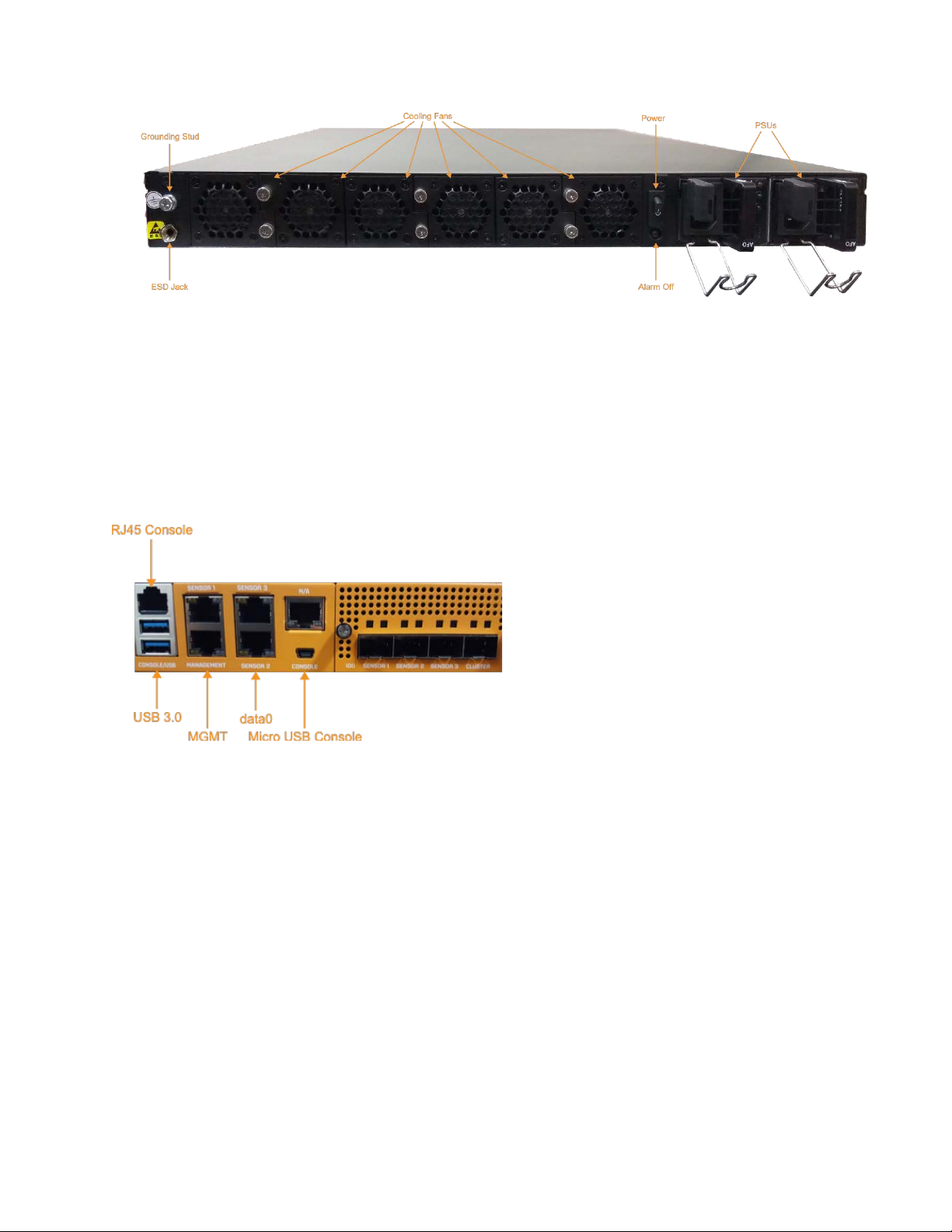
Change the default management, gateway, and DNS IP addresses. From the console or an SSH
session:
set interface mgt ip <new management IP address>/<netmask>
set interface mgt gateway <new gateway IP address>
set interface mgt dns <new DNS server IP address>
Confirm your changes with the show interface, show gateway, and show dns commands.
Apply the new settings:
set interface mgt restart
Changing the Data Port Configuration
Change the default data port, and gateway addresses. From the console or an SSH session:
set interface data1g ip <new data port IP address>/<netmask>
set interface data1g gateway <new data port gateway IP address>
Confirm your changes with the show interface and show gateway commands.
Apply the new settings:
set interface data1g restart
Note: DNS server configuration is not available on the data port.
Setting the License
Stellar Cyber sends your license via email. If you have not received your license, contact
support. To set the license, from the console or an SSH session:
console dl-master
Log in. The default User is aella, and the default Password is changeme.
From the console or an SSH session:
set otp <string>
Accessing Stellar Cyber
To log in to the Stellar Cyber UI, use Chrome or Firefox (the default User is admin, and the
default Password is changeme):
https://<new management IP address>
The first time you log in to the Stellar Cyber GUI, the system guides you through setting the
email address associated with the admin account.