Sunix BTS1009C Bedienungsanleitung

BTS1009C
Bluetooth to Serial Adapter
_______________________________
User’s Manual
Second Edition, April 2007
SUNIX Co., Ltd.
Tel : +886-2-8913-1987
Fax: +886-2-8913-1986
Http://www.sunix.com.tw

- 1 -
BTS1009C Bluetooth to Serial Adapter
User’s Manual
Copyright
Copyright© 2005 SUNIX Co., Ltd. All Rights Reserved.
No part of this publication may be reproduced, transcribed, stored in a retrieval system, translated into any
language, or transmitted in any from or by any means, photocopying, manual, or otherwise, without prior written
permission from SUNIX Co., Ltd.
Disclaimer
SUNIX Co., Ltd. Shall not be liable for any incidental or consequential damages resulting from the performance
or use of this equipment.
SUNIX Co., Ltd. makes no representations or warranties regarding the contents of this manual. Information in
this manual has been carefully checked for reliability; however, no guarantee is given as to the correctness of
this content. In the interest of continued product improvement, this company reserves the right to revise the
manual or include change in the specifications of the product described within it at any time without notice and
without obligation to notify any person of such revision or changes. The information contained in this manual is
provided for general use by the customers.
Trademarks
SUNIX is a registered trademark of SUNIX Co., Ltd.
Other registered marks used herein are for identification purposes only and may be trademarks of their
respective owners.
Safety Information
1. Keep this User’s Manual for future reference.
2. Always read the safety information carefully.
3. Keep this equipment away from direct sunlight, or in humid or damp places.
4. Do not place this equipment in an unstable position, or on vibrating surface before setting it up.
5. Do not use or place this equipment near magnetic fields, televisions, or radios to avoid electronic interface
that affects device performance.
6. Do not attempt to disassemble or repair the equipment or the warranty would be useless.
7. To avoid damaging your system and equipment, please make sure that your computer is off before you
install the product.

Contents
1.0 Features …………...........……………………………….P.2
2.0 Package Content........... ……………………………….P.2
3.0 Hard Drives Requirement ……………………………….P.2
4.0 Specifications……………………………………………….P.3
5.0 Pin Assignment…….…………….……………………….P.5
6.0 Hardware Guide…………………………………………….P.6
7.0 Configure Bluetooth to Serial Adapter…………………….P.8
8.0 Application..……………………………………………..….P.18
9.0 Trouble Shooting…….…………….……………………….P.22
10.0 Appendix….………………………………………………….P.24
- 2 -

Introduction
Thank you for your purchase of the Bluetooth-to-Serial (RS-232) Adapter. Featuring Bluetooth
wireless technology, the serial adapter provides cable-free Serial connections between your Bluetooth
equipped PC and serial devices. Bluetooth-to-Serial Adapter is compliance to Bluetooth Ver2.0+EDR
and you can connect your computer and RS-232 serial devices 100 meters apart without cables in
your working environments.
1.0 Features
zLink RS-232 device to a Bluetooth communication
zSupports Bluetooth Class 1 (20 dbm) version Ver2.0+EDR standard
zOperating distance of up to 100 meters in free space
zSupports baud rate up to 460 Kbps
zCompact sized and easy operation design with User-friendly Windows configuration software
zIntelligent draw/provide 5VDC power to/from the device through the 9th-pin
zPowered by external power adapter or USB port on hosting device
zSupport for Microsoft Windows 98SE, Me, 2000, XP and 2003
2.0 Package Content
Check if the following items are present and in good condition upon opening your package. Contact
your retailer if any of the items is damaged or missing.
1. Hardware:
Bluetooth to Serial Adapter:
Bluetooth to RS-232 ×1
Power Adapter:
5V / 1A 1.3mm
2. CD Driver
3. User's Manual (This document)
3.0 Hard Drives Requirements
zPC should have a Bluetooth host installed, such as a Bluetooth USB dongle. It allows you to
communicate with Bluetooth to Serial Adapter.
zWindows System : Win 98/Me/2000/XP/2003/Vista
- 3 -

- 4 -
4.0
Specifications
Model Name Bluetooth to RS-232 Adapter
Certification FCC, CE
Standard Bluetooth V2.0 + EDR
Frequency Band 2.4~2.4835GHz unlicensed ISM band
Modulation Method GFSK, 1Mbps, 0.5BT Gaussian
Spread Spectrum FHSS (Frequency Hopping Spread Spectrum)
Services Supported Series Port Profile (SPP)
Transfer Rate 1200~ 460,800 bps Baud
RF Output Power Class 1
Antenna 2dBi External Antenna
Working Distance Up to 100m in free space
Sensitivity <-88dBm at < 0.1% BER
Tx Typical: 115mA
Rx Typical: 75mA
Power Consumption
Standby Mode: 15mA
Input Power 5V DC
I/O Interface RS-232 DTE Mode
Connector DB9 Male
Signal RxD, TxD, GND, 5V
LEDs Indicator Power / Bluetooth active / Mode active
Case Material PC
Operation temperature: 0
o
C ~ + 60
o
C
Storage temperature: -10
o
C ~ +70
o
C
Environment
Humidity: 5 ~ 90% non-condensing
Size 109 (L) x 34(W) x 18(H) mm
Weight 150 ±2 g

5.0 Pin Assignment
RS-232
6.0 Hardware Guide
1. RS232 DB9M Connector
2. Set Button:
Push it to change operation between Configure/Data Mode.
3. DC Jack
Apply power to Bluetooth to Serial Adapter by using the power adapter accompanied.
5V / 1A 1.3mm
- 5 -

4. Antenna
5. Power LED (RED) :
Power LED turns on when Power is applied to Bluetooth to RS-232 adapter.
6. Mode LED (Orange) :
MODE LED is ON when Bluetooth to Serial Adapter is set to Configuration mode.
MODE LED is OFF when Bluetooth to Serial Adapter is set to normal DATA mode.
7. Link LED (BLUE) :
Link LED is ON when Bluetooth communication is paired and linked.
Link LED is OFF when Bluetooth communication is not linked.
Link LED is blinking when there is data transmitting / receiving between the linked devices
8. Switch (Applicable only in Power-version Bluetooth to RS-232 Adapter )
There are two states for the 9th pin on the DB9M connector, selectable by switch depend on
user's application. The three states are as follow:
A. None : (Default)
Setting the switch to “NONE"position, the DB9M 9th-pin connector is useless.
B. 5V input / output :
Setting the switch to “5V"position, the adapter can either draw/provide DC 5V power to/from
the device through the 9th-pin of the connector depends on the following scenario,
1. If the device equips 5V self-power features (e.g. barcode scanner with 5V power adapter input),
Bluetooth to RS-232 Adapter can work successfully without any power. A DC 5V power will be
applied to Bluetooth to RS-232 Adapter through DB9M 9th-pin connector from the device.
2. If Bluetooth to RS-232 Adapter with 5V power adapter input, a DC 5V power will output to the
device (e.g. barcode scanner) through DB9M 9th-pin connector from Bluetooth to RS-232 Adapter
- 6 -
CAUTION: Take caution not to let any of the following situations happen while
the switch is set to "5V" position, or damages may occur to both your device
and the Bluetooth Adapter:
1. Do NOT plug in DC 12V power required devices.
2. Do NOT use DC 5V power adapters on both sides at the same time.
3. Your device MUST support power in/output toward DB9M 9th-pin connector.

- 7 -
7.0 Configure Bluetooth to Serial Adapter
This chapter explains how to configure the Bluetooth-to-Serial Adapter and pair it with a Bluetooth
USB Dongle. Please note that Bluetooth USB Dongle is NOT included in the package. We assume
that you have already installed Bluetooth USB Dongle and bound software in your PC successfully.
The following demonstration is the process of pairing steps with Microsoft embedded Bluetooth driver
on Windows XP Service Pack 2.
All the Bluetooth to Serial Adapter must be configured first before they can be used. The purpose of
configuration is to pair two Bluetooth devices for an exclusive connection between them, and pairing is
done by utilizing Bluetooth Address and PIN code.
After pairing process is done and power is on, Bluetooth to Serial Adapter will AUTOMATICALLY try to
link (Master) or to be linked (Slave) with another paired Bluetooth device wirelessly, just like there is a
cable connected between them.
There are two ways to configure your Bluetooth to Serial Adapter :
Local Setting Up
Remote Setting Up
7.1 Local Setting Up
Local setting up can be done by connecting a Bluetooth to Serial Adapter to your PC. You can connect
PC COM port to a Bluetooth to Serial Adapter directly or through a RS-232 converter cable as shown
in Appendix (page 28).
If you forgot any setting which was done before, local setting up is also the only way which allows you
to recreate the setting again.
7.1.1 Preparation :
Step 1 :
Connect this Bluetooth to Serial Adapter to your PC COM Port, such as COM1, COM2 or any other.
Step 2 :
Apply power to Bluetooth to Serial Adapter by using the accompanied 5V Power Adapter.

Step 3 :
Push the Mode Button until the MODE LED lights (Orange color), which indicates that the adapter
is in the Configuration Mode. In this mode, Bluetooth to Serial Adapter is working at Slave state which
is waiting to be linked with other Bluetooth devices.
Step 4 :
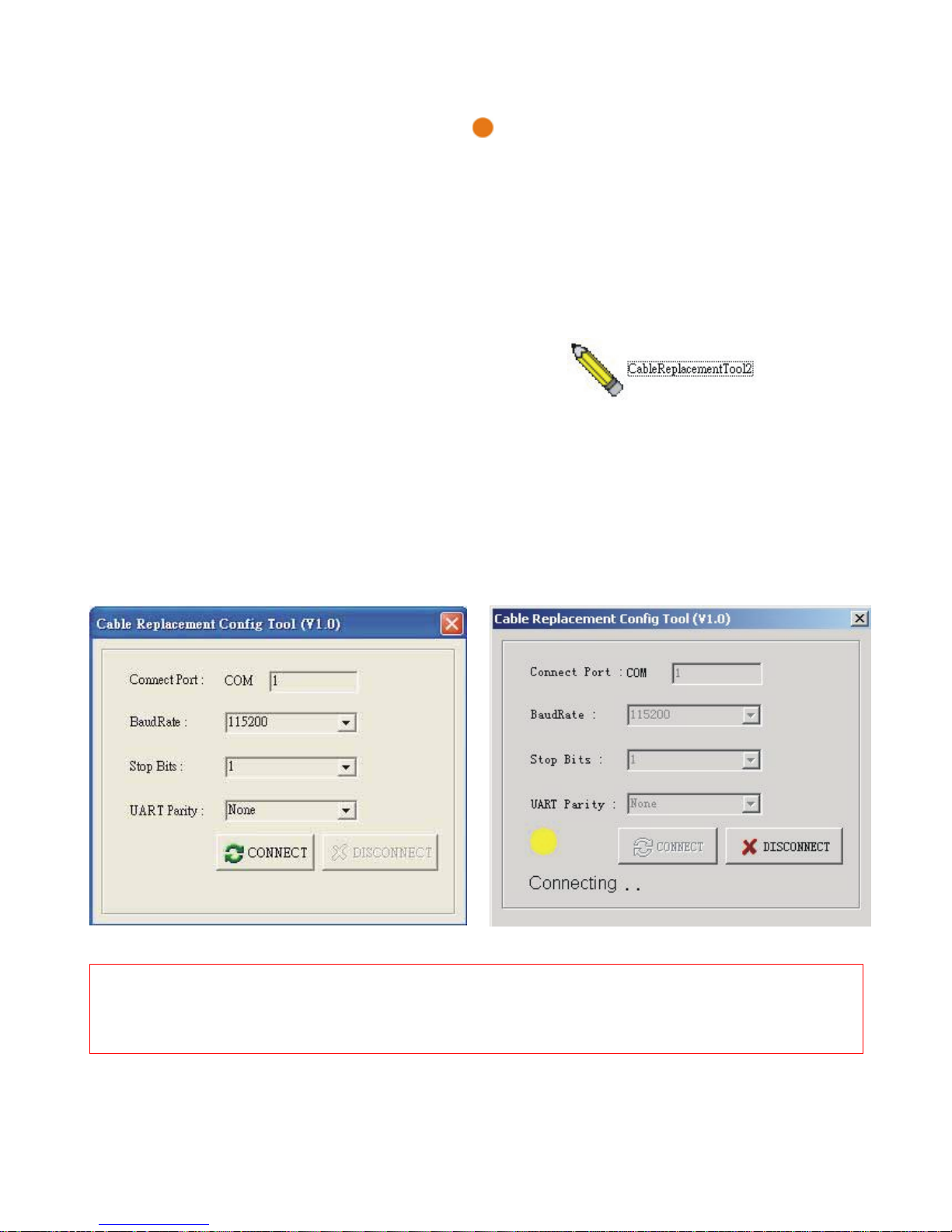
Launch Bluetooth to Serial Adapter Utility - CableReplacementTool2.exe in the accompanied CD
driver :
:\bluetooth\CableReplacementTool2.exe
Step 5 :
Select the PC COM Port which Bluetooth to Serial Adapter is connected.
If it is the first time you are configuring this Bluetooth to Serial Adapter, you can choose the default
Baud Rate : 115200.
Press Connect Button.
Local PC will use this baud rate to connect with your Bluetooth to Serial Adapter.
Note :
The connection will fail if wrong COM port is connected or Baud Rate settings is not correct.
Please refer to section 7.1.3 (page14) for more detail on baud rate setting.
- 8 -

7.1.2 Start Configuration :
Device Mode (default is slave )
Depending on the applications, there are two states which Bluetooth to Serial Adapter can operate in
DATA mode. They are Master and Slave states. If you are using a USB Bluetooth Dongle to pair with
a Bluetooth to Serial adapter, then Bluetooth to Serial Adapter can be set to either Master or Slave
state. If you are using two Bluetooth to Serial Adapter to pair together, then one of them shall be set to
Master and another shall be set to Slave.
Master - Trying to link with other Bluetooth devices.
Slave - Waiting to be linked with other Bluetooth devices.
Master state :
If you choose this state, then you must enter Bluetooth MAC Address of the remote Bluetooth device
(e.g. 000000000000) which this Bluetooth to Serial Adapter will be pairing and connecting with.
Default is none.
Note : Remote Bluetooth Address can be found by searching
your Bluetooth to Serial Adapter as shown in page 20.
Slave State : (Default)
Bluetooth to Serial Adapter can be found by searching
Bluetooth Device on PCs. If it is disabled, then it can not be
found. This feature will prevent other Bluetooth host or
devices to create a link with it accidentally if it has already
been configured to pair with another device before.
- 9 -
Inhaltsverzeichnis